
LeadConnector Desktop App for macOS and Windows: Complete Guide for Agencies and Marketers
Learn how the LeadConnector desktop app provides a stable, native experience for HighLevel users on macOS and Windows. This guide covers installation, white-labeling for agencies, and how to use native notifications to improve lead response times and CRM management without a browser.

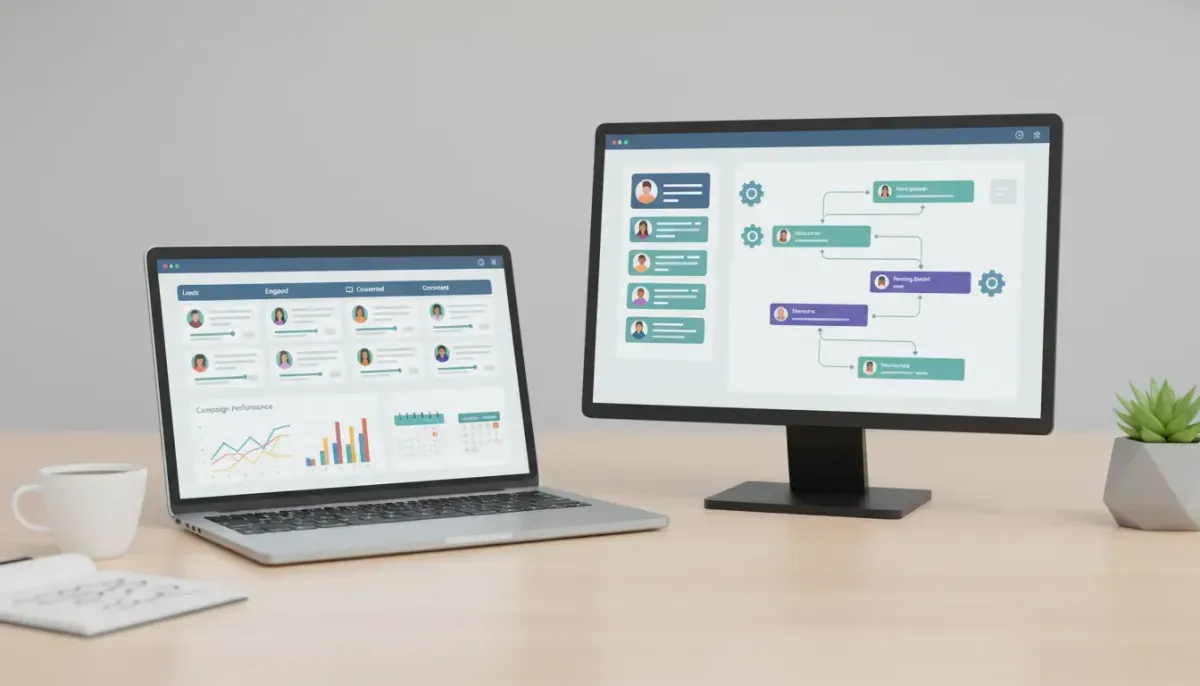
The LeadConnector desktop app brings HighLevel (GoHighLevel) native access to macOS and Windows. This guide explains what the desktop app is, why agencies and marketers should adopt it, how to install and configure it, best practices for onboarding clients, and troubleshooting tips to avoid common pitfalls. If you run an agency, manage client CRM and automations, or support a team using HighLevel workflows, this article shows how to get more stable performance and better engagement by using the desktop experience.
Start Your HighLevel Trial + Get Instant Nexus Hub Access
Build, scale, and optimize your business with HighLevel. Start a free trial using this link to get automatic access to the Nexus Hub community, templates, and implementation resources.
Start Free TrialWhat is the LeadConnector desktop app and who should use it?
The LeadConnector desktop app is a standalone application that provides direct access to HighLevel features — messaging, CRM, pipelines, calendar, and automations — without relying on a browser. It is intended for:
- Marketing agencies that run client accounts and need predictable stability.
- In-house marketing teams wanting a dedicated app for day-to-day CRM and communications.
- Clients and end users who benefit from faster notifications and fewer browser-related issues.
- Support and operations staff that require reliable background connectivity for automations and message delivery.
Why use a desktop app instead of a browser?
A desktop app can remove several pain points that commonly affect browser use. Key advantages include:
- Fewer extension conflicts: Chrome and other browsers often have extensions that interfere with web apps, causing slowdowns or erratic behavior.
- Native notifications: Desktop notifications are more reliable and visible than browser pop-ups, improving response times for lead follow-up.
- Background operation: The app can stay active in the background, maintaining persistent connections for messaging and updates without needing a browser tab open.
- Performance consistency: Desktop apps control rendering and resources more predictably than a multi-extension browser environment.
- Branding and white-label options: Desktop apps make it easier to deliver a branded experience to clients when white-labeling is available on qualifying plans.
System requirements and supported platforms
The desktop app supports both macOS and Windows. Before installing, confirm these basic requirements:
- Operating system: macOS recent versions (Big Sur and later recommended) and Windows 10 or 11.
- Memory: At least 4 GB RAM; 8 GB recommended for heavy multitasking and multiple client accounts.
- Disk space: Minimal — the app itself is small, but allow space for local cache.
- Network: Stable internet connection for messaging, automation triggers, and media uploads.
For specifics about exact supported versions and download links, check the HighLevel account area or the LeadConnector downloads page in your portal.
How to install and set up the LeadConnector desktop app (step-by-step)
Installing the desktop app is straightforward. Use this checklist to ensure a smooth setup for you and your clients:
- Download the installer: Sign into your HighLevel account and download the macOS or Windows installer from the LeadConnector or downloads section.
- Install the app: Run the downloaded installer and follow standard installation steps for your OS.
- Sign in: Use your HighLevel credentials or SSO to sign in. If you manage client sub-accounts, verify you can switch between accounts or sub-accounts as needed.
- Enable notifications: macOS and Windows request permission for native notifications. Enable these to receive real-time lead alerts and messages.
- Configure startup behavior: Set the app to open at login if you want persistent background connectivity.
- Test key functions: Send a test message, trigger a workflow, and check calendar sync to confirm core features work correctly.
Best practices for agencies: onboarding clients to the desktop app
Agencies that transition clients to the desktop app see benefits in engagement and stability. Use this rollout plan to reduce friction:
- Segment clients: Start with a pilot group of tech-savvy clients or internal accounts to validate the process before broad rollout.
- Create simple install instructions: Provide a one-page guide with download links, sign-in steps, and a troubleshooting section tailored to macOS and Windows.
- Enable branding where available: If white-label or custom branding is part of your plan, prepare app icons and brand assets for a seamless client experience.
- Train users on notifications and status: Explain how native notifications work and why keeping the app running helps capture leads faster.
- Monitor metrics: Track response times, open rates for conversations, and CRM activity before and after the switch to measure impact.
- Provide ongoing support: Create a short FAQ or a dedicated support channel to handle install or sign-in issues during rollout.
How the desktop app interacts with HighLevel workflows and automations
The desktop app is an interface layer for HighLevel’s CRM, workflows, and automations. It does not replace server-side automation logic — instead, it improves user-facing reliability:
- Message delivery: Native notifications and background connectivity help agents see and respond to messages triggered by workflows faster.
- Workflow triggers: Server-side automations continue to run normally. The desktop app ensures the user receives notifications and can act on tasks immediately.
- Task management: Pipelines and tasks sync in real time between the web platform and desktop app, preserving workflow continuity.
- Performance-sensitive actions: Uploads, bulk actions, or API calls still rely on underlying HighLevel infrastructure; the desktop experience reduces client-side variability.
White-label and branding: what agencies should know
White-labeling makes the desktop app appear as your agency’s branded product to clients. Key considerations:
- Availability: White-label options are often included on qualifying plans. Verify your plan details in the HighLevel account or pricing documentation.
- Assets required: Prepare high-resolution icons, company name, and custom starter screens if you plan to offer a completely branded experience.
- Support impact: When white-labeling, clients may contact your agency for support rather than the platform. Ensure your processes and documentation handle this demand.
- Legal and compliance: Branding does not change underlying platform terms or data handling; disclose where data is stored and the role of the platform provider in any client agreements.
Troubleshooting: common issues and fixes
Below are common problems agencies and users may encounter with the desktop app and practical steps to resolve them:
- Sign-in failures: Confirm credentials and SSO settings. Clear cached data or re-install the app if authentication tokens are corrupted.
- Notifications not appearing: Check OS-level notification permissions and ensure the app is allowed to run in the background. Restart the app after changing permissions.
- Slow message sync: Verify internet connectivity and close unused heavy applications. If the issue persists, check if there are known platform incidents on status pages.
- Missing features compared to web: Some rarely used features may still live in the web interface. Use the web version for advanced configuration and the desktop app for daily operations.
- Conflicts with proxies or VPNs: Ensure network settings allow the app to reach HighLevel endpoints. Bypass restrictive proxies or whitelist IPs when required.
Migration checklist for moving users from browser to desktop
Use this checklist when migrating teams or clients:
- Identify pilot users and prepare training materials.
- Create step-by-step install and sign-in guides for macOS and Windows.
- Confirm notification permissions and startup settings on pilot machines.
- Test CRM sync, messaging, and workflows in the desktop environment.
- Collect feedback and log any issues during the pilot.
- Refine documentation and expand rollout once pilot success is confirmed.
Security, privacy, and data handling
The desktop app is a client that connects to HighLevel’s cloud services. Important security notes:
Start Your HighLevel Trial + Get Instant Nexus Hub Access
Build, scale, and optimize your business with HighLevel. Start a free trial using this link to get automatic access to the Nexus Hub community, templates, and implementation resources.
Start Free Trial- Authentication: The app uses platform authentication and can integrate with SSO where available.
- Local caching: Some temporary cache may be stored locally for performance. Encourage users to lock computers and sign out when not in use.
- Data flow: All persistent data and automations remain on HighLevel servers; the app is an access point rather than a primary data store.
- Compliance: If you manage regulated client data, review HighLevel’s compliance documentation and your client data agreements before enabling desktop installs broadly.
Practical examples and workflows
Here are practical scenarios where the desktop app improves day-to-day operations:
- Real-time lead follow-up: Native notifications alert an agent immediately when a high-intent lead fills a form, enabling quicker first response and higher conversion rates.
- Multi-account management: Agencies that switch between client sub-accounts can keep a single app open and move between accounts without juggling multiple browser profiles.
- Team inbox handling: Support teams can keep the inbox active in the background for faster triage of incoming messages and missed calls.
- Offline resilience: The app can cache some information locally so agents retain context if network blips occur briefly.
Measuring success: KPIs to track after adoption
Track these key performance indicators to quantify the desktop app’s impact:
- Average first response time for inbound leads and messages.
- Lead conversion rate before and after the switch.
- Support ticket volume related to browser issues.
- User adoption rate across client accounts and teams.
- Automation reliability — number of failed or missed triggers attributable to client-side issues.
Next steps for agencies and teams
To get started:
- Download and install the desktop app for a pilot group.
- Build a 1-page client guide with screenshots for your clients.
- Monitor KPIs and iterate on onboarding materials.
- If you are not on HighLevel yet, consider a free trial to explore desktop plus full workflow, CRM, and automation capabilities.
- Join communities such as Nexus Hub for templates, implementation resources, and agency-ready assets to speed up client rollouts.
Is the desktop app a replacement for the HighLevel web platform?
The desktop app is primarily an access layer and convenience tool. It provides a stable, native experience for messaging, CRM, and day-to-day operations, while the web platform remains the place for advanced configuration, bulk uploads, and account administration.
Will the desktop app improve performance for my clients?
Many agencies see more consistent performance and fewer browser-related issues when clients use the desktop app. Improved notification reliability and reduced extension conflicts usually lead to better engagement and faster response times.
Does the desktop app support white-label branding?
White-label capabilities are offered on qualifying plans. If you plan to brand the app for clients, confirm your plan’s features and prepare the required branding assets. Check your HighLevel account or contact support for current availability and instructions.
How do I troubleshoot sign-in or notification problems?
Common fixes include verifying credentials, checking OS notification permissions, ensuring the app can run in the background, and reinstalling the app to clear cached authentication tokens. If network restrictions exist, verify that connections to HighLevel endpoints are allowed.
Can the desktop app run multiple client accounts at once?
Yes. Agencies that manage multiple sub-accounts can use the app to switch between accounts. This is usually easier and more stable than juggling multiple browser profiles and reduces cross-extension interference.
Summary and final recommendations
The LeadConnector desktop app is a practical upgrade for agencies and teams using HighLevel. It reduces browser-related instability, improves notification reliability, and provides a more consistent user experience for client-facing teams. Start with a small pilot, document the install and sign-in process for your clients, and track KPIs such as first response time and conversion rate to measure benefit. If branding matters, explore white-label options available on qualifying plans and prepare assets ahead of rollout. For templates, implementation support, and community best practices, consider joining Nexus Hub and evaluating a free trial if your agency is not already on HighLevel.
Implement the desktop app strategically and your team will likely spend less time troubleshooting browser issues and more time converting leads and supporting clients.
Start Your HighLevel Trial + Get Instant Nexus Hub Access
Build, scale, and optimize your business with HighLevel. Start a free trial using this link to get automatic access to the Nexus Hub community, templates, and implementation resources.
Start Free Trial


