Social Planner Alt Text Support for Images

HighLevel just made a small update that solves a very real problem inside social media publishing.
You can now add alt text support for images in Social Planner. If you are using HighLevel to manage content, marketing automation, and client communications, this is one of those quality of life improvements that quietly makes your workflow better while also helping you publish more accessible content.
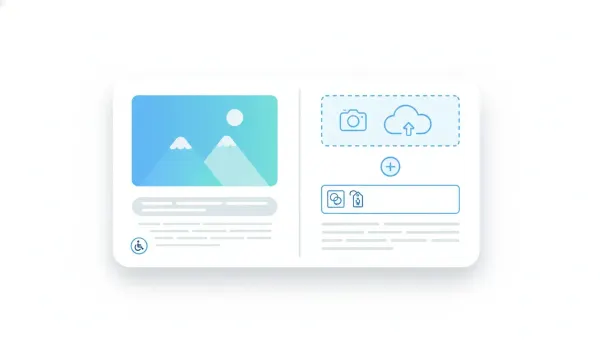
It is a simple feature, but it matters. When you upload an image in Social Planner, you can now include a description for that image, and that description carries through as the alt text. That means the context of the image is no longer left blank or forgotten at the point of publishing.
What Alt Text Support Means in Social Planner
Alt text is the written description attached to an image. Its primary purpose is accessibility. It helps screen readers communicate what an image contains to people who rely on assistive technology. It can also help preserve meaning when an image does not load properly.
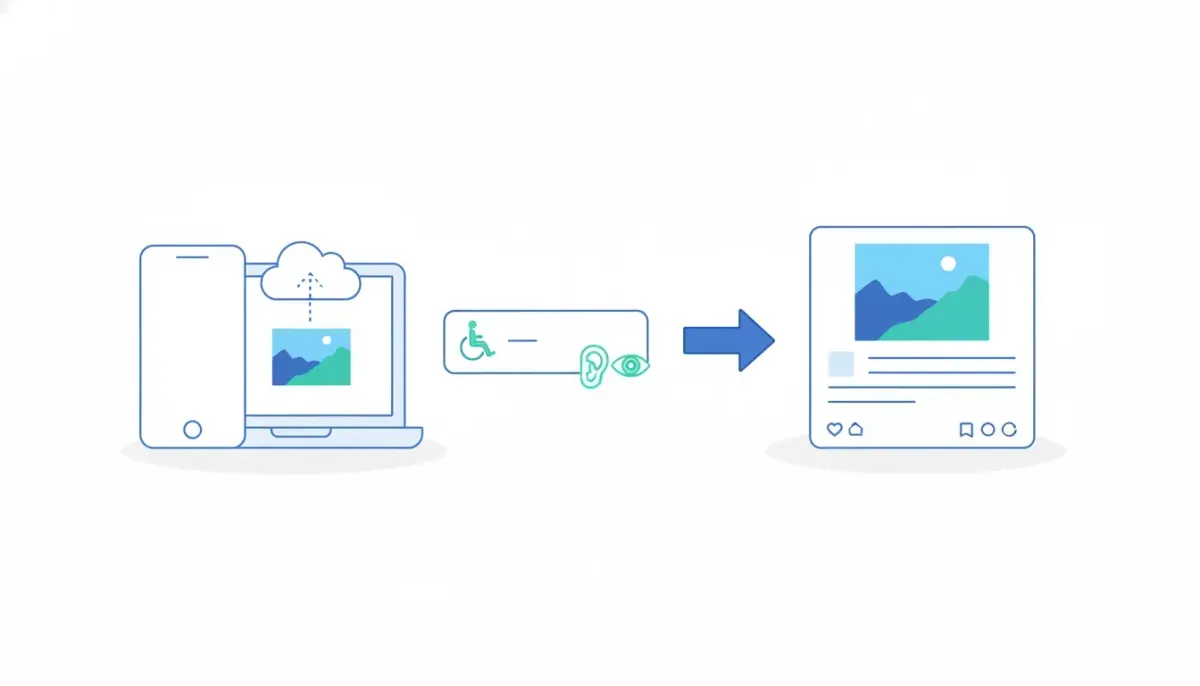
Inside HighLevel Social Planner, the process is now straightforward. Add an image to a social post, enter the image description, and that information is used as the alt text. There is no complicated setup, no extra workaround, and no need to manage it outside the post creation flow.
That is exactly how this kind of feature should work. It belongs right where content is being created.
Why This Update Matters More Than It Looks
On the surface, this may seem like a minor product improvement. In reality, it touches a few important areas that agencies and businesses care about every day:
- Accessibility: Better social content should be easier for more people to engage with.
- Content quality: Adding descriptions forces a little more clarity around what an image is communicating.
- Process consistency: Teams can build alt text into their publishing habits instead of treating it like an afterthought.
- Operational efficiency: Keeping this inside HighLevel reduces friction for social media managers and agency teams.
If you run social content for your own brand or for clients, you already know how often the little details get missed when the publishing process is rushed. Alt text is one of those details. It is important, but it often gets skipped because the platform does not make it easy.
That is why native support inside Social Planner is useful. It removes one more reason for inconsistency.
How It Works Inside HighLevel
The feature is about as simple as it sounds.
- Start creating a post in Social Planner.
- Add your image.
- Enter a description for the image.
- That description is then applied as the alt text.
- You can see the information while putting the post together, so there is visibility before publishing.
That last part is worth mentioning. Being able to see the image description during post creation helps confirm that everything is entered correctly. For agencies handling multiple brands and many scheduled posts, that visibility matters. It reduces mistakes and makes quality control easier.
Accessibility Should Not Be an Afterthought
One of the best things about this update is that it encourages better publishing habits without adding much work.
Accessibility often gets treated as something technical, abstract, or optional. It is not. It is simply part of creating content that is usable by more people. If an image contains important meaning and no description is provided, then some people are left without that context.
Adding alt text is a small step, but it improves the completeness of your content. For businesses that care about communication, brand standards, and customer experience, that matters.
It also reflects well on your agency systems. If you manage multiple accounts through GoHighLevel, building accessibility into your standard operating procedure is smart. It keeps your publishing process more professional and more inclusive.
Why Agencies Using GoHighLevel Should Pay Attention
If you are using HighLevel for agency setup and scaling, features like this are more than a product announcement. They are building blocks for stronger delivery.
Agencies live and die by repeatable systems. The more your team can do inside one platform, the easier it becomes to maintain consistency across services. Social media management is often bundled into broader CRM, marketing automation, and SaaS operations. When your social publishing tools support better execution natively, your team spends less time patching together outside fixes.
That is especially helpful when you are:
- Managing content for multiple client locations
- Training new team members on publishing workflows
- Standardizing QA processes
- Building service delivery around clear best practices
- Trying to reduce missed details in high volume content schedules
In other words, this is one of those improvements that fits right into efficient HighLevel agency operations.
The Complete Operating System for Growth
Join over 60,000+ agencies and businesses using HighLevel to capture more leads and close more deals. Start your trial today and get instant access to the Nexus Hub resources.
Claim Your Free Trial & BonusesBest Practices for Writing Image Alt Text in Social Planner
Since the feature is now available, the next step is using it well. Good alt text is not about stuffing keywords into an image description. It is about clearly explaining what matters in the image.
Here are a few practical guidelines:
1. Describe the important content
Focus on what the image is actually communicating. If it is a product photo, mention the product. If it shows a person performing an action, mention the action. If there is text in the graphic that matters to understanding the post, include the essence of that text in a natural way.
2. Keep it clear and useful
You do not need to overdo it. Aim for concise, relevant description. Think of it as giving someone the information they would miss if the image were not visible.
3. Match the purpose of the post
The same image could be described differently depending on why it is being used. A team photo in a recruiting post may need a different description than that same photo used in a local community update.
4. Avoid filler phrasing
You usually do not need to say that it is an image or a picture. Just describe the content directly.
5. Build it into your checklist
If your team uses HighLevel workflows and automations to manage operations, treat alt text the same way you treat post approval, caption review, or brand voice checks. It should be part of the process, not a nice extra.
Operational Benefits for Teams and Social Media Managers
Small interface improvements can create outsized benefits when repeated across dozens or hundreds of posts.
Adding alt text support directly in the post creation experience helps teams:
- Move faster: No need to rely on separate notes or remember to add descriptions elsewhere.
- Work cleaner: Everything related to the social post lives together in one workflow.
- Reduce omissions: The more visible the field, the more likely it gets completed.
- Improve handoffs: Team members reviewing or approving content can see the image description before publishing.
For agencies, this also supports better client delivery. Clients may never specifically ask whether alt text is included in scheduled social posts, but it is still part of doing thoughtful work well.
How This Fits Into the Bigger HighLevel Picture
One reason HighLevel continues to be useful for agencies and businesses is that it is not just a CRM. It is a platform designed to centralize marketing execution, communication, and operational systems.
Social Planner is one piece of that. When social publishing becomes more capable inside the same ecosystem you use for lead capture, automation, follow up, and client management, your team gets a tighter operating system overall.
That matters because scaling is rarely about one giant breakthrough. More often, it comes from dozens of improvements that make daily execution smoother:
- Better publishing tools
- Stronger agency systems
- Cleaner internal processes
- More complete client service delivery
- Less dependence on disconnected tools
Alt text support for images lands in that category. It is a practical update that improves the completeness of social content without complicating the workflow.
A Good Reminder for Teams Building Better Content Systems
Features like this are also a reminder of something bigger. The best systems are usually the ones that make the right action easy.
If your process depends on people remembering an important step from memory every single time, it will eventually fail. If the platform places that step right where the work happens, your odds improve immediately.
That is true across agency systems, CRM operations, and marketing automation. Build the process into the flow. Make it visible. Make it repeatable. Make it simple enough that the team actually uses it.
This Social Planner update follows that logic well.
What to Do Next
If you are already using HighLevel Social Planner, the next move is easy. The next time you create a post with an image, add the description and confirm it appears as expected. It only takes a moment, and it helps create stronger publishing habits right away.
If you manage a team, this is also a good time to update your internal best practices. Add alt text checks to your publishing SOP. Include it in onboarding. Make it part of your review process for client content.
And if you are building out your full GoHighLevel setup, this is one more example of why centralizing your agency systems can pay off. Better tools inside one platform lead to fewer gaps, stronger execution, and smoother scaling.
FAQ
What is new in HighLevel Social Planner?
HighLevel Social Planner now supports alt text for images. When creating a social post, you can enter an image description, and that description is applied as the alt text.
Why is alt text important for social media images?
Alt text improves accessibility by helping assistive technologies communicate what an image contains. It also helps preserve context if an image does not load or cannot be seen clearly.
Where do I add alt text in Social Planner?
You add it when uploading or attaching an image during post creation. Enter the image description in the available field, and that information is used as the alt text.
Can I see the image description before publishing?
Yes. The update allows you to see the image description while creating the post, which makes it easier to review and confirm before scheduling or publishing.
How does this help agencies using GoHighLevel?
It helps agencies create more consistent, accessible content inside the same platform they use for CRM, marketing automation, and client operations. That supports better workflows, cleaner quality control, and stronger service delivery.
Is this useful for HighLevel workflow and automation strategies?
Yes. While alt text itself is part of the social publishing process, it fits into broader HighLevel implementation strategies by making content standards easier to document, repeat, and enforce across teams.