
Did You Know You Can Connect Custom Objects Together to Build a Relational Database in HighLevel?

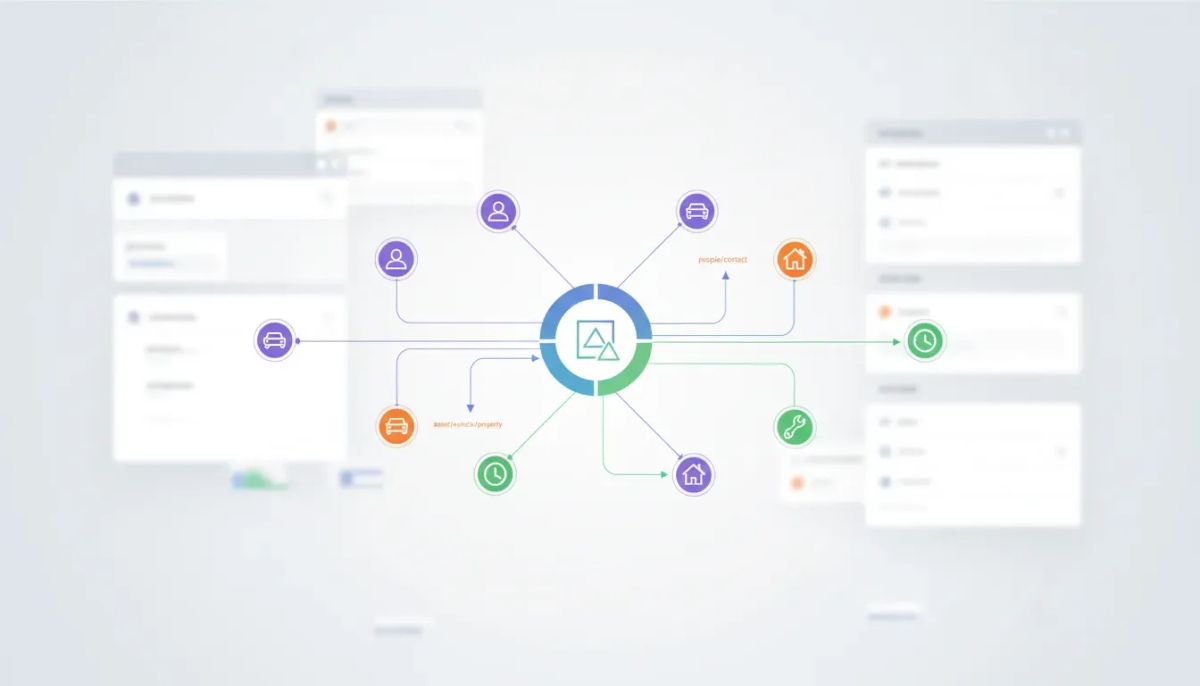
Most people think of a CRM as a place to store contacts, track conversations, and maybe manage a few pipeline stages.
The Complete Operating System for Growth
Join over 60,000+ agencies and businesses using HighLevel to capture more leads and close more deals. Start your trial today and get instant access to the Nexus Hub resources.
Claim Your Free Trial & BonusesThat is useful, but it is also limiting.
HighLevel can do a lot more than just track people. With custom objects and associations, you can build a relational database directly inside your HighLevel sub-account. That means you are not just storing contact records. You are connecting the things that matter to your business.
If you run a dealership, service center, property management business, or any operation where people are tied to assets, records, or service history, this changes everything. Instead of relying on spreadsheets, disconnected tools, or clunky workarounds, you can organize your data in one connected CRM.
A simple example is a car dealership. You can create a custom object for cars, store a VIN number for each one, and link that vehicle directly to its owner. Now your CRM is no longer just a contact database. It becomes a system that reflects how the business actually operates.
That is the core idea here: build relationships between records so your CRM mirrors real life.
Why relational data matters inside a CRM
Businesses rarely operate around contacts alone.
A contact may own a car. A tenant may be tied to a property. A customer may have a service record. A client may have contracts, subscriptions, assets, or cases associated with them.
When those pieces of information live in separate systems, a few problems usually show up fast:
- Teams have to jump between tools to get the full picture.
- Important information gets duplicated or lost.
- Reporting becomes harder than it should be.
- Manual updates create errors and wasted time.
- Automations break because the data is not connected.
Using HighLevel custom objects, you can solve that by creating records beyond standard contacts and then linking them together with associations.
That is what turns a standard CRM into something closer to a relational database.
What custom objects do in HighLevel
Custom objects give you a way to store and manage information that does not fit neatly into the default contact structure.
Instead of trying to force everything into a contact record, you create a separate object for the thing you want to track.
That object could be:
- Cars
- Properties
- Equipment
- Service records
- Policies
- Accounts
Once created, that object can have its own fields, its own display logic, and most importantly, its own relationship to a contact.
In the example used here, the custom object is Car, and the primary display field is the VIN number.
That setup makes perfect sense because the VIN acts as the unique identifier for the vehicle. When you see the record inside HighLevel, the VIN is what tells you exactly which car is being referenced.
How associations make the system relational
Creating a custom object is only half the story.
The real power comes from associations.
An association is the relationship between one record and another. In this case, it is the connection between the contact and the car.
So instead of just storing a VIN in some random custom field on the contact, you are creating an actual linked record. That means the car exists as its own object, and the owner exists as a contact, with a defined relationship between the two.
This is a much cleaner structure for businesses that need connected records.
For example:
- A dealership can link vehicles to customers.
- A service center can connect service-related assets to the correct owner.
- A property manager can tie properties to tenants or owners.
Instead of having fragmented data across spreadsheets and separate apps, everything sits inside one CRM environment.
How to create a custom object in HighLevel
If you want to build this in your own account, the setup starts inside your HighLevel sub-account.
- Go to Settings in the bottom left.
- Open Objects.
- Create a new custom object.
- Name the object based on what you want to track, such as Car.
- Choose the primary display field. In the vehicle example, that is the VIN number.
The primary display field matters because it becomes the main label you see when interacting with that record throughout the CRM.
If you are tracking vehicles, VIN is a strong choice. If you are tracking properties, the address might be the best fit. The goal is to pick the field that most clearly identifies each record.
How to set up the association
After the object is created, the next step is to define the relationship.
Inside the object settings, go to Associations and create the connection you want. In the example, the association is set up between the owner and the VIN record.
That association is what allows the car object to appear in the contact profile.
Once this is configured, each contact can have linked records associated with them. In practical terms, that means when you open a contact, you can see the related car record directly on their profile.
This is where the system starts to feel dramatically more useful. You are no longer just looking at a name, phone number, and email address. You are seeing the real-world record that matters to the business.
How linked records appear inside the contact profile
Once the association is in place, open a contact record and look at the Associations area on the right side of the profile.
You will see the custom object there, along with the related record. Using the vehicle example, that means the contact profile can display the associated car and its VIN number.
This layout is simple, but it is powerful.
It gives your team immediate context without needing to hunt for information somewhere else. If someone calls in, you can quickly understand who they are and which asset is tied to them.
That is one of the biggest advantages of using HighLevel this way. It keeps your CRM operational, not just informational.
How to add custom object records manually
If you are starting from scratch or migrating a process that was previously handled manually, you can add records one by one.
Inside the contact profile, click the Add button in the associations section.
From there, create a new record for the custom object and fill in the relevant custom field values. In the example, that means creating a new car record and entering the VIN number.
Once saved, that custom object becomes associated with the contact.
This manual option is useful when:
- You are building out the system for the first time
- You have a small number of records to enter
- Your team needs to add data case by case
- You want to verify the structure before automating it
It is a clean starting point because it helps you test the relationship model before scaling it across forms, funnels, or broader workflows.
The Complete Operating System for Growth
Join over 60,000+ agencies and businesses using HighLevel to capture more leads and close more deals. Start your trial today and get instant access to the Nexus Hub resources.
Claim Your Free Trial & BonusesHow to automate custom object data collection with forms
Manual entry works, but automation is where this gets especially useful.
HighLevel allows you to collect custom object data through forms, which means the information can be submitted and attached to the appropriate record automatically.
To set that up:
- Go to Sites.
- Open Forms.
- Launch the Form Builder.
- Click Add Object Fields.
- Select the custom object you created from the dropdown.
- Drag the object field into the form.
- Save the form.
In the car example, you would add the VIN field from the Car object into the form. Once someone submits that form, the information can populate the associated record and connect it to the contact profile.
This is where your CRM starts doing real operational work for you.
Instead of asking staff to collect details, copy them into spreadsheets, and then update records later, the system captures the information once and stores it in the right place from the start.
Where this fits into HighLevel workflows and automations
Even though the main focus here is object setup and forms, the bigger idea connects directly to HighLevel workflows and automations.
When your data is structured properly, automation becomes more reliable and more meaningful.
If your CRM knows not just who the contact is, but also which asset or record is tied to them, you can build much stronger internal systems. Your forms, funnels, and operational processes stop acting like isolated pieces and start working as one connected system.
This matters for agencies and operators using GoHighLevel for more than basic lead capture. If you are managing client accounts, building internal systems, or improving SaaS operations, having a connected data model can help you create cleaner implementations and more scalable account structures.
In other words, better data architecture leads to better automation.
A practical example: cars and owners
Here is the simplest version of the setup:
- Create a custom object called Car
- Set the primary display field to VIN number
- Create an association between the contact and the car record
- Open a contact and add the related car under associations
- Optionally collect the VIN through a HighLevel form
Now every contact can have a connected asset record attached to them.
That may sound simple, but it is exactly how strong CRM systems are built. You define the entities that matter, establish their relationships, and make that structure usable for your team.
For businesses that have outgrown spreadsheets, this is often the difference between a messy database and a usable one.
Why this is better than spreadsheets and disconnected tools
Spreadsheets are fine until they become the operating system of your business.
At that point, they usually create more friction than flexibility.
When customer records live in one tool, asset details live in another, and intake forms live somewhere else, your team ends up piecing the story together manually. That slows down service, increases mistakes, and makes scaling harder.
Using HighLevel CRM with custom objects keeps the data where it belongs:
- Contacts stay connected to the records that matter
- Object data is structured instead of improvised
- Forms can capture the right information directly
- Your sub-account becomes more aligned with real business processes
That is especially valuable for teams trying to simplify their agency systems, standardize implementation, or build stronger client account setups inside GoHighLevel.
Best practices when setting up custom objects in GHL
If you are planning your own setup, a few simple practices can make the structure cleaner from day one.
Choose a clear primary display field
Pick the field that uniquely identifies the record. For a car, VIN is ideal. The display field should make records immediately recognizable.
Name the object based on how the business talks about it
If your team calls them vehicles, use Vehicles. If they call them properties, use Properties. Keep the language operational and obvious.
Define the association intentionally
Make sure the relationship reflects the real connection you need. In this case, owner to car is the key link.
Test manually before automating
Add a few records by hand first. Confirm they appear correctly inside the contact profile. Once the relationship works as expected, bring forms into the process.
Use forms to reduce manual entry
If the data can be collected from the start, build it into your intake flow. That creates cleaner records and saves your team time.
How this supports agency setup and scaling
For agencies using HighLevel, this feature is more than a nice-to-have. It opens up better implementation possibilities for clients with more complex business models.
Many businesses do not operate on contacts alone. They operate on customers tied to things. Vehicles, properties, equipment, records, memberships, service items, and more.
When you can model those relationships inside a client sub-account, your setup becomes much more valuable. You are not just deploying a generic CRM. You are building a system around the client’s actual operations.
That can improve:
- Client onboarding
- Data organization
- Workflow design
- Long-term retention through better implementation
For agencies focused on scaling, this kind of structured setup is often what separates basic accounts from robust client systems.
The bigger takeaway
The important idea here is not just that HighLevel has custom objects.
It is that you can use them to create relationships between records and build a CRM that reflects the way your business actually works.
That shift matters.
Instead of forcing operations into flat contact fields or external spreadsheets, you create a system that connects people, assets, and records in one place. It is cleaner, more scalable, and far more useful for day-to-day execution.
If your team has been piecing together information from different tools, this is one of the simplest ways to create a more connected structure inside GoHighLevel.
And if you are still exploring what HighLevel can do, this is a strong example of why the platform works for more than just marketing automation. It can also support the data structure behind real business operations.
If you want to put this into practice, starting a HighLevel free trial is a practical next step. And if you want help with templates, implementation ideas, or scaling your setup, the Nexus Hub community can be a useful place to continue building.
FAQ
What is a custom object in HighLevel?
A custom object is a record type you create in HighLevel to store information beyond standard contact data. Examples include cars, properties, or other business-specific records.
What does it mean to build a relational database in HighLevel?
It means connecting different record types, such as contacts and assets, using associations. This allows your CRM to store related data in a structured, connected way instead of keeping everything in disconnected fields or spreadsheets.
How do I create a custom object in GoHighLevel?
Inside a sub-account, go to Settings, then Objects, create the new object, name it, and choose a primary display field such as a VIN number for a vehicle record.
What are associations in HighLevel?
Associations are the relationships between records. They allow you to link a custom object, such as a car, to a contact, such as the owner.
Can I add custom object data through forms?
Yes. In the HighLevel Form Builder, you can use Add Object Fields, choose the custom object, and drag its fields into the form so submitted data is tied to the record structure you created.
Who benefits most from custom objects in GHL?
Businesses that manage people alongside assets or records benefit the most. Examples include dealerships, service centers, and property managers, as well as agencies building customized systems for those kinds of clients.
Why is this better than using spreadsheets?
Custom objects and associations keep related data inside one CRM, making it easier to manage, update, and automate. Spreadsheets often create disconnected processes, duplicate data, and manual work.
The Complete Operating System for Growth
Join over 60,000+ agencies and businesses using HighLevel to capture more leads and close more deals. Start your trial today and get instant access to the Nexus Hub resources.
Claim Your Free Trial & Bonuses


