
How to Create a Brand Board in HighLevel for Consistent Branding

Consistent branding sounds simple until you are building a website, writing emails, updating funnels, and trying to remember which blue is the right blue. Then suddenly you are digging through old files, hunting for hex codes, and guessing which font was supposed to be your headline font.
That is exactly where a brand board inside HighLevel becomes incredibly useful.
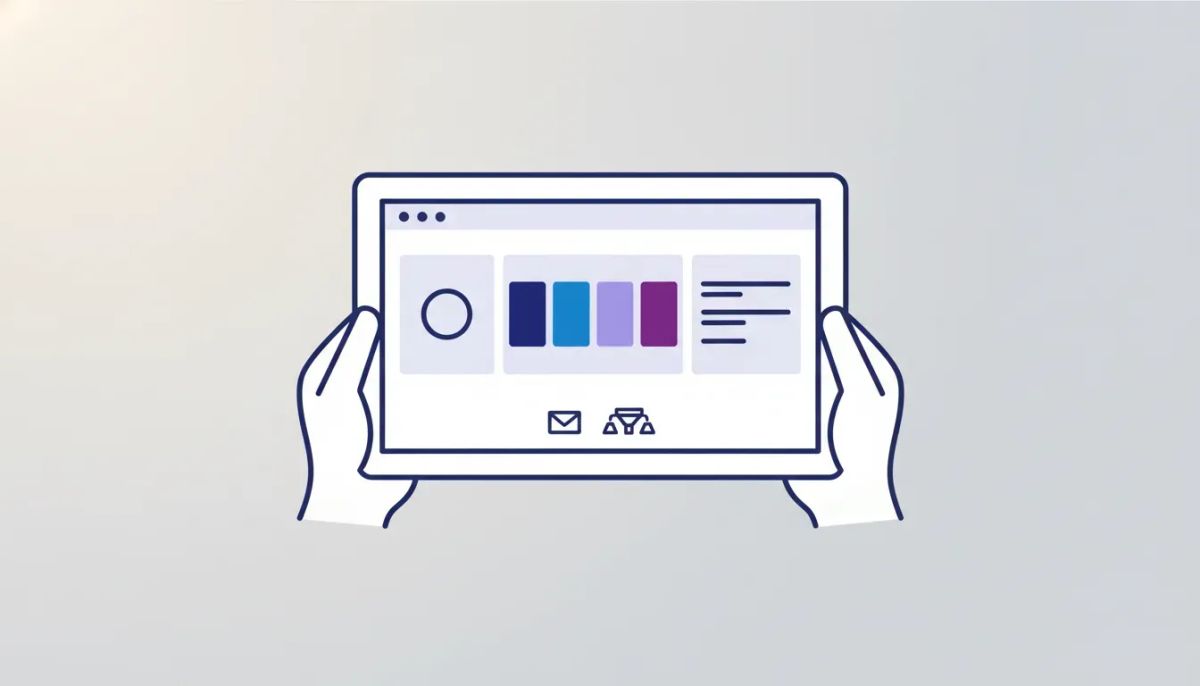
A brand board gives you one place to store and organize the key pieces of your brand: your logo, your brand color palette, and your fonts. Once it is set up, those assets become easier to use across your CRM, including emails, funnels, websites, and more. It saves time, reduces mistakes, and helps keep everything looking polished and on-brand.
If you are managing marketing inside HighLevel, whether for your own business or as part of a larger agency setup, this is one of those small features that can make day-to-day execution much smoother.
Why a brand board matters in HighLevel
HighLevel is built to support CRM, marketing automation, websites, funnels, and client delivery in one place. That also means branding can show up in a lot of places. Without a central system, it is easy for small inconsistencies to creep in.
A brand board helps solve that by giving you a reusable design kit. Instead of manually entering colors every time or re-uploading assets across tools, you can keep your brand resources organized and accessible.
The practical benefits are straightforward:
- Faster design work because your colors and fonts are already available
- More consistency across websites, funnels, and email campaigns
- Less guesswork around logos, typography, and color codes
- Easier team collaboration when multiple people are building inside the same CRM
- Helpful inspiration if you are still developing your brand and need a starting point
For agencies using GoHighLevel to support multiple brands, this becomes even more valuable. Standardized assets make implementation cleaner and reduce the friction that often slows down launches.
Where to find Brand Boards in HighLevel
You can access Brand Boards in two places inside HighLevel:
- From Marketing on the left, then Brand Boards at the top
- From Settings at the bottom left, then Brand Boards
Once you are in, you can begin building what HighLevel calls a design kit and also add your brand voice. The design kit is where your visual brand elements live.
Three ways to create a design kit
When you click Add Design Kit, HighLevel gives you a few different ways to get started. This flexibility is useful because not every business starts from the same place.
1. Import your brand kit from a website
This is the fastest option and honestly the coolest one if your website already reflects your brand well.
You simply enter your website URL, and HighLevel can pull in the existing brand data directly from your site. That includes:
- Your logo
- Your brand colors
- Your typography
After you click Import Brand Kit, HighLevel scans the site and creates a brand board using the assets it finds. This is a big time-saver because you do not have to manually gather every design detail before getting started.
If you already have a live site and want to move quickly, this is usually the best place to begin.
2. Start from blank
If you want complete control or your branding is not yet reflected on your site, you can start with an empty design kit.
In that case, you will manually add:
- Your logos
- Your brand colors and hex codes
- Your fonts
This method works well if you have brand guidelines already documented or if your website is still under construction.
3. Use a template
Templates are great if you are still shaping your brand identity and want a little inspiration. HighLevel offers prebuilt combinations of colors and typography that work well together.
You can choose a template, use it as-is, or adjust it until it fits your brand direction. For newer businesses or internal projects, this can be a surprisingly helpful shortcut.
How to import a brand board from your website
If speed and convenience matter, importing from your website is the easiest route.
- Open Brand Boards
- Click Add Design Kit
- Enter your website URL in the import field
- Click Import Brand Kit
Once the import is complete, HighLevel will populate the board with the visual assets it detected on your site.
You will typically see:
- A header logo
- A footer logo if one exists on the site
- Your color palette
- Your main and secondary fonts
If your website does not have a footer logo, HighLevel will not invent one for you. It only imports what is actually there. That is important to remember when reviewing the result.
Editing logos, colors, and typography
After import, you are not locked into anything. The brand board is meant to be edited.
Logos
If a logo did not import properly, or if you want to replace one, click the edit icon in the logo area. That will open the media library, where you can upload the correct file manually.
This is especially useful if:
- Your website uses a simplified logo in one location
- You want to add a footer version manually
- You have alternate logo variations for different uses
Brand colors
The imported brand colors appear directly in the board. You can add new colors, remove colors you do not want, and click any color to see its hex code.
That means you no longer need a separate document just to keep track of brand color values. The board becomes your visual reference and your practical working tool.
Fonts
HighLevel pulls in your main and secondary fonts from the website when available. You can also click Plus Add to include more fonts, with support for up to five different fonts in the brand board.
That gives you enough flexibility for most common brand systems, including:
- A primary heading font
- A body font
- An accent or decorative font
- Alternate styles for different design contexts
When everything looks right, click Save Board and make sure you rename it clearly.
The Complete Operating System for Growth
Join over 60,000+ agencies and businesses using HighLevel to capture more leads and close more deals. Start your trial today and get instant access to the Nexus Hub resources.
Claim Your Free Trial & BonusesHow to build a brand board from scratch
If you choose Start from Blank, HighLevel opens a completely empty brand board. This is the manual route, so you will need to know your branding details ahead of time.
That includes:
- Your logo files
- The hex codes for your colors
- The names of your fonts
This approach is ideal when your business already has established brand guidelines, or when you are setting up a fresh account and want to build the design kit with precision from day one.
It can also be useful in HighLevel agency setup and scaling environments where you are onboarding clients from structured brand documents rather than importing assets from an existing website.
How to use templates for inspiration
Not every brand starts fully formed, and HighLevel accounts for that.
When you choose a template, the system preloads a coordinated set of brand colors and typography. This gives you a starting point that already feels visually cohesive.
Templates are helpful when:
- You are launching a new project quickly
- You need inspiration before finalizing a brand
- You want a polished placeholder while refining your visual identity
Even if you do not keep the template exactly as provided, it can help you move from a blank screen to a usable design system much faster.
Managing multiple brand boards
HighLevel gives you some useful management options for brand boards as well. By clicking the three-dot menu on a board, you can:
- Delete a board you no longer need
- Clone a board to create a variation
- Set a board as default
This is especially helpful if you manage more than one identity or want multiple versions of the same brand system.
For example, cloning can be useful if you want to test a refreshed color palette while keeping the original intact. And setting one board as the default makes it easier to keep your most-used assets front and center.
For agencies running SaaS operations or supporting multiple sub-accounts, organized brand boards can become a practical part of implementation strategy. It keeps creative assets tidy without adding complexity to the build process.
How brand boards work inside websites
The real payoff happens when you start building.
Inside the HighLevel website builder, your brand board colors become available directly in the editor. If you create a new website, add a page, and insert text, you can open the color settings and see your saved brand palette right there.
That means:
- No manually typing hex codes
- No switching tabs to check your design guide
- No trying to remember which shade was approved
You simply select the brand color you want and apply it to headlines, text, and other design elements.
This same general experience applies in funnels as well, which makes the feature especially valuable for marketing teams building multiple assets inside the same CRM.
How brand boards work inside email campaigns
Brand boards also show up in the email editor.
When you create a new campaign and open the design editor, your brand colors appear in the color picker for text styling. So when you are formatting email content, the palette is already there and ready to use.
This is a small detail that makes a big difference. Email branding often gets overlooked because campaigns are produced quickly. Having your color system available inside the editor helps keep newsletters, promotional emails, and nurture campaigns visually aligned with the rest of your brand.
If you are using HighLevel workflows and automations to send campaigns at scale, this kind of consistency supports a more professional overall brand experience.
One important thing to know about updates
There is one detail worth keeping in mind when you change your brand board later.
If you update the colors in your brand board, those changes will apply to future assets you create, such as new websites, new funnels, or new email campaigns. They do not automatically update content you already built before the change.
That matters because it protects existing designs from changing unexpectedly. But it also means that if you rebrand, you may need to manually update older assets if you want everything to match the new system.
So the best practice is simple: get your brand board dialed in early, then use it as your foundation going forward.
Best practices for using Brand Boards well
If you want this feature to work for you and not just sit there, a few habits make all the difference.
Rename boards clearly
Do not leave boards with generic names. Use names that make sense for your business, your client, or the variation you are creating.
Set a default board
If one design kit is your primary brand, mark it as the default. This helps keep your workflow cleaner.
Review imported assets
Website imports are fast, but they still need a quick check. Make sure the logos, colors, and fonts match what you actually want to use.
Use templates strategically
Templates are not only for beginners. They can also help internal teams brainstorm faster when building new offers, micro-brands, or temporary campaign assets.
Update before building new assets
Since changes affect future work and not previous designs, it is smart to finalize updates before creating your next round of websites, funnels, or campaigns.
Why this matters for agencies and growing businesses
In a platform like GoHighLevel, the power comes from having sales, marketing, automation, and delivery systems connected in one place. But operational efficiency is not just about workflows and pipelines. It is also about how easily teams can produce brand-consistent assets without friction.
That is where brand boards fit in.
They support cleaner execution across:
- CRM-based marketing operations
- Website and funnel production
- Email campaign design
- Agency implementation systems
- Scalable client onboarding processes
It is a simple feature, but one that supports better agency systems and smoother production inside HighLevel.
FAQ
Where can I access Brand Boards in HighLevel?
You can access Brand Boards from the Marketing menu on the left and then Brand Boards, or from Settings in the bottom left and then Brand Boards.
Can HighLevel import my brand assets from my website?
Yes. You can enter your website URL and use the Import Brand Kit feature to pull in your logo, colors, and fonts from your existing site.
What happens if my footer logo does not import?
If your website does not have a footer logo, HighLevel will not pull one in. You can manually upload it through the media library by clicking the edit icon in the logo area.
Can I create a brand board manually?
Yes. You can choose Start from Blank and manually upload logos, enter hex codes for colors, and add your font names yourself.
How many fonts can I add to a brand board?
You can add up to five different fonts to a brand board in HighLevel.
Can I have more than one brand board?
Yes. You can create multiple brand boards, clone existing ones, delete boards you no longer need, and set one as your default board.
Where can I use my brand board inside HighLevel?
Your brand board assets can be used in places like websites, funnels, and email campaigns. For example, your saved brand colors will appear in the color picker while editing text.
Do brand board updates change existing emails or pages automatically?
No. Updates to your brand board apply to future assets only. Existing emails, websites, and other content created before the change will stay the same unless you update them manually.
Final thoughts
If you are already building inside HighLevel, setting up a brand board is one of the easiest ways to make your work faster and more consistent. It gives you a central source for logos, colors, and typography, and it brings those assets directly into the places where you actually create marketing.
Whether you import from your website, start from scratch, or use a template for inspiration, the result is the same: less time hunting for brand details and more time building with confidence.
And in a platform designed for CRM, marketing automation, and scalable business operations, that kind of efficiency goes a long way.



