
Contact Page Customization Live: Customize Your HighLevel Contact Detail Views in Labs

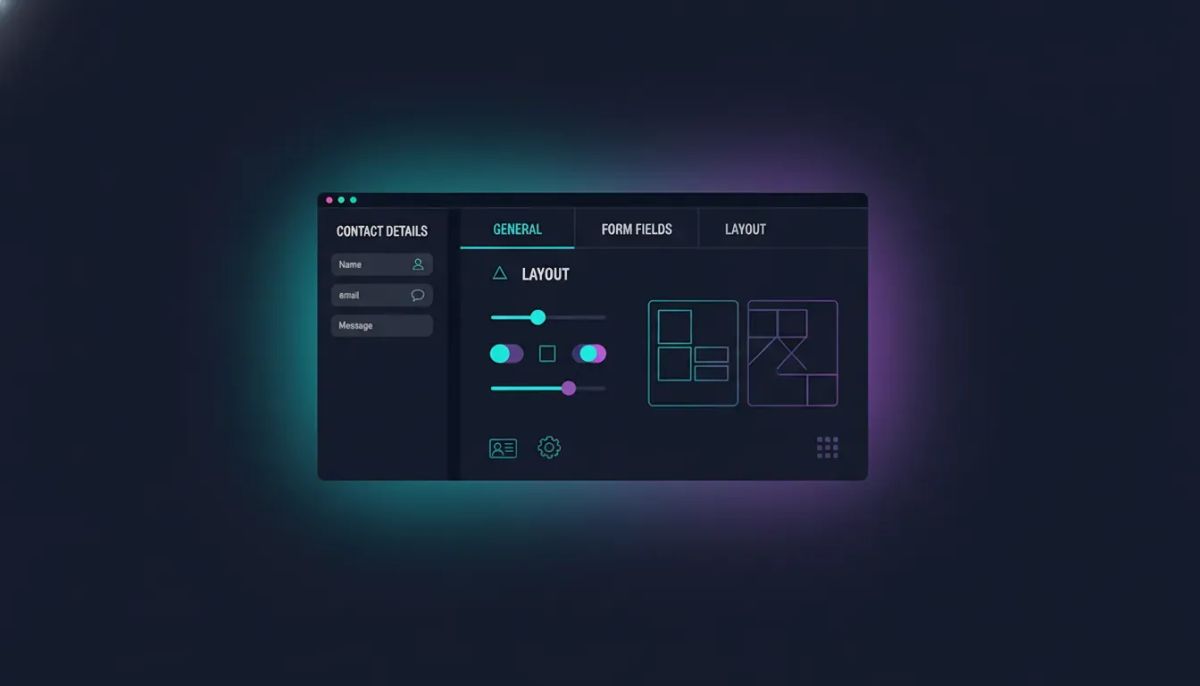
Happy Thursday. HighLevel just rolled out a really exciting update for anyone building scalable agency systems on top of the platform: contact page customization is now available in Labs for all users.
The Complete Operating System for Growth
Join over 60,000+ agencies and businesses using HighLevel to capture more leads and close more deals. Start your trial today and get instant access to the Nexus Hub resources.
Claim Your Free Trial & BonusesThis is one of those features that sounds simple on the surface, but becomes a big deal fast once you start running real client work. Instead of being limited to a single way of showing contact information, you can now shape the contact detail page so it matches how you and your team actually need to see data day-to-day.
Let’s break down what’s available, who can use it, and how to turn it on.
Why contact page customization matters for agency setup and scaling
If you run an agency inside HighLevel, you already know the truth: “one-size-fits-all” rarely works once you start onboarding multiple industries, multiple client teams, and multiple roles.
Some teams care about speed and actions. Others care about specific fields. Some want contact info front and center, while others want a clean layout that hides noise.
That’s the gap this feature addresses. It gives you the ability to tailor the contact card and the overall contact detail view layout, so the CRM experience feels purpose-built, not generic.
And because it’s available in Labs, you can get hands-on immediately, provide feedback, and help validate the implementation as it rolls forward.
From private beta to Labs: what changed
Earlier this month, HighLevel delivered this capability to a select group of customers in private beta. The response was overwhelmingly positive, including:
- Zero bugs reported (pretty impressive)
- Valuable feedback that shaped the final updates
After collecting that feedback, the team made changes and is now delivering the update broadly. The result is a feature designed to be practical from day one, with the customization options agency teams typically need.
What you can customize (the big features)
Here are the core capabilities available through Labs for contact page customization in HighLevel.
1) Fully customize contact detail page layouts
You can customize how contact details are displayed, including what information is shown and where it appears on the card and page.
2) Two panel or three panel layouts
You can choose between:
- Two panel layout
- Three panel layout
This is helpful for teams that want either a simpler interface or a more structured, multi-section view. It also gives you flexibility depending on what fields and actions you want visible at a glance.
3) Multiple views per sub account (with assignment)
For both users and admins, you can set up five different views per sub account.
Even better: you can assign views to specific users or entire groups. That means you can tailor the experience based on roles, responsibilities, or onboarding stage.
For example, one group could see a contact layout optimized for sales follow-up, while another group sees a layout optimized for onboarding or support workflows.
4) Configure modules as tabs or drop downs
Instead of forcing everything into a single continuous block, you can configure modules to display as:
- Tabs
- Drop downs
This helps reduce clutter and keeps the interface manageable, especially when you are working with custom fields and multiple action sections.
5) Drag and drop module positioning across panels
You can reorder modules using a drag-and-drop experience across the different panels.
In practice, this means you can quickly align the layout to match your team’s process. If actions should come before fields, you can structure it that way.
6) Enhanced contact cards with key information
The contact card itself is upgraded to show key information like:
- Phone number
- Address
This is a small detail that has big workflow impact. When reps and coordinators can instantly see the basics, you reduce friction and speed up follow-through.
7) Show or hide custom fields and folders
You can control what appears by enabling or disabling:
- Custom fields
- Folders
So the interface can be tailored to what’s relevant for each group, rather than forcing everyone to see every possible field.
How to enable contact page customization in Labs
Good news: getting started is straightforward. To turn on page customization and access contact detail customization:
- Go to Labs
- Turn on page customization
- Navigate to Contacts settings
- Select Customize contact detail view
Once you’re in the customization area, you’ll be able to adjust what’s on the contact card and how the contact detail layout is structured.
How to think about designing views for different teams
Even though the feature is technically a customization tool, it really functions as an agency-focused implementation strategy. The real advantage comes when you treat it like part of your system design.
Here are a few practical ways to approach it:
Organize views around roles
Since you can assign views to specific users or groups, build layouts around responsibilities. A CRM interface should help people move through the next best step, not force them to hunt for it.
Reduce cognitive load
When you have custom fields and modules, too much visibility can slow people down. Use the ability to show or hide custom fields and folders so each view stays focused.
The Complete Operating System for Growth
Join over 60,000+ agencies and businesses using HighLevel to capture more leads and close more deals. Start your trial today and get instant access to the Nexus Hub resources.
Claim Your Free Trial & BonusesUse tabs and drop downs to keep things clean
If your contact detail page tends to get crowded, tabs and drop downs can keep modules organized without overwhelming the interface.
Drag and drop to match your process order
One of the most helpful parts is being able to reorder modules across panels. That means you can visually align the layout with how your team actually works.
If your team typically starts with actions, then scans key info, then moves into deeper details, structure the panels and module order to reflect that flow.
Where to find help
To make setup even easier, there’s a help doc available at:
help.gohalibold.com
You can use that resource for step-by-step instructions on customizing the contact detail page.
What this enables for HighLevel agency systems
This update may not look like a “workflow” feature at first glance, but it supports everything that agency teams care about: clarity, consistency, and speed.
Here’s how it connects to the broader HighLevel ecosystem:
- CRM usability improves when contact details are presented in a way that matches team roles.
- Marketing automation and SaaS operations benefit because teams can act faster on key contact info.
- Agency setup and scaling becomes easier when onboarding and internal operations don’t require constant manual coaching.
In other words, you’re not just customizing UI. You’re building a more efficient day-to-day system for how people interact with contacts inside your GoHighLevel setup.
Try it now and keep improving your setup
Since this is available in Labs for all users, there’s no reason to wait if you want to move faster and build a better internal experience. Turn it on, create a couple of views, assign them to groups, and adjust based on how your team actually works.
If you’re actively developing your agency setup, consider pairing this with your existing HighLevel workflows and automations so the interface supports the process, not the other way around.
And if you want templates and implementation support as you keep building, joining the Nexus Hub community is a solid next step. It’s a great place to find resources and practical guidance as your HighLevel agency systems mature.
FAQ
Is contact page customization available to everyone?
Yes. The feature is now available in Labs for all users.
What areas of the contact detail page can be customized?
You can customize the contact detail page layouts, including the contact card content and how modules are arranged across panels.
How many views can I create per sub account?
You can configure five different views per sub account.
Can different teams see different contact layouts?
Yes. You can assign views to specific users or to entire groups.
What layout options are available?
You can choose between two panel and three panel layouts.
Can modules be displayed as tabs or drop downs?
Yes. Modules can be configured as either tabs or drop downs.
How do I turn on the feature?
Go to Labs, enable page customization, then go to Contacts settings and choose Customize contact detail view.
Where can I find detailed customization instructions?
Check the help documentation at help.gohalibold.com for instructions on customizing the contact detail page.
The Complete Operating System for Growth
Join over 60,000+ agencies and businesses using HighLevel to capture more leads and close more deals. Start your trial today and get instant access to the Nexus Hub resources.
Claim Your Free Trial & Bonuses


