
How To Set Up Internal Notifications in HighLevel Workflows (SMS, Email, In-App, WhatsApp)

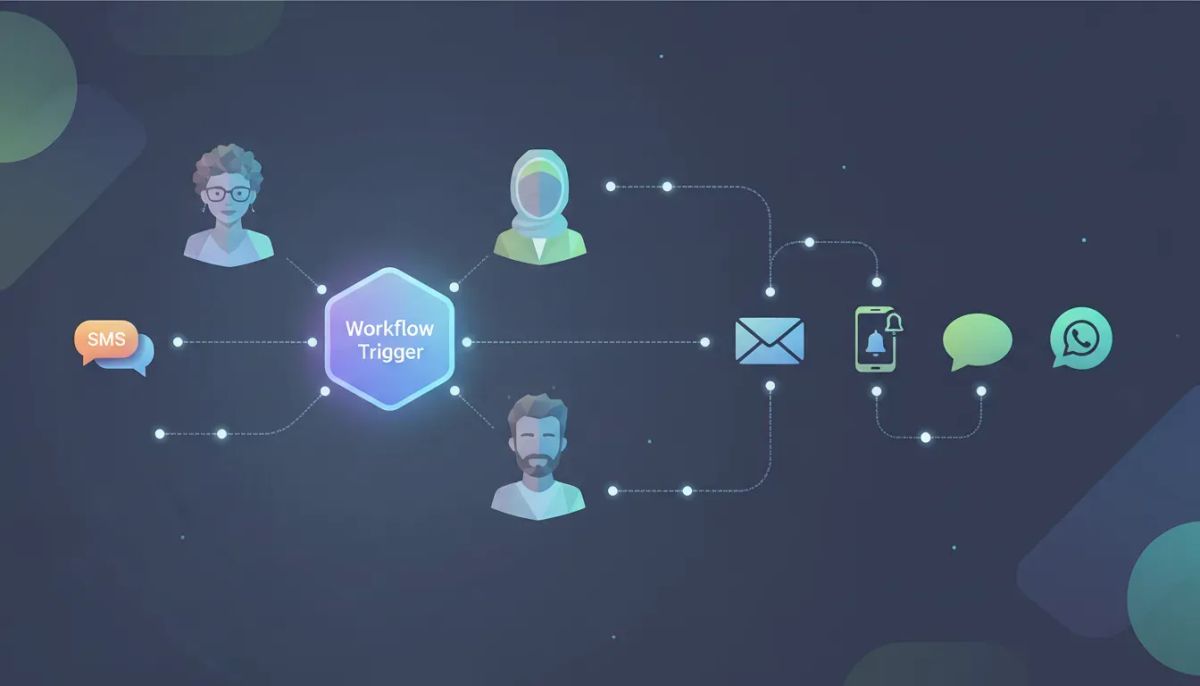
If you run an agency or you are managing a sales or SaaS operation, you already know the real problem is not getting leads. It is making sure the right person follows up fast.
The Complete Operating System for Growth
Join over 60,000+ agencies and businesses using HighLevel to capture more leads and close more deals. Start your trial today and get instant access to the Nexus Hub resources.
Claim Your Free Trial & BonusesHighLevel internal notifications are built for exactly that. Inside HighLevel workflows and automations, you can notify your team members when something important happens, such as:
- A form gets submitted (webinar form, application form, lead capture form)
- Someone opts into a webinar
- A checkout is abandoned or completed
- A team member needs to act immediately after a trigger
And you can deliver those notifications through multiple channels: SMS, Email, in-app notifications (desktop and mobile push via the Lead Connector app), and WhatsApp.
Below is a practical, step-by-step guide to setting up internal notifications action(s) in HighLevel workflows, including templates/snippets, custom values, attachments, testing, and the limits you should know before you scale.
1) Choose the workflow and set a trigger
Start by going into your HighLevel account and navigating to:
- Automations (left)
- Workflows (top)
Select the workflow you want to work with, then set the trigger. This is the event that starts everything.
Examples of triggers that fit internal notifications well:
- Form submitted
- Webinar form submitted
- Opt-in event
In the example setup, the trigger is Form submitted for a webinar form. Once the webinar form gets submitted, the workflow continues to the next steps.
2) Add a wait step before notifying (when timing matters)
Most follow-up is not instant. A sales team might need 60 minutes or 90 minutes depending on how long the webinar runs.
So after selecting the trigger, add a Wait step. Then configure your timing based on your process.
This makes the internal notification feel purposeful, not spammy. It also gives your team a clear moment to act.
3) Create an SMS internal notification (using templates, AI, and custom values)
After the wait step, add a new action:
- Click Plus
- Search for Notifications
- Choose Internal notifications under communications
You can rename the action to keep things organized. For example, rename it to SMS notification.
Select SMS channel and recipient type
Within the internal notification action, choose SMS. Then set:
- User type: who receives the SMS
Your recipient options include:
- All the users in the account
- Assigned user
- Custom number
- Particular user
In the example, the recipient is a particular user (for example, a sales agent you want to notify).
Use a snippet (template) or build a custom message
For SMS, HighLevel messages are often managed as `snippets`. A snippet can be pulled into the SMS notification builder.
You can also write the message directly. In the example, the setup uses no template and creates the message on the fly.
When building the SMS message, you have two approaches:
- Use AI to draft the message
- Write your own text
The example keeps the tone casual and prompts an AI draft like:
“Write an SMS to our salesperson. He shall follow up on our new leads that came in for the webinar.”
After you generate, the builder can insert custom values automatically, such as:
- Contact first name
- Contact full name
- Other fields available from your workflow context
For example, the SMS might start with “Hi [First Name]” and then clearly request follow-up quickly, including an urgency line like following up today.
Add attachments or an image URL (optional)
SMS, Email, and WhatsApp notifications can optionally include:
- Attachments (images/files)
- Direct URLs to content in your media library
- Custom-value-based assets if you store image references in custom values
If you attach an image, it will be included with the internal notification that goes out to the selected user.
Test the SMS and save
Before saving the action, test it:
- Enter your phone number
- Click Send test SMS
- Confirm the message renders how you expect
Once the message looks right, hit Save action.
4) Add an Email internal notification (from name, from email, subject, and recipients)
Now add another notification action for email. Again:
- Click Plus
- Search Internal notifications
Rename it to something like Email notification so the workflow stays readable.
Set the email channel fields
Choose Email as the notification type. Configure:
- From name: your name or company name
- From email: best practice is using your sending domain
In the example, the From email is pulled from a custom value named something like sending email, which corresponds to the sending subdomain stored under email services.
To confirm that value exists, open Custom values in the left navigation and look for the key used by the workflow.
Choose who receives it
Email recipient selection works similarly to SMS:
- All users
- Assigned user
- Specific user
- Custom email
The example uses All users for email, but you can change it to better match your sales process.
Optional CC/BCC
If you want yourself or another manager included, use:
- CC
- BCC
Note: CC/BCC is only available for email, not SMS, WhatsApp, or in-app notifications.
Add a subject line (important)
Your email notification typically includes:
The Complete Operating System for Growth
Join over 60,000+ agencies and businesses using HighLevel to capture more leads and close more deals. Start your trial today and get instant access to the Nexus Hub resources.
Claim Your Free Trial & Bonuses- Subject
- Message content
An easy mistake is forgetting the subject. If it does not save, scroll up and verify you included a subject line.
Build the message with custom values
Like SMS, you can select a template or write your own. In the example, the setup chooses none (no template) and writes directly.
The email can pull in fields related to the lead or contact created by the trigger:
- Username or first name
- Contact full name
- Contact email
- Contact phone number
Then add any attachments or images if desired, and send yourself a test email before saving.
5) Add in-app notifications (orange bell and mobile pop-ups)
Internal notifications are not just messages. HighLevel also supports in-app notifications so your team can see what needs attention instantly.
When you create an in-app notification action, you can configure it so it appears:
- Under the orange bell icon in the account header
- As a pop-up notification in the Lead Connector app
Configure title, content, and redirect
As with SMS and email, set your notification title and message. Then set:
- Custom values for the user to call, including phone number or email
- Trigger links (optional)
- Redirect page (very useful)
The redirect page controls where the user lands when they click the notification. In the example, the redirect page sends them directly to opportunities, since the sales agent needs to take action in the pipeline.
Choose the recipient rules
For in-app notifications, you can also pick user type. The example uses:
- User assigned to the contact
That makes the notification feel “personal” and reduces confusion for large teams.
6) Add WhatsApp internal notifications (with Meta-approved templates)
WhatsApp notifications can be extremely effective for sales follow-up, but they depend on templates being configured and approved.
To add WhatsApp notifications in a workflow:
- Add another Internal notifications action
- Select WhatsApp
- Rename the step (for example, WhatsApp)
Pick recipient type
For WhatsApp, choose who should receive the message based on user type, such as:
- Assigned user
- Particular user
- All users (depending on configuration)
The example selects assigned user.
Select a WhatsApp template
WhatsApp messages require a template. Templates are managed under:
- Settings (left)
- Templates
Once Meta approves the templates, they appear inside the workflow’s WhatsApp notification builder.
You then use that template and fill in the content, such as follow-up instructions and a clear call to action.
7) Know the limits and best practices before scaling
Internal notifications are powerful, but there are system limits. Here are the key constraints to plan for:
- Per-user limit: By default, users can receive up to 500 notifications every five minutes.
- Bulk behavior: If a workflow triggers bulk notifications that exceed the threshold, additional messages are queued.
- Queue outcome: Depending on system load, queued notifications may be delivered later once the system resets, or they may drop completely if the workflow conditions expire.
Channel prerequisites (misconfiguration skips notifications)
Notifications only send successfully if the channel is properly connected:
- If WhatsApp is not connected/activated correctly, WhatsApp notifications will not go through.
- If email is not connected/activated correctly, email notifications will not go through.
Important detail: this does not stop the rest of the workflow actions. If a notification channel fails, the system will effectively skip internal notifications for that channel and continue with subsequent steps.
Who internal notifications can reach
Internal notifications work for users within the HighLevel system. They will not send to external contacts saved under the Contacts tab unless those contacts are also set up as actual system users.
Attachments and storage limits
Attachments on SMS, email, and WhatsApp count toward:
- Account file storage
- Channel message size constraints (depending on delivery rules)
SMS carriers enforce file size restrictions, so oversized attachments may prevent delivery. Keep attachments optimized.
8) Practical implementation tip: build for clarity and speed
When you configure internal notifications in HighLevel workflows, the goal is a fast, clear action for your team member.
That is why these details matter:
- Use a wait so notifications align with webinar runtime or sales windows.
- Include custom values like first name, contact email, and phone number.
- Send test messages before going live.
- Redirect in-app notifications to the relevant CRM area (like opportunities) so the salesperson can act immediately.
- Use approved WhatsApp templates so you are not blocked by Meta requirements.
If you are scaling an agency, this setup becomes part of your repeatable system. It helps you standardize follow-up timing, reduce dropped leads, and keep team members focused.
To support more agency systems and automation patterns, consider taking advantage of HighLevel’s community resources, including the Nexus Hub for templates, implementation support, and workflow ideas that map to real-world sales processes.
FAQ
What are internal notifications in HighLevel workflows?
Internal notifications are workflow actions that alert HighLevel system users when specific triggers happen. You can send those alerts via SMS, email, in-app (desktop and mobile push), or WhatsApp.
Which triggers are best for internal notifications?
Triggers like form submitted, webinar opt-in, checkout events, or application submissions work well, especially when you want immediate follow-up from a sales agent or team member after an event.
Can I use templates for SMS and email notifications?
Yes. SMS templates are managed as snippets in the SMS area, and email can use templates as well. You can also choose “none” and write your message directly inside the notification action.
Do WhatsApp notifications require a template?
Yes. WhatsApp notifications in HighLevel use templates managed under Settings > WhatsApp > Templates. Templates must be approved by Meta before they appear and can be used in workflows.
What happens if email or WhatsApp is not configured correctly?
If a notification channel is not properly connected, that specific notification channel will be skipped. Importantly, the workflow continues with its next actions, so other parts of your automation still run.
Are there notification limits?
Yes. By default, a user can receive up to 500 notifications every five minutes. In bulk scenarios that exceed the threshold, additional messages may be queued and delivered later depending on system load, or dropped if conditions expire.
Do CC and BCC work for SMS or WhatsApp notifications?
No. CC and BCC are only available for email notifications, not for SMS, WhatsApp, or in-app notifications.
Will internal notifications send to contacts stored in the Contacts tab?
Internal notifications are designed for users inside the HighLevel system. They will not send to Contacts-tab entries unless those contacts are also set up as users.
The Complete Operating System for Growth
Join over 60,000+ agencies and businesses using HighLevel to capture more leads and close more deals. Start your trial today and get instant access to the Nexus Hub resources.
Claim Your Free Trial & Bonuses


