
Inbound Email Trigger for Workflows Is Here

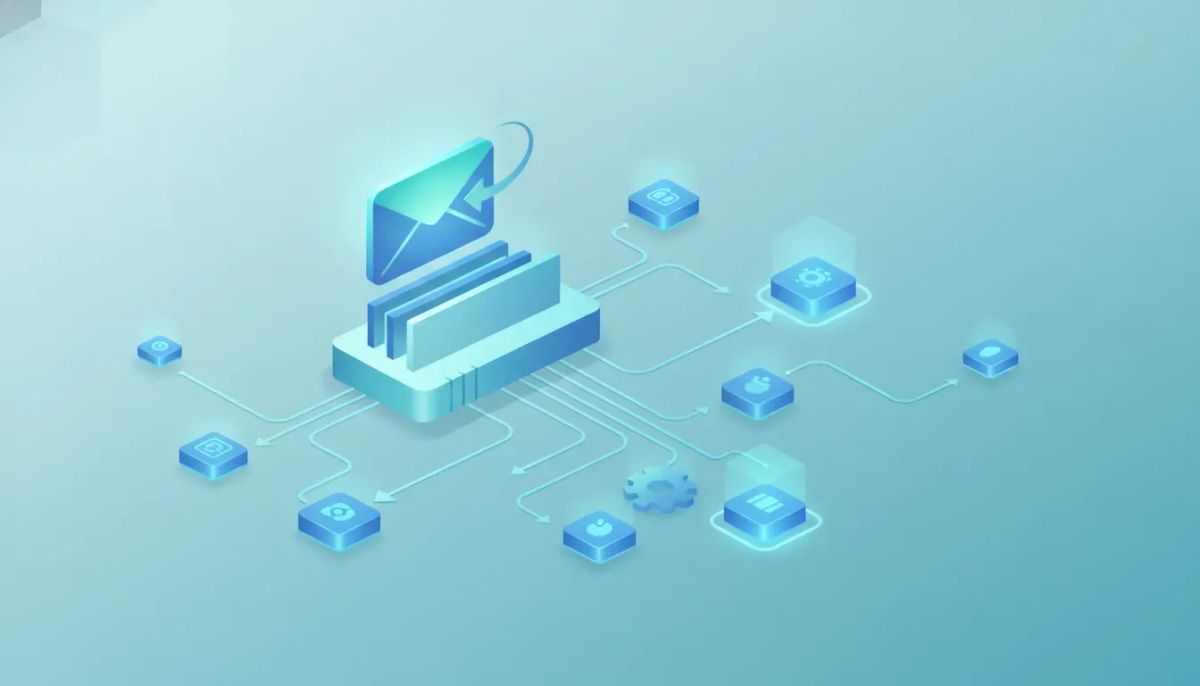
Every inbound email is an opportunity.
That might sound simple, but it is a big shift in how teams can use automation inside HighLevel. With the new Inbound Email Trigger for Workflows, you can now start a workflow the moment an email lands in your mailbox. That includes cold emails from brand-new senders, warm emails from existing contacts, and even replies in active threads if you choose to allow them.
This is one of those releases that opens up a lot of practical automation fast. Sales teams can react to new inquiries automatically. Support teams can route incoming requests without manually triaging every message. Operations teams can kick off intake or document handling the second an attachment comes in.
If your inbox is where leads, requests, approvals, forms, or follow-ups first appear, this feature gives you a direct line from email to action inside HighLevel workflows.
The Complete Operating System for Growth
Join over 60,000+ agencies and businesses using HighLevel to capture more leads and close more deals. Start your trial today and get instant access to the Nexus Hub resources.
Claim Your Free Trial & BonusesWhat the Inbound Email Trigger Actually Does
The new trigger fires whenever an inbound email is received into your mailbox. From there, you can launch a workflow and use that email event as the starting point for automation.
In practical terms, that means you are no longer limited to forms, appointments, tags, or manual workflow starts. Now email itself can be the event that kicks everything off.
This trigger supports:
- Cold emails from new senders
- Emails from existing contacts
- Replies inside existing threads, if enabled
That flexibility matters because inbound email is messy in the real world. Some messages come from people your CRM already knows. Some come from completely new leads. Some are one-off questions. Others are part of an active conversation. HighLevel now gives you a way to automate across all of those scenarios.
Why This Matters for HighLevel Users
Email is still one of the most important channels in business. It is where inquiries arrive, support issues get reported, documents get sent, and next steps get confirmed. Yet for a lot of teams, the inbox is still a manual bottleneck.
Someone has to check the email, decide what it is about, forward it, assign it, respond, or copy data into another system. That creates delay. It also creates inconsistency.
With inbound email automation in GoHighLevel, you can remove a lot of that manual work.
Here is the bigger value:
- Faster response times because workflows start instantly
- Better lead capture because inquiries do not sit unnoticed
- Cleaner routing because emails can be assigned by logic instead of manual sorting
- More reliable processes because support and ops steps happen automatically
- Better agency systems because inbox-driven tasks can become repeatable automations
For agencies, SaaS teams, and service businesses running on HighLevel, this turns a common communication channel into a workflow entry point. That is a meaningful upgrade for CRM operations and marketing automation.
What You Can Filter Before the Workflow Runs
One of the best parts of this release is control. The trigger is not just “an email came in, do something.” You can narrow it down using filters so the right workflow runs only in the right situation.
Available filtering includes conditions like:
- Mailbox
- Sender
- CC
- Subject
- Body content
- Attachment presence
- Whether the message was tied to a workflow
You can also choose to run the trigger for new email conversations only. That is especially useful if you want to avoid re-triggering workflows every time a reply comes in on the same thread.
This gives you a lot of precision. Instead of building broad automations that catch too much, you can build workflow logic around exactly the types of emails that matter to a particular process.
What Email Data You Can Use Inside the Workflow
Once the trigger fires, HighLevel lets you work with useful email values inside the automation. That means you can do more than just react. You can personalize, route, record, and act on the content of the message itself.
Examples of data available include:
- Email body
- Subject line
- Message ID
- Other custom values tied to the email event
This is where the feature becomes much more powerful than a simple notification trigger. You are not just detecting that an email arrived. You are bringing important details from that message directly into your HighLevel automation.
That can help with logging, conditional branching, segmentation, internal alerts, and follow-up actions.
How to Set It Up in HighLevel
The setup is straightforward.
- Go to Workflows in HighLevel.
- Choose Add New Trigger.
- Select Inbound Email.
- Choose your filters and workflow conditions.
- Build the actions you want the workflow to take after the email arrives.
That is the core path. Once the trigger is added, the rest works like any other workflow in GHL. You can route contacts, send notifications, assign tasks, branch with if/else logic, launch follow-ups, or move records through your internal process.
If you already use HighLevel workflows heavily, this will feel familiar right away. The difference is simply that the automation can now begin from the inbox.
Practical Use Cases for the Inbound Email Trigger
This release is easy to understand, but the best way to appreciate it is to think through real use cases. Here are some of the most useful applications mentioned, along with why they matter.
1. Inbox Routing
Different mailboxes often support different functions like sales, support, and billing. With the inbound email trigger, you can check which mailbox received the message and push it down the appropriate workflow path.
That means a sales inquiry can trigger one sequence, a support issue can trigger another, and a billing request can go somewhere else entirely.
This is especially helpful for teams trying to standardize internal processes across multiple departments or client accounts.
2. Subject-Based Assignment
The subject line often tells you exactly what an email is about. If you can filter or branch based on the subject, you can create smart automations around common request types.
For example, if a certain keyword appears in the subject, you can trigger a specific path, alert a team member, or send a fast response.
This kind of subject-based logic can save a lot of time when the inbox receives predictable categories of messages.
3. Attachment Intake
Some teams rely on email as the handoff point for forms, signed documents, approvals, or file submissions. The inbound email trigger can react when attachments come in, which opens up automation for document-driven operations.
That is useful for intake workflows where an attachment marks the beginning of the next step.
For operations teams, this can reduce lag between receiving a document and starting the process tied to it.
4. First-Touch Autoresponders
Sometimes the simplest automation is one of the most valuable. A basic “Hey, we got your email” response gives senders confidence that their message was received.
With the inbound email trigger, you can set up a first-touch autoresponder for new conversations. That keeps the experience responsive without requiring someone to manually reply to every initial message.
It is a small thing, but it can make a big difference in perceived speed and professionalism.
The Complete Operating System for Growth
Join over 60,000+ agencies and businesses using HighLevel to capture more leads and close more deals. Start your trial today and get instant access to the Nexus Hub resources.
Claim Your Free Trial & Bonuses5. Lead Capture From Cold Email Inquiries
Cold inbound emails are often overlooked because they do not come through a form or scheduled funnel. But they can still be high-intent leads.
Now those inbound emails can trigger a workflow immediately. That means you can capture, route, and follow up on email-based leads without relying on manual inbox checks.
For agencies and service providers using GoHighLevel CRM, this is a strong addition to lead handling and sales automation.
6. Support Request Handling
Support teams often waste time manually sorting messages before any real work begins. If the email meets certain criteria, a workflow can assign or route the issue automatically.
That reduces the triage burden and helps support requests move faster to the right place.
7. Ops and Internal Intake Workflows
Operational teams often live in the inbox, especially when outside systems or clients submit items by email. The inbound email trigger lets ops teams launch processes the moment those messages arrive.
If your business receives forms, approvals, or submission emails through a shared mailbox, this feature can make your internal workflow much more reliable.
How to Think About Workflow Design With This Feature
The smartest way to use this trigger is not to automate everything that hits the inbox. It is to identify the moments when an email clearly means, “start the process.”
That could be:
- A new inquiry entering a sales pipeline
- A support email needing assignment
- A submitted document requiring intake
- A first contact that should get an immediate reply
In other words, focus on emails that represent a business event, not just a message.
Then use filters to keep the workflow clean. Narrow by mailbox, sender, subject, or attachments. Decide whether replies should count. Use new-conversation-only logic when needed. That will help prevent duplicate actions and keep your automation meaningful.
This is a good example of solid HighLevel agency setup and scaling best practices. Build around process triggers, not noise.
Why This Is a Strong Addition for Agencies and SaaS Operations
Agencies using HighLevel are often managing multiple pipelines, teams, client requests, and communication channels. The more entry points you can turn into automation triggers, the more consistent your operations become.
The inbound email trigger supports that model well.
It helps agencies:
- Capture leads from more than just forms and funnels
- Route requests across internal service teams
- Reduce manual inbox handling
- Build repeatable client delivery systems
- Strengthen CRM and marketing automation workflows
For SaaS operations and service businesses, the value is similar. Any business process that starts with an email can now become a structured workflow inside HighLevel.
That is exactly the kind of operational leverage teams need when they are trying to scale without adding more manual admin work.
Simple Ideas to Start With First
If you want to get quick wins from this feature, start with straightforward automations.
Good first implementations include:
- Auto-acknowledgment for new inbound emails
- Mailbox-based routing for sales, support, or billing
- Subject-based filtering for common request categories
- Attachment-triggered workflows for intake processes
These use cases are easy to set up, easy to test, and usually deliver immediate operational value.
Once those are working, you can expand into more advanced workflow paths using email content and custom values.
A Small Feature With Big Workflow Potential
Some releases are flashy. Others are quietly powerful. This one belongs in the second group.
The ability to trigger workflows from inbound email sounds simple, but it unlocks a lot of real business value inside HighLevel. It connects one of the most common communication channels directly to your automation engine.
That means fewer delays, fewer missed opportunities, and less manual sorting between “email received” and “next step started.”
If you already run key parts of your business in GHL, this is worth putting to work right away.
You can find it under Workflows > Add New Trigger > Inbound Email.
If you are still building out your automation stack, this is also a great time to start a HighLevel free trial and see how inbox-driven workflows can fit into your CRM, agency systems, and day-to-day operations. And if you want templates, implementation ideas, and support for putting features like this into action, the Nexus Hub community is a natural next step.
FAQ
What is the Inbound Email Trigger in HighLevel?
It is a workflow trigger that starts an automation when an inbound email is received in your mailbox. It can be used for lead capture, routing, support handling, intake, and follow-up processes.
Can the trigger work for new senders and existing contacts?
Yes. It supports cold emails from new senders, emails from existing contacts, and replies inside active threads if you allow those replies to trigger workflows.
Can I stop it from triggering on every reply in a thread?
Yes. You can choose to run the automation for new email conversations only, which helps avoid repeated triggering on reply chains.
What filters are available for inbound email automation?
You can narrow the trigger using filters such as mailbox, sender, CC, subject, body content, attachments, and whether the message was tied to a workflow.
What email data can I use inside the workflow?
You can use values like the email body, subject line, message ID, and other custom values associated with the inbound email event.
Where do I find this feature in GoHighLevel?
Go to Workflows, click Add New Trigger, and select Inbound Email.
What are the best first use cases to build?
Good starting points include inbox routing, subject-based assignment, attachment intake, and first-touch autoresponders for new inbound emails.
The Complete Operating System for Growth
Join over 60,000+ agencies and businesses using HighLevel to capture more leads and close more deals. Start your trial today and get instant access to the Nexus Hub resources.
Claim Your Free Trial & Bonuses


