
How to Access Form Submissions in HighLevel’s Conversations Tab

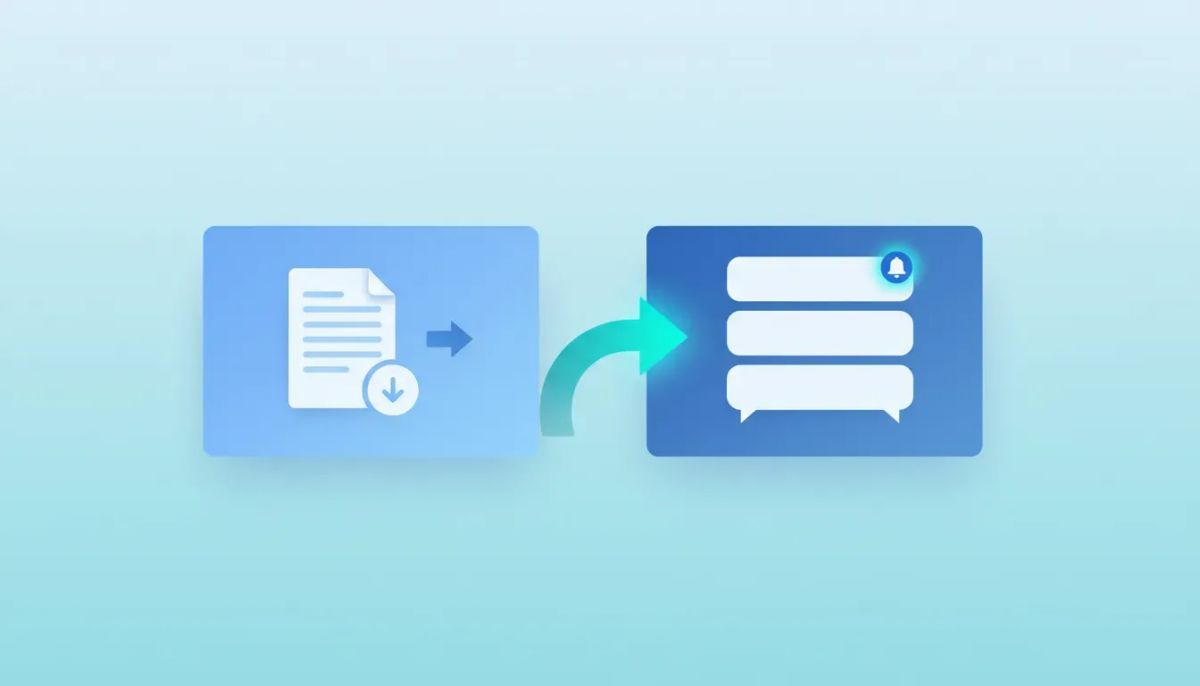
If you’re collecting leads through HighLevel forms and then bouncing between different areas of the platform just to figure out who submitted what, there’s a much cleaner way to handle it.
HighLevel lets you route form submissions directly into the Conversations tab, which means your leads can show up in the same centralized place where your team already manages messages, replies, and follow-up activity. That small change makes a big difference. It gives you faster visibility, better context, and a much easier way to act on new leads while they’re still warm.
If speed to lead matters in your business, and it usually does, this is one of those simple settings worth turning on right away.
The Complete Operating System for Growth
Join over 60,000+ agencies and businesses using HighLevel to capture more leads and close more deals. Start your trial today and get instant access to the Nexus Hub resources.
Claim Your Free Trial & BonusesWhy sending form submissions into Conversations matters
Forms are often the first real moment of intent. Someone lands on a page, fills out their information, checks the consent box, and hits submit. At that point, they are no longer just traffic. They are a lead, and what happens next matters.
Without this feature enabled, it’s easy for form submissions to feel separated from the rest of your communication flow. You may still have the data, but it lives in a more isolated part of the platform. That slows down response time and makes it harder to stay organized, especially if your agency or team is managing multiple channels at once.
By creating a conversation when a form is submitted, HighLevel turns that form fill into something actionable inside your CRM workflow. Instead of digging around for entries, you can immediately see that activity in the same place you manage:
- Email replies
- SMS messages
- WhatsApp conversations
- Other lead communication inside the contact record
That centralized visibility is especially useful for agencies running HighLevel at scale. When multiple team members are handling lead intake, appointment setting, or sales follow-up, keeping everything inside the Conversations area reduces friction and helps prevent missed opportunities.
How to enable “Create Conversation on Submission” in HighLevel
The setup is straightforward. You’ll enable the setting inside the specific form you want to use.
Step-by-step navigation
- Go to Sites in the left-hand menu.
- Select Forms at the top.
- Open the Builder.
- Choose the form you want to update.
- Click Settings at the top.
- Scroll until you find Create Conversation on Submission.
- Turn that option on.
- Click Save in the top right corner.
That’s it. Once the setting is saved, any new submission on that form can generate a conversation entry inside HighLevel.
This is a great example of how small HighLevel implementation choices can improve day-to-day CRM and marketing automation operations. It does not require a complicated workflow or custom setup. It is simply a smart toggle that makes lead management more efficient.
How to test your form submission setup
After enabling the setting, it’s a good idea to test it immediately.
Inside the form area, use the share option to grab the form URL:
- Click Integrate.
- Choose Share.
- Copy the URL.
- Open the link in a new tab.
- Fill out the form with test details.
- Submit the form.
Once submitted, head over to Conversations from the left-hand menu. If everything is set correctly, the submission should now appear there as a conversation item.
Testing matters here because it confirms two things at once:
- The form is functioning properly
- The conversation creation setting is working as expected
If you are building repeatable agency systems in GoHighLevel, this kind of testing should be part of your standard launch checklist. A live form that no one follows up on quickly is one of the easiest ways to lose revenue.
What a form submission looks like inside the Conversations tab
Once a contact submits the form, HighLevel displays a new information card inside Conversations. This gives you immediate proof that a lead came through and gives your team a direct place to review the details.
From that conversation card, you’ll usually see two useful options:
- View Submission
- View All Form Submissions
These two options serve different purposes. One is for drilling into the individual lead’s data. The other takes you to the broader submissions area where all form entries are stored.
Option 1: View Submission
When you click View Submission, HighLevel opens the activity details tied to that specific form fill. This is where the feature becomes especially useful because you get immediate context around the lead.
The details can include:
- Full name
- Email address
- Phone number
- Terms and conditions consent status
- Contact ID
- Time zone
- Page details
- Event data
This is powerful because it gives your sales or support team more than just raw contact info. It gives them context. They can see the action taken, the source page details, and supporting activity information without having to piece it together manually.
For HighLevel CRM users, context is what turns a form fill into a meaningful lead record. It allows your team to reply smarter and faster.
Option 2: View All Form Submissions
If you click View All Form Submissions, HighLevel takes you to the standard submissions page.
You can also reach that page manually by going to:
Sites → Forms → Submissions
This is the same form submissions area many users already rely on. The difference is that now the Conversations tab acts like a bridge, helping you move from immediate lead awareness to the full submission record with less friction.
That is one of the biggest benefits of this feature. It does not replace the existing submissions page. It enhances visibility by surfacing form activity where your team is already communicating.
The Complete Operating System for Growth
Join over 60,000+ agencies and businesses using HighLevel to capture more leads and close more deals. Start your trial today and get instant access to the Nexus Hub resources.
Claim Your Free Trial & BonusesHow to filter Conversations to show only form submissions
If you are active across multiple communication channels, the Conversations tab can get busy fast. Messages from SMS, email, WhatsApp, and other channels can all live in the same place. That is great for centralization, but not always great when you need to quickly isolate one type of activity.
HighLevel gives you a couple of ways to filter specifically for form submissions.
Use the conversation channel dropdown
Inside Conversations, there is a dropdown menu tied to the conversation icon. From there, you can switch the view to Form Submissions.
When you do that, only form submissions will appear in the Conversations tab.
This is incredibly helpful when your inbox contains a lot of activity and you want to focus only on incoming leads from forms. Instead of sorting through unrelated communication, you can create a clean view of just the submissions that need attention.
Use the Filters tab for more control
You can also filter form submissions through the Filters section.
Here’s the path:
- Open Conversations.
- Go to Filters.
- Set the condition to Last Message Channel is.
- Select Form Submission.
- Apply the filter.
After applying that filter, HighLevel will display contacts whose last message channel is a form submission.
This is useful when you want to review all leads that recently entered through forms, not just a single submission. If multiple contacts have submitted forms, they will appear in the filtered list on the left side.
For agencies managing lead response teams or appointment setters, this kind of filtering can support better pipeline discipline. You can quickly identify which leads came in through forms and prioritize a fast response.
Why this feature improves lead response time
There’s a simple truth in lead management: the business that replies first often wins.
That principle shows up across nearly every industry, whether you are running a local service business, managing client accounts as an agency, or building SaaS operations on HighLevel.
When form submissions appear instantly inside Conversations, your team gets a few practical advantages:
- Faster awareness so no one has to hunt for new leads
- Better context through submission details and activity data
- Cleaner collaboration when multiple communication channels are managed in one place
- More reliable follow-up because leads are visible where your team already works
Even if you already use HighLevel workflows and automations to notify your team, trigger tags, or assign opportunities, surfacing the submission in Conversations still adds value. It makes the lead feel active and present inside the CRM, which reduces the chance that it gets buried or delayed.
In other words, this feature supports both automation and human follow-up.
Best practices for using form submissions inside HighLevel Conversations
If you want to get the most out of this setup, a few simple habits can go a long way.
Turn it on for forms that drive real lead intent
Not every form needs to create a conversation. Focus first on forms tied to actual business opportunities, such as contact forms, quote requests, consultation forms, or service inquiry forms.
This keeps your Conversations tab useful without overloading it with low-priority entries.
Test every form after publishing
Whenever you update a form, duplicate a funnel, or launch a new page, submit a test entry. Confirm that the conversation appears and that the details are being captured correctly.
This is basic quality control, but it protects your lead flow.
Use filters when your inbox gets noisy
If your team handles many channels in one place, filtering by form submission can save time and reduce distractions. It gives you a cleaner operational view and helps you focus on fresh inbound leads.
Pair it with your broader CRM process
This feature works best when it supports a larger lead handling system. For example, once a form submission appears in Conversations, your team should already know what happens next. That may include reviewing the submission, responding to the lead, and moving the contact through your standard sales process.
Good HighLevel agency setup is not just about enabling features. It is about connecting those features to consistent workflows, ownership, and follow-up habits.
Where this fits into HighLevel implementation and agency systems
One reason HighLevel is so effective for agencies and growing businesses is that it brings CRM, communication, and marketing automation under one roof. Features like form submission conversations are small on the surface, but they reinforce a much bigger operational advantage: centralization.
When your lead capture tools and communication tools talk to each other cleanly, your team can move faster and with fewer handoff issues.
For agencies, that means:
- Smoother client onboarding
- Better lead visibility across accounts
- More consistent follow-up systems
- Easier scaling as message volume increases
For businesses running on GoHighLevel, it means less time checking multiple areas of the platform and more time responding to prospects while intent is highest.
If you are still refining your HighLevel setup, this is the kind of small operational improvement that adds up quickly. One toggle can remove friction, improve response time, and create a more organized lead intake experience for the whole team.
Final thoughts
If you use HighLevel forms to collect leads, enabling Create Conversation on Submission is an easy win.
It helps centralize lead activity inside the Conversations tab, makes new submissions easier to spot, and gives your team immediate access to the information needed to follow up. You can still access the full submissions page as usual, but now you also have a more actionable view right inside your communication workspace.
And that matters because lead management is often won or lost in the first few minutes after someone reaches out.
If you are building out your systems in HighLevel, this is a smart feature to include in your standard CRM and automation setup. If you are just getting started, it may be a good time to explore a HighLevel free trial and begin testing these lead management workflows in a live environment. And if you want more implementation support, templates, and practical setup guidance, joining a community like Nexus Hub can help shorten the learning curve.
The faster you can see a lead, the faster you can respond. And usually, that is where the real advantage begins.
FAQ
Where do I turn on form submissions in the Conversations tab in HighLevel?
Go to Sites, then Forms, open the Builder, select your form, click Settings, and enable Create Conversation on Submission. Save the form afterward.
What happens after someone submits a form?
If the setting is enabled, HighLevel creates a conversation entry for that submission inside the Conversations tab. You can open it and review the submission details from there.
What information can I see in an individual form submission?
You can see activity details such as the contact’s full name, email, phone number, consent checkbox status, contact ID, time zone, page details, and event data.
Can I still access the normal form submissions page?
Yes. You can reach it from Sites → Forms → Submissions, or by clicking View All Form Submissions from the conversation card.
How do I filter Conversations to show only form submissions?
You can either use the conversation channel dropdown and select Form Submissions, or go to Filters and set Last Message Channel is → Form Submission.
Why is this feature useful for agencies and teams?
It centralizes lead activity in the same place your team already manages communication. That improves visibility, supports faster follow-up, and makes HighLevel CRM operations easier to manage as volume grows.
The Complete Operating System for Growth
Join over 60,000+ agencies and businesses using HighLevel to capture more leads and close more deals. Start your trial today and get instant access to the Nexus Hub resources.
Claim Your Free Trial & Bonuses


