
How to Export Email Data in HighLevel

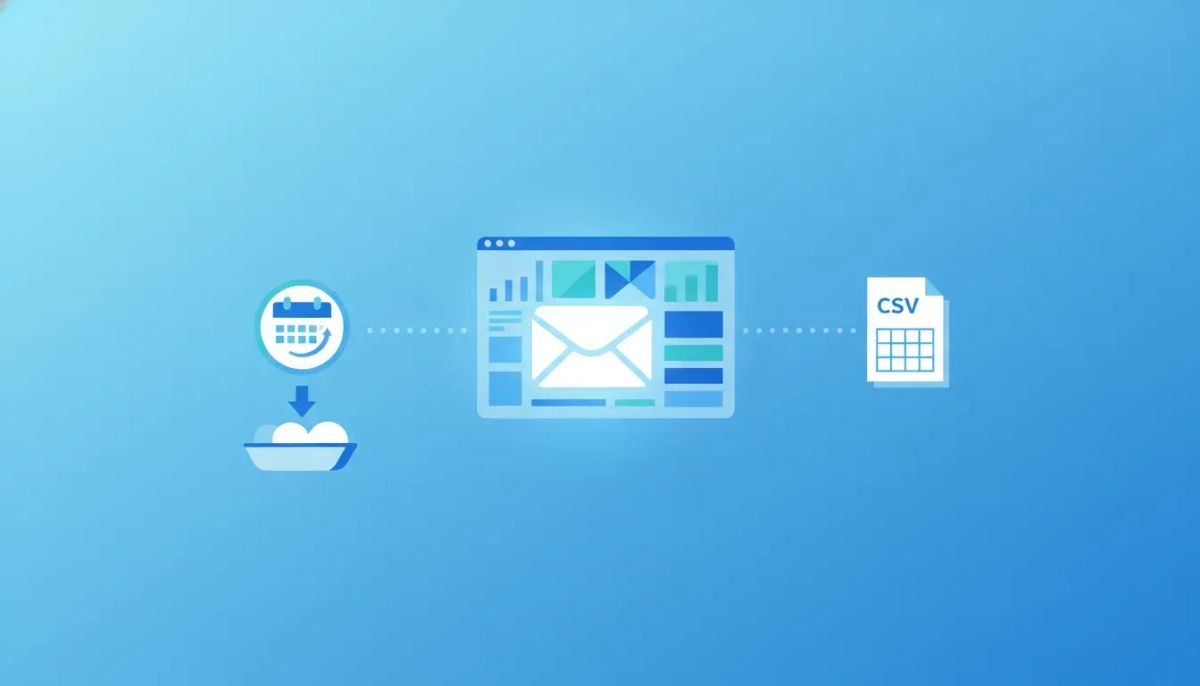
Understanding email performance is one thing. Getting that data out of your platform so you can actually use it is another.
If you are running campaigns inside HighLevel, there will be times when you need to export your email marketing data for reporting, analysis, or collaboration. Maybe you want to send campaign results to a client. Maybe your team needs a CSV file for deeper analysis. Maybe you simply want a cleaner way to review what happened over a specific time period.
HighLevel makes that process straightforward. You can export email statistics, send those exports directly to recipients by email, and access a history of recent exports whenever you need to go back and download them again.
Here is exactly how it works, where to find it, and why it matters for better reporting inside your CRM and marketing automation workflow.
The Complete Operating System for Growth
Join over 60,000+ agencies and businesses using HighLevel to capture more leads and close more deals. Start your trial today and get instant access to the Nexus Hub resources.
Claim Your Free Trial & BonusesWhy exporting email marketing data matters
Email dashboards are great for quick insights, but exports are where reporting becomes flexible.
Once your data is in a CSV file, you can:
- Share campaign performance with clients or team members
- Archive email results outside the platform
- Analyze trends over a specific date range
- Use the data in spreadsheets or internal reports
- Keep cleaner records for agency operations and account management
This is especially useful for agencies using HighLevel or GoHighLevel to manage multiple sub-accounts. If you are handling reporting across several clients, having a fast export option helps simplify communication and keeps your agency systems more organized.
Instead of manually copying metrics from the screen, you can generate an export, send it to the right people, and move on.
Where to find email exports in HighLevel
Inside your HighLevel sub-account, the path starts in the left-hand menu.
- Go to Marketing
- Select Emails
- Open Statistics
Within the Emails section, you will see areas such as:
- Statistics
- Campaigns
- Templates
If your goal is to export performance data, Statistics is the main place to begin.
This is where HighLevel gives you the option to filter the data you want and export it for reporting.
How to export email statistics
The export process is designed to be quick.
Once you are in Marketing > Emails > Statistics, look toward the top-right area of the page. You will find the Export button there.
Before exporting, choose the filters you want to apply. The key filter mentioned here is the date range, so you can capture the data between the time periods you want to report on.
The basic process looks like this:
- Open Statistics in the Emails section
- Select the filters for the data you want to capture
- Click the Export button
- Enter the email address of the recipient
- Press Enter after each email address
- Click Export to send the file
That is it. HighLevel then sends the export by email.
Choose the right date range
If you are reporting on campaign performance, the date range matters. A clean export depends on selecting the time period that matches the story you are trying to tell.
For example, you may want to export data for:
- A single campaign period
- The current month
- A weekly reporting window
- A custom period requested by a client or team lead
Using filters properly helps you avoid bloated reports and keeps the exported CSV focused on the exact results you need.
Send the export to the right people
One of the most useful parts of this feature is that the export does not just download locally. You can send it directly to email recipients from inside HighLevel.
When entering recipient information, you can add up to five email addresses per export. To add multiple recipients, type an email address and press Enter, then repeat the process for each additional person.
This works well when the report needs to go to several stakeholders at once, such as:
- A client
- An account manager
- A media buyer or strategist
- An operations team member
- An internal reporting inbox
For agencies building scalable reporting systems in GHL, this saves time and cuts down on back-and-forth.
What recipients receive
After the export is submitted, the selected recipients receive an email with a button that allows them to download the CSV file.
That means the export is easy to distribute without requiring someone to log in and manually pull the file themselves.
This can be particularly helpful in situations where:
- The recipient only needs the report and not platform access
- You want to centralize reporting through email delivery
- You are keeping communication simple for clients or collaborators
The downloaded file is in CSV format, which makes it easy to open in spreadsheet tools for sorting, filtering, or additional analysis.
How to find recent email exports in HighLevel
If you need to review previous exports, HighLevel gives you a built-in export history.
There are two ways to access it.
Option 1: From the Statistics section
While in the Emails area, go to the right-hand side and click the three-dot menu. From there, select Recent Exports.
This gives you a quick view of past email exports without needing to recreate the report.
Option 2: From Campaigns settings
You can also go into Campaigns, click the Settings button, and then scroll down to Recent Exports.
This gives you another path to the same export history area, which is useful if you are already working inside campaign settings.
What you can see in Recent Exports
The Recent Exports section shows a list of CSV files that were exported recently. It includes practical details such as:
- Which files were exported
- Who exported them
- When the export happened
- Where to download the file again
This is a simple but valuable feature. It gives your team accountability, easier file retrieval, and less duplication of effort.
If someone asks for a report that was already exported, you may not need to generate it again. You can simply locate it in Recent Exports and download it from there.
The Complete Operating System for Growth
Join over 60,000+ agencies and businesses using HighLevel to capture more leads and close more deals. Start your trial today and get instant access to the Nexus Hub resources.
Claim Your Free Trial & BonusesBest practices for cleaner reporting
The export feature itself is straightforward, but a few simple habits can make your reporting process more effective.
Use consistent reporting periods
If you send recurring reports, use the same date ranges each time whenever possible. Weekly, monthly, or campaign-based reporting becomes much easier to compare over time when each export follows the same structure.
Limit recipients to people who need the data
HighLevel lets you send exports to up to five email addresses. That is useful, but it is still smart to keep your list intentional. Send the CSV to the exact people who need to review or act on the data.
Check Recent Exports before creating duplicates
If you or a team member already generated the report recently, it may already be available in the export history. A quick check can save time.
Use exports to support deeper analysis
Sometimes the built-in stats are enough. Other times you want to work with the data outside HighLevel. Exporting gives you that flexibility without interrupting the rest of your marketing automation setup.
This is one of the small but important ways HighLevel supports real-world agency operations. The platform is not just about sending emails or building workflows. It also helps teams manage reporting, collaboration, and scale.
How this fits into a broader HighLevel workflow
Email reporting does not exist in isolation.
For many businesses and agencies, email data is part of a larger CRM and marketing automation system. You may be using HighLevel for:
- Email campaigns
- Lead management inside the CRM
- HighLevel workflows and automations
- Client communication
- Agency setup and scaling
- SaaS operations and recurring delivery systems
When you export email marketing data, you are creating a bridge between campaign execution and business reporting.
That matters because clients and team members usually do not just want to know that an email was sent. They want the data. They want to see reporting windows, exported records, and a clean process for retrieving information later.
HighLevel makes that possible with a simple export flow and a recent history log that keeps things organized.
When to use email exports instead of staying inside the dashboard
The built-in dashboard is useful for quick reviews, but exports are better when you need portability.
Choose an export when you need to:
- Send results outside the platform
- Work with the data in spreadsheet software
- Create custom reports
- Keep a record of performance snapshots
- Share data with people who do not need direct account access
Choose the dashboard when you just need a fast in-platform check.
Both have their place. The key is knowing that HighLevel gives you both options.
A simple feature that supports better agency systems
If you run client accounts, small reporting details can create major operational friction if they are not handled well.
Having a direct export option inside HighLevel helps reduce that friction. You can pull the data you need, send it to the right people, and reference previous exports later without rebuilding the process every time.
That is the kind of functionality that supports cleaner implementation and better agency systems over time.
It may seem like a small feature on the surface, but it solves a very practical need:
getting email marketing data out of the platform and into the hands of the people who need it.
Need more from HighLevel?
If you are still building out your HighLevel setup, it is worth exploring more of the platform beyond email exports. Features like workflows, automations, campaigns, CRM organization, and reporting tools become even more powerful when they are implemented together.
If you are just getting started, a HighLevel free trial can help you explore how these systems work in a live environment.
If you are looking for templates, implementation help, or a stronger support ecosystem as you grow, joining the Nexus Hub community can also be a natural next step for resources and guidance.
FAQ
Where do I export email data in HighLevel?
Go to your HighLevel sub-account, click Marketing in the left menu, then open Emails and select Statistics. The export option is located near the top-right of that section.
Can I filter the email data before exporting it?
Yes. Before exporting, you can choose the filters you want, including the date range for the data you want to capture.
How many email recipients can receive an export?
You can send the export to up to five email addresses. To add more than one recipient, type each email address and press Enter after each one.
What format does HighLevel use for exported email marketing data?
The export is delivered as a CSV file, which can be downloaded from the email recipients receive.
How do recipients download the exported file?
Recipients receive an email containing a button that lets them download the CSV file directly.
Can I view my previous email exports in GoHighLevel?
Yes. You can access Recent Exports from the three-dot menu in the Statistics section, or by going to Campaigns, opening Settings, and finding Recent Exports there.
What information appears in Recent Exports?
Recent Exports shows the exported CSV files along with details such as who exported them, when they were exported, and a download option for each file.
Why would I export email data instead of just using the dashboard?
Exports are useful when you need to analyze results outside the platform, share reports with clients or team members, keep records, or work with the data in spreadsheet format.
Final takeaway
Exporting email data in HighLevel is simple, but it is one of those features that can make reporting much smoother.
Go to Marketing > Emails > Statistics, apply your filters, send the export to up to five recipients, and use Recent Exports whenever you need to retrieve past files.
If better reporting, cleaner agency systems, and easier collaboration are part of your goals, this is a feature worth using regularly.
The Complete Operating System for Growth
Join over 60,000+ agencies and businesses using HighLevel to capture more leads and close more deals. Start your trial today and get instant access to the Nexus Hub resources.
Claim Your Free Trial & Bonuses


