
Embedded Voice AI Widgets: Orb Enhancements That Give You More Control

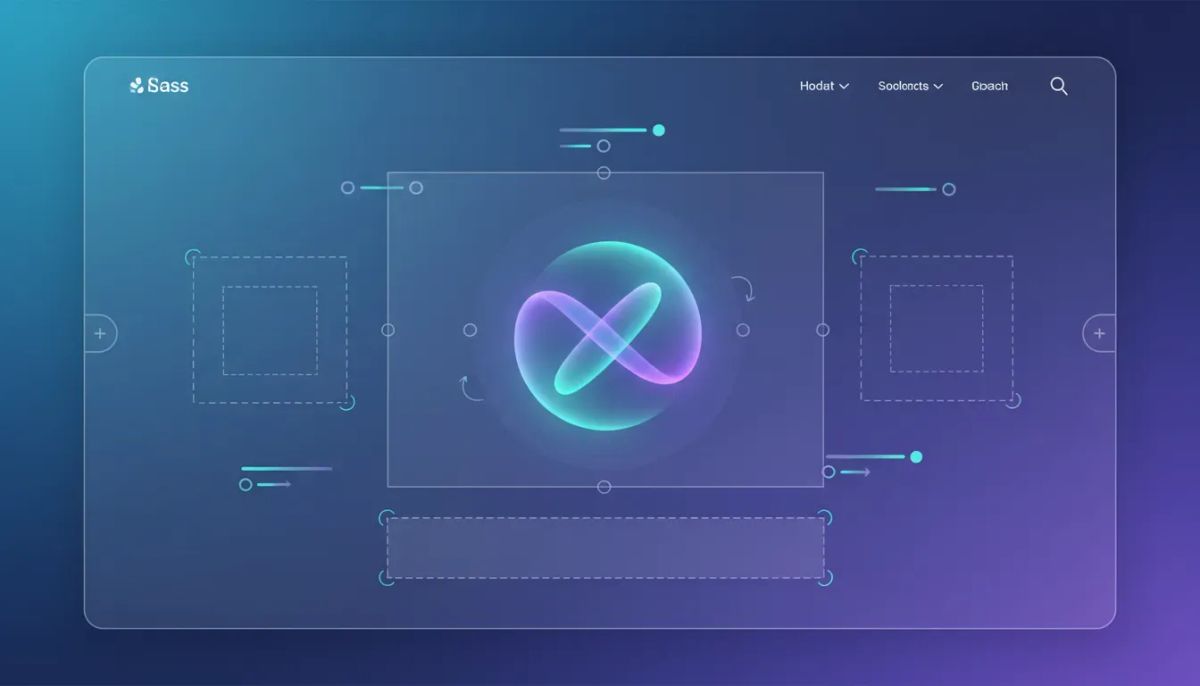
If you have been using Voice AI inside HighLevel, there is a really nice set of updates now available for the embedded widget experience, especially around the Orb display.
The big theme here is simple: more control over placement, more flexibility in presentation, and a better-looking Voice AI experience on your site.
Instead of being locked into one visual approach, you can now decide how the widget shows up, how it behaves inside your page layout, and how prominent it should feel. That matters because Voice AI is most effective when it feels natural inside the customer journey, not bolted on as an afterthought.
These updates make that much easier to do.
The Complete Operating System for Growth
Join over 60,000+ agencies and businesses using HighLevel to capture more leads and close more deals. Start your trial today and get instant access to the Nexus Hub resources.
Claim Your Free Trial & BonusesWhat changed in the embedded Voice AI widget
There are five core improvements now available inside the widget styling controls:
- New widget placement controls
- New display modes for embedded widgets
- Interface size customization
- Real-time preview updates
- A built-in CTA for inline widgets
On their own, each update is useful. Together, they make the embedded Voice AI widget far more adaptable for real websites, real brands, and real conversion flows.
New widget placement controls
One of the most important additions is the new widget placement control.
You can now choose how and where the Voice AI widget appears on the page from the Style tab. That means you are not stuck with one default behavior. You can match the widget to your page design and to the kind of interaction you want to encourage.
1. Sticky placement
Sticky is the default behavior, and it places the widget as a floating element in the page corner.
This is the familiar setup many people already expect from chat or call-style website widgets. It stays available without taking over the page, which makes it a strong option when you want a persistent Voice AI touchpoint that remains accessible as someone moves through the site.
It is especially useful when your goal is to keep the assistant available across multiple sections of a page without interrupting the main content.
2. Embedded placement
Embedded placement lets you put the Voice AI widget directly inside the website content.
This is a big deal because it opens up much more intentional design and layout use cases. Instead of floating in the corner, the widget can become part of the page itself. You can place it in a hero section, on a sales page, in a support area, or anywhere else that makes sense for the user journey.
For agencies and SaaS operators working inside GoHighLevel, this creates a lot more freedom when building client sites that need a polished, branded experience.
3. Inline placement
Inline placement also renders the widget within the content area, but with an important enhancement: it now includes a call to action below the widget.
That CTA can prompt action with messaging like “Call us here”, which gives the interface more direction and context. Instead of just presenting a voice element visually, the inline version helps explain what the person should do next.
That extra prompt can make a real difference, especially when introducing Voice AI to people who may not immediately know how to interact with it.
Why placement control matters
Placement sounds like a simple design setting, but it actually affects usability, conversion, and how “native” the widget feels on the page.
With these options, you can build for different goals:
- Sticky for constant access without disrupting layout
- Embedded for a more branded, intentional page experience
- Inline for guided interaction with a visible CTA
That flexibility supports a more non-intrusive Voice AI experience, which is exactly the point. The widget can meet the design of the page instead of forcing the page to adapt to the widget.
For teams building customer journeys inside HighLevel, that is a meaningful improvement. It gives you better alignment between your site design, your CRM touchpoints, and your marketing automation goals.
New display modes for embedded widgets
Another standout update is the addition of new display modes for embedded widgets.
You now have two ways to present the widget visually:
- Avatar
- Visualizer
Avatar mode
Avatar mode provides a static visual representation.
This is the cleaner, simpler option. If you want a calm and polished appearance without too much motion, avatar mode is a great fit. It can feel more formal, more branded, and more at home on pages where you want the interface to blend into the design.
Static visuals also work well when the surrounding page already has a lot going on. In those cases, keeping the Voice AI element visually steady can help reduce distraction.
Visualizer mode
Visualizer mode adds dynamic voice-based cues.
This is the more animated option. It gives the widget a sense of responsiveness and activity, which can make the Voice AI experience feel more alive. When the system is listening, connected, or reacting during a call, the visualizer helps communicate that state more clearly.
That can be helpful both functionally and emotionally. Functionally, it shows that something is happening. Emotionally, it makes the interface feel more interactive and modern.
The update also highlights visible state changes such as:
- Connecting
- Call ended
- Speaking or listening activity
Those cues make the embedded Voice AI widget easier to understand at a glance.
Choosing between Avatar and Visualizer
Both display modes are useful. The right choice depends on the experience you want to create.
Choose Avatar if you want:
- A clean, static presentation
- A more minimal visual style
- A widget that feels quietly integrated into the page
Choose Visualizer if you want:
- Dynamic movement and voice-based feedback
- Clearer interaction states
- A more animated, attention-grabbing experience
For agencies managing multiple sub-accounts in GHL, this kind of choice is especially useful. Different brands need different interaction styles. A local service business might benefit from a very direct, CTA-driven inline widget, while a premium brand may prefer a more understated avatar embedded in the page layout.
Interface size customization: small, medium, and large
HighLevel also added interface size customization, giving you the ability to adjust the visualizer display in small, medium, and large sizes.
This may sound minor at first, but it solves a very practical problem: not every page has the same layout density, spacing, or design hierarchy.
Now you can size the interface based on context.
Small
Use small when space is limited or when the Voice AI element should remain supportive rather than dominant.
This is useful for tighter sections, side columns, or pages where the primary message should stay focused elsewhere.
Medium
Medium gives you a balanced option. It is noticeable without overwhelming the rest of the design.
For many pages, this will probably be the most flexible default when embedding the widget directly into content.
Large
Large makes the Voice AI widget more prominent.
This works well when the voice interaction is a major part of the page experience. If the goal of the section is specifically to encourage someone to call, speak, or interact with the assistant, a larger presentation can help give it proper emphasis.
Combined with placement and display mode settings, size control gives you another layer of layout customization that was not as accessible before.
The Complete Operating System for Growth
Join over 60,000+ agencies and businesses using HighLevel to capture more leads and close more deals. Start your trial today and get instant access to the Nexus Hub resources.
Claim Your Free Trial & BonusesReal-time preview makes setup easier
One of the most practical quality-of-life improvements here is real-time preview updates.
As you adjust placement and display settings, you can instantly see the changes reflected in the widget preview. That means less guesswork and less back-and-forth when trying to get the experience right.
When you are building inside HighLevel, speed matters. Whether you are handling one brand or dozens of client accounts, every interface that gives you immediate visual feedback helps streamline implementation.
Real-time preview is useful because it helps you answer questions quickly:
- Does sticky or embedded fit this page better?
- Should this section use avatar or visualizer?
- Is small too subtle, or is large too dominant?
- Does the CTA feel natural in the inline version?
Instead of imagining the result, you can evaluate it right away.
The built-in CTA for inline widgets is a smart touch
The new CTA under the inline widget is one of those small enhancements that can have an outsized impact.
When a widget is embedded directly into page content, context matters. A floating element in the corner is familiar enough that many people understand its purpose right away. But a voice widget placed inside a section of page content can benefit from a little guidance.
That is where the CTA helps.
By including a prompt such as “Call us here”, the inline widget gives users a clearer next step. It removes ambiguity and supports action.
That makes the embedded experience more conversion-friendly, especially on lead generation pages where every extra bit of clarity can improve engagement.
For agencies building funnels, websites, and CRM-connected experiences in GoHighLevel, this is the kind of detail that matters. A better prompt can mean more interactions, better handoffs, and a smoother path into your workflows and automations.
Where to find these settings in HighLevel
If you want to start using these updates, the path is straightforward:
- Go to Sites
- Open the Chat Widget settings
- Select the Style tab
- Adjust the Widget Placement and display settings
From there, you can experiment with:
- Sticky, embedded, or inline placement
- Avatar or visualizer display mode
- Small, medium, or large interface size
- Real-time preview of your changes
The setup is designed to be hands-on and visual, which makes testing much easier.
Why this matters for agencies, SaaS, and implementation teams
If you are building inside HighLevel as an agency owner, implementer, or SaaS operator, these updates are more than just cosmetic.
They improve your ability to:
- Match the widget to a brand’s website design
- Create less intrusive on-page experiences
- Improve clarity around how people should interact with Voice AI
- Fit voice functionality into different layout structures
- Prototype and deploy faster using real-time previews
That is valuable when you are trying to standardize agency systems and still give each client a customized feel.
One of the ongoing challenges in agency setup and scaling is balancing repeatable process with flexible presentation. Features like these help solve that. You can keep your Voice AI implementation consistent at the operational level while adjusting the front-end experience to fit the client’s site.
That is good for efficiency, and it is good for outcomes.
A better Voice AI experience without being intrusive
The best part of these Orb enhancements is that they support a more natural website experience.
Not every business wants a highly aggressive widget sitting in the corner demanding attention. Sometimes the right move is to present Voice AI as part of the page, give it a clean visual treatment, and let people engage when they are ready.
Other times, the goal is to make the interaction more visible and active, using the visualizer and a stronger CTA to encourage action.
Now you can choose.
That level of flexibility is exactly what makes a platform like HighLevel useful for serious implementation. It is not just about having the feature. It is about being able to shape the feature to fit the business model, the brand, and the conversion path.
Practical ways to think about implementation
When deciding how to use these new embedded Voice AI widget controls, keep the decision simple and tied to page purpose.
If the page needs constant access
Use sticky placement. It keeps the widget available while staying out of the way.
If the widget should feel like part of the design
Use embedded placement. Then choose avatar or visualizer based on how much visual activity you want.
If the page needs a direct prompt to interact
Use inline placement with the CTA. This helps guide the action more explicitly.
If the page design is clean and minimal
Start with avatar mode and a size that fits naturally in the section.
If the interaction itself is the focal point
Use visualizer mode and consider a larger size so the experience feels intentional.
These are not complicated settings, but they can produce a much better result when used thoughtfully.
Final thoughts
The latest Embedded Voice AI Widget Orb enhancements in HighLevel bring meaningful improvements where they matter most: control, presentation, and usability.
With new placement controls, new display modes, size customization, real-time previews, and a built-in CTA for inline widgets, it is now much easier to create a Voice AI experience that feels polished and aligned with the rest of your site.
That means more design flexibility, better layout customization, and a smoother path to implementing Voice AI in a way that supports your CRM, marketing automation, and customer engagement goals.
If you are already building inside GoHighLevel, it is worth opening the Style tab and testing these options on your existing pages. And if you are still exploring the platform, this is another good example of how HighLevel keeps expanding the toolkit for agencies and businesses that want more control over how their digital experiences work.
If you want to put these features to work in your own setup, starting a HighLevel free trial is a practical next step. And if you want implementation support, templates, and proven ideas for building better systems, the Nexus Hub community is a natural place to continue from there.
FAQ
What are the new placement options for the HighLevel Voice AI widget?
You can now choose between sticky, embedded, and inline placement. Sticky keeps the widget floating in the page corner, while embedded and inline place it directly inside your website content.
What is the difference between Avatar and Visualizer mode?
Avatar mode shows a static visual representation. Visualizer mode adds dynamic voice-based visual cues, which makes the widget feel more interactive and helps communicate call or voice activity.
Can I change the size of the embedded Voice AI widget?
Yes. The visualizer interface supports small, medium, and large size options, giving you more control over how prominently the widget appears on the page.
Does the inline widget include a call to action?
Yes. The inline version now includes a CTA below the avatar or visualizer, such as “Call us here”, to make the intended action clearer.
Where do I find these widget settings in HighLevel?
Go to Sites, then open the Chat Widget settings and select the Style tab. That is where you can update widget placement, display mode, and size options.
Why are these Voice AI widget updates useful for agencies?
They give agencies more flexibility to match each client’s branding and page layout while keeping implementation efficient. That makes it easier to build polished Voice AI experiences across different offers, websites, and SaaS deployments inside GHL.
The Complete Operating System for Growth
Join over 60,000+ agencies and businesses using HighLevel to capture more leads and close more deals. Start your trial today and get instant access to the Nexus Hub resources.
Claim Your Free Trial & Bonuses


