How to Create and Manage Coupons in HighLevel

Coupons in HighLevel can do a lot more than knock a few dollars off a checkout page.
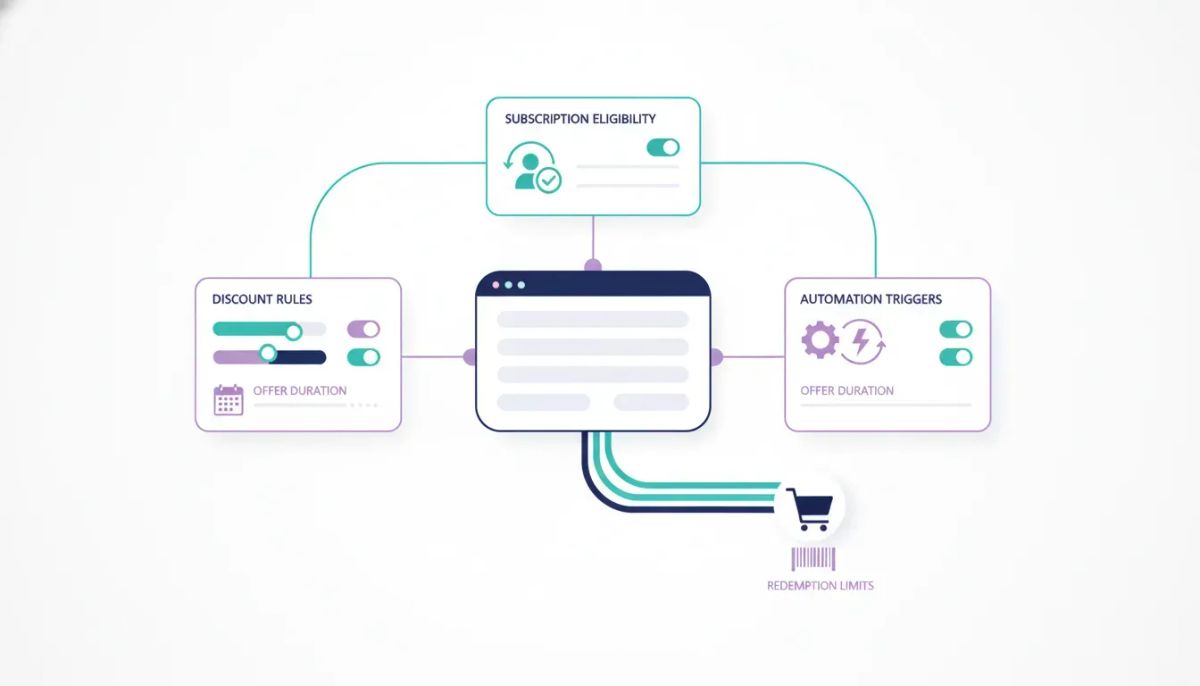
You can control exactly which product gets discounted, which price point or variant qualifies, how long the offer runs, how many times it can be redeemed, whether it applies to subscriptions, and what happens inside your automations when someone uses it.
That matters because a good coupon setup is not just a discount. It is part of your sales process, your launch strategy, and your overall marketing automation system.
Here’s a practical example. Say you’re a business coach selling a signature offer called Business Foundations. It has two pricing options:
- Self-study for $297
- VIP for $997, including group coaching calls
You want to run a launch promotion with 25% off only the self-study option. The VIP tier should stay full price. That is exactly the kind of setup HighLevel handles well when you know where the controls are.
This walkthrough covers the full coupon setup in HighLevel, including restrictions, checkout behavior, recurring payment settings, and workflow triggers that turn a simple promo code into something much more strategic.
Where to Find Coupons in HighLevel
Inside HighLevel, go to Payments from the left-hand menu. Then, in the top menu bar, select Coupons.
This area is your coupon management center. It shows your existing coupons and their current status, which makes it easier to track what is active, expired, or capped out.
If you are creating a new one from scratch, click Create Coupon.
Start with the Coupon Name and Code
The first field is the coupon name. This is internal only. Customers do not see it, so the goal here is simple organization.
For the launch example, a clean internal name would be Launch Promo Self-Study.
Next comes the coupon code, which is what customers enter at checkout.
There are a few important rules here:
- It must be alphanumeric only
- No spaces
- No special characters
- It is case-insensitive
You can either generate a random code automatically or type one in yourself. For a promo like this, a memorable code such as LAUNCH25 is usually easier to market and easier for customers to use.
Choose the Right Discount Type
HighLevel gives you two coupon types:
- Percentage coupon
- Fixed coupon
Percentage coupon
This takes a percentage off the selected product price. In the example above, 25% off the $297 self-study tier brings the price down to $222.75.
Fixed coupon
This subtracts a flat amount regardless of the order size. A $50 discount is the same whether the product is $297 or $997.
For a launch promo tied to a specific offer, percentage discounts often make more sense because they scale directly with the product price. In this case, the best choice is a 25% percentage coupon.
Set the Start and End Dates
The next piece is timing.
HighLevel lets you choose a start date and an end date for the coupon. This determines when the code becomes active and when it stops working.
This is especially useful for:
- Launch windows
- Seasonal promotions
- Founding member offers
- Short deadline campaigns
If you leave the end date blank, the coupon keeps running indefinitely. That may be fine for evergreen offers, but if you are creating urgency around a launch, setting an expiration date is the better move.
Time-bound offers are easier to manage when the platform handles expiration automatically instead of relying on manual cleanup later.
Usage Restrictions: Where the Real Control Happens
This is where coupon strategy in HighLevel really opens up.
The Usage Restrictions section is where you define who can use the coupon, how often, and most importantly, what exactly it applies to.
1. Limit the total number of redemptions
You can set a max redemption count for the coupon.
That means if you only want 20 people to get a founding member rate, you can cap the coupon at 20 uses. Once the 20th redemption happens, the code stops working automatically.
This is a clean way to run scarcity-based offers without manually tracking sales.
2. Limit the coupon to selected products
This is one of the most important settings in the entire coupon workflow.
Instead of applying a discount to everything, you can tell HighLevel exactly which product the coupon should work on. You can get even more specific and limit it to a particular price point or variant.
Going back to the Business Foundations example:
- The product has two prices
- You want the discount only on Self-study at $297
- You do not want it on VIP at $997
Inside the restriction settings, you would select the Business Foundations product and choose only the self-study price option. HighLevel then recognizes that only one of the two prices qualifies for the discount.
This is what keeps your promo precise. You are not discounting the wrong tier, and you are not accidentally reducing the value of a premium offer that should remain full price.
3. Limit use to once per customer
This setting is straightforward and incredibly useful.
If enabled, each customer can only use that coupon code one time.
For launch promos, this helps prevent repeat use by returning customers and keeps the promotion aligned with the original intent. If the offer is meant to be a one-time entry incentive, this is the box to check.
Recurring Payment Settings for Subscriptions and Payment Plans
If your offer includes a subscription or multiple payment installments, pay close attention to the recurring payment settings.
HighLevel allows you to decide how long the discount should continue:
- Forever, which applies the discount to every recurring payment going forward
- Limited number of months, which applies the discount only for the number of months you specify
This matters because recurring discounts can either support your offer strategy or quietly reduce revenue if you set them incorrectly.
For a one-time purchase like the $297 self-study tier, this setting does not apply. But for memberships, subscriptions, or payment plans, it is essential to think through whether the coupon should affect the first payment only, a set number of billing cycles, or the entire lifetime of the subscription.
Once your settings are in place, click Create.
At that point, your coupon is live based on the rules you defined.
The Complete Operating System for Growth
Join over 60,000+ agencies and businesses using HighLevel to capture more leads and close more deals. Start your trial today and get instant access to the Nexus Hub resources.
Claim Your Free Trial & BonusesWhat Customers See at Checkout
When a valid coupon code is entered, HighLevel displays the discount directly in the checkout summary and applies it to the qualifying product.
That part is simple. The more interesting behavior shows up when a cart includes multiple items.
If someone has more than one product in the cart and the coupon only applies to one of them, HighLevel handles the math for you and applies the discount proportionally to the eligible item only.
That means:
- The coupon does not spill over onto non-qualifying products
- The discount is calculated correctly for the selected item
- The checkout experience stays clean and accurate
This is exactly why product-specific restrictions matter so much. They allow you to run targeted offers without creating pricing confusion at checkout.
Can a coupon reduce the total to zero?
Yes.
HighLevel coupons can bring the cart total down to $0. If you want to make a product free, a 100% off coupon will do that.
Depending on the setup, the customer may still be asked to enter card details, but the actual charge will be zero.
This can be useful for:
- Free access campaigns
- Partner promotions
- Beta or early-user offers
- Special internal or VIP comps
One important limitation
Coupons do not apply to one-click upsells in funnels.
So if you have an order bump or a one-click upsell after the main checkout, the coupon code does not carry over automatically to that next offer.
That is worth planning around if your funnel relies heavily on post-purchase revenue.
Using Coupon Triggers in HighLevel Workflows
This is where coupons stop being just a payment feature and start becoming part of a real CRM and marketing automation system.
Inside HighLevel workflows, you get four coupon-specific triggers:
- Coupon Code Redeemed
- Coupon Code Applied
- Coupon Code Expired
- Coupon Redemption Limit Reached
All four live in the Payments section of the workflow builder.
You can also filter these triggers by specific coupon code, coupon type, coupon value, contact tags, and other criteria, which gives you a lot of flexibility in how your automations fire.
Coupon Code Redeemed
This trigger fires after a successful completed transaction.
In other words, the payment went through and the order is confirmed.
This is the trigger you would use when you only want automation to run after money has actually been collected.
For example, you might filter the workflow so it only fires when the coupon code is LAUNCH25. That way, anyone who purchased using that launch offer could be added to a special onboarding sequence, tagged as a promo buyer, or sent a campaign-specific follow-up.
Coupon Code Applied
This trigger fires the moment the code is entered at checkout, even if the purchase is not completed.
That makes it especially valuable for abandoned cart strategies.
If someone enters your launch code but leaves before paying, this trigger can capture that behavior and feed it into your follow-up system. From an agency systems and SaaS operations perspective, that is useful because it tells you someone had intent, responded to the offer, and got close to purchasing.
That is a very different signal from someone who never engaged with the checkout at all.
Coupon Code Expired
This trigger fires when the coupon reaches its end date and becomes inactive.
That can support a few practical workflows:
- Notify your team that the campaign has ended
- Trigger an internal task to update sales pages or emails
- Follow up with contacts who did not redeem the offer in time
If you are managing launches or time-sensitive offers inside HighLevel, this can save you from loose ends and manual cleanup.
Coupon Redemption Limit Reached
This trigger fires the moment the coupon hits its maximum redemption cap.
If your coupon is limited to 20 uses, the automation kicks off when the 20th redemption happens.
This is particularly helpful for scarcity-based campaigns. You can alert your team, remove promotion messaging, or trigger a new campaign that pivots people to the standard full-price offer.
How to Think About Coupon Strategy in HighLevel
A strong HighLevel coupon setup is not just about discounts. It is about control.
You are deciding:
- Which offer should be promoted
- Which tier should stay premium
- How long the offer should stay available
- Whether it should reward urgency or scarcity
- How the CRM should react when someone engages with the code
That is why coupons fit naturally into bigger HighLevel workflows and agency implementation strategies. They are not isolated payment settings. They are one more lever inside your marketing automation and sales process.
For the example used here, the final setup looks like this:
- Coupon code: LAUNCH25
- Discount: 25% off
- Offer window: active only during the defined launch dates
- Product restriction: applies only to the $297 self-study tier
- Excluded tier: the $997 VIP option remains full price
- Customer limit: one use per customer
Once you know where each setting lives, the process is actually pretty straightforward.
Best Practices for Managing Coupons Cleanly
If you are handling offers across multiple products, clients, or sub-accounts, a few habits make coupon management much easier:
- Use clear internal names so you know exactly what each coupon was created for
- Keep public codes simple so they are easy to remember and type
- Always double-check product restrictions before making the coupon live
- Set expiration dates intentionally instead of leaving old promo codes active forever
- Connect important coupon events to workflows so follow-up does not depend on manual work
These are small steps, but they matter a lot when you are scaling operations inside GoHighLevel or managing promotions as part of a broader CRM system.
FAQ
Can I apply a coupon to only one price option within a product?
Yes. HighLevel allows you to limit a coupon to selected products and even specific prices or variants within that product. That is how you can discount a self-study tier while leaving a VIP tier at full price.
What is the difference between a percentage coupon and a fixed coupon in HighLevel?
A percentage coupon reduces the price by a percentage of the product total. A fixed coupon subtracts a flat dollar amount regardless of the product price.
Can I limit how many times a coupon is used?
Yes. You can set a maximum number of redemptions for the coupon. Once that limit is reached, the coupon stops working automatically.
Can a customer use the same coupon more than once?
Only if you allow it. If you enable the setting to limit use to once per customer, each customer can redeem that code a single time.
Do HighLevel coupons work on subscriptions and payment plans?
Yes. For recurring payments, you can choose whether the discount applies forever or only for a limited number of months.
Can a coupon make a product free?
Yes. A 100% off coupon can reduce the order total to $0. In some cases, card details may still be requested, but the charge itself will be zero.
Do coupons apply to one-click upsells in funnels?
No. Coupons do not carry over to one-click upsells or similar post-checkout funnel offers.
What coupon triggers are available in HighLevel workflows?
You can trigger automations when a coupon code is applied, redeemed, expired, or when its redemption limit is reached. These triggers are found in the Payments section of the workflow builder.
Coupons are one of those features that seem simple until you realize how much control they actually give you. When you pair them with HighLevel payments, workflows, and automations, they become a practical tool for launches, product segmentation, scarcity campaigns, and cleaner sales operations overall.
If you are building inside HighLevel, this is the kind of setup that helps you run promotions without creating a mess on the backend. Done right, your coupon strategy supports the offer, protects premium pricing, and feeds useful signals back into your CRM.