How To Configure AI Bot Response Styles in HighLevel

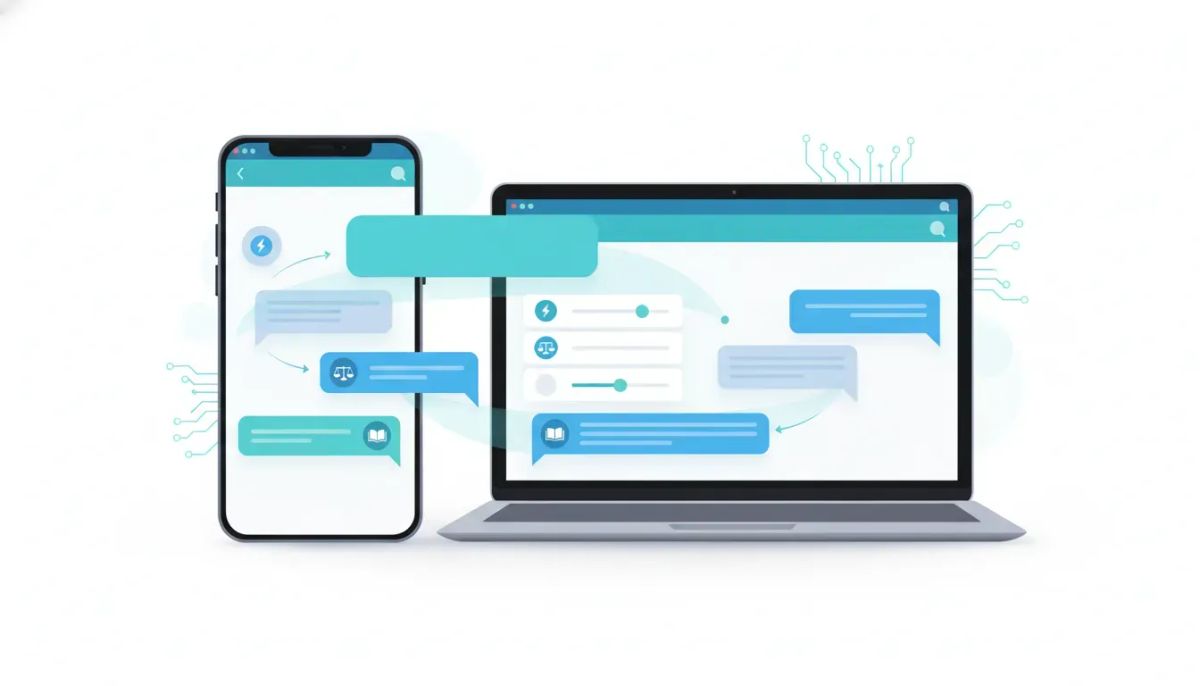
If you are using HighLevel Conversation AI, one of the simplest ways to improve your bot experience is by controlling how long or short its replies should be.
That matters more than it might seem at first. A bot replying in SMS needs a very different tone and length than a bot helping someone through onboarding, answering FAQs, or handling troubleshooting in web chat. If every reply is too short, customers may need to keep asking follow-up questions. If every reply is too detailed, the conversation can feel heavy and unnatural.
HighLevel solves this with response settings inside Conversation AI. You can choose between concise, balanced, and detailed responses, giving you a cleaner way to align reply length with your brand voice, support style, and channel.
This feature is especially useful for agencies managing multiple bots across different client accounts, as well as businesses building more polished customer journeys inside their CRM, marketing automation, and support workflows.
Why response styles matter in HighLevel Conversation AI
When people interact with a bot, they are not just judging the answer. They are also judging how the answer is delivered.
A quick yes-or-no confirmation should not sound like a long help article. At the same time, a troubleshooting question should not get a one-line response that leaves the customer confused.
That is where response styles help. Instead of constantly rewriting prompts to force shorter or longer answers, you can configure the bot behavior directly inside HighLevel.
Using the right response style helps you:
- Match the channel, such as SMS, web chat, social DMs, and similar messaging environments
- Improve customer clarity by giving the right amount of information upfront
- Reduce back-and-forth caused by vague or incomplete answers
- Keep brand voice consistent across conversations
- Avoid prompt rewrites every time you want a different response length
In practical terms, this means your HighLevel AI bot can feel more natural and more useful without needing extra complexity in your setup.
Where to find response settings in HighLevel
The setup is straightforward. Inside HighLevel, go to the bot you want to edit and follow this path:
- Open AI Agents from the left-side menu
- Select Conversation AI at the top
- Open Bot Settings
- Scroll down to Response Settings
- Turn the toggle on
- Choose your preferred response style
Once enabled, you will see the three available options: concise, balanced, and detailed.
If the setting is left disabled, the bot will continue functioning the way it was previously configured. In other words, enabling response settings gives you an extra layer of control, but it does not force changes unless you intentionally turn it on.
The three AI bot response styles explained
HighLevel gives you three response lengths to work with. These are not strict limits, but they are useful targets that shape how the bot replies.
1. Concise
Approximate length: 30 words
Concise is best when speed and clarity matter most. Think short acknowledgements, simple Q&A, and SMS-friendly replies where every word counts.
With concise replies, the bot aims to give a direct answer with minimal extra context.
This style is a strong fit for:
- Quick confirmations
- Appointment-related replies
- Basic customer questions
- Text message conversations
- Social DM interactions that should stay brief
If your business communicates in short-form channels, concise often creates the best user experience.
2. Balanced
Approximate length: 80 words
Balanced is the middle ground and likely the best default for many HighLevel Conversation AI use cases. It gives a clear answer, adds a little context, and often includes light guidance.
This is ideal for general conversations where the customer needs more than a one-line reply but does not need a full walkthrough either.
Balanced works well for:
- General support conversations
- Lead qualification interactions
- Basic service explanations
- Common account or process questions
- Web chat where some context is helpful
If you are unsure where to start, this is often the safest option because it tends to feel helpful without becoming too long.
3. Detailed
Approximate length: 200 words
Detailed is designed for situations where the bot needs to explain something in a more structured way. That could mean troubleshooting, onboarding, FAQ responses, or step-by-step guidance.
Instead of simply answering the question, the bot has room to explain the process and provide a more complete response.
Detailed is especially useful for:
- Frequently asked questions
- Troubleshooting flows
- Onboarding guidance
- Step-by-step setup instructions
- Support scenarios where clarity matters more than speed
For agencies building client support bots in GoHighLevel, detailed responses can reduce friction and improve self-service when used in the right places.
The Complete Operating System for Growth
Join over 60,000+ agencies and businesses using HighLevel to capture more leads and close more deals. Start your trial today and get instant access to the Nexus Hub resources.
Claim Your Free Trial & BonusesImportant note: these are guidelines, not hard word limits
This is one of the most important details to understand.
The response settings are based on approximate target lengths, not strict word caps. So while concise may aim for around 30 words, balanced around 80, and detailed around 200, the actual response may be a little shorter or longer depending on the conversation.
That flexibility is useful because natural conversations do not always fit neatly into exact limits. Sometimes a simple answer only needs 20 words. Sometimes a clear and complete response takes a bit more than the target.
What matters is the general style and depth, not hitting a perfect number every time.
Avoid conflicting prompt instructions
If you are already using custom prompts in your HighLevel AI bot, be careful not to create conflicts.
For example, if you turn on a response style but your prompt also says something like never use more than 20 words, the results may become less predictable. The bot is then trying to follow two different instructions about length at the same time.
For the best performance, keep your prompt guidance clean and avoid rigid word-count rules when you are relying on response settings.
A good rule of thumb is this:
- Use response settings to control overall reply length and level of detail
- Use your prompt to control behavior, tone, objectives, and boundaries
That separation makes your bot easier to manage and usually leads to more consistent outputs.
Which HighLevel bots support response settings?
Response settings are supported across three different bot types in HighLevel:
- Form-based bots
- Prompt-based bots
- Flow-based bots
That gives you flexibility no matter how your agency systems or business automations are structured.
If you are using form-based bots for structured data collection, prompt-based bots for more flexible conversations, or flow-based bots for guided customer journeys, the same response-style controls can help shape the experience.
This is especially helpful in larger HighLevel agency setups where different bots serve different purposes. One bot may need short SMS-friendly replies for lead reactivation, while another may need detailed onboarding support in chat. The feature gives you a simple way to optimize each bot for its actual job.
Response settings are saved per bot
Another important detail: these settings are saved individually for each bot.
If you update the response style in one bot, that change does not automatically apply to your other bots.
This is a good thing.
It means you can create different experiences across your HighLevel CRM and automation environment based on use case, channel, and customer intent.
For example:
- A lead capture bot could use concise responses
- A general support bot could use balanced responses
- An onboarding assistant could use detailed responses
That kind of per-bot control is valuable for both internal teams and agencies scaling client delivery through standardized but flexible systems.
How to choose the right response style for your use case
If you are not sure which option to pick, start with the purpose of the bot rather than the feature itself.
Choose concise when:
- The conversation happens in SMS or another short-form channel
- The customer usually wants fast answers
- The goal is simple confirmation or direct response
- You want the interaction to feel lightweight and efficient
Choose balanced when:
- The bot handles general conversations
- You want answers to feel helpful but not overwhelming
- The bot asks qualifying questions
- You need a flexible default style for common support scenarios
Choose detailed when:
- The bot explains processes or steps
- The customer may need context to understand the answer
- You are handling FAQs, onboarding, or troubleshooting
- The goal is fewer follow-up questions and more complete self-service
In many cases, the best setup across HighLevel workflows and automations is not choosing one style for everything. It is choosing the right style for each conversation path.
Best practices for agencies and businesses using HighLevel AI bots
To get the most out of this feature, keep the setup simple and intentional.
- Match response style to channel. Short channels should usually stay short. More complex support channels can handle more depth.
- Keep brand voice consistent. Response length affects tone. Make sure your chosen style still sounds like your brand.
- Use detailed replies where clarity reduces support load. This is particularly helpful in onboarding and FAQ workflows.
- Avoid over-controlling prompts. If response settings are enabled, let them handle length instead of stacking extra word-count rules.
- Review each bot independently. Since settings are saved per bot, audit them one by one to make sure they align with purpose.
For teams managing SaaS operations, customer communication, and automated support inside GoHighLevel, these small configuration choices can have a real impact on customer experience.
Why this feature is useful in real-world HighLevel implementations
One of the biggest challenges with AI bots is consistency. A bot may be technically functional but still feel off if the replies are too long, too vague, or mismatched to the channel.
Response settings give you a practical way to tighten that up.
Instead of treating every conversation the same, you can tune your bot to deliver the right level of detail for the moment. That creates a better experience for leads, customers, and support teams. It also makes your automation feel more intentional, which is especially important if you are building scalable agency systems in HighLevel.
Sometimes the best improvements are not the flashy ones. They are the small controls that make everything feel more polished. This is one of those controls.
FAQ
What are the available AI bot response styles in HighLevel?
HighLevel offers three response styles for Conversation AI bots: concise, balanced, and detailed. These help control how short or how in-depth the bot's replies will be.
How long are concise, balanced, and detailed responses?
The approximate targets are 30 words for concise, 80 words for balanced, and 200 words for detailed. These are guidelines, not strict limits, so replies may sometimes be a bit shorter or longer.
Where do I enable response settings in HighLevel?
Go to AI Agents, select Conversation AI, open Bot Settings, then scroll down to Response Settings. Turn on the toggle and choose the style you want.
What happens if response settings are turned off?
If the feature is disabled, the bot continues working as it was previously set up. The response style controls only affect the bot after you enable them.
Which bot types support response settings?
Response settings are supported for form-based, prompt-based, and flow-based bots in HighLevel.
Do response style changes apply to all bots?
No. Response settings are saved per bot. If you change one bot to concise or detailed, that change only applies to that specific bot.
Can custom prompts interfere with response settings?
Yes. If your prompt includes conflicting instructions, such as a strict word-count rule, results may be less predictable. For better consistency, avoid adding rigid word-limit instructions when using response settings.
What response style should I choose?
Use concise for quick replies and SMS-friendly conversations, balanced for general support and qualification, and detailed for FAQs, onboarding, troubleshooting, and step-by-step guidance.
Final thoughts
If you are building AI bots in HighLevel, response settings are worth configuring early. They give you a cleaner way to shape the customer experience without constantly reworking prompts or rebuilding flows.
Choose concise when you need speed, balanced when you want a solid default, and detailed when clarity needs more space. Since settings are saved per bot, you can tailor each conversation experience to its exact role across your CRM, support, and marketing automation setup.
For agencies and businesses looking to improve implementation quality, this is one of those small settings that can make your entire HighLevel system feel more intentional, more consistent, and more aligned with your brand.
And if you are still building out your GoHighLevel environment, this kind of feature becomes even more valuable when paired with a smart setup strategy, the right workflows, and resources like the Nexus Hub community.