
Blogs: Add Image Captions, Smarter Keywords, and Enhanced Image Actions

HighLevel just rolled out a meaningful set of blog editor upgrades, and they solve a very real problem: too much of the blogging process has traditionally been manual.
If you have ever paused mid-publish to fix image behavior, resize visuals so they do not break your layout, or add SEO keywords one by one, you already know the friction. These updates are designed to remove that friction and make it easier to build cleaner, richer blog posts inside HighLevel without extra workaround steps.
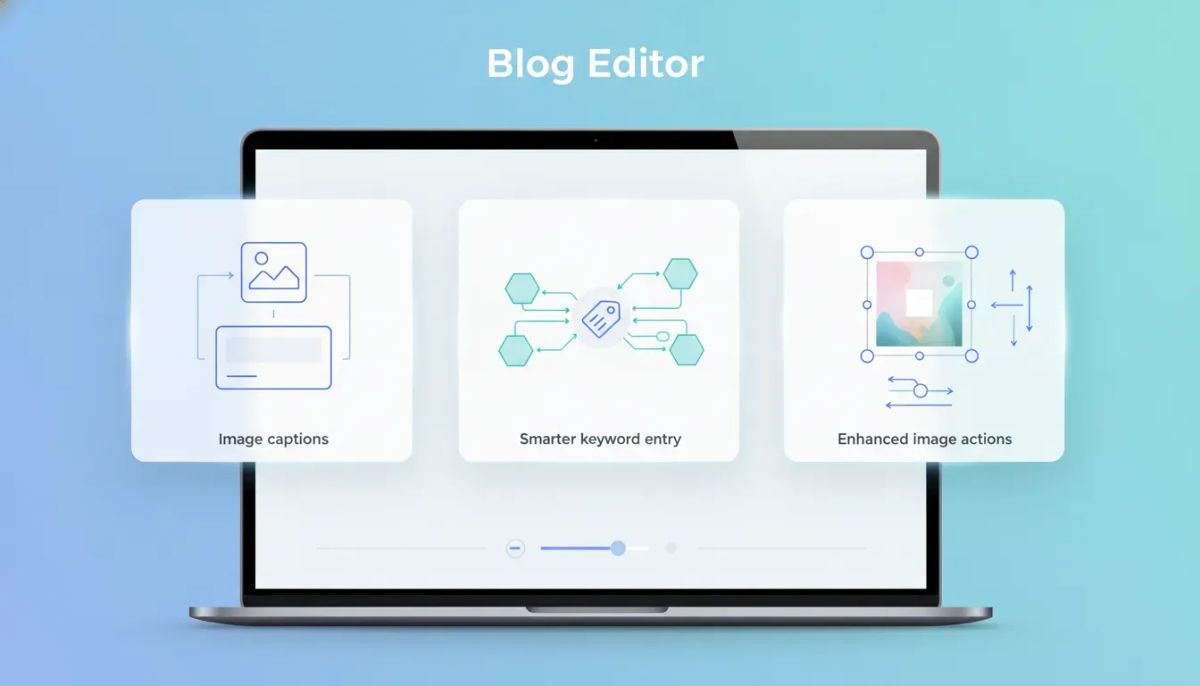
The latest improvements focus on three core areas:
- Image captions directly in the blog editor
- Smarter keyword entry when scheduling blog posts
- Enhanced image actions and controls for better layout flexibility
Individually, each one is useful. Together, they make the HighLevel blogging experience faster, more polished, and easier to manage for agencies, marketers, and businesses using GHL as part of their CRM and marketing automation stack.
Why these blog editor updates matter
Great blog publishing is rarely just about writing. It is also about presentation, SEO structure, and how efficiently your team can move from draft to published post.
That is especially important in HighLevel, where blogs often sit inside a broader system that includes funnels, websites, lead capture, CRM workflows, and agency operations. The less time spent on repetitive formatting tasks, the more time you can spend on content quality, campaign strategy, and conversion optimization.
These editor upgrades support that shift in a practical way. They help reduce manual effort while giving you more control over the final look and behavior of a post.
Image captions are now built into the blog editor
One of the most useful additions is the ability to add image captions directly inside the blog editor.
This sounds simple, and honestly, that is the point. Captions should not require a clunky workaround. They are a standard part of polished content design, and now they can be handled where they belong: right alongside the image in the editing flow.
Why image captions matter
Captions do more than label an image. They can improve clarity, context, and readability. In some cases, they also help reinforce the topic of a section or support the message of the image itself.
For content teams and agencies managing multiple client blogs, captions are also part of consistency. A clean caption beneath a visual creates a more intentional, professional layout than a floating image with no explanation.
In practical terms, image captions are helpful for:
- Providing context for screenshots or examples
- Clarifying what a chart, graphic, or photo represents
- Creating a more editorial, polished reading experience
- Reducing the need to force explanatory text awkwardly into the body copy
Inside HighLevel blogs, this means you can now make media feel like an integrated part of the article instead of a disconnected design element.
Smarter keyword addition when scheduling blog posts
The next upgrade is a very welcome one for anyone publishing with SEO in mind.
When scheduling a blog post, you can now enter comma-separated keywords directly. So instead of adding one keyword at a time, you can simply type something like:
- SEO
- marketing
- content strategy
That small change cuts out unnecessary clicks and makes the scheduling workflow feel much more natural.
What this improves in practice
Keyword entry is one of those tasks that should be fast, but in many systems it becomes repetitive. If you are managing a content calendar, posting at scale, or handling blog production for multiple brands, repetition adds up quickly.
With smarter keyword entry in HighLevel, the process becomes more efficient because you can:
- Add multiple keywords in one pass
- Reduce manual entry time during scheduling
- Keep your SEO tagging process cleaner and more consistent
- Move from content completion to publication faster
It is a small quality-of-life improvement, but it matters. Content workflows are made up of dozens of tiny actions. Streamlining even one or two of them can save significant time over the course of a month.
For agencies using HighLevel for client content production, this is exactly the kind of refinement that improves team throughput without requiring retraining or process changes.
The Complete Operating System for Growth
Join over 60,000+ agencies and businesses using HighLevel to capture more leads and close more deals. Start your trial today and get instant access to the Nexus Hub resources.
Claim Your Free Trial & BonusesEnhanced image actions give you more control over blog layout
The biggest set of improvements may be the new enhanced image actions in the blog editor.
Images are not just visual decoration. They shape layout, influence engagement, and often serve a functional role in teaching, selling, or guiding attention. When image controls are limited, every blog post becomes harder to format well. When image controls are flexible, content creation speeds up and the final result feels more deliberate.
That is what these updates address.
New interaction options from the image dropdown menu
HighLevel now includes additional interaction options inside the image flow, available through a dropdown menu.
This allows you to decide how each image should behave, instead of forcing the same interaction pattern across all visuals.
You can now choose to:
- Open the image in a full preview window
- Link the image to a custom URL
- Keep the image non-clickable
That flexibility is useful because different images serve different purposes.
When each image action makes sense
Full preview window works well when the image contains detail that may be hard to see inline. Think screenshots, diagrams, or visuals with smaller text. Allowing a larger preview can make the content easier to understand without cluttering the body of the article.
Custom URL linking is useful when the image should act as a path to something else, such as a landing page, a service page, a supporting asset, or another resource in your HighLevel ecosystem.
Non-clickable images are the right choice when the visual is purely illustrative and there is no need to introduce extra interaction. In many blog layouts, this keeps the reading experience cleaner and avoids accidental clicks.
This kind of control is especially helpful for marketers who care about both user experience and conversion flow. It lets you use images intentionally instead of treating them as static placeholders.
Improved image controls reduce editing friction
Beyond image actions, HighLevel also improved the underlying image controls. These updates make it easier to work with visuals inside the editor without fighting formatting issues.
The upgraded controls include:
- Proportional resizing
- Image replacement options
- Alignment controls
- URL configuration settings
Proportional resizing
Proportional resizing helps preserve the look of your images while adjusting their size in the layout. That means less risk of awkward stretching or distortion and a cleaner final presentation.
For blog teams that move quickly, this matters a lot. You should be able to resize an image without needing to stop and correct visual quality issues afterward.
Replace image without rebuilding the section
The replace image option is another practical win. If you need to swap a visual, update a screenshot, or change creative direction, you can do that more easily without redoing the surrounding structure.
That is particularly useful in real-world publishing where content changes often. Maybe a screenshot becomes outdated. Maybe a client wants a new graphic. Maybe you are refreshing old content for a better SEO strategy. Being able to replace an image quickly keeps maintenance simple.
Alignment controls for better composition
Alignment controls make it easier to place images where they belong in the flow of the article. That sounds basic, but it has a big effect on readability.
Well-aligned media creates rhythm. Poorly aligned media creates distraction.
When your blog is part of a larger HighLevel web presence that includes pages, funnels, forms, and automations, consistency in visual presentation reinforces brand quality across the board.
URL configuration without extra hassle
URL configuration gives you straightforward control over where an image points when linking is enabled. That means fewer hacks, fewer accidental mislinks, and a more reliable editing process.
If you are using images strategically in blog content, this is one of those backend improvements that saves headaches later.
How these upgrades help agencies and marketing teams
These improvements are not just about convenience. They fit into a bigger operational picture.
Many HighLevel users are not publishing a single blog here and there. They are running agency systems, managing client content, supporting SEO campaigns, and connecting blog activity to broader CRM and marketing automation goals.
In that context, blog editor efficiency matters more than it might seem.
Here is where these updates can make a noticeable impact:
- Faster publishing workflows because there is less manual formatting and repetitive entry
- Better content presentation through captions, alignment, and improved image behavior
- Cleaner SEO processes with simpler keyword addition during scheduling
- More flexible content design thanks to image preview, linking, and non-clickable options
- Easier content maintenance with image replacement and more intuitive controls
For agencies scaling operations in GoHighLevel, small editor improvements can translate into smoother SOPs, fewer team bottlenecks, and a better final product for clients.
What this means for your HighLevel content workflow
If your blog process includes writing, SEO prep, design cleanup, client review, and scheduling, these updates fit naturally into the publishing sequence.
A cleaner workflow might now look like this:
- Write and structure the post inside the HighLevel blog editor.
- Add images and include captions where context matters.
- Adjust image size proportionally and align each visual for a cleaner layout.
- Choose the right image behavior, such as preview, custom URL, or no click action.
- Schedule the post and add SEO keywords in one comma-separated entry.
- Publish with fewer formatting fixes and less manual cleanup.
That is the real value here. It is not just more features. It is less friction between the idea and the finished post.
A more polished blog experience inside HighLevel
HighLevel continues to evolve as more than a CRM or automation platform. For many businesses and agencies, it is the operating system behind websites, funnels, communication, client management, and content delivery.
Blogging inside that environment should feel modern and efficient. These updates move the editor in that direction.
Image captions make content more informative. Smarter keyword entry speeds up SEO workflows. Enhanced image actions and controls give you more freedom to create better layouts with less effort.
None of that is flashy for the sake of being flashy. It is simply useful. And in day-to-day content production, useful wins.
Where to check the update details
If you are already working inside HighLevel, there is also a changelog available in the platform. You can find it in the top-right corner through the speaker icon.
That is a good place to review these blog editor enhancements and stay current on additional product updates across HighLevel workflows, automations, and content tools.
FAQ
Can I add captions directly to blog images in HighLevel?
Yes. HighLevel now allows you to add image captions directly within the blog editor, making it easier to create more informative and polished blog layouts.
How do keywords work when scheduling a blog post?
You can now enter keywords as a comma-separated list during blog scheduling. This removes the need to add them one at a time and makes SEO setup faster.
What image actions are available in the updated blog editor?
You can choose to open an image in a full preview window, link it to a custom URL, or keep it non-clickable depending on how you want the image to function in the post.
Can I resize and replace images more easily now?
Yes. The editor includes improved image controls such as proportional resizing, image replacement, alignment settings, and URL configuration options.
Why do these blog updates matter for agencies using GoHighLevel?
They reduce manual work, improve content presentation, and streamline publishing tasks. For agencies managing multiple clients or scaling content operations in GHL, that leads to better efficiency and more consistent results.
Where can I find more information about these changes inside HighLevel?
You can review the changelog in HighLevel by using the speaker icon in the top-right corner of the platform.



