
Did You Know You Can Auto Reply to Emails with AI in HighLevel?

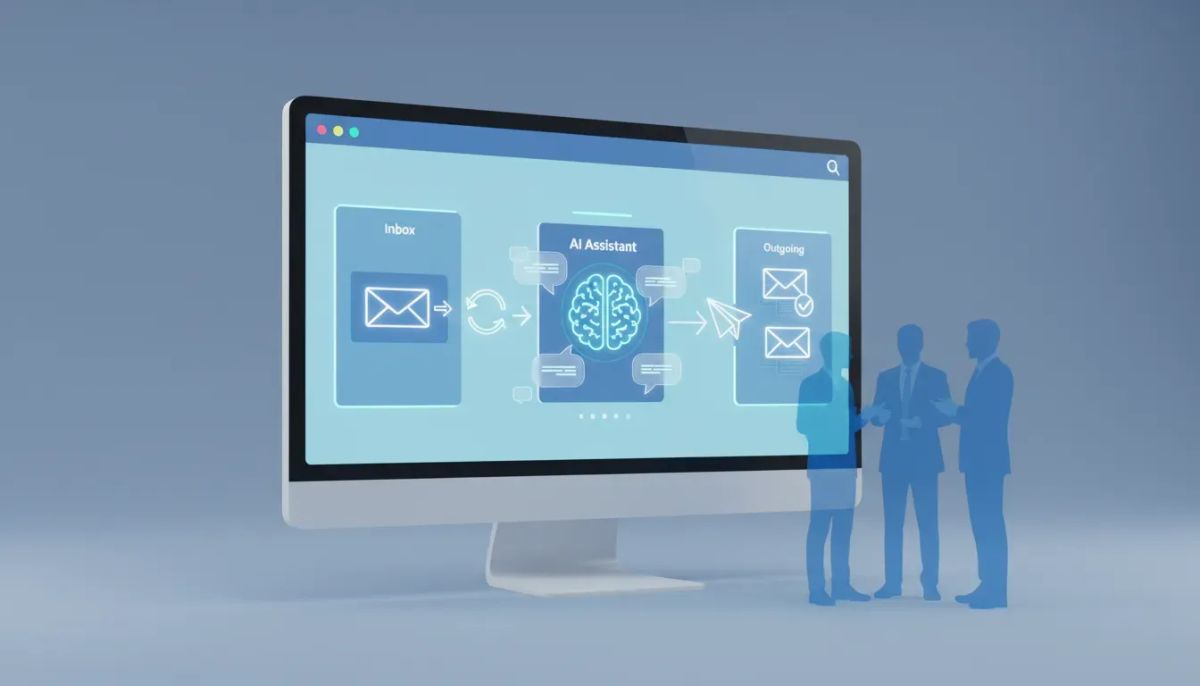
Email is still one of the most important channels in business, and it is also one of the easiest places to lose momentum.
A lead reaches out after hours. A support request lands in the queue while your team is busy. A potential client sends an email instead of starting a chat or replying to a text. If nobody responds quickly, that opportunity can cool off fast.
That is exactly where HighLevel Conversation AI can make a real difference.
Inside your HighLevel sub-account, you can set up AI to automatically reply to incoming emails, keep the conversation moving, and help your business stay responsive without manually answering every message one by one. For agencies, support teams, and small businesses, that means fewer missed leads, faster first responses, and a better customer experience across the board.
If you are already using HighLevel for CRM, marketing automation, or agency systems, this is a practical way to extend your setup and make your communication stack work harder for you.
The Complete Operating System for Growth
Join over 60,000+ agencies and businesses using HighLevel to capture more leads and close more deals. Start your trial today and get instant access to the Nexus Hub resources.
Claim Your Free Trial & BonusesWhy AI email replies matter
Your inbox cannot reply for you on its own. That sounds obvious, but it is the root of a common problem.
Most teams are juggling a lot at once. Sales inquiries, onboarding questions, support follow-ups, appointment requests, and general contact emails all come in at different times. Even with solid internal processes, it is hard to answer everything instantly.
When that delay happens, a few things usually follow:
- Leads move on to another business
- Customers feel ignored
- Support experiences become inconsistent
- Your team spends more time catching up than moving forward
Conversation AI for email helps solve that by reading incoming emails, understanding the context, and sending a response automatically. Instead of every email waiting for manual attention, you can let AI step in immediately.
This is especially useful when email is not your primary communication channel but people still prefer to use it. Even if your business relies heavily on SMS, web chat, or social messaging, many contacts will still default to email first. With AI handling those early replies, you can maintain a consistent experience no matter how someone reaches out.
What HighLevel Conversation AI can do for email
Within HighLevel, email can be enabled as one of the preferred channels for your AI bot. Once it is configured, the bot can respond in a natural, branded way based on the settings you choose.
That includes:
- Reading incoming email inquiries
- Responding based on context
- Using your selected tone and brand voice
- Customizing sender details and greetings
- Controlling how quickly the reply is sent
- Formatting the response as plain text or with a template
- Collecting specific information from contacts
- Operating in suggestive mode or full autopilot
That last point is important. You are not locked into one level of automation. You can choose how much control the AI has over the reply process.
Where to find it inside HighLevel
To set this up, start inside your HighLevel sub-account.
In the left-hand menu, go to AI Agents, then open Conversation AI.
From there, you have two paths:
- If you already have an AI agent, go to Agent Lists and open the one you want to update.
- If you want to build a new one, click Create Bots on the right-hand side.
This is a simple but useful distinction. If your business already has AI agents running on other channels like chat, SMS, Instagram, Facebook, live chat, or WhatsApp, you may only need to add email as another communication channel. If not, you can create a fresh bot specifically for your email use case.
Choose the right bot type
When creating a new bot, HighLevel gives you different build options. The two highlighted options are:
- General Q&A bot
- Appointment booking bot
The right choice depends on what kind of conversations you want the AI to handle.
General Q&A bot
This works well if incoming emails are mostly informational. Think questions about services, pricing, availability, onboarding, or basic support topics.
Appointment booking bot
This is the better option if your goal is to turn inbound email into scheduled calls, demos, consultations, or service appointments.
Once you choose the bot type, click continue and move into configuration.
Add brand information and set the tone
One of the biggest advantages of using AI inside HighLevel is that your replies do not have to feel robotic or generic.
As part of the setup, you will add basic brand information and choose the tone or voice of the bot. For example, you can select a friendly tone so the replies feel approachable and natural.
After that, you can choose your brand voice. If you already have one configured, select it. If not, HighLevel gives you the option to create a new brand voice directly in the setup flow.
This matters more than many teams realize. Fast replies are great, but fast replies that sound off-brand can create friction. By setting the tone and brand voice upfront, you make sure the AI supports your customer experience rather than disrupting it.
For agencies managing multiple client accounts, this is especially helpful. Each sub-account can reflect a different client voice, making it easier to scale AI implementation without sacrificing brand consistency.
Enable email as a preferred channel
Once your bot identity is in place, the next step is choosing where it should communicate.
Under preferred channels, HighLevel lets you enable or disable channels such as:
- SMS
- Chat widget
- Live chat
If your goal is specifically to auto reply to incoming emails, simply select email and remove any channels you do not want the bot to handle.
This keeps the setup clean and focused. You can always expand later if you want the same AI bot to work across multiple channels. That flexibility is one reason HighLevel fits so well into broader marketing automation and CRM operations. You are not building a one-off tool. You are configuring a communication layer that can scale with your business.
Configure your email reply settings
After enabling email, HighLevel opens a pop-up where you can fine-tune how the AI email replies will work.
This is where the setup starts to feel operational, not just technical.
Sender details
You can define the key sender information, including:
- From name
- From email
- Recipients
These details help the AI emails look and feel like a natural extension of your business communication. Instead of a generic automated message, the reply can come through with the right branding and sender identity.
Greeting personalization
You can also personalize the greeting. This is a small detail, but it can make the response feel much more human. A warm opening goes a long way in reducing the “automated” feel of an instant reply.
Response wait time
Another useful setting is the wait time before responding.
If you want a custom delay for email specifically, you can turn that on and choose the amount of time in minutes, seconds, or hours before the AI sends its reply.
This gives you more control over the customer experience. Some teams prefer immediate responses for lead capture. Others may want a short delay so the reply feels more natural or aligns with internal workflows.
That kind of flexibility is valuable when you are building agency systems or internal operating procedures in HighLevel. Automation works best when it matches the way your team actually wants communication to happen.
Choose the email format
Next, you can decide how the email itself should be formatted.
HighLevel gives you two options:
- Plain text
- Template built in the design editor
Plain text
If you choose plain text, you can also edit the email signature. This is often the right fit for conversational replies because it feels simple, direct, and personal.
Design template
If your brand requires a more structured or visually styled response, you can use the design editor to create a template instead.
There is no universal right answer here. A sales inquiry might work best as a plain-text email that feels one-to-one. A support or onboarding reply might benefit from a more structured template. The key is choosing the format that matches your communication style and customer expectations.
The Complete Operating System for Growth
Join over 60,000+ agencies and businesses using HighLevel to capture more leads and close more deals. Start your trial today and get instant access to the Nexus Hub resources.
Claim Your Free Trial & BonusesPreview before you go live
Before finalizing the setup, HighLevel shows you a preview of what the AI email will look like.
This is the moment to check the basics:
- Does the sender information look right?
- Does the greeting sound natural?
- Does the email format match your brand?
- Does the signature feel complete?
Even though the setup is fast, this preview step is worth taking seriously. Small details can affect trust and response rates, especially in lead generation and customer support.
Select the information you want to collect
Before the bot is fully created, you can also choose the information you want it to collect.
This is an important part of making AI useful inside a CRM environment. It is not just about replying quickly. It is about helping you gather the information your team actually needs for next steps.
Depending on your process, that might support better follow-up, smoother handoffs, or more consistent lead qualification. In a HighLevel setup, that kind of structured information collection can become a strong foundation for downstream workflows and automations.
Suggestive mode vs autopilot
Once the bot is created, you can choose how it operates.
HighLevel gives you two key modes:
- Suggestive mode
- Autopilot
Suggestive mode
This is useful if you want AI assistance without fully handing over the response process. The bot can help generate replies, but you maintain more oversight.
Autopilot
This is the fully automated option. When enabled, the bot will respond to incoming emails automatically.
If your priority is speed, consistency, and making sure no lead sits unanswered, autopilot is where this feature becomes especially powerful.
For many businesses, that is the main win. Someone reaches out, and instead of waiting in the inbox, they get an immediate response that continues the conversation in a natural way.
When you are happy with the setup, click save and close.
The real business impact of AI email replies
Used well, AI email replies are not just a convenience feature. They can improve several core parts of your operation:
- Customer experience through faster, more consistent communication
- Lead capture by engaging inquiries as soon as they arrive
- Team efficiency by reducing repetitive manual responses
- Operational consistency by keeping tone and messaging aligned
That is why this fits naturally into larger HighLevel workflows and automations. The inbox becomes less of a bottleneck and more of an active part of your CRM and communication system.
For agencies, this can also become part of a broader service offering. If you are helping clients improve responsiveness, close more leads, or streamline support, AI-powered email responses are one more implementation strategy that can add value quickly.
Best practices for setting it up cleanly
To get the best result from this feature, keep the setup intentional.
- Choose the right bot type. Use general Q&A for broad inquiries and appointment booking when scheduling is the main goal.
- Set a clear brand voice. A fast response is only helpful if it still sounds like your business.
- Limit channels when needed. Start with email only if that is your immediate use case.
- Review sender details carefully. Make sure the from name and email are correct before going live.
- Use the preview. Catch formatting or tone issues early.
- Choose autopilot thoughtfully. If you want full automation, make sure the bot settings reflect your communication standards.
None of this is complicated, but a few smart choices upfront can make the difference between a helpful automation and one that needs constant adjustment.
Why this matters for agencies and scaling teams
If you are building out HighLevel agency setup and scaling systems, email AI replies can become a meaningful piece of your delivery model.
Many agencies already use HighLevel for pipelines, messaging, calendars, forms, and marketing automation. Adding Conversation AI for email extends that ecosystem in a practical way. It helps clients respond faster, keeps communication active after hours, and supports a more polished lead handling process.
For small internal teams, it helps reduce the pressure of being “always on.” For agencies managing multiple sub-accounts, it creates a repeatable implementation that can be tailored by brand voice and channel settings.
That is the kind of feature that does not just save time. It supports better SaaS operations and stronger client outcomes.
Getting started inside HighLevel
If you are already inside HighLevel, this setup can be done directly from your sub-account through AI Agents > Conversation AI.
If you are exploring the platform and want to test how features like this fit into your CRM, automations, and client communication systems, starting a HighLevel free trial is a straightforward next step.
And if you want implementation help, templates, or shared resources for building better systems, joining the Nexus Hub community can be a natural move as well.
The big takeaway is simple: your inbox does not have to be a dead end. With HighLevel Conversation AI, email can become an active, automated part of your customer journey.
That means faster replies, stronger follow-up, and fewer missed opportunities.
FAQ
Can HighLevel automatically reply to incoming emails with AI?
Yes. Inside HighLevel Conversation AI, you can enable email as a preferred channel and configure a bot to respond automatically to incoming emails.
Where do I find email auto reply settings in HighLevel?
Go to your HighLevel sub-account, open AI Agents from the left-hand menu, then select Conversation AI. From there, you can edit an existing agent or create a new bot and enable email.
What types of bots can I create for email replies?
You can create either a general Q&A bot or an appointment booking bot, depending on whether you want to handle common questions or focus on scheduling conversations.
Can I control the tone and brand voice of AI email replies?
Yes. During setup, you can choose the bot tone, such as friendly, and assign a brand voice so the responses feel aligned with your business communication style.
Can I set a delay before the AI replies to an email?
Yes. HighLevel lets you set a custom wait time for email replies in minutes, seconds, or hours before the AI sends its response.
Does HighLevel let me format the email reply?
Yes. You can choose between a plain text email or a template created in the design editor. If you use plain text, you can also edit the email signature.
What is the difference between suggestive mode and autopilot?
Suggestive mode provides AI support while allowing more oversight. Autopilot means the bot will automatically send replies to incoming emails without manual intervention.
Who is this feature useful for?
This is useful for agencies, support teams, and small businesses that want to respond faster, improve customer experience, and avoid missing leads that arrive by email.
The Complete Operating System for Growth
Join over 60,000+ agencies and businesses using HighLevel to capture more leads and close more deals. Start your trial today and get instant access to the Nexus Hub resources.
Claim Your Free Trial & Bonuses


