
How to Enable Conversation AI Summaries in HighLevel

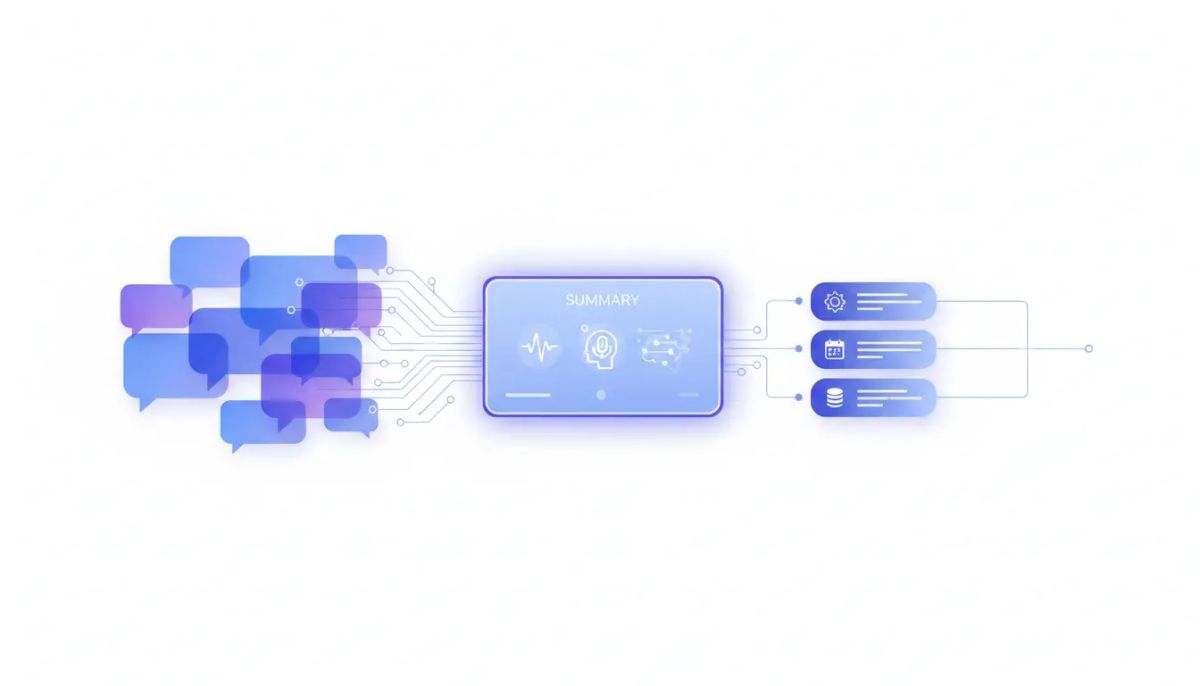
Keeping up with every lead conversation sounds simple until your pipeline gets busy. A few chats turn into dozens, then hundreds, and suddenly important details are buried inside long message threads. That is exactly where Conversation AI summaries and transcripts in HighLevel become incredibly useful.
Instead of manually reviewing every exchange, you can have HighLevel automatically generate a summary after a conversation ends. You can also use that summary or even the full transcript inside a workflow to trigger follow-ups, internal notifications, or other automation steps.
If you are using HighLevel, GoHighLevel, or GHL to manage CRM communication, marketing automation, and agency operations, this feature can save time and improve visibility across your entire team. It helps you capture what happened in a conversation, stay organized, and take action faster.
The Complete Operating System for Growth
Join over 60,000+ agencies and businesses using HighLevel to capture more leads and close more deals. Start your trial today and get instant access to the Nexus Hub resources.
Claim Your Free Trial & BonusesWhy Conversation AI Summaries Matter
When teams are handling multiple leads at once, small details can slip through the cracks. A prospect may mention their budget, timing, service interest, or a specific pain point, and if nobody logs that information quickly, it can get lost.
Conversation summaries solve that problem by giving you a clean snapshot of the interaction without forcing you to scroll through the entire thread. That means you can:
- Quickly understand what happened in a conversation
- Reduce time spent reading long chat histories
- Improve team visibility across leads and accounts
- Trigger automated follow-ups based on the summary or transcript
- Keep your CRM records more useful and actionable
For agencies managing multiple clients, this is especially valuable. It creates a cleaner handoff between automation and human follow-up, which is one of the biggest wins in a solid HighLevel agency setup.
Where to Find Conversation AI in HighLevel
Inside your HighLevel sub-account, start from the left-hand menu and go to AI Agents. From there, select Conversation AI.
If you have not created a bot yet, use the blue button on the right side to create one. If you already have a bot set up, go to Agent Lists and open the existing bot you want to use.
Whether you are starting with a brand-new bot or editing one you already use, the setup process for summaries is the same.
How to Enable Conversation AI Summaries
Once you are inside the bot settings, go to Bot Goals and scroll down to the Preferences section.
This is where you will find the option to Enable Conversation Summary.
Turn that setting on, and HighLevel will be able to generate a summary after a conversation ends. This is the core switch that activates the feature.
From there, you can fine-tune how and when the summary should be generated.
Set the inactivity time
HighLevel generates the summary after a selected period of inactivity. In other words, if neither the contact nor the bot replies for the amount of time you choose, the platform treats the conversation as finished and creates the summary.
One example setting is 15 minutes. That means if there is no reply from either side for 15 minutes, the summary will be produced automatically.
This setting matters because it controls how quickly the record becomes available for automation, notifications, or internal review.
Set the minimum message count
You can also decide how many messages must exist before a summary is created.
For example, setting the minimum to 4 messages means:
- If the conversation has fewer than 4 messages, no summary will be generated
- If the conversation has 4 or more messages, HighLevel will generate the summary
This is a helpful filter. Not every short interaction needs a summary. A quick one-line exchange may not be worth storing, while a more meaningful conversation absolutely is.
For agencies and SaaS operators trying to keep CRM records clean, this kind of threshold can reduce clutter.
Additional Summary Settings You Can Use
Once the summary feature is enabled, HighLevel gives you a few extra options that make it much more powerful than a simple recap tool.
Trigger a workflow after the summary or transcript is generated
This setting is where things start to get really useful.
You can choose a workflow that should run automatically once the summary or transcript is generated. That means your AI conversation is no longer just producing information. It is also kicking off an action.
That action could be:
- Sending an SMS internally
- Passing the summary to a team member
- Launching a follow-up process
- Recording key context for later outreach
The exact action depends on how you build your HighLevel workflow, but the important point is that summaries can become a trigger point in your automation system.
Save the summary as a custom field
You also have the option to save the summary as a custom field.
This can be helpful if you want the summarized conversation data stored directly on the contact record in a structured way. For CRM management and long-term account visibility, that can make it much easier to reference previous interactions.
Send email notifications for conversation summaries
HighLevel also lets you send an email notification whenever a conversation summary is generated.
You can choose where those notifications should go. Available options include:
- All admins
- All users
- The contact’s assigned user
- Specific users
- A custom email address
If you select All Users, every user inside the account will receive the generated summary.
This is a simple but powerful way to improve team awareness, especially when sales reps, support staff, or account managers need to stay informed without living inside every conversation thread.
Once your settings look right, click Save in the bottom-right corner.
How to Build a Workflow for Conversation AI Summaries
If you want to automate what happens after a summary is generated, the next step is to create a workflow in HighLevel.
Go to Automation and create a new workflow from scratch.
Here is the important detail: you do not need to set a trigger inside the workflow builder.
That often surprises people, but in this case the workflow is being connected directly from the Conversation AI summary setting. So the workflow will fire when the summary is generated, not because of a standard workflow trigger you manually add inside the builder.
That makes this setup a little different from a typical HighLevel automation.
Add an action to the workflow
After opening the workflow builder, skip the trigger step and click the plus button to add an action.
One example is to add a Send SMS action.
This is where you can pull in the generated summary and use it as the content of the message.
Insert the conversation summary or transcript
Inside the message field, click the Custom Value button. Then scroll down to the Conversation AI options.
From there, you can choose either:
- Summary of the conversation
Transcript of the full conversation
If you choose Summary, HighLevel will insert the summarized version of the conversation into the SMS action.
If you choose Transcript, it will insert the full conversation record instead.
This gives you a lot of flexibility. A summary is usually best for quick internal updates. A transcript may be more useful if you need every detail available for review or recordkeeping.
Save and publish the workflow
After adding your action, save it, give the workflow a name, then click Publish and Save.
At that point, your workflow is ready to be linked back to the bot.
The Complete Operating System for Growth
Join over 60,000+ agencies and businesses using HighLevel to capture more leads and close more deals. Start your trial today and get instant access to the Nexus Hub resources.
Claim Your Free Trial & BonusesHow to Attach the Workflow to Your Bot
Now go back to your bot settings:
- Open AI Agents
- Select Conversation AI
- Go to Agent Lists
- Choose the bot you want to update
In the summary settings area, turn on the option to trigger a workflow and select the workflow you just created.
Then click Save.
From that point forward, once a conversation ends and meets your rules for inactivity and message count, HighLevel will generate the summary and automatically fire the connected workflow.
A Practical Example of How This Works
Imagine a lead has a back-and-forth conversation with your AI agent about a service, pricing, and availability.
Instead of asking your team to review the whole message thread, HighLevel can:
- Wait until the conversation becomes inactive
- Generate a summary automatically
- Insert that summary into a workflow action
- Send it by SMS or use it in another automated step
That means the right person can get the context fast and know exactly what happened without digging through the CRM manually.
For agencies that want better internal visibility, faster follow-up, and stronger implementation systems, this is a smart use of HighLevel workflows and automations.
Best Practices for Using Conversation Summaries in HighLevel
The feature itself is straightforward, but a few implementation choices can make a big difference.
Use summaries to reduce noise, not add to it
Set a reasonable inactivity window and minimum message count so only meaningful conversations generate summaries. This helps avoid clutter in your CRM and inboxes.
Choose summaries for speed, transcripts for detail
If your team only needs the highlights, use the summary field in workflows and notifications. If they need the full context, use the transcript option instead.
Send notifications to the right people
Not every account needs every user notified. Sometimes all admins make sense. Sometimes the assigned user is the better choice. Match the delivery method to your workflow process.
Store important data intentionally
Saving the summary to a custom field can make your CRM much easier to work with over time. If your agency depends on clean records and efficient handoffs, this is worth considering.
Build automation around operational needs
Think beyond simple alerts. HighLevel is a platform for marketing automation, CRM management, and SaaS operations. Conversation AI summaries fit best when they support a bigger system, not just a one-off message.
Why This Feature Is Useful for Agencies and Teams
One of the hardest parts of agency scaling is making sure information moves cleanly between automation, sales, and service delivery. If conversations live in one place and action happens in another, delays are almost guaranteed.
Conversation AI summaries help bridge that gap.
They make lead conversations easier to understand, easier to share, and easier to operationalize. That is useful whether you are running a single-location business, managing multiple client accounts, or building repeatable systems for a larger GoHighLevel agency.
In practical terms, that means:
- Less manual review
- Faster team response
- Better CRM visibility
- Smarter workflow automation
- Cleaner communication handoffs
Those are exactly the kinds of improvements that make HighLevel more than just a tool. They make it a stronger operating system for agency systems and implementation.
Final Thoughts
If you are already using Conversation AI inside HighLevel, turning on summaries is an easy upgrade with a lot of practical value. It helps you capture insights automatically, review interactions faster, and trigger actions without relying on manual follow-up.
For teams serious about CRM efficiency, marketing automation, and scalable agency operations, this is one of those features that can quietly improve everything around it.
If you are still building out your HighLevel setup, this is also a great time to tighten up your workflow strategy and decide how conversation data should move through your system. And if you have not started yet, it may be worth exploring a HighLevel free trial so you can test features like Conversation AI summaries inside a real sub-account workflow.
If you want additional templates, resources, and implementation support as you build, joining the Nexus Hub community can also be a natural next step.
FAQ
Where do I enable Conversation AI summaries in HighLevel?
Inside your HighLevel sub-account, go to AI Agents, then Conversation AI. Open your bot, go to Bot Goals, scroll to Preferences, and turn on Enable Conversation Summary.
Can I use an existing bot or do I need to create a new one?
You can do either. If you already have a Conversation AI bot, open it from Agent Lists. If not, create a new bot first. The summary setup process is the same in both cases.
When does HighLevel generate a conversation summary?
HighLevel generates the summary after a conversation has been inactive for the amount of time you select. For example, if you set the inactivity time to 15 minutes, the summary will be created after 15 minutes with no reply from the contact or the bot.
Can I prevent summaries from being created for very short conversations?
Yes. You can set a minimum number of messages required before a summary is generated. If the conversation does not reach that threshold, no summary will be created.
Can a workflow run automatically after a summary is created?
Yes. In the bot settings, you can enable the option to trigger a workflow after the summary or transcript is generated. Once connected, the workflow will fire automatically when the summary is created.
Do I need to add a trigger inside the workflow builder?
No. For this use case, you do not need to configure a workflow trigger in the builder. The workflow is triggered by the summary generation setting inside Conversation AI.
Can I use the summary or transcript inside a workflow message?
Yes. In a workflow action such as Send SMS, click Custom Value and go to the Conversation AI options. From there, you can insert either the summary or the full transcript.
Can HighLevel email conversation summaries to my team?
Yes. You can turn on email notifications for conversation summaries and choose recipients such as all admins, all users, the assigned user, specific users, or a custom email address.
Can I save the conversation summary in the CRM?
Yes. HighLevel gives you the option to save the generated summary as a custom field, which can help keep the contact record organized and easier to reference later.
The Complete Operating System for Growth
Join over 60,000+ agencies and businesses using HighLevel to capture more leads and close more deals. Start your trial today and get instant access to the Nexus Hub resources.
Claim Your Free Trial & Bonuses


