
How to Use Canva Integration with HighLevel (GHL): Connect, Edit, and Manage Designs in Media Storage
Streamline your design workflow with the Canva integration for HighLevel. This guide explains how to connect your accounts, import assets directly into media storage, and edit designs without leaving the CRM to maintain version control across your funnels and campaigns.

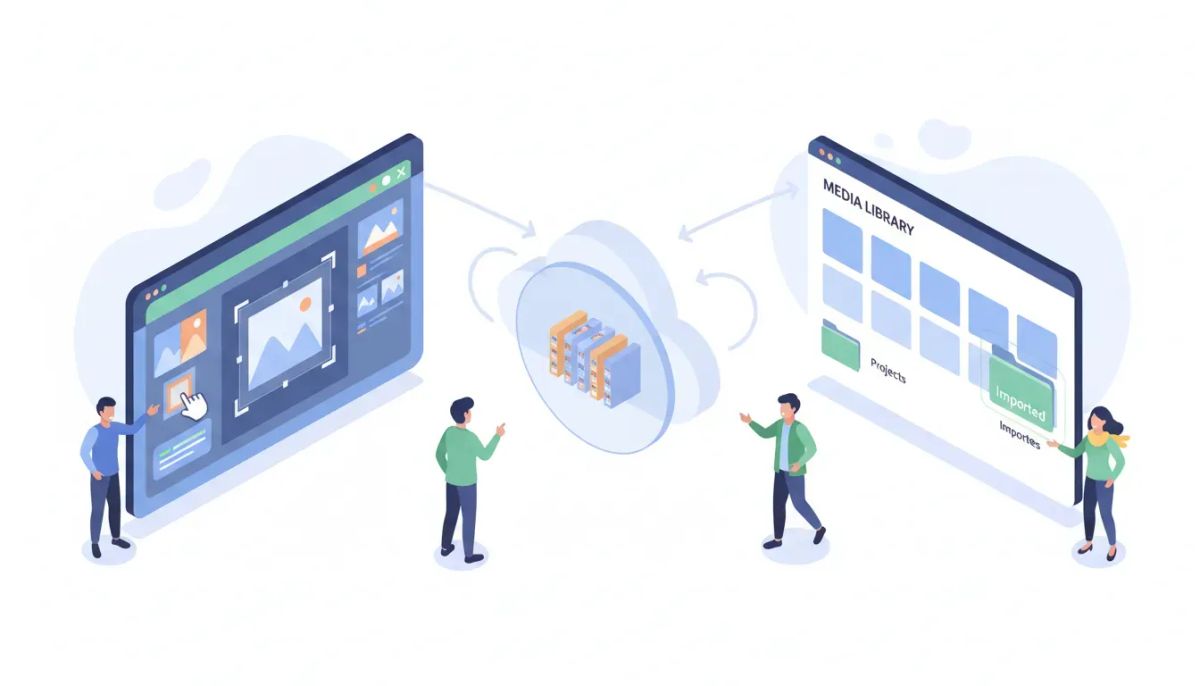
Integrating Canva with HighLevel brings your visual design workflow directly into your marketing platform. Instead of downloading images from Canva and re-uploading them to your CRM, you can browse, edit, download, and import designs straight into HighLevel media storage. This saves time, reduces duplicated files, and keeps team workflows centralized.
Start Your HighLevel Trial + Get Instant Nexus Hub Access
Build, scale, and optimize your business with HighLevel. Start a free trial using this link to get automatic access to the Nexus Hub community, templates, and implementation resources.
Start Free TrialWhat the Canva integration does and who should use it
The Canva integration connects a Canva account to a HighLevel location so users can access Canva designs from inside the HighLevel Media Library. This integration is most useful for:
- Agencies and marketing teams that produce lots of creative assets for landing pages, email templates, social posts, and ads.
- HighLevel users who want fewer tab switches and a single source of truth for creatives used across automations and funnels.
- Teams that want version control where edits reopen the same Canva design rather than creating duplicates in media storage.
Why integrate Canva with HighLevel?
The integration streamlines asset management and reduces repetitive tasks. Key benefits include:
- Faster asset import: Browse and import designs directly into HighLevel media storage without manual downloads.
- Edit in place: Jump from HighLevel to the Canva editor in one click, make changes, then reimport or download the updated file.
- Smart design tracking: The integration tracks Canva design IDs to prevent duplicate entries when editing from media storage.
- Centralized visuals: Use the same images across funnels, emails, campaigns, and other HighLevel features.
Supported file types and limitations
The integration supports common static image formats such as PNG and JPEG. Animated exports such as GIFs or MP4s may require exporting directly from Canva and manually adding them to HighLevel if not supported natively by the integration. Always verify the file type you need before relying on automatic imports.
Also consider licensing: if a Canva design uses paid or premium assets, ensure the Canva account has the proper license for commercial use and client deliverables.
Step-by-step: Connect Canva to HighLevel
- In HighLevel, open Media Storage for the location where you want the Canva account linked.
- Select the Canva tab within media storage and click Connect. Alternatively, install the Canva integration from the Apps marketplace if available.
- Authorize the connection with your Canva credentials in the popup. Grant the requested permissions so HighLevel can access and import designs.
- Once connected, the Canva tab will show the available designs from the linked Canva account. You can browse, open, edit, download, or import designs.
How to import and use Canva designs inside HighLevel
After connecting, bring designs into HighLevel in three common ways:
- Import into Media Storage: Select a design and choose Import. It will appear in the media library for use across the platform.
- Download then upload: If you need a specific export setting from Canva (for example, a transparent PNG or custom quality), download the asset and upload it to HighLevel manually.
- Edit from media: If you imported a Canva design, open it from media and click Edit to reopen the same Canva design for updates. The system tracks the Canva design ID to prevent duplicates.
Once the design is in media storage, use it in:
- Funnel and landing page sections
- Email templates and campaigns
- Workflow actions that send images or attach media
- Social planner posts and scheduling
Editing workflow and version control
The integration opens the Canva editor in a new tab so designers can make updates without losing the HighLevel session. Important behavior to know:
- Smart re-open: If you edit a design that was imported from media, HighLevel recognizes the original Canva design ID and reopens that same design instead of creating a duplicate file.
- New imports for new designs: Creating a new design in Canva and importing it will add a new entry to media storage.
- Consistent asset usage: Because the media library holds the final exported asset, updating the Canva design does not automatically replace previously exported files until you re-import or re-download the updated export.
Multi-user behavior and account limits
Practical details for teams:
- One Canva account per HighLevel location: A single Canva account can be linked to each GHL location. If your agency manages multiple client locations, connect unique Canva accounts to each location as needed.
- Users and permissions: Individual users who access the location will see the Canva connection and can browse/design per the permissions granted. Admin-level access in HighLevel is typically required to install integrations.
- Switching accounts: To change the linked Canva account, disconnect the existing integration from the media storage Canva tab, then reconnect with a different Canva account.
Troubleshooting common connection issues
If the Canva integration fails to connect or import assets, check the following:
- Browser pop-ups and blockers: Allow pop-ups and third-party cookies during the authorization step so the Canva OAuth window can complete.
- Account permissions: Make sure the Canva account has permission to authorize third-party integrations. Some Canva for Teams restrictions may block access.
- Location permissions: Confirm your HighLevel user has permission to manage apps and integrations for the target location.
- File type issues: If a particular design fails to import, try exporting a static PNG or JPEG from Canva and reimporting manually.
- Sync delays: Occasionally there may be short delays before designs appear. Wait a few minutes and refresh the media library.
Best practices for agencies using Canva and HighLevel together
Follow these practical workflows to keep files organized and efficient:
- Standardize naming conventions for designs (client-project-purpose-date). This makes it easy to search media storage and avoid accidental reuse.
- Use folders in Canva and HighLevel (where available) to mirror organization across platforms. If a folder structure differs, create a cross-reference naming pattern.
- Maintain a master assets library in HighLevel for frequently used logos, fonts, and brand elements to ensure consistency across funnels and emails.
- Assign a single user to manage the Canva link per location to avoid confusion about which account is connected and to control licensing.
- Track license and usage for paid Canva elements and keep documentation in the client folder within HighLevel or an agency SOP repository.
Practical examples: How agencies can apply the integration
To make this concrete, here are a few ways agencies typically use the Canva integration with HighLevel:
- Landing page hero images: Import high-resolution hero images designed in Canva directly into funnel sections without re-upload steps.
- Drip email creatives: Edit a promo banner in Canva and re-import across all email templates from media storage to ensure consistent campaign messaging.
- Ad creative swaps: Quickly import multiple ad variations created in Canva into HighLevel campaigns for A/B testing.
- Client proofing and updates: Share the HighLevel media preview with clients and update the Canva design, then re-import the updated asset to replace the previous version in your workflows.
Checklist before using the integration on client work
- Confirm Canva account has appropriate licenses for any premium images or elements used.
- Establish naming conventions for all designs to avoid confusion in media storage.
- Decide who will manage the Canva link for each HighLevel location.
- Test importing and editing with a sample design to verify file format and size behavior.
- Train your team on editing from media to avoid accidental duplicates and to use the smart re-open behavior effectively.
Common mistakes and how to avoid them
Avoid these pitfalls that slow down agencies:
Start Your HighLevel Trial + Get Instant Nexus Hub Access
Build, scale, and optimize your business with HighLevel. Start a free trial using this link to get automatic access to the Nexus Hub community, templates, and implementation resources.
Start Free Trial- Connecting a personal Canva account to a client location: Use a team or client-specific account to avoid ownership conflicts when staff changes occur.
- Expecting automatic replacement: Updating a Canva design does not automatically replace previously exported files in HighLevel unless you re-import or overwrite them.
- Using premium Canva assets without permission: Keep license records and use commercially licensed assets for client deliverables.
- Multiple disconnected workflows: Standardize how designs move from Canva to HighLevel so team members aren’t using different processes.
When to disconnect or re-link Canva
Consider disconnecting and re-linking the Canva account when:
- You need to attach a different Canva account to the location
- There are persistent authorization errors that a fresh OAuth flow might fix
- Your agency is handing off a location to a client and ownership of creative assets must change
Next steps: Implementing the integration for your agency
To get the most value from this integration, start with a pilot: connect Canva for one client location, import a small set of brand assets, then update a marketing asset from Canva and reimport. Use that experiment to document a standard operating procedure for the rest of your clients.
If you are evaluating HighLevel for agency operations, consider starting a free trial to test integrations, workflows, and media management. Agencies can also connect with community resources and template repositories to accelerate setup and adoption.
Summary and recommended workflow
The Canva integration with HighLevel streamlines design import, editing, and asset management inside the platform. For agencies and marketing teams, the key benefits are reduced friction, better version control, and centralized media that can be used across funnels, emails, and campaigns.
Recommended workflow:
- Connect Canva to the HighLevel location.
- Import brand assets into media storage and apply consistent naming.
- Edit designs in Canva via the media library edit action to maintain design ID tracking.
- Re-import updated exports where needed and update templates or funnels.
- Document the process in your agency SOPs and train the team.
Frequently asked questions
Can multiple HighLevel users access the same Canva account?
Yes. When a Canva account is connected to a HighLevel location, users with access to that location can browse and import designs according to their HighLevel user permissions. Keep in mind that only one Canva account may be linked per location at a time.
Will updating a design in Canva automatically update the file in HighLevel?
No. Editing a Canva design and saving it in Canva does not automatically replace previously imported files in HighLevel. Use the Edit action from media to reopen the same Canva design and re-import or download the updated export to replace the file in media storage.
What file formats are supported through the integration?
The integration supports common static formats such as PNG and JPEG. For animated exports like GIF or MP4, or for special export presets (transparent backgrounds, PDF prints), you may need to download from Canva and then upload manually to HighLevel.
How do I change the Canva account linked to a HighLevel location?
Open Media Storage for the location, go to the Canva tab, and choose Disconnect. Then connect again using the different Canva account credentials. Only users with appropriate HighLevel permissions can perform this action.
What should agencies watch for with Canva licensing?
Ensure any Canva assets used for client deliverables are covered by the account’s license. Keep records of which assets are premium, confirm commercial usage rights, and prefer team accounts for client work to avoid ownership and licensing issues when staff or account access changes.
Where can I find more resources or templates for HighLevel?
Explore community hubs and template libraries to find funnels, email templates, and SOPs tailored to HighLevel. If you are new to the platform, consider starting a free trial and joining agency communities for templates and implementation support.
Start Your HighLevel Trial + Get Instant Nexus Hub Access
Build, scale, and optimize your business with HighLevel. Start a free trial using this link to get automatic access to the Nexus Hub community, templates, and implementation resources.
Start Free Trial


