
How to Turn an AI Draft Into a Live Lead Funnel in HighLevel

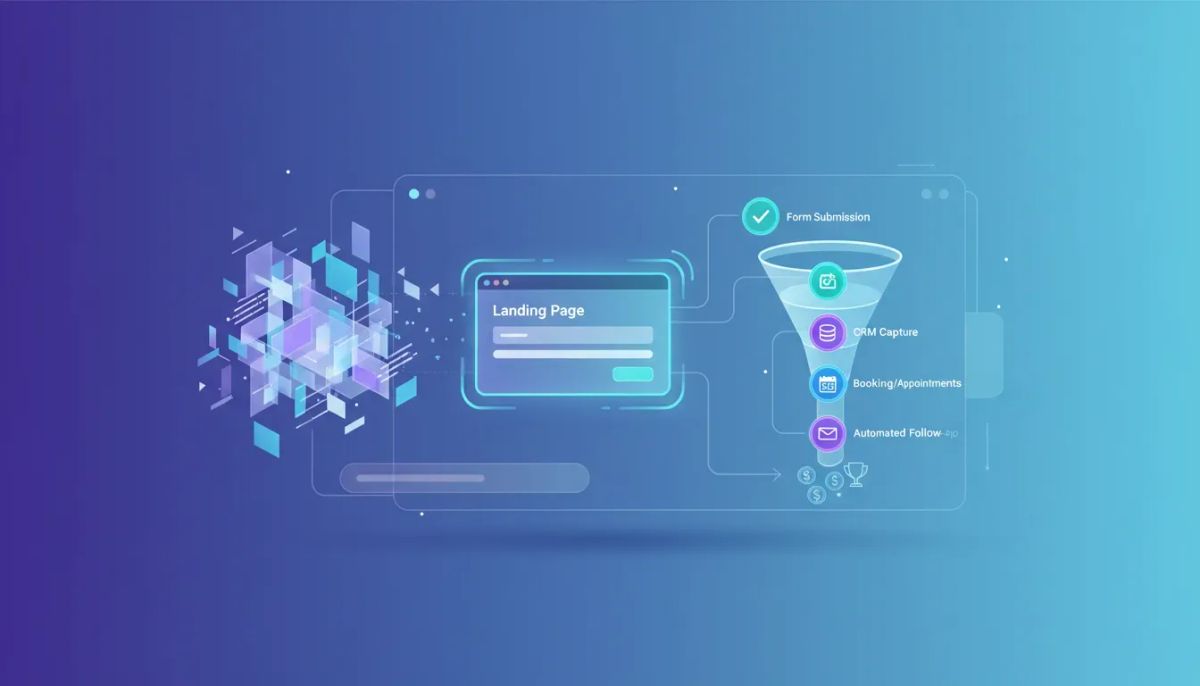
Most businesses do not need more pages. They need more working systems.
A landing page that looks good but does nothing after someone submits a form is only half-built. The real win happens when that page connects directly to your CRM, your booking flow, and your follow-up automations. That is where HighLevel AI Studio becomes more than a design tool. It becomes a fast way to build a functioning lead funnel.
The idea is simple: use AI Studio to generate the front end, then connect the key elements so new leads are captured and pushed into your sales process automatically. For agencies, consultants, and service-based businesses, that means less time building from scratch and more time deploying pages that actually support revenue.
If you have ever wondered whether an AI-generated draft can become a real, live funnel inside GoHighLevel, the answer is yes. And the setup is straightforward.
The Complete Operating System for Growth
Join over 60,000+ agencies and businesses using HighLevel to capture more leads and close more deals. Start your trial today and get instant access to the Nexus Hub resources.
Claim Your Free Trial & BonusesBuild pipelines, not just pages
The mindset shift matters here.
When people think about building a landing page, they often focus only on the design. Headline. Colors. Images. A form. Maybe a booking section. All of that matters, but the page itself is only the entry point.
What actually makes the page valuable is what happens next:
- A lead fills out a form
- The lead enters your HighLevel CRM
- An automation triggers
- A text message or follow-up goes out
- The lead is moved into your pipeline
- Your team can continue the conversation
That is the difference between a page and a pipeline.
HighLevel is built for exactly this kind of connected workflow. Instead of treating page building, CRM management, and marketing automation as separate tools, you can tie them together inside one system. AI Studio speeds up the first step by generating the draft. HighLevel workflows and automations take care of the rest.
Start in AI Studio inside your HighLevel sub-account
Everything begins in your HighLevel sub-account.
From the left-hand menu, go to AI Studio. This is where you can prompt HighLevel to create a page or funnel draft for you. If you do not already have a website or funnel created, you can simply describe what you want.
A prompt could look something like this:
Create a landing page for a MedSpa business, call it [name], and add a contact form and booking section. Make the colors purple and pink.
That single prompt gives AI Studio enough direction to generate a draft page with the basic structure already in place.
This is one of the most practical uses of AI inside HighLevel. You are not asking it to finish your entire business for you. You are using it to remove the blank-page problem and get to a strong starting point faster.
For agencies handling multiple client accounts, this can dramatically speed up delivery. For consultants and service providers building their own funnels, it cuts down setup time without sacrificing control.
Review the draft in the design tab
Once AI Studio creates the page and saves it as a draft, open it and head into the Design tab.
This is where you review what the AI generated and make sure the key lead capture elements are in place.
In the example setup, the draft includes two core conversion elements near the bottom of the page:
- A booking section
- A contact form
That combination is especially useful for service-based businesses. Some prospects are ready to schedule immediately. Others would rather ask a question first. Giving both options on the same page can help reduce friction and increase conversions.
At this stage, the goal is not only to polish the design. It is to verify that the page includes the actions you want leads to take.
Think through these checkpoints:
- Is the page aligned with the offer?
- Are the colors and branding close to what you need?
- Does the form collect the right information?
- Does the page include a booking option if appointments matter?
- Are both lead capture elements connected properly?
AI can generate the layout, but your implementation strategy is what turns it into a useful funnel.
Connect the booking section to an existing calendar
If your draft includes a booking calendar, the next step is to connect it to a calendar you have already created inside HighLevel.
This is important because a booking widget is only as useful as the calendar behind it. If the page is not tied to the correct scheduling setup, leads may not be routed properly.
Inside the page editor, you can select the calendar element and use the options on the left-hand side to choose the existing calendar you want to use. Once selected, the draft page syncs with that calendar.
That means your AI-generated page is no longer just showing a generic booking section. It is now connected to your real scheduling system.
For HighLevel agency setup and scaling, this is one of those small details that makes a big difference. A reusable page template becomes much more powerful when it can be quickly connected to a client-specific calendar, CRM, and automation flow.
Create an automation triggered by form submissions
Now for the part that turns the page into a lead funnel.
If someone fills out the form on your page, you can trigger a HighLevel automation immediately. In the example workflow, the follow-up action is a text message.
Here is the process:
- Go to Automations
- Create a new automation
- Choose Start from scratch
- Set the trigger to External Tracking Event
- Add a filter so the event matches any form submitted
- Save the trigger
- Add an SMS action
- Write your message
- Save the action
- Publish and save the automation
That is the core setup.
Once this is in place, your page is no longer a static destination. It is actively feeding leads into your HighLevel workflows and automations.
The trigger in this example uses an external tracking event filtered to form submissions. That allows your automation to respond when a lead takes action on the page. From there, an SMS can go out automatically, helping you follow up quickly while intent is still high.
Speed matters. A lead who just filled out a form is engaged now, not two days from now. Automated follow-up helps bridge that gap and supports better response times without requiring someone to manually check submissions every few minutes.
Why SMS follow-up works well here
The example uses a text message for the first action, and that makes sense for a lot of businesses.
SMS is direct, fast, and often more likely to be seen right away than email. For appointment-based offers, local services, or any business where a quick response helps secure the lead, text follow-up is a strong first move.
Even a simple message can do the job, such as confirming the inquiry and letting the lead know someone will be in touch. The key is not complexity. The key is consistency.
Inside HighLevel, once the first automation is set up, you can build additional agency systems around it later. But even this basic workflow already creates a meaningful improvement over a page with no follow-up at all.
The Complete Operating System for Growth
Join over 60,000+ agencies and businesses using HighLevel to capture more leads and close more deals. Start your trial today and get instant access to the Nexus Hub resources.
Claim Your Free Trial & BonusesPublish the draft and make the funnel live
After your page is designed, your calendar is connected, and your automation is published, the final step is to make the draft live.
Go back to AI Studio, open the draft, and use the Publish option in the top right corner.
If you already have a custom domain added inside HighLevel, select it during publishing. You can also adjust the basic page settings, including:
- Icon
- Title
- Description
Apply the changes and publish the page.
At that point, your AI draft becomes a live page connected to your HighLevel CRM and automation system.
This is where the setup really clicks. What began as a prompt inside AI Studio is now a working lead funnel that can capture inquiries, collect bookings, and trigger immediate follow-up.
What this setup looks like in practice
Let’s keep it grounded in a simple use case.
Say you are creating a landing page for a MedSpa. You prompt AI Studio to build the page with a contact form and booking section, using brand colors like purple and pink. The draft is generated, and you review the design. You connect the booking section to the correct calendar. Then you create an automation so anyone who submits the form receives an SMS right away.
Now when someone lands on the page, they can either schedule an appointment or fill out the form. If they submit the form, HighLevel captures the lead and sends the follow-up automatically.
That is a complete operational loop:
- Front-end experience: AI-generated landing page
- Lead capture: Form or booking section
- CRM connection: Lead enters HighLevel
- Automation: SMS follow-up is triggered
- Sales process: Lead moves into the pipeline
For agencies running client campaigns, this is exactly the kind of repeatable implementation strategy that helps with scaling. For business owners, it is a practical way to launch faster without building everything manually.
Why this matters for agencies and service businesses
There is a bigger lesson here than just how to click through the setup.
HighLevel works best when you think in terms of systems. AI Studio helps you generate assets quickly, but the real value comes from how those assets connect to your CRM, automations, and pipeline.
For agencies, this supports better delivery and more efficient SaaS operations. Instead of building each client asset from scratch, you can create a process that starts with AI-generated drafts and ends with fully connected funnels. That shortens turnaround time while keeping the implementation inside one platform.
For consultants and service businesses, the payoff is simpler but just as important. You get a live page that does more than collect attention. It collects intent and routes it into action.
The page becomes part of your marketing automation stack, not a disconnected web asset.
Best practices for implementing AI-generated funnels in HighLevel
Even in a simple setup like this, a few best practices go a long way.
1. Prompt for outcomes, not just design
When creating your AI draft, include the conversion elements you actually need. If your business needs a form and booking section, say that in the prompt. The more clearly you define the goal, the more useful the draft will be.
2. Verify every lead capture element
Do not assume the page is ready just because it looks complete. Check every form, calendar, and action point so you know they are tied to the right systems.
3. Add immediate follow-up
A form with no automation is a missed opportunity. Even a single SMS action is better than silence. HighLevel workflows and automations are what make the funnel responsive.
4. Publish to the right domain
Before going live, make sure you choose the correct custom domain and update the page title, icon, and description. Those details help the page feel polished and production-ready.
5. Think beyond launch
The first version of your funnel does not need to be complex. It needs to function. Once the page is live and connected, you can improve copy, update follow-ups, and expand your automation strategy over time.
HighLevel as the all-in-one system behind the funnel
What makes this workflow especially useful is that it all happens inside the same platform.
With HighLevel, you are not bouncing between one tool for design, another for forms, another for CRM, and another for text automation. AI Studio, calendars, workflows, CRM records, and publishing all sit under the same roof.
That is a major advantage for implementation speed and operational clarity.
Whether you call it HighLevel, GoHighLevel, or GHL, the platform is at its best when you use it to centralize your marketing automation and lead management. Turning an AI draft into a live lead funnel is a perfect example of that.
From draft to deployment
If you want a practical way to launch faster, this is it.
Create the draft in AI Studio. Review the design. Connect the booking calendar. Build a workflow triggered by form submission. Add an SMS follow-up. Publish to your custom domain.
That sequence turns a simple AI-generated page into a functioning lead capture system.
And that is really the point. The page should not just exist. It should work.
If you are exploring HighLevel agency setup, scaling client delivery, or improving your own service-based funnel, this is one of the simplest ways to start building smarter systems inside the platform.
If you have not tried it yet, starting a HighLevel free trial is a straightforward next step. And if you want templates, implementation help, and a place to sharpen your setup, the Nexus Hub community is a natural resource to explore as you build out your funnels and automations.
FAQ
Can HighLevel AI Studio create a landing page from a simple prompt?
Yes. Inside AI Studio, you can enter a prompt describing the type of page you want, the business, and the elements you need, such as a contact form or booking section. HighLevel then generates a draft you can review and edit.
Can I connect an AI-generated booking section to an existing HighLevel calendar?
Yes. If the page includes a calendar or booking area, you can connect it to a pre-existing calendar inside HighLevel through the page editor settings. Once connected, the booking section syncs with that calendar.
How do I trigger a workflow when someone submits a form?
Create a new automation from scratch in HighLevel, set the trigger as an external tracking event, and add a filter for form submission events. Then add the action you want, such as sending an SMS, and publish the automation.
What kind of follow-up can I automate after a form submission?
In the example setup, the follow-up is an SMS message. HighLevel workflows and automations allow you to create that response as soon as the form is submitted, helping leads move into your pipeline automatically.
Can I publish the AI draft to a custom domain?
Yes. When you are ready to make the draft live, use the publish option, select a custom domain that has already been added, and update the icon, title, and description before applying the changes.
Why is this useful for agencies and consultants?
It helps turn page creation into a repeatable delivery system. Agencies, consultants, and service-based businesses can use AI Studio to create the front end quickly, then connect it to the CRM and automation layer inside HighLevel to support lead capture and follow-up.
The Complete Operating System for Growth
Join over 60,000+ agencies and businesses using HighLevel to capture more leads and close more deals. Start your trial today and get instant access to the Nexus Hub resources.
Claim Your Free Trial & Bonuses


