How To Use HighLevel's Wait Action for Automation Timings

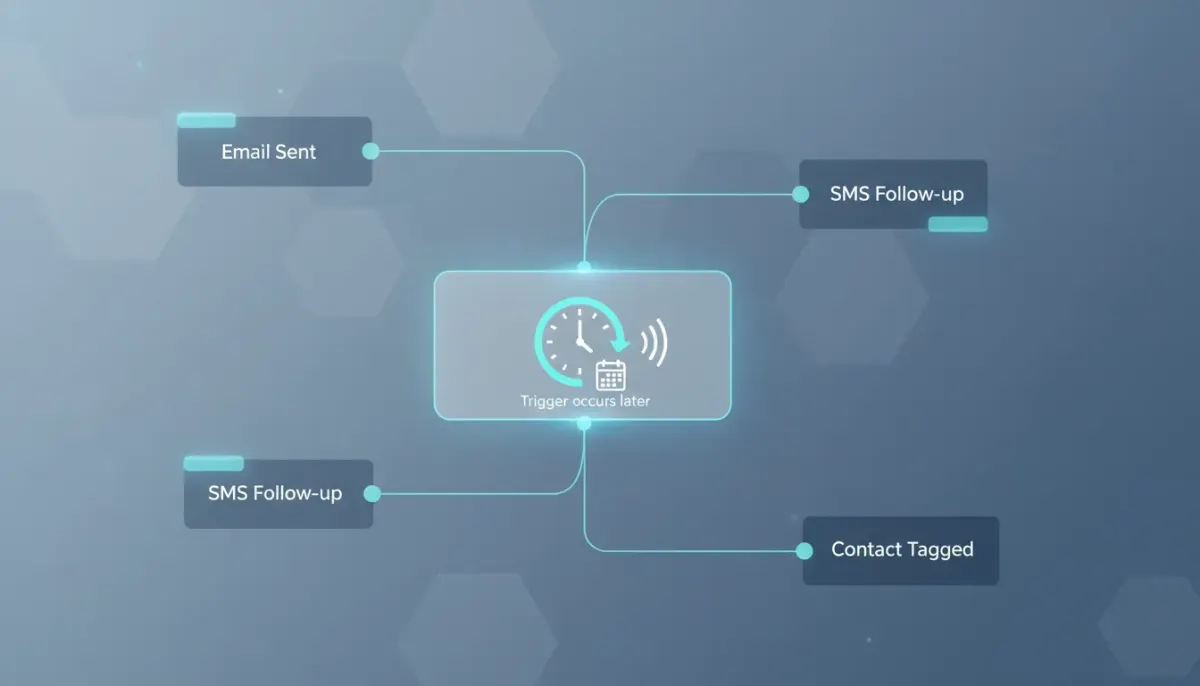
Timing can make or break an automation.
You can have the right message, the right offer, and the right workflow structure, but if everything fires at the wrong moment, the experience feels robotic. That is exactly why the Wait action inside HighLevel workflows matters so much. It gives you control over when the next step should happen, whether that means waiting a few seconds, holding until a specific date, or pausing until a contact actually does something.
For agencies, marketers, and businesses building inside GoHighLevel, this is one of those small features that has a huge impact. It helps your CRM and marketing automation feel more human, more relevant, and a lot more effective.
If you are setting up HighLevel agency systems, managing follow up campaigns, or refining SaaS operations, learning how to use this action properly can clean up a lot of awkward automation behavior.
Why the Wait Action Matters in HighLevel
At its core, the Wait action tells a workflow to pause before moving on to the next step.
That sounds simple, and it is, but the use cases are powerful.
Instead of sending a message immediately after a form submission, you can delay it. Instead of guessing when someone might be ready for the next touchpoint, you can hold the workflow until they reply, click, engage, or hit a scheduled milestone. Instead of forcing every lead through the exact same timeline, you can create personalized timing using custom fields and variables.
This is a major part of building smarter marketing automation in GHL. Good automation is not just about what happens. It is about when it happens.
How to Add a Wait Action in a HighLevel Workflow
Inside your HighLevel sub account, go to Automations from the left side menu and create a workflow.
If you want to build from the ground up, choose Start from Scratch. That opens the workflow editor, where you can add a trigger and begin building your logic.
For a simple example, start with a trigger like a form submission. Once that trigger is in place, click the plus icon below it and search for Wait. Select the Wait action, and HighLevel will open the configuration options for that step.
From there, you decide what the workflow should wait for before continuing.
The Different Wait Options Available
One of the best things about HighLevel's workflow builder is that the Wait action is not limited to basic time delays. You get several ways to control timing, depending on how your process should work.
- Wait for a set period of time
- Wait until a specific date or time
- Wait until a recurring window opens
- Wait until a scheduled date and time
- Wait until the contact replies
- Wait until the contact takes a specific action
- Wait until certain conditions are met
That flexibility is what makes this feature useful across lead nurturing, appointment reminders, follow ups, onboarding sequences, and internal agency workflows.
1. Wait for a Set Period of Time
This is the most straightforward option.
You choose a number and then select the unit of time. That could be seconds, minutes, hours, or another available time unit depending on the setup. For example, you might pause a workflow for 20 seconds before sending the next step, or wait 1 hour before following up after a trigger occurs.
This type of delay is great when you want a simple buffer between actions.
Common examples include:
- Waiting a few minutes after a form submission before sending an SMS
- Waiting 24 hours before delivering a reminder email
- Waiting a short period before assigning the next internal task
2. Wait Until a Specific Date or Time
Sometimes you do not want a relative delay like 2 hours or 3 days. You want the workflow to pause until a fixed moment.
This is useful when your automation should align with calendar events, campaign launches, deadlines, or date-based communications. If your process needs to trigger on an exact day or time, this option keeps everything synchronized.
3. Wait Until a Recurring Window Opens
This is helpful when your automation should only move forward during certain repeating time frames.
Think of business hours, weekday-only outreach, or a repeating availability window. Instead of messaging contacts at random times, you can keep communications inside the windows that fit your process.
For agencies focused on customer experience, this is a smart way to prevent poorly timed outreach.
4. Wait Until a Scheduled Date and Time
This option is especially relevant for appointment-based workflows.
If a contact has something scheduled, you can use that date and time as the anchor for your automation. That means reminders, confirmations, and follow ups can all happen in relation to that booking instead of using generic delays.
This is one of the most practical uses of HighLevel workflows and automations because it ties your messaging directly to the contact's actual timeline.
5. Wait Until the Contact Replies
This is where workflow timing becomes much more behavior-driven.
Instead of moving ahead based on time alone, you can pause until the contact responds. That could mean a reply to an SMS or an email, depending on the automation flow you are building.
This is powerful because it lets the contact's engagement determine what happens next. Rather than blasting out a fixed sequence regardless of response, you create a workflow that listens first and reacts second.
6. Wait Until the Contact Takes a Specific Action
You can also hold the workflow until a person performs a defined action.
That could include things like:
- Clicking a link
- Interacting with an email
- Completing a step in your funnel
This style of automation is useful when you want to qualify intent before continuing. It keeps the workflow relevant and avoids sending the wrong next message to someone who has not yet engaged.
7. Wait Until Conditions Are Met
Condition-based waits let your workflow pause until custom logic becomes true.
This is ideal when your CRM data needs to reach a certain state before the next action runs. Maybe a contact field needs to be updated, a pipeline stage needs to change, or another process needs to finish first. Instead of forcing a timeline, you let the system respond to real conditions.
For advanced HighLevel agency setup and scaling, this is where workflows start becoming much more strategic.
Using Wait Actions for SMS, Email, and Engagement Triggers
HighLevel makes behavior-based waits simple to configure. You are not stuck with time delays only.
You can build wait steps around engagement such as:
- SMS replies
- Email replies
- Link clicks
- Email engagement
- Custom conditions
That matters because not every lead moves at the same speed.
Some people reply right away. Some click but do not respond. Some need more time. Some take action only after a reminder. Wait actions help you account for that variation without turning your workflow into a mess.
Instead of creating rigid, one-size-fits-all automations, you can build systems that adapt to contact behavior. That is one of the biggest advantages of using a platform like GoHighLevel for CRM and marketing automation.
How AI Can Help You Build Wait Actions Faster
HighLevel also gives you the option to create a wait step using AI.
Inside the workflow editor, you can use the AI tool in the top right and describe what you want in plain language. For example, if you want the workflow to pause for an hour before an appointment, you can type that as a prompt. HighLevel will interpret the request, choose the right wait setup, and let you add it directly into the workflow.
This is a great shortcut when you want to build faster or reduce setup friction for team members who are still learning the platform.
It also fits nicely into broader SaaS operations and agency implementation strategies because it lowers the barrier to getting workflows built correctly.
The Complete Operating System for Growth
Join over 60,000+ agencies and businesses using HighLevel to capture more leads and close more deals. Start your trial today and get instant access to the Nexus Hub resources.
Claim Your Free Trial & BonusesHow to Set a Dynamic Wait Time
One of the most useful capabilities in the Wait action is the ability to switch from a standard wait to a dynamic wait time.
Inside the Wait action settings, open the three-dot menu and change the time period from standard to dynamic. Once you do that, you can pull values from custom fields or variables.
This means the wait period does not have to be the same for every contact.
Each person can follow a timeline based on their own data.
That personalization opens up a lot of possibilities:
- Waiting until a contact's preferred follow up time
- Using appointment-related fields to control delay timing
- Tailoring nurture sequences based on onboarding dates or campaign variables
Dynamic timing is especially valuable when you are building systems that need to scale. If every workflow requires manual adjustment, growth becomes messy. If timing can be driven by data, the workflow becomes much easier to maintain and far more personalized.
Practical Ways to Use the Wait Action in HighLevel
If you are wondering where this fits into real implementation, here are a few practical examples that align with how HighLevel is commonly used.
Lead Follow Up
When someone submits a form, you might wait a short period before sending the first message, then hold until they reply before triggering the next branch of communication.
Appointment Reminders
Use scheduled date and time waits to send reminders leading up to an appointment and follow ups after it passes.
Sales Pipeline Automation
Pause actions until a pipeline condition changes or a contact engages with outreach. This keeps reps from sending irrelevant messages too early.
Client Onboarding
Use custom fields and dynamic waits to deliver onboarding steps according to each client's timeline instead of forcing everyone through the same sequence.
Business Hours Control
Use recurring windows so your workflows only continue when your team is available or when your messaging should be sent.
Best Practices for HighLevel Wait Actions
To get the most out of this feature, keep a few best practices in mind.
- Match the wait type to the goal. If timing is tied to engagement, use behavior-based waits instead of generic delays.
- Keep the customer journey in mind. A workflow should feel responsive, not mechanical.
- Use dynamic waits when personalization matters. This makes automations more relevant and easier to scale.
- Build around real-world schedules. Recurring windows and scheduled dates can prevent poor timing.
- Publish and save after setup. Once the workflow is configured the way you want, make it live so the logic actually runs.
These are simple steps, but they go a long way toward cleaner agency systems and better-performing automations.
Why This Feature Is So Valuable for Agencies and Businesses
When agencies start scaling inside HighLevel, one of the biggest challenges is consistency. You need workflows that are easy to manage, flexible enough for different use cases, and precise enough to avoid sloppy communication.
The Wait action helps solve that.
It gives you timing control without adding unnecessary complexity. It supports both basic automation and more advanced implementation strategies. And because it works with actions, replies, schedules, and custom fields, it fits naturally into a wide range of CRM and marketing automation use cases.
If you are building inside HighLevel, this is not just a minor workflow step. It is a foundational tool for making automations behave the way they should.
Final Thoughts
The Wait action in HighLevel is simple to add, but it has a big impact on how your automations perform.
Whether you are delaying a message, waiting for a reply, pausing until a scheduled appointment, or personalizing timing with dynamic values, the goal is the same: making sure the next step happens at the right moment.
That kind of timing is what separates clunky automation from smart automation.
And if you are serious about improving HighLevel workflows and automations, refining your agency setup, or building better systems for lead management and follow up, mastering this feature is absolutely worth your time.
FAQ
What does the Wait action do in HighLevel?
The Wait action pauses a workflow before the next step runs. It can pause for a fixed amount of time, until a date or schedule is reached, until a contact replies or takes action, or until certain conditions are satisfied.
Can I use HighLevel's Wait action for replies and link clicks?
Yes. HighLevel allows wait steps based on engagement such as SMS replies, email replies, link clicks, email interaction, and custom conditions. This helps create more behavior-based marketing automation.
What is a dynamic wait time in GoHighLevel?
A dynamic wait time uses custom fields or variables instead of a fixed delay. That means each contact can move through the workflow on a personalized timeline based on their own data.
How do I add a Wait action to a workflow in GHL?
Open a workflow in your HighLevel sub account, add or choose a trigger, click the plus icon beneath it, search for the Wait action, and then configure the type of wait you want to use. After setup, publish and save the workflow.
Can AI create wait actions in HighLevel workflows?
Yes. HighLevel includes an AI option in the workflow editor that lets you describe the wait you want in plain language. The platform then selects the appropriate wait setup and adds it to your automation.