
How To Use Inbound Email Trigger in HighLevel CRM

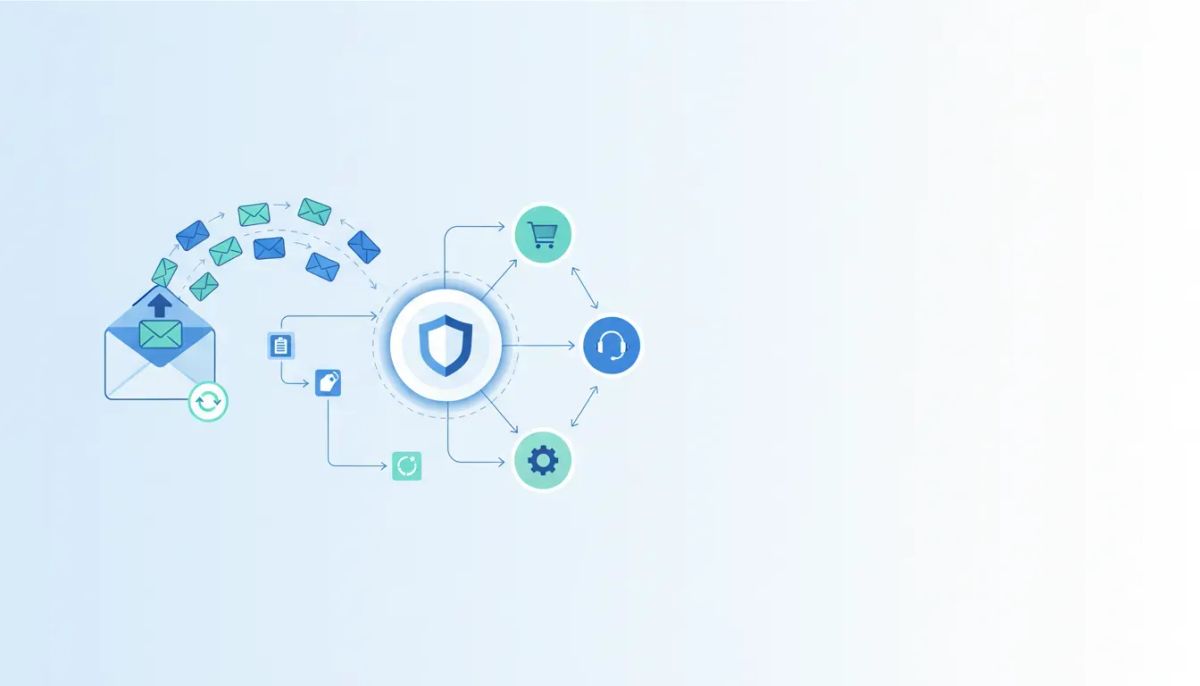
If you are using HighLevel workflows and automations, the Inbound Email trigger is one of those features that can quietly make your CRM much smarter.
It gives you a way to automate what happens the moment an email lands in your inbox. That matters because not every important conversation starts with a campaign you sent. Sometimes a lead reaches out cold. Sometimes an existing contact emails your team directly. Sometimes a customer replies to a thread and you need that message routed immediately to the right person.
That is exactly where this trigger shines.
Used well, it can help you capture leads faster, route conversations to the correct team, tag and organize requests, create opportunities automatically, and reduce the lag between a message arriving and your team taking action.
The Complete Operating System for Growth
Join over 60,000+ agencies and businesses using HighLevel to capture more leads and close more deals. Start your trial today and get instant access to the Nexus Hub resources.
Claim Your Free Trial & BonusesWhat the HighLevel Inbound Email Trigger Actually Does
The Inbound Email trigger in HighLevel fires when an email is received.
That sounds simple, but the key difference is what kinds of emails it includes. This trigger can work with:
- People who are not yet in your CRM
- Contacts who are already in your CRM
- Email replies that come back after you have sent an email
So instead of only reacting to one narrow type of response, HighLevel can respond to nearly any incoming email scenario you care about.
For agencies, sales teams, support teams, and SaaS operations inside HighLevel, that opens up a lot of practical automation possibilities.
Inbound Email vs Customer Replied in HighLevel
This is the first distinction that trips people up, so it is worth making it crystal clear.
Customer Replied
The Customer Replied trigger only fires when someone replies to an email that was sent from your CRM.
In other words, your team or system sent the email first, and the contact replied back.
Inbound Email
The Inbound Email trigger is broader. It can fire when any email is received, including:
- A cold inbound message from someone outside your CRM
- A direct message from an existing contact
- A reply to a previous email conversation
If you want to automate around all incoming email activity, Inbound Email is the more flexible trigger.
If you only care about replies to messages sent from HighLevel, Customer Replied may still be the right fit.
Will This Replace or Break Existing Customer Replied Workflows?
No. Using the Inbound Email trigger does not automatically disrupt existing workflows that already use the Customer Replied trigger.
That said, you do want to be intentional.
Because Inbound Email is broader, it can overlap with scenarios that your Customer Replied automations already handle. The safest approach is to be specific with your filters so each workflow has a clear job.
Think of it this way:
- Use precise conditions
- Route emails based on mailbox, sender, subject, body, or attachments
- Avoid creating multiple workflows that react to the same email unless that is truly what you want
That kind of clean workflow design is one of the core best practices in HighLevel agency setup and scaling. The more specific your triggers are, the easier your automations are to manage.
Before You Set It Up: Important HighLevel Email Requirements
Before configuring the Inbound Email trigger, make sure your email setup is correct.
You should have a dedicated sending domain configured in Settings > Emails.
This trigger works best when your system is configured on LC Email and Mailgun. Without a dedicated domain configured, HighLevel may not capture all inbound emails reliably.
That is the first big implementation detail to get right.
Do Not Reuse the Same CNAME Across Multiple Sub-Accounts
This is another important warning.
If you manage multiple sub-accounts, do not connect the same subdomain or CNAME across all of them. Each account should use its own separate subdomain.
If the same domain configuration is connected to multiple sub-accounts, email capture issues can happen. For agencies running HighLevel across many clients, this is one of those setup details that is easy to overlook and frustrating to clean up later.
Clean domain separation is simply the better path.
How To Add the Inbound Email Trigger in HighLevel
The setup flow is straightforward.
- Go to Automations
- Select Workflows
- Create a new workflow or open an existing one
- Click to add a trigger
- Search for Inbound Email
- Select the trigger
Once selected, it is a good idea to rename the trigger so you know exactly what it is for.
For example:
- Inbound Email Sales
- Inbound Email Refund
- Inbound Email Contract Attachment
This may seem small, but naming conventions make a huge difference once your HighLevel workflows start growing.
Filters Give You Granular Control
The real power of this trigger is in the filters.
Instead of telling HighLevel to react to every inbound email the same way, you can get very granular about which emails should trigger which automation.
Available filtering options include conditions like:
- Email sent to a specific mailbox
- CC contains a specific name or email
- Email came from a specific sender
- Subject contains certain words
- Body contains certain phrases
- Email has attachments
- Contact has a tag
- Email is tied to a workflow reply
You can use one filter or stack several together for more precision.
That means you are not limited to broad inbox automations. You can create very targeted systems for sales, support, onboarding, operations, and account management.
Example 1: Route Sales Emails Automatically
One of the clearest use cases is sales routing.
Say you have a mailbox like sales@yourdomain.com. You can build a workflow where the Inbound Email trigger fires only when an email is sent to that specific address.
From there, HighLevel can automatically:
- Create an opportunity in your pipeline
- Place it in a stage such as New Lead
- Assign a task to a sales rep
- Notify a user or team member
- Send an internal email alert
- Forward the message details to the right person
You can even define opportunity details like:
- Pipeline
- Stage
- Opportunity name
- Lead source
- Estimated value
- Status
So if a new inbound sales email arrives, HighLevel can immediately drop that contact into your pipeline as an open opportunity with a preset value.
That is a smart way to reduce manual lead entry and keep your CRM current in real time.
Adding a Second Filter for More Precision
You can make the trigger more selective by adding another condition.
For example:
- Email sent to sales@yourdomain.com
- CC contains Tina
Now the workflow only fires when both conditions are true.
This is useful if you want certain internal stakeholders copied on specific conversations before the automation kicks off.
The Complete Operating System for Growth
Join over 60,000+ agencies and businesses using HighLevel to capture more leads and close more deals. Start your trial today and get instant access to the Nexus Hub resources.
Claim Your Free Trial & BonusesExample 2: Flag Refund Requests Instantly
Another practical workflow is handling refund-related messages.
You can set the Inbound Email trigger to fire when the subject line or body text contains the word refund.
Once that happens, HighLevel can:
- Add a contact tag like Refund Request
- Notify the support or billing team
- Send an internal email
- Trigger the next steps in a service recovery workflow
This kind of automation helps teams respond faster to sensitive issues and keeps important requests from getting buried in a shared inbox.
For agencies managing client support systems inside GoHighLevel, this is a great example of how workflows improve responsiveness without adding operational complexity.
Example 3: Trigger Actions When an Email Has an Attachment
The attachment filter is another useful one.
You can configure a workflow so it fires only when an inbound email has an attachment.
That could be useful for situations like:
- Signed contracts
- PDF forms
- Documents sent by prospects or clients
- Operational files that need team review
Once triggered, you might:
- Notify the operations team
- Add a tag such as Signed Contract
- Create a task for follow-up
- Route the conversation into the correct process
This is a simple automation, but it can save a surprising amount of back-and-forth in day-to-day CRM management.
Using Advanced Settings to Avoid Over-Triggering
One of the smartest controls in this feature is the ability to prevent the trigger from firing on every reply in the same thread.
Without this setting, a long email conversation could repeatedly trigger the same workflow over and over as messages go back and forth.
That is not always helpful.
If your goal is to react only when a conversation starts, you can change the workflow behavior so the trigger only fires for new email conversations.
In practice, that means:
- The first incoming message in a new thread triggers the automation
- Replies inside that same existing thread do not keep retriggering it
In workflow settings, this is managed by turning off reply tracking in existing threads. When disabled, the trigger only fires for new emails in new threads.
If you are building cleaner HighLevel automations, this setting is worth paying attention to. It can prevent duplicate notifications, repeated tasks, and pipeline clutter.
Ways to Use Inbound Email in a Real HighLevel CRM Workflow
Here are some of the most practical ways to think about this trigger inside your CRM and marketing automation setup:
Lead capture
When someone emails a sales inbox, automatically create an opportunity and notify the team.
Conversation routing
Send inquiries to the right department based on mailbox, subject line, CC, or message content.
Support triage
Tag refund requests or urgent keywords so your support team can act faster.
Operations handoff
Detect attachments like contracts or forms and notify the operations or onboarding team.
Internal visibility
Push alerts through email or WhatsApp pop-up notifications so nothing gets missed.
Data organization
Use tags, opportunities, and tasks to keep inbound communication tied to your HighLevel CRM records.
This is where workflow design really matters. The trigger itself is powerful, but the value comes from pairing it with the right actions.
Best Practices for HighLevel Inbound Email Automation
If you want this to work smoothly at scale, keep these best practices in mind:
- Use a dedicated sending domain. This improves email capture reliability.
- Keep subdomain setups separate by sub-account. Avoid sharing the same CNAME across accounts.
- Name your triggers clearly. Descriptive names make workflow management easier.
- Use precise filters. The narrower the conditions, the cleaner the automation.
- Prevent duplicate firing when appropriate. Limit triggers to new threads if repeated replies are not useful.
- Map each trigger to a clear business process. Sales, support, billing, and ops should each have distinct automation logic.
These are the kinds of implementation habits that make a HighLevel account easier to operate, especially for agencies managing multiple clients or complex SaaS operations.
Why This Matters for Agencies and Growing Teams
Inbound email is one of those channels that often stays half-manual for too long.
Teams rely on inboxes, shared labels, and memory. Then leads get missed, support requests sit too long, and nobody knows when a signed document came in.
HighLevel gives you a way to turn that mess into a process.
When an incoming email can automatically create opportunities, assign tasks, tag contacts, and notify the right team member, your CRM stops being just a place where data is stored. It becomes the engine that moves work forward.
That is especially important in HighLevel agency environments, where speed, consistency, and repeatable systems are what allow you to scale.
FAQ
What is the difference between Inbound Email and Customer Replied in HighLevel?
Customer Replied only fires when someone replies to an email that was sent from your CRM. Inbound Email is broader and can fire on any received email, including messages from unknown senders, existing contacts, and replies.
Can the Inbound Email trigger work for contacts not already in the CRM?
Yes. That is one of its biggest advantages. It can trigger for people outside your CRM as well as contacts who already exist inside it.
Do I need a dedicated domain for inbound email capture in HighLevel?
Yes, that is strongly recommended. You should configure a dedicated sending domain in Settings and Emails. The feature works best with LC Email and Mailgun. Without proper domain setup, not all inbound emails may be captured.
Can I filter inbound emails by subject, sender, or attachments?
Yes. You can apply filters based on mailbox, CC, sender, subject line, body content, attachments, tags, and other criteria. You can also stack multiple filters for more precise automation.
How do I stop the trigger from firing on every reply in the same thread?
Disable reply tracking in existing threads within the workflow settings. When that setting is off, the trigger will only fire for new emails in new threads.
What actions can I trigger after an inbound email is received?
You can create opportunities, assign tasks, add contact tags, notify team members, send internal emails, forward the email, and use custom values such as the email body in downstream automations.
Can I use multiple inbound email triggers in the same workflow?
Yes. You can configure several inbound email triggers for different use cases, such as sales inquiries, refund requests, or attachment-based workflows.
Final Thought
If your inbox is still operating outside your CRM logic, the Inbound Email trigger is a great place to tighten up your systems.
It helps HighLevel respond to what is actually happening in your business, not just the campaigns you send out. That means faster lead handling, cleaner support workflows, smarter task assignment, and better visibility across your team.
If you are building out your HighLevel workflows and automations, this is a feature worth implementing early and refining over time.
And if you are still getting your HighLevel setup in place, starting a free trial and building these kinds of inbound email workflows from the beginning can save a lot of operational cleanup later. If you want templates, implementation ideas, and support as you scale, joining the Nexus Hub community can also help you move faster with proven systems.
The Complete Operating System for Growth
Join over 60,000+ agencies and businesses using HighLevel to capture more leads and close more deals. Start your trial today and get instant access to the Nexus Hub resources.
Claim Your Free Trial & Bonuses


