
Taxes Are Now Supported for Rentals in HighLevel

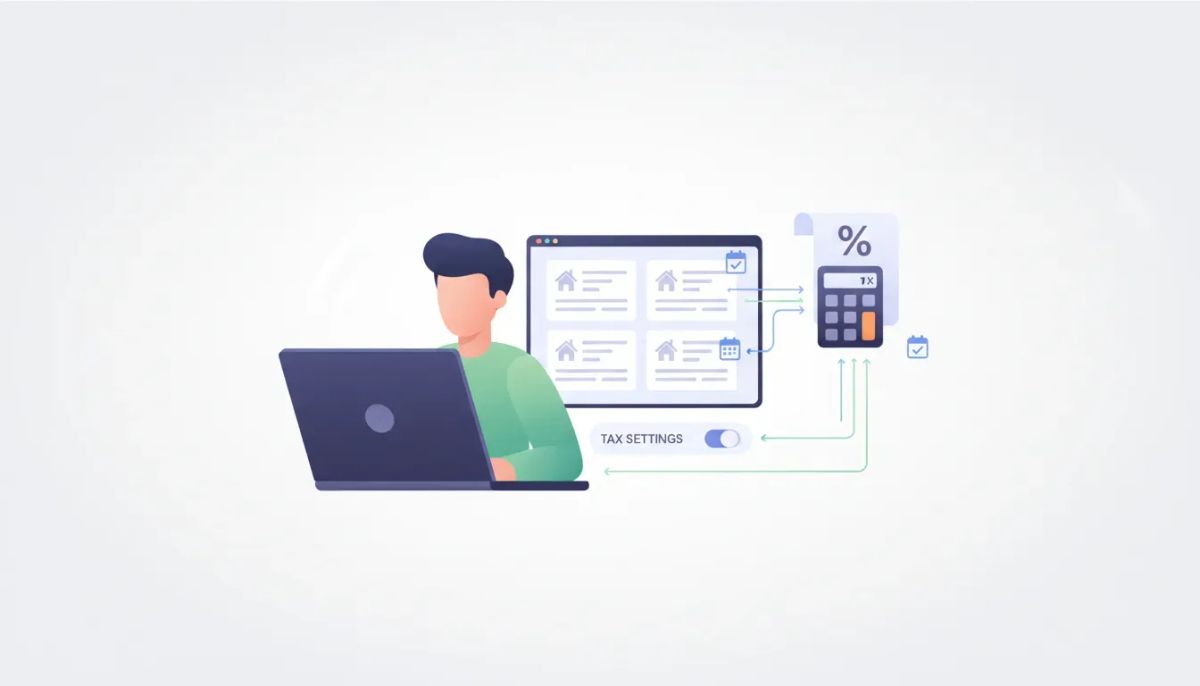
If you manage rentals inside HighLevel, this is one of those updates that immediately removes friction from your day-to-day operations.
Taxes are now supported for rentals, which means you can configure tax settings for your rental listings and have those taxes apply to rental bookings automatically once everything is set up correctly. That creates a much cleaner booking experience, clearer pricing, and less manual work on the back end.
For agencies, business owners, and teams running rental offers through GoHighLevel, this is a practical upgrade. If your business needs to collect taxes on rentals, you need a reliable way to do that without patching together workarounds. HighLevel now gives you a native path to handle it.
There is one important detail to understand right away: only manual taxes are currently supported for rentals. So while taxes are now available, the setup depends on manually configuring them per listing or per variant where applicable.
That may sound small, but operationally it matters. Once you know where tax settings live and how they connect to rental listings, the process is straightforward.
The Complete Operating System for Growth
Join over 60,000+ agencies and businesses using HighLevel to capture more leads and close more deals. Start your trial today and get instant access to the Nexus Hub resources.
Claim Your Free Trial & BonusesWhat this update actually means
The core change is simple:
- Rental listings in HighLevel can now support taxes.
- Once configured, those taxes apply automatically to rental bookings.
- The tax setup is manual, not automatic.
- Configuration happens through the product associated with each rental listing.
- If variants are enabled, taxes can be configured at the variant level.
In practical terms, every rental listing is tied to a product under Payments and Products. That product is where the tax configuration lives.
So instead of trying to manage taxes from some separate rentals-only tax center, HighLevel connects rental tax setup to the product structure already used in the platform. That keeps the setup aligned with the rest of your payments and product configuration.
Why this matters for rental businesses and agencies
If you charge taxes on rentals, then tax collection is not optional. It is part of doing business correctly.
Before a feature like this, teams often have to rely on manual calculation, custom pricing workarounds, or extra admin steps after a booking comes through. None of those approaches are ideal. They increase the chance of inconsistency and make your fulfillment and accounting process messier than it needs to be.
By supporting taxes directly within rentals, HighLevel helps with a few key things:
1. More transparent pricing
Customers can see pricing that reflects the applicable tax setup rather than discovering extra charges later in the process. Transparent pricing reduces confusion and helps create a smoother checkout experience.
2. Less manual work
Once taxes are configured properly, they apply automatically to rental bookings. That means fewer manual adjustments and fewer opportunities for human error.
3. Cleaner operational systems
For agencies building rental systems for clients, this is a much better implementation path. You can now standardize tax setup as part of your HighLevel agency workflows and onboarding process.
4. Better alignment with product-based billing
Because each listing maps to a product, tax settings stay close to the billing logic. That makes the setup easier to understand and maintain over time.
In short, if rentals are part of your CRM, marketing automation, or SaaS operations inside GHL, this update helps close an important gap.
The key limitation to know: manual taxes only
This is the part to pay attention to.
HighLevel currently supports manual taxes for rentals. That means you are not turning on a fully automated tax engine here. Instead, you are adding or updating tax settings manually on the associated product for each rental listing.
That is not necessarily a drawback if your tax setup is relatively stable. But it does mean teams should be intentional about implementation.
If you manage multiple listings, or if you operate across different tax situations, you will want to make sure each product is configured correctly. If variants are involved, you also need to confirm tax settings at that level.
For many businesses, this still represents a major improvement because the booking-side application is automatic after setup. The main effort is in the initial configuration and ongoing maintenance when tax rules change.
How rental tax configuration works in HighLevel
HighLevel connects each rental listing to a product inside the payments system. That product acts as the place where taxes are configured.
Here is the structural logic:
- A rental listing has a corresponding product.
- That product is located under Payments and Products.
- Taxes are added or updated on that product.
- Those taxes then apply to the rental booking.
There is also a CTA available inside the listing workflow that takes you directly to the appropriate product tax setup area. That makes it easier to find the correct place without digging manually through your account.
This is especially helpful for teams that manage a high volume of listings. The fewer clicks and guesswork involved, the easier it is to keep your setup accurate.
Step-by-step: how to configure tax for a rental listing
If you are setting this up inside GoHighLevel, the process is straightforward.
- Go to Rentals.
- Open Listings.
- Select Edit Listing for the rental you want to update.
- Go to Inventory and Pricing.
- Click Configure Tax for This Listing.
- You will be redirected to the associated product under Payments and Products.
- Add or update your manual taxes there.
- Save the configuration.
Once that is done, the listing is ready to apply those taxes to rental bookings.
This setup path is clean because it follows the product relationship rather than introducing a separate tax menu just for rentals. If you already understand HighLevel products and payment settings, this will feel intuitive.
How variant-level tax configuration works
If your rental setup includes variants, HighLevel supports tax configuration at the variant level as well.
That matters because each variant is related to its own product. Since tax settings live at the product level, variant-based rental offers can each carry their own tax configuration where needed.
This is useful when variants are meaningfully different in the way you structure pricing or products.
The important takeaway is this: if variants are enabled, taxes should be configured at the variant level.
That ensures the right tax setup is attached to the right version of the rental offer.
From an implementation standpoint, this is a good example of why clean product architecture matters inside HighLevel. When your listings, variants, products, and payments are all aligned, features like this become much easier to manage.
The Complete Operating System for Growth
Join over 60,000+ agencies and businesses using HighLevel to capture more leads and close more deals. Start your trial today and get instant access to the Nexus Hub resources.
Claim Your Free Trial & BonusesMobile support is included
This setup is also supported on mobile view, which is a nice quality-of-life detail.
For operators who manage listings while moving between desktop and mobile, that flexibility helps. It means tax configuration is not locked to a single device workflow, and teams can make updates when needed without waiting to get back to a larger screen.
That may not be the headline feature, but in real operations, convenience matters. Especially for agencies and businesses juggling listings, bookings, CRM tasks, and customer communication across the day.
Best practices for setting this up cleanly
Because rental taxes are manual, the biggest risk is inconsistency. A solid setup process helps avoid that.
Here are a few practical best practices for HighLevel users:
Standardize your listing setup process
If you create rental listings regularly, make tax configuration part of your standard operating procedure. Do not treat it as an optional final check.
- Create the listing
- Confirm the associated product
- Add manual taxes
- Review pricing display
- Publish only after all tax settings are verified
Review variant configurations carefully
When variants are enabled, confirm that each one is tied to the correct product and tax settings. Assuming all variants behave the same can create avoidable mistakes.
Document your tax setup internally
If you are an agency managing client accounts, document how taxes were configured for each rental system. That makes troubleshooting and future maintenance much easier.
Include tax checks in your QA process
Whenever you launch a new rental offer or update pricing, include a tax verification step in your QA checklist. It is a small habit that can save a lot of cleanup later.
Train your team on where taxes actually live
Because taxes are configured through the associated product, team members need to understand that tax management is tied to Payments > Products, not just the listing editor itself.
That simple clarity prevents confusion and speeds up support.
How this fits into broader HighLevel operations
One reason this update matters is that it continues the trend of making HighLevel a more complete operational platform, not just a marketing tool.
HighLevel is already central for many businesses handling:
- CRM management
- Marketing automation
- Payment flows
- Client communication
- SaaS operations
- Agency implementation systems
When rentals are part of that ecosystem, tax support helps close an important loop. It brings one more business-critical function inside the same platform your team is already using.
For agencies focused on HighLevel agency setup and scaling, that is especially important. The more complete the native system becomes, the easier it is to build reliable client solutions without overcomplicating the stack.
And from a systems perspective, this is exactly the kind of update that improves implementation quality. It is not flashy. It is useful.
What to do next if you use rentals in GoHighLevel
If rentals are active in your account, now is a good time to review every listing and confirm whether taxes need to be configured.
A simple next-step checklist:
- Audit your current rental listings.
- Open each listing and locate the tax configuration CTA.
- Confirm the associated product in Payments and Products.
- Add or update manual taxes as needed.
- Check any enabled variants individually.
- Test a booking flow to make sure pricing appears correctly.
If you manage client accounts, this is also worth adding to your account optimization review process. A quick tax audit can help ensure that rental revenue is being handled more cleanly across the board.
And if you are still building out your HighLevel systems, this is a good reminder that implementation quality matters just as much as feature access. A great CRM or automation setup only works when the operational details are dialed in too.
Additional help and support
There is a dedicated help document available through the HighLevel help center. Searching for taxes for rentals at help.gohighlevel.com will point you to the official setup details.
If you are newer to the platform or still building your rental workflows, that documentation can help confirm the exact setup path.
And if you are exploring HighLevel more broadly, this kind of feature is a good example of how the platform continues to evolve beyond basic CRM and automation. It is increasingly built to support the real operational needs of agencies and service businesses.
If you have not started yet, a HighLevel free trial is the easiest way to test how rentals, payments, products, and automation fit into your workflow. And if you want implementation support, templates, or a stronger systems foundation, the Nexus Hub community can be a useful next step for getting everything organized the right way.
FAQ
Are taxes now supported for rentals in HighLevel?
Yes. HighLevel now supports taxes for rentals, and once configured, those taxes automatically apply to rental bookings.
Does HighLevel support automatic tax calculation for rentals?
No. At this time, only manual taxes are supported for rentals.
Where do I configure taxes for a rental listing?
You configure taxes through the product associated with the rental listing under Payments and Products.
How do I access the tax settings for a rental listing?
Go to Rentals, then Listings, open Edit Listing, head to Inventory and Pricing, and click Configure Tax for This Listing. That redirects you to the linked product where you can update manual taxes.
Can taxes be configured for rental variants?
Yes. If variants are enabled, taxes can be configured at the variant level because each variant relates to its own product.
Is rental tax configuration available on mobile?
Yes. The setup is supported on mobile view as well.
Why is this update important?
It makes rental pricing more transparent, reduces manual effort, and gives businesses a simpler way to handle required rental taxes directly inside HighLevel.
Where can I find official documentation?
You can visit help.gohighlevel.com and search for taxes for rentals for more details.
The Complete Operating System for Growth
Join over 60,000+ agencies and businesses using HighLevel to capture more leads and close more deals. Start your trial today and get instant access to the Nexus Hub resources.
Claim Your Free Trial & Bonuses


