
How to Control Conversation AI Agent Access With HighLevel Permissions

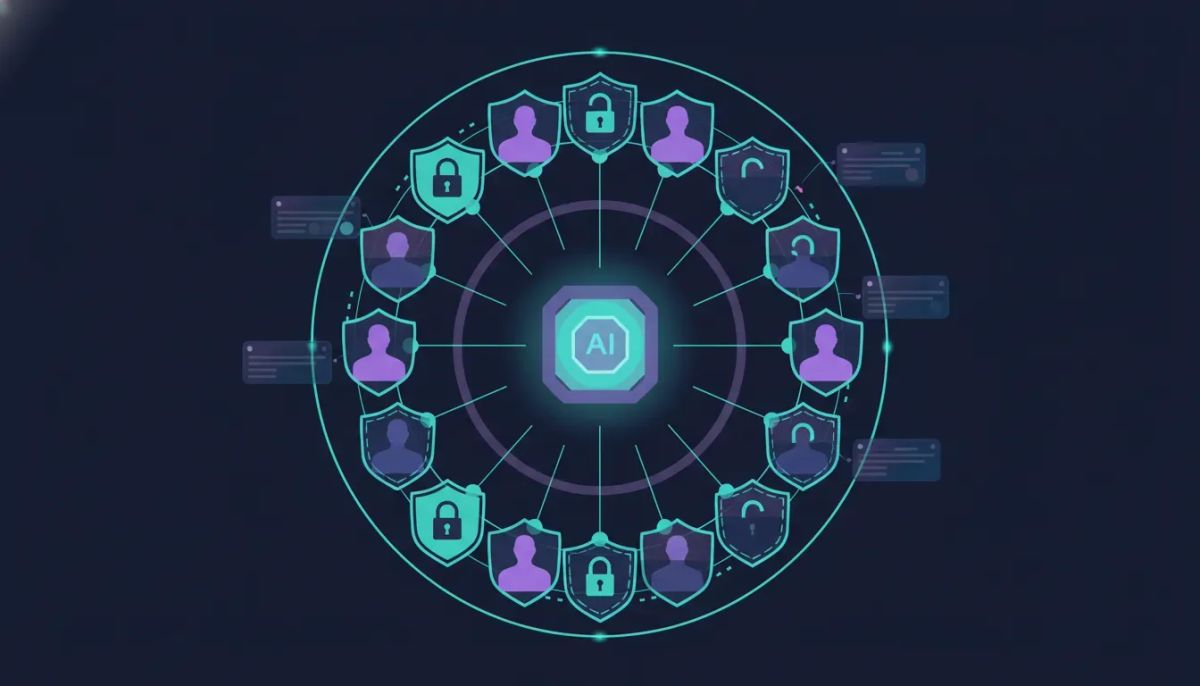
If your team is using HighLevel Conversation AI, sooner or later you run into a simple question with a very important answer:
Who should be allowed to access your AI agents, and how much control should they really have?
Maybe you have team members who need to review agent settings but should not be able to change anything. Maybe someone should be able to work on training, but not touch goals. Or maybe you want to lock things down completely so only a few trusted users can even see your Conversation AI setup.
That is exactly where HighLevel’s roles and permissions come in.
HighLevel gives you granular control over Conversation AI permissions, so you are not stuck with an all-or-nothing access model. You can decide whether a user can view, manage, or be completely blocked from specific parts of your AI agent configuration.
If you are running an agency, managing internal staff, or scaling client operations inside GoHighLevel, this matters a lot. Conversation AI agents can directly affect lead handling, messaging, appointment flows, and customer experience. The wrong access level can create confusion fast. The right one keeps your CRM, automations, and AI systems organized and protected.
The Complete Operating System for Growth
Join over 60,000+ agencies and businesses using HighLevel to capture more leads and close more deals. Start your trial today and get instant access to the Nexus Hub resources.
Claim Your Free Trial & BonusesWhy Conversation AI permissions matter
When teams grow, permissions stop being a minor admin task and become part of your operating system.
In a typical HighLevel setup, different people handle different responsibilities:
- An admin might oversee all AI agents and account-wide settings.
- A marketer might need to review messaging behavior and training.
- A sales manager might only need visibility into outcomes or goals.
- A contractor might need temporary access to one area, but not full control.
If everyone has full access, mistakes become much easier to make. Someone could accidentally change bot training, edit goals, or remove settings they were not supposed to touch. Even if nothing goes wrong, giving broad access to every team member is rarely a best practice.
HighLevel solves this with granular permissions under the AI Agents section in Roles and Permissions.
This is especially helpful for agencies using GHL to support multiple clients, because clean permissions are part of clean delivery. If your agency systems are built around structure, repeatability, and accountability, access control should reflect that.
What full access looks like in HighLevel Conversation AI
Before changing permissions, it helps to know what unrestricted access actually includes.
With full access, a user can go to the AI Agents area and access:
- Getting Started
- Agent Studio
- Conversation AI
Inside Conversation AI, they can see all available agents. When they open an individual agent, they can access and edit the main sections, including:
- Agent settings
- Bot training
- Bot goals
In other words, full access means full visibility and control over the agent experience.
That may be exactly what you want for an owner, admin, or lead operator. But for everyone else, you may want something more specific.
Where to edit Conversation AI roles and permissions
If you want to configure access for team members inside HighLevel, the path is straightforward:
- Go to Settings.
- Open My Staff.
- Select Roles and Permissions.
- Look for the AI Agents section near the top.
This is where the granular AI-related controls live.
From there, you can decide exactly what a user can see or manage for both voice AI agents and Conversation AI agents. The same permission logic applies across both, but the focus here is Conversation AI.
The key idea: View vs. Manage
Most of the permission settings in this section follow the same pattern:
- View means the user can see that part of the system.
- Manage means the user can create, edit, and delete within that area.
That distinction is important.
“View” is about visibility. “Manage” is about control.
So if a user has permission to view a Conversation AI component, they can access it in the interface. If they also have manage permission, they can actively make changes.
This structure gives you a simple framework for assigning access:
- Need awareness only? Give view access.
- Need operational control? Give manage access.
- No business touching AI agents? Turn it off entirely.
That alone makes HighLevel much easier to govern at scale, especially if your agency or internal team is juggling multiple workflows, automations, and CRM responsibilities at once.
The Conversation AI permissions you can control
Inside the AI Agents permission section, HighLevel gives you several granular toggles for Conversation AI.
These include permission settings for:
- View and manage Conversation AI agents
- View and manage Conversation AI agent goals
- View and manage Conversation AI agent training
- View and manage the Conversation AI dashboard
Each one affects a different part of the user experience.
That means you can allow access to the agent itself while still hiding certain sections like goals or training. You are not limited to turning the entire feature on or off.
1. View and manage Conversation AI agents
This is the broadest setting.
If this permission is enabled, the user can access Conversation AI agents and work with them. That includes the ability to create, edit, and delete agents and their related components, depending on the rest of their permissions.
If this is turned off, the user will not be able to access the AI agents area at all.
This is the setting to use when someone should have no exposure to Conversation AI.
2. View and manage Conversation AI agent goals
This controls access to the goals section of an AI agent.
If you disable this permission, the user can still access the agent itself, but the goals section disappears from the interface.
That is an important detail. You are not disabling the entire agent. You are just removing one piece of it from that user’s experience.
So if someone should be able to review settings or training, but not see or modify the bot’s goals, this is the toggle to use.
3. View and manage Conversation AI agent training
This controls whether the user can access the training section.
If this permission is removed, the training area is no longer available to that user.
That is useful when training data should be reserved for more experienced staff, while others only need access to higher-level configuration.
4. View and manage the Conversation AI dashboard
This permission affects whether the user can see and work with the Conversation AI dashboard.
If your team structure includes users who do not need dashboard access, you can limit that too.
This level of control is what makes the permission system feel truly granular rather than cosmetic.
The Complete Operating System for Growth
Join over 60,000+ agencies and businesses using HighLevel to capture more leads and close more deals. Start your trial today and get instant access to the Nexus Hub resources.
Claim Your Free Trial & BonusesWhat happens when you turn a permission off
One of the most useful parts of HighLevel’s permission structure is that the interface changes based on what access a user has.
For example, if you disable access to Conversation AI agent goals, the user can still open the same AI agent, but the goals section no longer appears.
They may still see other sections such as:
- Settings
- Training, if training permission remains enabled
But they cannot see or edit bot goals.
That means you do not have to rely on team members remembering what they should avoid. HighLevel handles it at the UI level by removing access to the section entirely.
The same logic applies to training and dashboard permissions. Turn them off, and those sections become unavailable for that user.
This creates a cleaner working environment and reduces the risk of accidental edits.
Practical ways to use granular AI permissions
These settings may sound niche at first, but they become extremely useful once you start working with multiple users, multiple roles, and more advanced agency systems.
Here are a few practical ways to think about them.
Protect sensitive AI strategy
If your AI agent goals reflect core business logic, campaign intent, or a client-specific strategy, you may not want every team member seeing or changing them.
In that case, keep goal access limited to admins or strategists.
Separate setup from optimization
One person may be responsible for initial setup, while another handles ongoing refinement. You can assign permissions so the right person can work on training without giving them access to every part of the system.
Reduce mistakes from junior staff
New team members often need visibility before they need control. Giving them view access, or restricting access to only certain sections, allows them to learn the system without risking critical configuration changes.
Keep contractors in their lane
If you bring in freelancers, white-label support, or temporary operators, granular permissions help you grant only the access needed for the job.
Support scalable agency operations
As your HighLevel agency setup grows, permission structure becomes part of your delivery model. Clear role-based access keeps AI operations more consistent across accounts and helps avoid unnecessary internal friction.
A simple permission strategy for teams using HighLevel
If you are not sure how to assign access, use this simple framework:
- Identify who owns AI strategy. These users usually need full access.
- Identify who executes updates. These users may need training or dashboard access, but not goals.
- Identify who only needs visibility. Give them view access where appropriate.
- Remove access for everyone else. If someone has no reason to use AI agents, turn it off.
This approach works especially well in GoHighLevel environments where the same team is also managing CRM records, workflow automations, campaign setup, lead routing, and SaaS operations. Not every user needs every tool.
Permissions should reflect responsibilities, not curiosity.
When it makes sense to turn everything off
Sometimes the safest and smartest choice is the simplest one.
If a team member has no reason to interact with Conversation AI, turn off all related permissions. That includes the main view and manage Conversation AI agents setting.
Once that is disabled, they will not be able to see AI agents at all.
That might feel strict, but it is often the cleanest setup. Good operations are not about giving everyone access to everything. They are about making sure each user has the right tools for their role and nothing extra.
Why this matters for agency scaling and implementation
Conversation AI is not just another feature. In many HighLevel accounts, it becomes part of how leads are engaged, how conversations are handled, and how follow-up performance is shaped.
That means permission mistakes can affect more than internal settings. They can affect live business outcomes.
For agencies, this has a direct impact on implementation quality. Strong permission management helps you:
- Protect client systems
- Standardize internal processes
- Reduce configuration errors
- Create clearer team accountability
- Support cleaner handoffs between strategy and execution
It also aligns with broader HighLevel best practices around marketing automation, CRM governance, and operational clarity.
If your goal is to build scalable systems rather than duct-taped access, this is one of those small settings that carries outsized value.
Final takeaway
HighLevel’s Conversation AI permissions give you a practical way to control who can see and manage your AI agents, goals, training, and dashboard.
The big idea is simple:
- View controls visibility.
- Manage controls the ability to create, edit, and delete.
- Turning off a specific permission removes that part of the interface for that user.
- Turning off Conversation AI agent access entirely removes AI agents from their experience.
If you are serious about protecting your AI setup, organizing your team, and keeping your HighLevel account clean as you scale, this is worth configuring properly.
And if you are still building your systems inside GoHighLevel, this is a good reminder that smart agency setup is not just about workflows and automations. It is also about who gets access to what.
If you have not started yet, a HighLevel free trial is a practical way to explore how Conversation AI, permissions, CRM management, and automation fit together in one platform. And if you want implementation help, templates, and shared strategies, joining a community like Nexus Hub can make the rollout a lot easier.
FAQ
Where do I find Conversation AI permissions in HighLevel?
Go to Settings > My Staff > Roles and Permissions, then look for the AI Agents section. That is where you can manage granular permissions for Conversation AI and voice AI agents.
What is the difference between view and manage permissions?
View allows a user to see a section or feature. Manage allows them to create, edit, and delete within that area. View is visibility. Manage is control.
Can I let someone access a Conversation AI agent but hide its goals?
Yes. If you disable the permission for Conversation AI agent goals, the user can still access the agent itself, but the goals section will no longer appear for them.
Can I restrict access to agent training only?
You can control access to the training section separately. If training permission is turned off, the training area is removed from that user’s interface. This lets you limit who can work on agent training.
What happens if I turn off view and manage Conversation AI agents?
If that main permission is turned off, the user will not be able to see AI agents at all. This is the best option when someone should have no access to Conversation AI.
Are these permission settings useful for agencies?
Absolutely. Agencies using HighLevel often need to separate access between admins, account managers, strategists, contractors, and support staff. Granular permissions help protect client systems and support cleaner agency scaling.
The Complete Operating System for Growth
Join over 60,000+ agencies and businesses using HighLevel to capture more leads and close more deals. Start your trial today and get instant access to the Nexus Hub resources.
Claim Your Free Trial & Bonuses


