
How To Use Fathom for Automatic Meeting Summaries in HighLevel

If you run an agency and you’ve got a sales team, every recorded call is packed with useful information. The problem is that most of that information never turns into action.
Meeting notes sit in one app. Action items live somewhere else. Sales managers want visibility, but nobody has time to chase down recordings, copy transcripts, or manually send updates after every call.
That is exactly where the Fathom integration in HighLevel becomes incredibly useful.
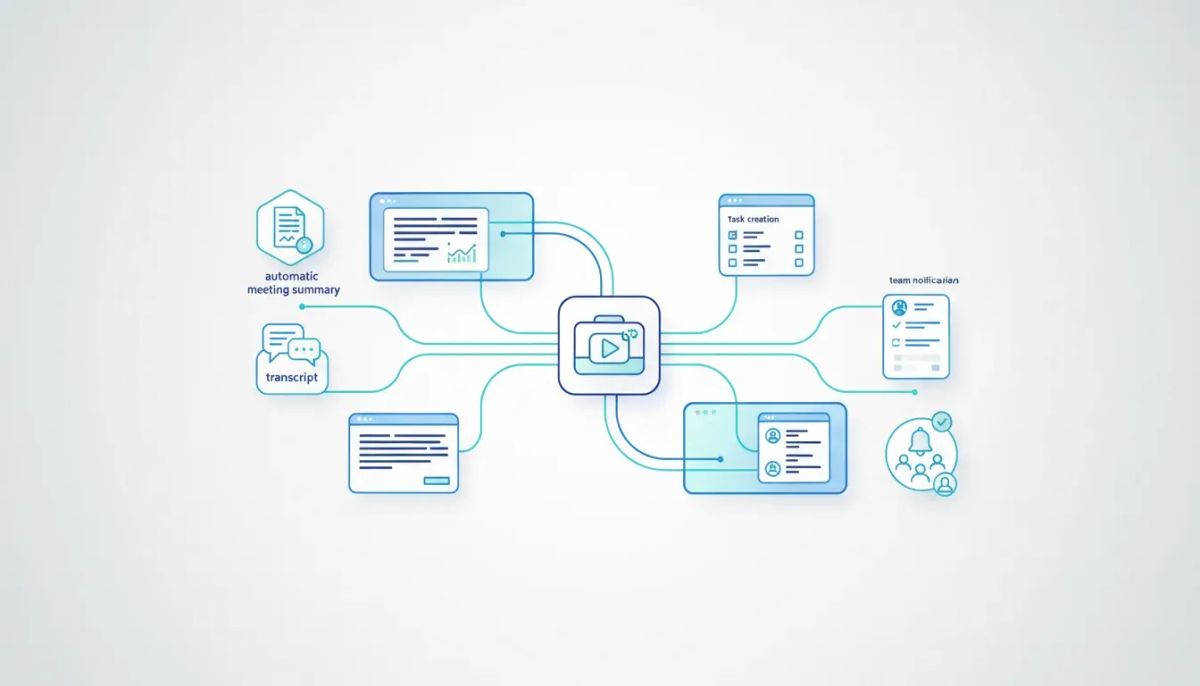
With the right workflow setup, you can automatically trigger actions whenever a meeting is recorded in Fathom. That means you can pull in the transcript or summary, notify your team, create follow-up tasks, and keep your agency systems moving without extra manual work.
If your goal is better sales accountability, faster handoffs, and more efficient CRM operations, this setup is worth implementing.
The Complete Operating System for Growth
Join over 60,000+ agencies and businesses using HighLevel to capture more leads and close more deals. Start your trial today and get instant access to the Nexus Hub resources.
Claim Your Free Trial & BonusesWhy connect Fathom to HighLevel?
Fathom is great for capturing meeting recordings, transcripts, and summaries. HighLevel is where your agency already manages CRM activity, automations, and operational workflows. Putting the two together gives you a simple way to turn conversations into actions.
Instead of treating call recordings as passive archives, you can use them as triggers inside HighLevel workflows.
That unlocks use cases like:
- Sending an internal notification when a sales call is recorded
- Fetching a meeting transcript for review or documentation
- Fetching a summary for quick management visibility
- Creating follow-up tasks in tools like ClickUp
- Sending emails based on meeting activity
- Improving sales team oversight inside your agency CRM process
For agencies scaling client delivery or sales teams, this kind of automation helps reduce missed details and keeps everyone aligned.
Where to set up the Fathom integration in HighLevel
The setup happens at the sub-account level in HighLevel.
That matters because the workflow and integration need to live inside the specific account where the automations will run. If you manage multiple client accounts or internal agency accounts, make sure you’re in the correct sub-account before building anything.
There are two places where you can connect Fathom inside HighLevel:
Option 1: Connect it from a workflow
This is the most direct route if you are already building the automation.
- Go to Automation in the left-hand menu
- Create a new workflow
- Start from scratch
- Add a trigger and search for Fathom
- Select the Fathom trigger
- Choose Connect Now
HighLevel will take you through the authorization flow, where LeadConnector requests access to your Fathom recording data. Once you allow access, the integration is connected and ready to use.
Option 2: Connect it from Settings
If you prefer to handle integrations first and workflows second, you can also connect Fathom through your account settings.
- Open Settings
- Select Integrations
- Search for Fathom
- Connect it if it is not already connected
This is helpful if you are standardizing your agency setup and want to make sure all required integrations are in place before your team starts building automations.
Building the workflow from scratch
Once Fathom is connected, the next step is setting up the actual automation inside HighLevel.
The flow is straightforward:
- Create the workflow
- Choose a Fathom trigger
- Add one or more Fathom actions
- Add follow-up actions like notifications, emails, or tasks
This structure gives you a repeatable process that turns recorded meetings into trackable operational activity.
Step 1: Create a new workflow
Inside the sub-account, go to Automation and create a workflow from scratch.
Starting from scratch gives you full control over what happens after a Fathom recording is created. That is especially useful if your team has a very specific sales process or internal handoff procedure.
Step 2: Choose the Fathom trigger
When you add the trigger, search for Fathom. One of the trigger options available is tied to a new recording.
You can configure the trigger around the meeting source you want to track, such as your own meetings or team meetings, depending on your setup.
After selecting the trigger, test it by finding a recent record. HighLevel should return a successful fetch if everything is connected properly.
This step is important because it confirms that HighLevel can actually see the Fathom recordings and use them as automation triggers.
What Fathom actions you can use in HighLevel
Once the trigger is in place, click the plus sign to add actions. HighLevel gives you multiple Fathom actions that can be used inside workflows.
The actions highlighted include:
- List recordings
- Fetch transcript
- Fetch summary
These actions are where the automation starts getting powerful, because now you are not just reacting to a new meeting. You are also pulling useful meeting data into your process.
Fetch the transcript
If you want the full written record of the conversation, choose Fetch Transcript.
To do that, HighLevel needs the recording ID. Once the recording ID is mapped, save the action and HighLevel will pull the transcript from that Fathom recording.
This is useful for:
- Reviewing sales call quality
- Keeping internal documentation organized
- Passing conversation details to account managers or closers
- Creating an audit trail inside your agency operations
Fetch the summary
If you do not need the full transcript every time, the Fetch Summary action can be a faster way to get the essentials.
Summaries work especially well for managers or team leads who want quick visibility into what happened on a call without reading every word.
For many agencies, this is the sweet spot. You get the context you need, but without overwhelming your team with too much detail.
List recordings
The List Recordings action is another option when your process requires pulling from available Fathom recordings. Depending on your workflow strategy, this can help you reference or organize recordings as part of broader automations.
Even if your immediate goal is just call summaries, it is helpful to know that HighLevel gives you more than one way to work with meeting data.
Sending internal notifications after a sales call
One of the most practical next steps is setting up an internal notification.
After HighLevel fetches the transcript or summary, you can add an action to notify the right person on your team. This is a simple but effective way to improve follow-up speed and accountability.
For example, you can configure the notification like this:
- Notification type: Internal notification
- Title: Fathom Recording
- Message: New transcript from sales call
- Redirect page: Contact or Opportunity
- User assignment: All users or a specific sales team member
This matters because internal notifications keep the workflow connected to real people. Automation is great, but somebody still needs to take action. Sending the right alert to the right user makes that handoff immediate.
If you are managing a growing sales team inside GoHighLevel, this kind of notification structure helps reduce the “I didn’t see it” problem that slows down pipeline movement.
The Complete Operating System for Growth
Join over 60,000+ agencies and businesses using HighLevel to capture more leads and close more deals. Start your trial today and get instant access to the Nexus Hub resources.
Claim Your Free Trial & BonusesAdding more workflow actions beyond Fathom
Fathom gives you the meeting intelligence. HighLevel gives you the automation engine.
That means your workflow does not have to stop at transcripts or summaries. You can chain other actions after the Fathom step to fit how your agency actually works.
Create a ClickUp task
If your team uses ClickUp for project management or sales follow-ups, you can search for ClickUp in the workflow builder and add a task creation step.
This is useful when a recorded call creates immediate action items that need to be assigned and tracked.
Examples might include:
- Creating an onboarding prep task after a closed sale
- Assigning follow-up research to a salesperson
- Flagging implementation notes for fulfillment teams
The key point is that your meeting can become the trigger for execution, not just documentation.
Send an email
You can also add a Send Email action in the workflow.
This could be used to:
- Notify a manager about a new call summary
- Send information internally after a meeting is recorded
- Support handoffs between departments
Inside HighLevel, this keeps communication centralized inside the same automation ecosystem you are already using for CRM and marketing automation.
A simple example workflow for agencies
Here is what a practical agency workflow might look like using the setup covered above:
- A sales call is recorded in Fathom
- That new recording triggers a HighLevel workflow
- HighLevel fetches the transcript or summary
- An internal notification is sent to the assigned sales manager
- A ClickUp task is created for any follow-up action
- An email is sent to the relevant internal team member if needed
This is not complicated, but it is powerful. It removes manual reporting and creates consistency across your sales process.
For agencies trying to scale, consistency is what makes operations manageable. A process that works once manually is not enough. A process that runs automatically inside HighLevel is what gives you leverage.
Why this matters for HighLevel agency setup and scaling
One of the biggest challenges in agency growth is operational fragmentation.
Sales calls happen in one place. notes are stored somewhere else. Tasks live in another tool. Team communication gets buried in chat. Soon, nobody has a clean system.
Using Fathom with HighLevel workflows helps solve that by connecting the conversation to the rest of your agency systems.
This supports better:
- CRM visibility because meeting activity can be tied back to contact and opportunity records
- Sales accountability because managers get notified when calls happen
- Operational efficiency because transcripts and summaries are pulled automatically
- Team execution because follow-up tasks and emails can be created instantly
- SaaS operations maturity because your agency is relying on systems instead of memory
Even if you start with a simple “new transcript from sales call” notification, you are building the kind of repeatable automation foundation that helps agencies scale without adding unnecessary administrative work.
Best practices for implementing this workflow
If you want this setup to be useful long term, keep it practical.
Start with one clear use case
Do not overbuild on day one. Start with a simple workflow that triggers on a new recording and sends a notification with either the transcript or summary.
Once that is working reliably, then add ClickUp tasks, emails, or other downstream actions.
Choose transcript or summary based on the audience
Use transcripts when someone needs full detail.
Use summaries when someone just needs the highlights.
This keeps the automation useful instead of noisy.
Send notifications to the right user
HighLevel gives you the option to notify all users or a specific team member. In most cases, targeted notifications are better than broad ones. They create clearer ownership and reduce alert fatigue.
Use redirect pages intentionally
When setting up internal notifications, choose whether the link should send the user to the contact or opportunity record. Pick the place where your team is most likely to take action.
Test the trigger before expanding the workflow
Always make sure the Fathom trigger can successfully fetch a recording before you stack additional actions on top. A clean trigger test saves time and troubleshooting later.
When to use this inside GoHighLevel
This workflow is especially helpful if you fall into one of these categories:
- You run an agency with a sales team and want more visibility into recorded calls
- You want automatic meeting summaries inside your HighLevel ecosystem
- You are improving CRM workflows and internal handoffs
- You use ClickUp or email-based internal processes after meetings
- You are building more scalable agency systems and want fewer manual tasks
It is a practical example of what makes HighLevel useful beyond marketing automation alone. The platform is not just for campaigns and funnels. It is also a strong operations layer for agency teams that want cleaner internal processes.
Final thoughts
If your sales meetings are already being recorded in Fathom, there is no reason to leave that information isolated.
By connecting Fathom to HighLevel, you can automatically capture key meeting data and turn it into action inside your CRM and workflow system. Whether that means sending an internal notification, fetching a transcript, pulling a summary, creating a ClickUp task, or sending an email, the result is the same: less manual work and better follow-through.
For agencies, this is exactly the kind of implementation that improves day-to-day efficiency while also supporting long-term scale.
If you are still building out your agency automation stack, this is a smart workflow to add early. And if you are exploring HighLevel more broadly, it may be a good time to start a free trial and map out how your sales, CRM, and internal operations can work together more smoothly.
If you want templates, implementation ideas, and help tightening up your systems, joining the Nexus Hub community can also be a natural next step.
FAQ
Can I connect Fathom to HighLevel from more than one place?
Yes. You can connect Fathom directly while building a workflow under Automation, or you can connect it through Settings and then Integrations inside the sub-account.
Do I need to be at the sub-account level to set this up?
Yes. The setup shown is done at the sub-account level in HighLevel, which is where the workflow and integration are configured.
What Fathom triggers and actions are available in HighLevel workflows?
You can use a Fathom trigger tied to a new recording, and actions such as listing recordings, fetching a transcript, and fetching a summary.
What information do I need to fetch a transcript from Fathom?
You need the recording ID. Once that is entered or mapped in the workflow action, HighLevel can fetch the transcript.
Can I notify a specific sales rep or manager when a meeting is recorded?
Yes. The internal notification action lets you choose all users or assign the notification to a particular user, such as someone on your sales team.
Can this workflow create tasks or send emails too?
Yes. After the Fathom actions, you can add other HighLevel workflow actions such as creating a ClickUp task or sending an email.
Is this useful only for sales teams?
Sales teams are a strong fit, but any agency process that relies on recorded meetings, internal notifications, and follow-up actions can benefit from this setup.
The Complete Operating System for Growth
Join over 60,000+ agencies and businesses using HighLevel to capture more leads and close more deals. Start your trial today and get instant access to the Nexus Hub resources.
Claim Your Free Trial & Bonuses


