
The Ultimate Automations Masterclass in 10 Minutes

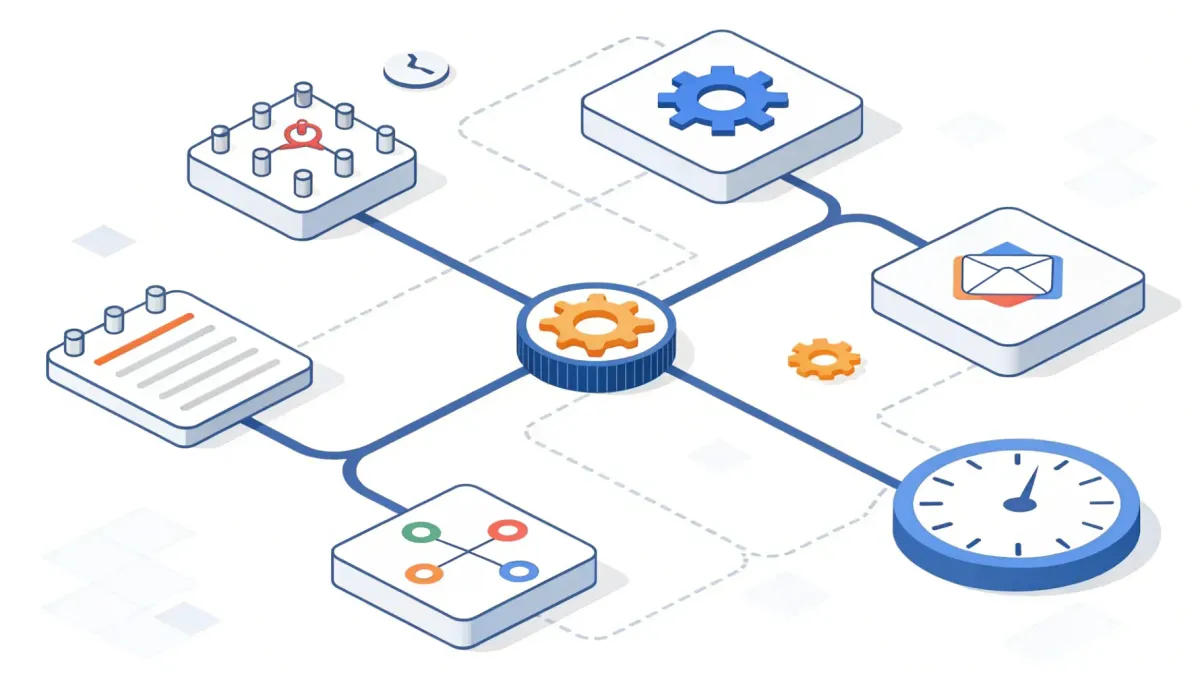
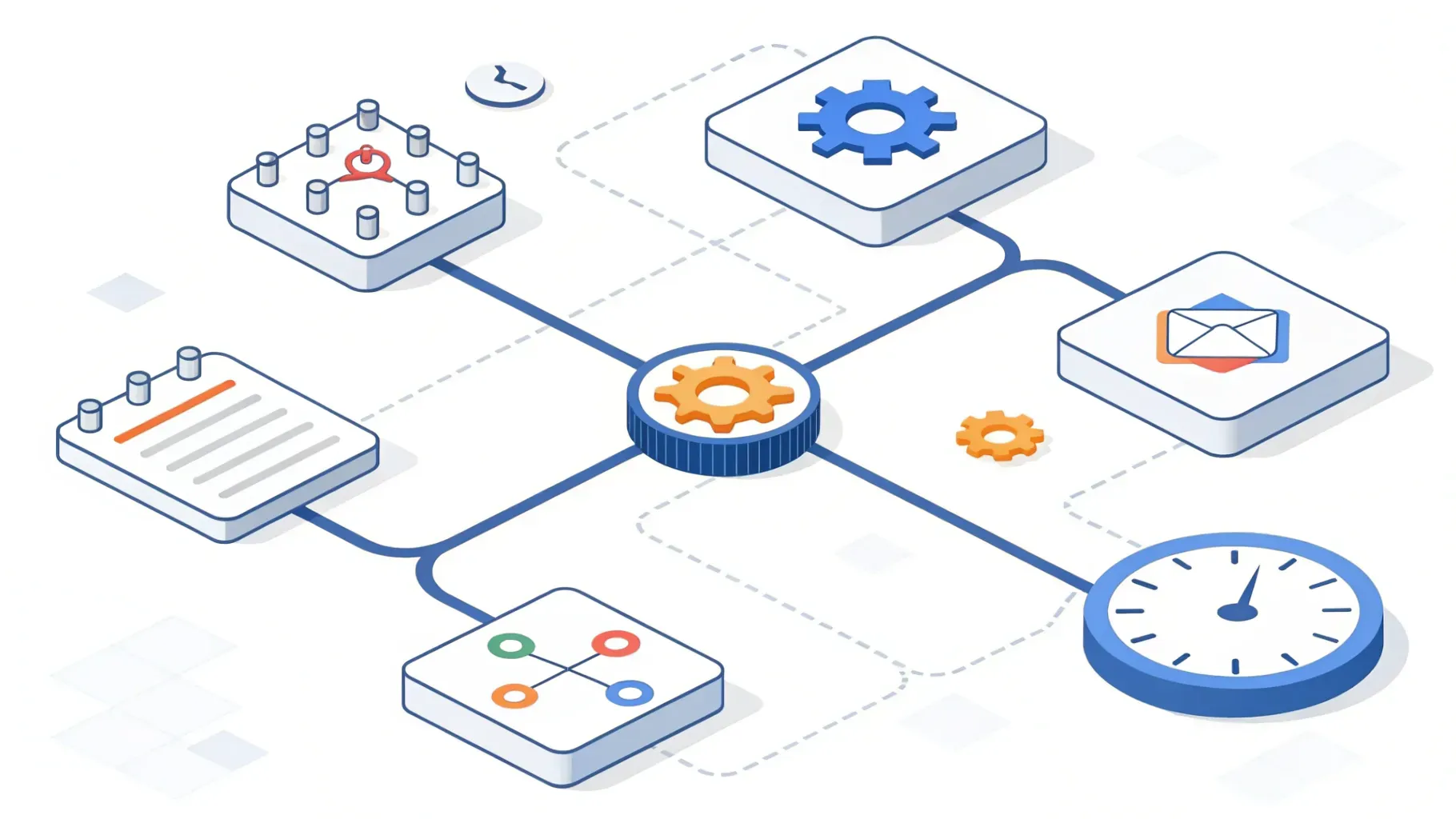
We created this comprehensive guide after watching Andrew George’s concise walkthrough on automations to give you a practical, step-by-step manual for building reliable workflows in the platform. If you want to stop doing repetitive tasks, avoid missed appointments, and consistently follow up with the right people at the right time, this guide will help. We’ll walk through how to get started, explain the building blocks of automations, and show the exact patterns we use to scale agency and small business operations without adding complexity.
Table of Contents
- Outline
- Introduction: Why Automations Matter
- Manage Workflows: Organization and the Workspace
- Starting Your First Workflow: Templates and Scratch Builds
- Triggers and Actions: The Core Building Blocks
- Appointment Workflow Example: Practical Setup
- Custom Fields & Dynamic Values: Personalize Every Message
- Branching Logic & Segmentation: Treat Different Contacts Differently
- Wait Actions & Reply Handling: Build Smarter Follow-Ups
- Best Practices, Troubleshooting, and Testing
- Internal Automation Uses: Save Your Team Time
- Common Use Cases and Templates to Start With
- Advanced Tips to Make Workflows More Effective
- FAQ
- Conclusion
Outline
- Introduction: Why automations matter
- Manage Workflows: Organization and the workspace
- Starting Your First Workflow: Templates and scratch builds
- Triggers and Actions: The core building blocks
- Appointment Workflow Example: Practical setup
- Custom Fields & Dynamic Values: Personalize every message
- Branching Logic & Segmentation: Treat different contacts differently
- Wait Actions & Reply Handling: Build smarter follow-ups
- Best Practices, Troubleshooting, and Testing
- Internal Automation Uses: Save your team time
- Common Use Cases and Templates to Start With
- FAQ
- Conclusion
Introduction: Why Automations Matter
We run multiple agencies and have seen firsthand how automations eliminate friction across sales, marketing, operations, and support. The right automation setup saves time, reduces human error, improves client experience, and helps businesses scale without proportionally increasing headcount. Yet automations can feel tricky at first—there are triggers, actions, branching, and custom values to manage. The goal of this guide is to simplify the process so you can build reliable workflows quickly and confidently.
Manage Workflows: Organization and the Workspace
The first step is getting comfortable with the workspace where workflows live. The platform provides a dedicated tab for managing workflows. Think of this area as your command center where you can:
- Create folders to keep workflows organized by function (e.g., Appointments, Nurture, Billing).
- View workflow history and recent activity to audit what’s been running.
- Create smart lists to group related workflows for easy access.
We recommend starting with a simple folder structure and naming convention. For example:
- Appointments — Confirmation, Reminders, No-Shows
- Leads — Lead Nurture, Re-Engagement
- Billing — Invoice Reminders, Payment Confirmations
- Internal — Staff Notifications, Task Assignments
Keeping everything organized from day one prevents confusion and makes it easier to hand off automation maintenance to another team member later.
Starting Your First Workflow: Templates and Scratch Builds
When creating a workflow you’ll typically have two choices: start from a template or build from scratch. Templates are great for speed. They provide pre-built flows for common use cases like appointment confirmations, missed call follow-ups, birthday campaigns, and list activation. If you're short on time or learning, choose a template and inspect how it’s structured.
When we want full control, we start from scratch. Building from scratch forces us to think through every trigger and action and is a great learning exercise. Both approaches are valid; pick what fits your current priority—learn quickly with templates, then customize, or build from scratch when you need a precise flow.
Triggers and Actions: The Core Building Blocks
Workflows are built from two basic components: triggers and actions. Understanding the role of each is essential.
Triggers
Triggers are events that start your workflow. Common triggers include:
- Form submitted — when a contact fills out a form.
- Contact created or contact changed — when a contact record is added or updated.
- Tag added to contact — to segment contacts immediately.
- Appointment-related events — booked, confirmed, rescheduled, or canceled.
- Payment events — invoice created, payment received, or invoice overdue.
- Social or message interactions — incoming messages through connected channels.
Pick triggers that match the action you want your workflow to perform. If you’re automating responses to appointments, use appointment triggers. If it’s a lead nurture, form submission or contact-created triggers are your go-to.
Actions
Actions are what the workflow does once triggered. Some typical actions include:
- Send SMS or send email — communicate with contacts automatically.
- Create or update opportunities — manage pipelines without manual steps.
- Add or remove contact tags — segment contacts automatically.
- Send internal notifications — keep your team informed.
- Create tasks or assign contacts to a user — route work to the right person.
Most actions expose fields you can customize. That’s where custom values come in: they let you inject contact- or appointment-specific information into messages and records.
Appointment Workflow Example: Practical Setup
Appointments are a frequent automation need. Let’s walk through a simple appointment confirmation flow that we use for clients.
Trigger: Appointment Status
Use an appointment status trigger (e.g., status is “confirmed”) for consistency. This trigger reads the appointment data stored on the calendar, which is more reliable than tracking manual calendar entries. Add a filter for the specific calendar you use to avoid triggering when unrelated meetings are added.
Action: Create Opportunity
After the trigger, we often create an opportunity in the pipeline. This keeps our sales pipeline up to date without manual data entry. When creating the opportunity, use dynamic values to pull the contact name and other attributes so your pipeline records are meaningful immediately.
Action: Send Confirmation Message
Next, we send a confirmation SMS and/or email that includes the appointment details. Use a message template with dynamic fields like the contact’s first name and the appointment time. That gives a personal touch and reduces no-shows.
Example Message
“Hi {first_name}, your appointment on {appointment_time} is confirmed. We look forward to seeing you. Reply ‘C’ to cancel or call us if you need help.”
Be sure your platform is set up to send SMS and emails—this typically requires a phone number or email sender configured in your account.
Custom Fields & Dynamic Values: Personalize Every Message
Custom fields are the difference between generic messages and personalized communications that convert. The platform stores several categories of custom values you can use in messages and fields:
- Contact-specific fields: first name, last name, phone, email, address.
- User-specific fields: the team member assigned to the contact (helpful when routing).
- Appointment-specific fields: appointment link, reschedule link, cancel link, location, and calendar add buttons.
Whenever you see the small tag icon in an action’s editor, that’s where you can insert these dynamic values. A few best practices:
- Always validate that a custom field exists before using it. If a field is blank for a contact, the message will look odd (e.g., “Hi ,”).
- Use fallbacks when possible. If the first name is missing, you might default to “there” or “friend” to avoid empty placeholders.
- Keep the number of custom fields reasonable—too many unused fields cause clutter.
Custom values can also be used in opportunity names, internal notes, and anywhere you need dynamic data to keep records accurate.
Branching Logic & Segmentation: Treat Different Contacts Differently
Branching (if/else logic) lets us route contacts through different paths inside a single workflow. This is how we create one workflow that handles many scenarios without building duplicate flows.
Common Branch Examples
- New customer vs. existing customer — send different confirmation sequences.
- Responded vs. not responded — escalate follow-up differently.
- Payment received vs. payment pending — trigger onboarding only when paid.
How to Build a New vs. Existing Customer Branch
One simple rule is to check whether the contact has a recorded prior appointment. If the “last appointment” field is empty, treat them as a new customer and send an onboarding or sales-focused message. If it’s not empty, send a shorter, more casual confirmation that assumes familiarity.
We recommend always leaving a default “none” branch to catch unexpected cases. Use this branch for internal notifications or error handling—if someone ends up in “none,” it’s often a sign a condition needs adjustment.
Wait Actions & Reply Handling: Build Smarter Follow-Ups
Wait actions allow a workflow to pause until a time delay passes or a condition is met. This is critical for follow-ups and capturing replies.
Two Types of Wait Actions
- Simple time delay — wait 10 minutes, 1 day, or a custom period before the next action.
- Wait for a specific event — wait for a reply to an SMS/email or until an invoice becomes overdue.
Why Wait for Reply Matters
When you ask a contact to respond, you don’t want the workflow to keep sending messages blindly. A “wait for reply” step pauses the flow and creates two internal branches:
- Reply branch — actions that occur if the contact replies within the timeout.
- Timeout branch — actions that occur after the timeout (e.g., send another reminder).
Tip: If you don’t want the timeout branch to exist, you can delete the timeout actions and the workflow will simply pause until a reply happens. This prevents accidentally spamming a contact who never replies.
Best Practices, Troubleshooting, and Testing
Automations are powerful, but if they are wrong they can cause friction. Here are the practical steps we use to keep automation reliable and safe:
1. Start Small and Test
- Build one simple workflow and test it thoroughly before adding complexity.
- Use a test contact with realistic data (name, phone, email, appointment) to see how messages render.
- Confirm that all channels are connected (phone number purchased for SMS, email sender verified, social accounts connected where needed).
2. Use Clear Naming Conventions
Name triggers, actions, and branches so anyone reading the workflow can understand the logic without guessing. For example: “S1: Confirm Appt SMS” and “Branch: New vs Existing.”
3. Monitor Workflow History
Check the workflow history regularly to see who is moving through the flow and where errors appear. The history helps identify missing fields or disconnected channels.
4. Handle Missing Data Gracefully
Always plan for contacts with missing fields. Use fallback text and ensure critical actions (like sending invoices) verify that necessary fields are present before executing.
5. Internal Notifications for Unexpected Cases
Use internal notifications in the default or error branches. When a contact goes down the “none” branch or hits an unexpected condition, send a message to the operations team so they can investigate.
6. Keep Automation Count Manageable
It’s tempting to automate everything and create dozens of workflows. Start with high-impact automations first (appointments, billing, lead follow-up) and expand gradually. A clean, small set of reliable workflows works better than many fragile ones.
Internal Automation Uses: Save Your Team Time
Automations aren’t just for client-facing messages. They can be invaluable internally:
- Assign contacts to team members automatically when a lead matches criteria.
- Create tasks for follow-ups and tie them to the right person with due dates.
- Send internal alerts when invoices are overdue or when a VIP client books a meeting.
These internal automations reduce email noise, provide clear accountability, and ensure nothing slips through the cracks.
Common Use Cases and Templates to Start With
Here are the practical workflows we recommend implementing first. These cover the highest-impact scenarios for most small businesses and agencies.
- Appointment Confirmation & Reminders: Triggered by appointment booked or appointment confirmed. Sends confirmation, follow-up reminders, and reschedule/cancel links.
- No-Show & Missed Appointment Recovery: Triggered by appointment status canceled or missed. Sends a recovery message and offers easy rescheduling.
- Lead Nurture Sequence: Triggered by form submission or contact created. Sends a short email/SMS sequence and tags the contact based on engagement.
- Payment & Billing Automation: Triggered by invoice created or payment status. Sends invoice notifications, payment confirmations, and overdue alerts.
- Birthday & Anniversary Messages: Time-based automation that engages customers and builds rapport.
- Onboarding for New Clients: Triggered by paid invoice or tag added. Sends welcome messages, onboarding checklist, and schedules the kickoff call automatically.
Advanced Tips to Make Workflows More Effective
- Use conditional logic to reduce noise: Only send follow-ups when contacts haven’t already engaged, and avoid repetitive messaging.
- Use personalized links: Include appointment reschedule and cancel links directly in messages so contacts can self-serve.
- Combine channels thoughtfully: Start with SMS for urgent reminders, use email for detailed confirmations, and add internal notifications for your team.
- Leverage pipeline automation: Automatically create or update opportunities so your CRM reflects real-time activity without manual work.
- Document every workflow: Keep a short description of purpose, trigger, and critical fields. This helps when you revisit a workflow months later.
"We built our booking confirmations and follow-ups with automations and immediately reduced no-shows by nearly half. The team saved hours each week on manual follow-ups and we finally stopped losing leads between systems."
- A small business operations manager
FAQ
Q: What’s the difference between a trigger and an action?
A trigger is an event that starts a workflow (for example, an appointment being confirmed). An action is what the workflow does (for example, send a confirmation SMS or create a sales opportunity). Think of triggers as the “when” and actions as the “what.”
Q: Can we send SMS and email from the same workflow?
Yes. The platform supports multiple actions in a single workflow. You can send an SMS for urgent notifications and an email for detailed confirmations. Ensure that the account has a phone sender for SMS and a verified email sender for email actions.
Q: How do we avoid sending messages to contacts without phone numbers or email addresses?
Build conditional checks in your workflow or use branching logic to verify the presence of phone or email fields. If the required field is missing, route the contact to an internal notification so a team member can follow up manually.
Q: What happens if a contact replies to an SMS? Can the workflow detect that?
Yes. Use a “wait for reply” action to pause the workflow and listen for a response. When a reply arrives within the timeout window, the workflow takes the “reply” branch. If no reply comes, it takes the timeout branch. This prevents unnecessary follow-ups when a conversation is already underway.
Q: Should we use templates or build workflows from scratch?
Templates are great to get started quickly and learn structure. Build from scratch when you need precise control. We often start with a template, test it, and then customize it to fit our business logic.
Q: Do automations cost more per run?
No hidden fees for individual workflow runs are required by the platform. We find that this flat approach makes it easy to experiment and scale without worrying about usage spikes costing more.
Q: How do we handle errors or unexpected branches?
Include a default “none” branch that sends an internal notification so the team can investigate. This helps surface data issues (like missing fields) and prevents contacts from being left without a proper follow-up.
Q: How often should we review workflows?
Review critical workflows monthly and other workflows quarterly. Check workflow history for errors, confirm message rendering, and verify that dynamic fields still match your contact data model.
Conclusion
Automations are one of the most powerful productivity multipliers for small teams and agencies. When built thoughtfully, they remove repetitive work, improve client communication, and let your team focus on high-value activities. Start with a few high-impact workflows—appointment confirmations, lead nurture, and billing reminders—test thoroughly, and expand as you gain confidence.
We encourage you to experiment with templates to learn patterns, use clean naming conventions, and always validate that your dynamic fields exist before using them. Keep default branches for error handling, and use internal notifications to catch unexpected behavior early.
If you’d like help designing a specific automation flow or troubleshooting something that isn’t working as expected, leave a comment or reach out through our contact channels for one-on-one assistance. We’re here to help you free up time, reduce tech headaches, and focus more on growing your business.



