
New Feature: Comment Management in Social Planner — Boost Engagement with Replies

Interacting with our audience helps build community and rapport. It makes our brand more accessible and encourages customers to choose us over competitors. To make replying easier, we added a comments section inside the Social Planner so you can manage incoming comments without leaving your CRM.
Table of Contents
- Where to find the comments area
- How to reply to a comment — quick steps
- Why replying from the CRM matters
- Best practices for replies
- Frequently asked questions
- Final notes
Where to find the comments area
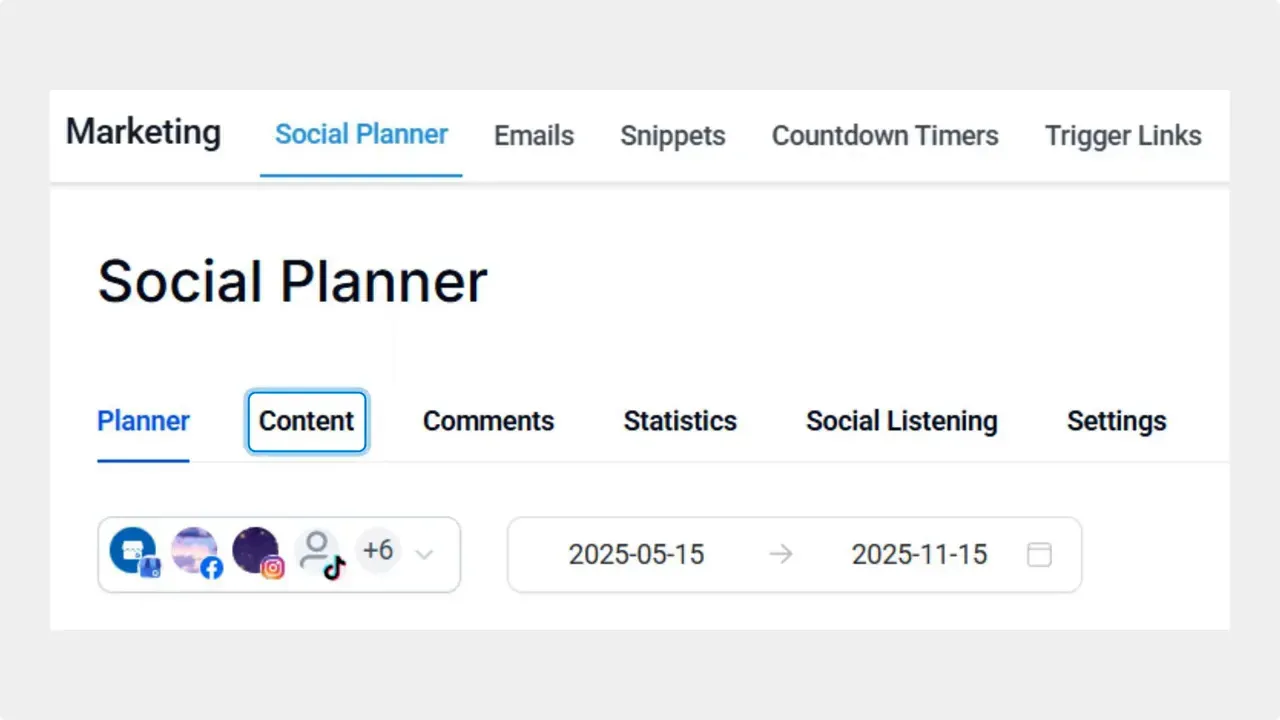
Open the Marketing section in your account. Then go to the Social Planner tab. Inside Social Planner, look for the Comments area. This is the new home for managing replies and conversations from one place.
How to reply to a comment — quick steps
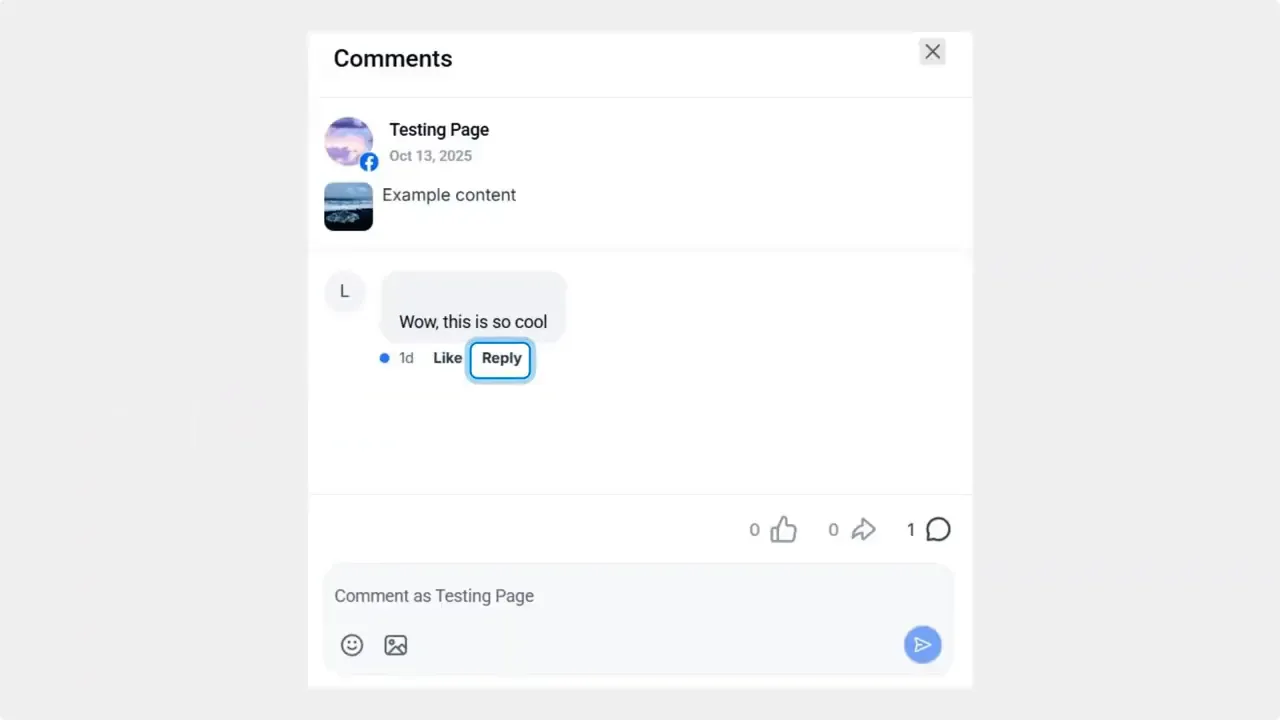
Type your response in the text bubble under the comment and send it.
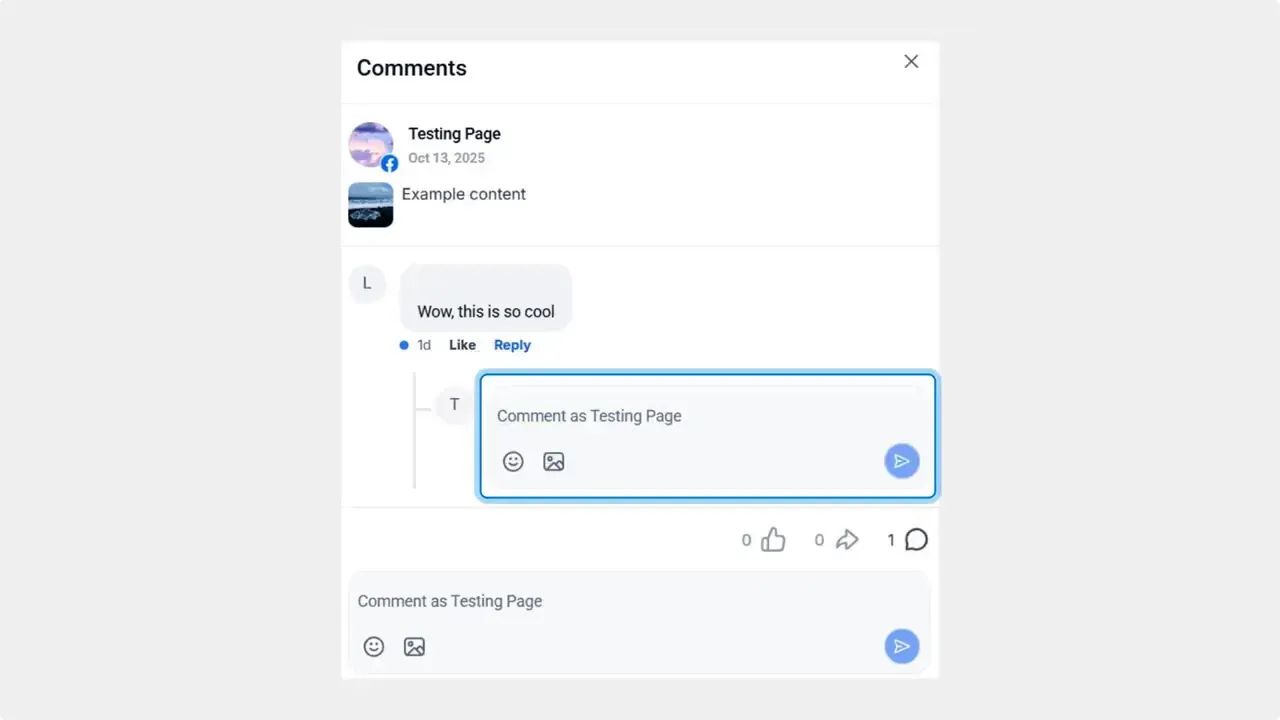
Find the comment you want and click Reply under it.
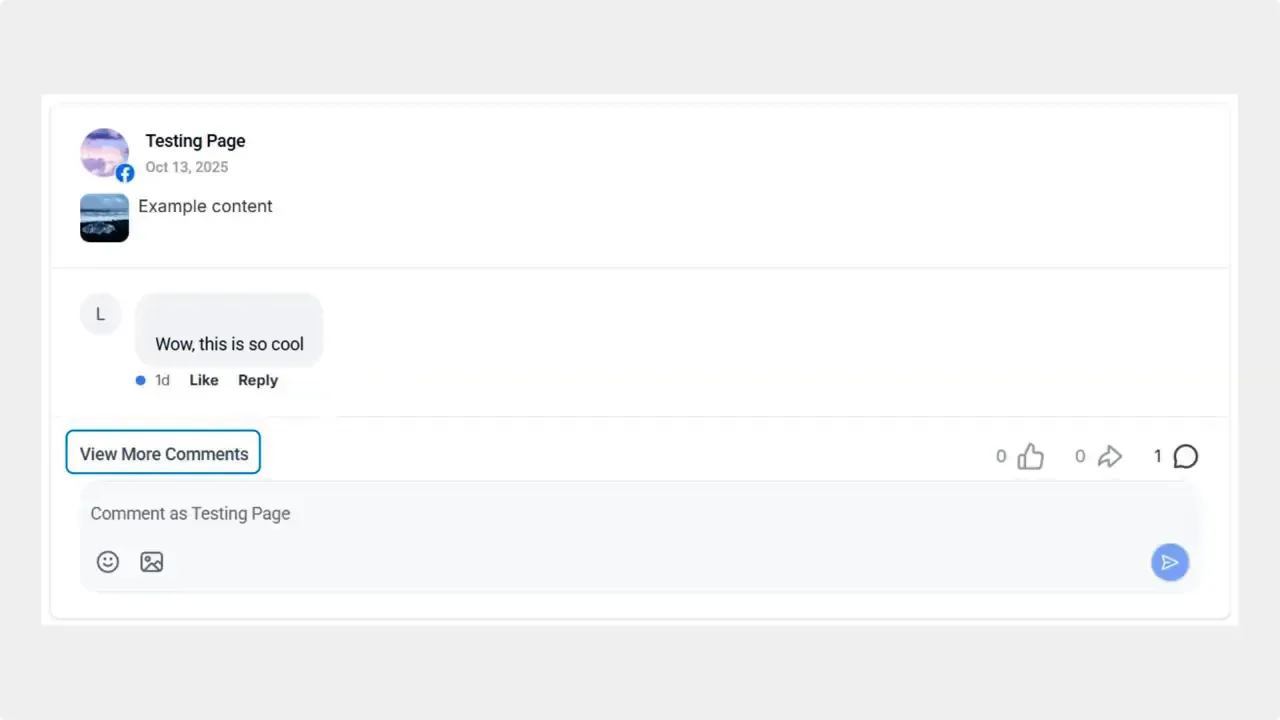
Open the detailed view of comments by clicking View More Comments.
Why replying from the CRM matters
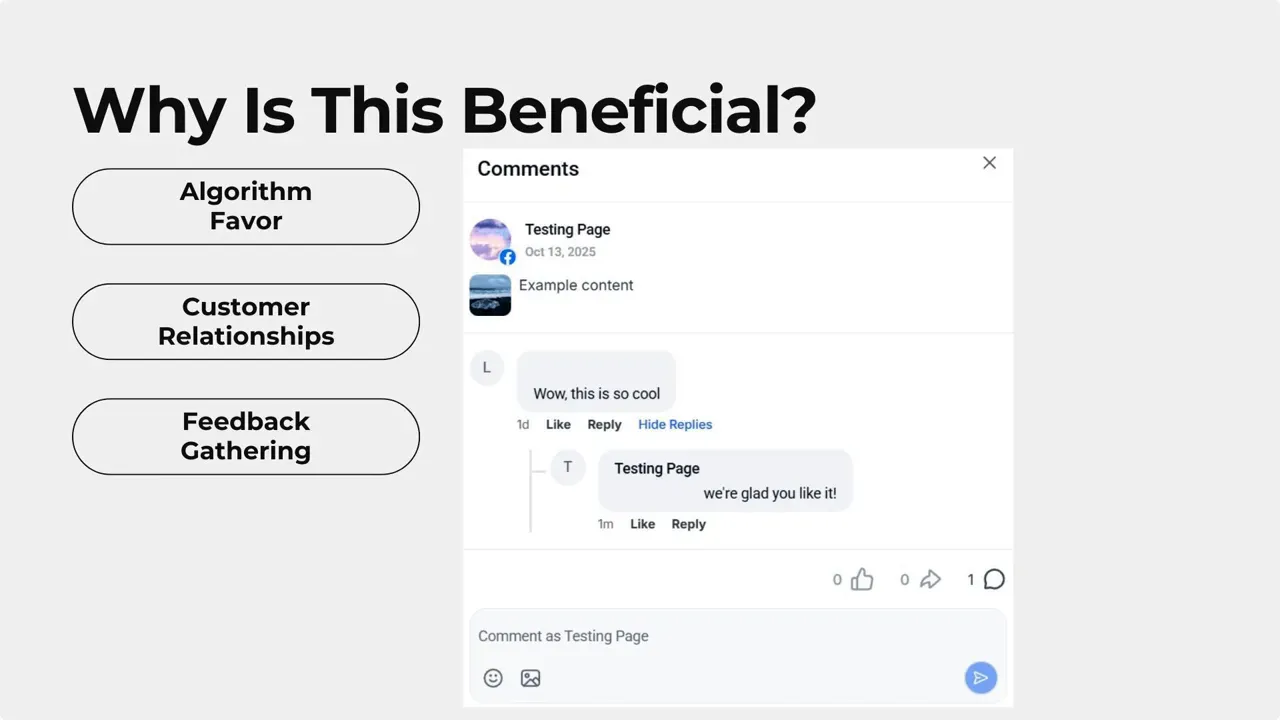
Replying directly from the Comments area keeps the conversation going. The algorithm favors posts with more interaction. Each reply can help increase reach and visibility.
Direct replies also strengthen customer relationships. They show there is a real person behind the account. That builds trust and encourages more engagement.
Managing comments inside the CRM saves time. There is no need to switch platforms or juggle login credentials. That makes social management simpler and faster.
Best practices for replies
- Reply promptly. Fast replies keep conversations active and show responsiveness.
- Be personal. Use the commenter’s name or reference their message when appropriate.
- Keep it concise. Short, helpful replies work best on social platforms.
- Ask one follow up question when possible. That encourages more interaction and signals the algorithm that the post is gaining traction.
- Track feedback. Use comments to spot common questions or improvement ideas from your audience.
Frequently asked questions
Where exactly is the Comments area located?
The Comments area is inside the Social Planner tab, which you can find under the Marketing section of your account.
Do replies sent from the Comments area appear on the original social platform?
Yes. Replies are sent as direct responses on the original platform so the conversation stays in place and visible to other users.
Do we need to switch platforms or re-enter credentials to reply?
No. The feature is built to let us manage and reply to comments without leaving the CRM, which reduces the need to manage separate credentials or switch apps.
How does replying affect reach and visibility?
Replies help keep engagement high. Social algorithms often prioritize posts with active conversations, so timely and genuine replies can improve reach and visibility.
Can we use this to gather customer feedback?
Yes. Comments are a direct source of user feedback. Replying and monitoring trends helps us identify common issues and customer needs.
Final notes
This feature makes it easier to engage followers and manage comments from one place. Use it to reply quickly, build trust, and make interactions more efficient. We hope you enjoy this new tool and see better results from your social interactions.



