
How to Set Powerful Workflow Goals That Boost Sales Without Extra Work

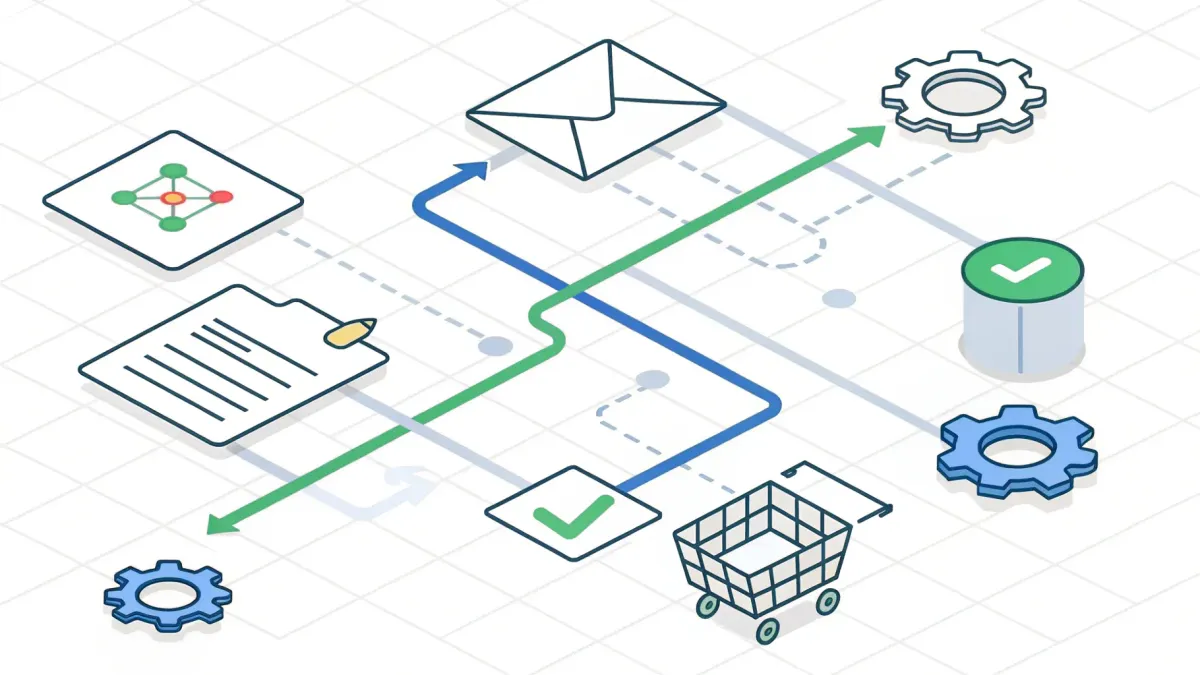
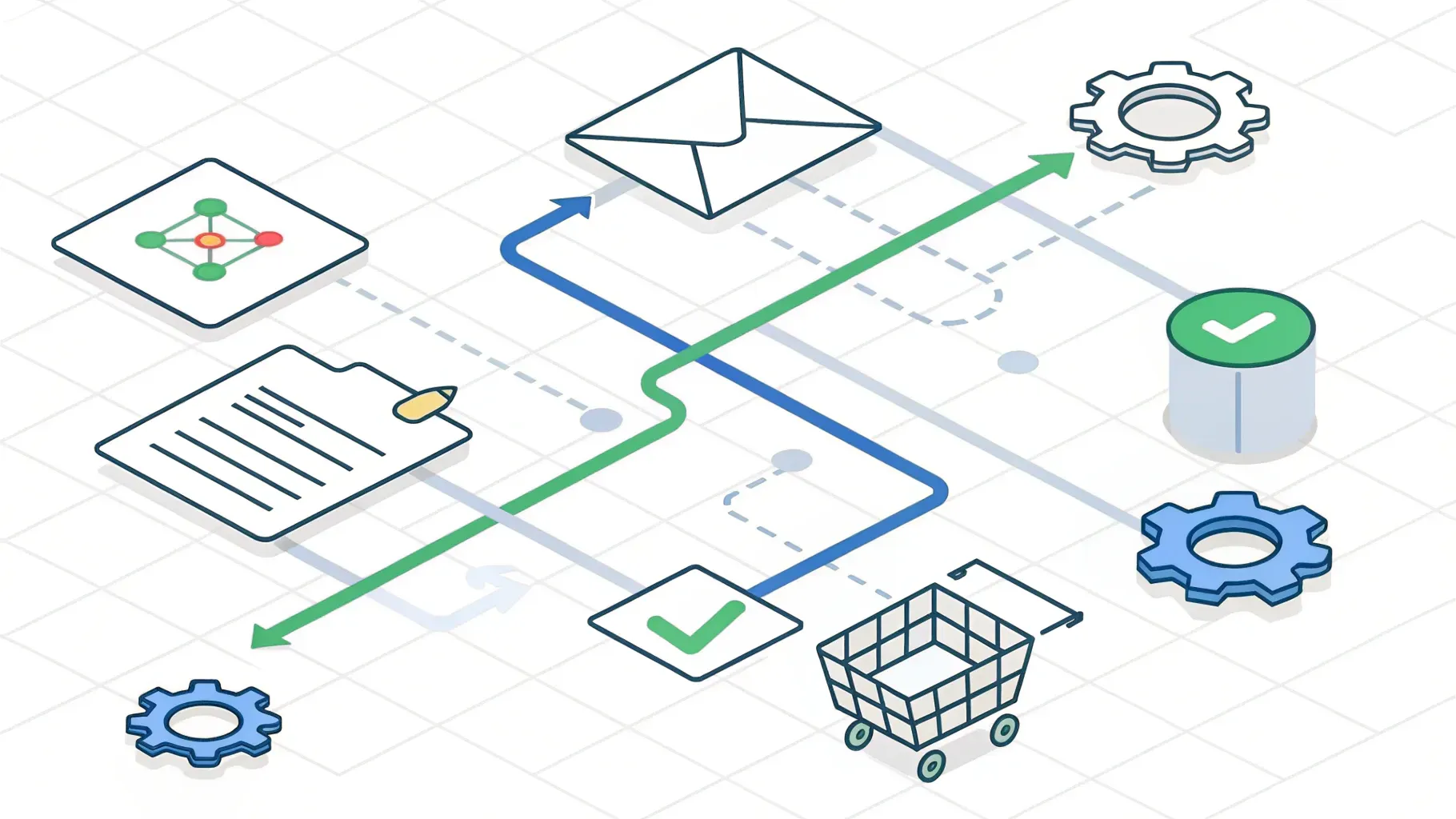
We rely on automation to do the repetitive heavy lifting so our teams can focus on selling, serving clients, and building products. One of the most impactful tools inside any automation system is the ability to set workflow goals that react when a contact takes a specific action. When we define goals like link clicks, form submissions, purchases, or signed documents, the system can skip irrelevant steps, start new sequences, or end a workflow automatically. That saves time, reduces annoying follow-ups, and creates a more personalized experience for every contact without extra manual work.
Table of Contents
- What is a Workflow Goal and Why It Matters
- Common Goal Types and How We Use Them
- Step-by-Step Setup: How to Add a Goal to a Workflow
- Deciding What Happens When Goals Are Met
- Practical Examples and Use Cases
- Best Practices to Maximize Impact
- How Goals Help Small Teams Save Time
- Common Mistakes to Avoid
- Monitoring and Reporting
- Real Testimonials
- Checklist: Setting Up a Goal That Works
- Troubleshooting Tips
- Final Thoughts
- What is a goal event and how does it work in a workflow?
- Which goal types should we use first?
- Should we end the workflow when a goal is met?
- How do we handle failed payments with goals?
- Can multiple forms trigger the same goal?
- How often are goal events monitored?
- What are quick naming conventions for goal actions?
- Can a goal trigger more than once per contact?
What is a Workflow Goal and Why It Matters
A workflow goal is a smart checkpoint inside an automation sequence that listens for a predefined event across the entire workflow lifecycle. From the moment a contact enters a workflow, the platform monitors for that event no matter which step the contact is currently in. When the event fires, the workflow can jump to the goal, skip subsequent steps, pause, or stop entirely.
This is powerful because it transforms rigid, linear automations into dynamic, behavior-driven journeys. Instead of blindly sending every contact the same follow-ups, we can stop messaging once a contact has acted, pivot to a new campaign based on their behavior, or nudge them with targeted messaging if they still need conversion help.
Common Goal Types and How We Use Them
Goals are flexible and cover the most important touch points in the customer lifecycle. Below are the typical goal types we use and practical examples of each.
Email Events
Track interactions with emails such as opens, clicks, unsubscribes, complaints, or bounces.
- If someone clicks a replay link after a webinar email, stop sending the replay funnel follow-ups.
- If an email bounces, end the workflow to protect deliverability and avoid hurting your sending reputation.
- If a contact unsubscribes, trigger a removal from promotional lists and stop all promotional workflows instantly.
Trigger Link Clicks
Trigger links can be placed anywhere in your campaigns and act as direct signals of intent. When a contact clicks a trigger link, the system can immediately move them into a different workflow that matches their interest.
- E-commerce use case: When a customer clicks product A, move them into a personalized upsell sequence for product A accessories.
- Webinar use case: Clicking a replay link can end the nurture series that asks attendees to register and instead begin a sequence that encourages watching and sharing the replay.
Tags Added or Removed
Tags are a simple, effective way to mark events like purchases, interests, or support needs. A goal that listens for tag changes helps us stop unnecessary nurturing or start relevant post-purchase sequences.
- When a tag like "bought-product-x" is applied, end the purchasing campaign and start a product onboarding funnel.
- If a quality-assurance tag is removed or changed, prompt a manual review or follow-up workflow as needed.
Appointment Status
Appointments are meaningful milestones. The difference between booked, confirmed, and showed matters for follow-up messaging.
- If someone booked but we confirm they also showed, end the pre-appointment nurture and begin a post-appointment check-in or feedback survey.
- If an appointment is only booked and needs qualification, do not advance them until the appointment is confirmed by our team.
Payment Received or Failed
Payments directly indicate revenue intent. Goals based on payment success or failure let us automate different responses based on the outcome.
- If a payment succeeds, immediately add a customer tag and start onboarding or upsell sequences tailored to the purchased product.
- If a payment fails, move them into a recovery workflow that prompts for an updated card, offers alternate gateways, or provides support.
Form Submitted
Forms capture intent and qualify contacts. Listening for form submissions helps us route leads efficiently.
- We can set a goal to trigger when any qualifying form is submitted and avoid building multiple branching workflows for each form variant.
- Multi-select form goals enable centralization so one goal can represent several similar forms and keep logic in one place.
Document or Contract Status
When we send contracts or documents, tracking views and signatures is critical.
- If a contact views the contract but does not sign, start a reminder sequence to nudge them to sign.
- Once the document is signed, end the reminder workflow and begin the onboarding implementation steps.
Step-by-Step Setup: How to Add a Goal to a Workflow
Implementing a goal follows a simple pattern. The interface will vary slightly between solutions, but these steps apply to most platforms and keep our workflows organized and efficient.
- Open the automation area and choose workflows.
- Create a new workflow or edit an existing one.
- Set the initial trigger for the workflow (for example, contact added to a list, appointment booked, or form submitted).
- Build the initial actions you want the contact to receive such as an email, SMS, or task.
- Click to add a new action and select Goal Event from the list of available actions.
- Choose the type of goal you want to listen for from the dropdown. Options typically include received email, trigger link click, tag added/removed, appointment status, payment received, form submitted, or document status.
- Define the exact condition. For example, pick which email or which trigger link, pick the tag name, select the calendar or appointment status, choose payment success or failure, or tick one or more forms.
- Decide what happens when the goal is met: end the workflow, continue anyway, or wait until the goal is met. Save the action.
- Rename the action to something meaningful so the workflow is easy to understand at a glance.
- Save and publish your workflow.
Renaming the action is a small habit that saves huge amounts of time. Instead of seeing multiple actions all called Goal Event, we see descriptive names like Goal - Clicked Replay or Goal - Payment Failed. That speeds troubleshooting and onboarding for team members.
Deciding What Happens When Goals Are Met
After the system detects the goal, you must choose the desired outcome. There are three common options and each has specific benefits.
End the Workflow
Use this when the contact has already completed the intended journey. Examples:
- The contact clicked the replay link so further "register" and "reminder" emails are unnecessary.
- Payment succeeded so promotional checkout nudges should stop.
- The document is signed so contract reminders are no longer relevant.
Continue Anyway
Use this when the goal is informative but should not alter the ongoing sequence. Examples:
- You track a bounced email but still want to continue other communications through different channels.
- You want to log a tag change but allow the contact to progress through the rest of the workflow until a different milestone is reached.
Wait Until Goal Is Met
Use this when the rest of the sequence depends on the goal. The workflow pauses at that goal until the contact fulfills the condition. Examples:
- We wait for a confirmed appointment before sending pre-appointment content.
- We hold future onboarding steps until a required form is submitted or a payment is completed.
Practical Examples and Use Cases
Here are several real-world scenarios that show how goal events make the automation intelligent and helpful rather than intrusive.
Webinar Replay Campaign
We run a webinar and want to promote the replay. Instead of continuing to send registration and reminder emails to people who already clicked the replay, we set a goal that listens for the replay trigger link click. The moment someone clicks, they are removed from the registration sequence and either stopped or moved to a “watched replay” sequence that asks for feedback or offers a special deal.
Abandoned Checkout and Product Interest
In e-commerce, trigger links are perfect for tracking product interest. If someone clicks the abandoned checkout link for product X, we can move them into a tailored recovery or upsell workflow specific to that product. This creates relevance and increases conversion because the messages match the product they tried to buy.
Upsell and Cross-sell After Purchase
When a customer completes a purchase, we add a "bought-product-x" tag. A goal listening for that tag will end any active sales nudge sequences and begin a post-purchase onboarding or upsell workflow for complementary products. This reduces friction and increases average order value without additional ad spend.
Onboarding and Appointment Confirmation
For services that require a scheduled meeting, we often run an onboarding workflow that asks contacts to schedule a call. A goal that listens for appointment status confirmed allows us to stop sending scheduling reminders once the appointment is confirmed, and instead start a sequence that prepares them for the call with relevant materials.
Document Reminders and Contract Signoff
When contracts are part of the process, we monitor both document viewed and document signed statuses. If a contact views the contract but does not sign, they enter a timed reminder sequence that follows up at intervals. When they sign, the signature triggers a goal that ends reminders and moves them into implementation steps.
Failed Payment Recovery
Payment failures are an opportunity to recover a sale. A goal that listens for payment failed moves contacts into a recovery workflow that:
- Asks the customer to check card details
- Offers an alternate payment method
- Provides a limited-time incentive to try again
We prefer not to restrict this goal to a specific payment source. That keeps the recovery effort broad and captures failures whether they happened on the site, in an invoice, or in a funnel checkout.
Best Practices to Maximize Impact
To make goals work well for your team and customers, follow these practical tips we've learned from running dozens of automation sequences.
Name Things Clearly
Always rename goal actions with a short descriptive label. This reduces confusion when reviewing workflows and saves time during audits or handoffs.
Use Multi-Select Where It Makes Sense
If several similar forms or documents should be treated the same way, include them in a single goal using multi-select. This avoids redundant workflows and keeps logic centralized.
Protect Deliverability
Use a goal that ends the workflow when an email bounces. Continually sending to bouncing addresses damages sender reputation. Stop those sequences and clean the contact record.
Keep Follow-up Cadence Human
When building reminder sequences, add wait steps between messages. For example, wait 12 or 24 hours before the first reminder, then wait longer before subsequent nudges. That keeps outreach friendly instead of annoying.
Leverage Tags for Simple Branching
Tags are a low-tech, high-impact way to represent states like purchased, qualified, or in-support. Use goals that listen for tag changes to pivot logic without complicated branching conditions.
Centralize User Logic
Rather than creating separate workflows for each similar form or product, create one workflow that handles multiple forms or products through multi-select goals and tags. This simplifies maintenance and improves consistency.
Test and Monitor
Before publishing broadly, test workflows with internal accounts. Confirm that goals are triggered as expected and that the contact moves to the right sequence. After launch, monitor results and adjust wait times and message copy based on engagement and conversion.
How Goals Help Small Teams Save Time
Goals automate decision-making. Instead of manually checking whether someone clicked, purchased, or signed, the system does it for us 24 hours a day. That means:
- Fewer manual checks and fewer mistakes
- Better customer experience because people do not receive irrelevant messages
- Faster reaction to buyer intent which increases conversions
- Lower operational overhead for follow-up sequences
We always emphasize transparency and clarity: use goals to keep customer journeys relevant, and avoid complicated chains that produce hidden fees or surprise behavior. When goals are organized and named consistently, they provide a predictable, maintainable structure for any small business.
Common Mistakes to Avoid
Here are pitfalls we see often and how to avoid them.
Overusing Wait Until
Waiting forever for a goal can stall contacts. If the goal is unlikely to occur, either end the workflow after a time or move the contact into an alternative sequence.
Not Renaming Goal Actions
Leaving every goal action with a default name makes audits painful. Rename everything as you build to avoid confusion later.
Neglecting Payment Recovery Options
When a payment fails, do not stop at a single failed attempt. Offer alternative gateways, clear instructions to retry, and support options. A recovered sale is often cheap compared to acquiring a new customer.
Failing to Remove Contacts from Campaigns
Forgetting to end workflows when a conversion happens results in frustrated customers. Make it a rule to stop sales sequences when a purchase or signup occurs.
Monitoring and Reporting
Goals give you better signals for reporting. Rather than relying only on opens or clicks, track meaningful events like purchases, signed contracts, or confirmed appointments. Use these outcomes to evaluate campaign ROI and to decide where to optimize messaging or timing.
Set up simple dashboards that show how many contacts triggered each goal daily and which sequences drove the most conversions. That data helps prioritize changes that increase revenue without adding manual labor.
Real Testimonials
"We implemented goal-driven workflows and cut our manual follow-ups by 70. Customers stopped receiving irrelevant emails and our conversion from click to purchase increased immediately."
"Using tag-based goals simplified our onboarding sequences. One workflow now handles onboarding, payments, and contract sign-offs for multiple products. Maintenance is a breeze."
Checklist: Setting Up a Goal That Works
- Define the one clear action that represents success for the flow.
- Choose the right goal type: link, form, payment, tag, appointment, or document.
- Specify exact variants when needed, or use multi-select when several variants mean the same thing.
- Decide whether to end, continue, or wait at the goal.
- Rename the goal action to a descriptive label.
- Test with sample contacts and confirm the expected behavior.
- Publish and monitor conversion metrics and goal triggers.
Troubleshooting Tips
If a goal is not firing as expected, check these possibilities:
- Ensure the trigger link or email ID used in the goal is the correct published version.
- Verify the contact actually performed the action and that the action is tracked in the contact timeline.
- Confirm that the goal condition includes the right forms, documents, or tags if using multi-select.
- Review workflow logic to ensure another action is not prematurely ending or skipping the goal action.
- Test with a fresh contact record to exclude caching or previous state effects.
Final Thoughts
Goals are the decision points that make automation smart. They allow us to treat customers like people with changing intent instead of entries on a list. The result is cleaner campaigns, fewer irrelevant messages, higher conversion rates, and less manual work for our teams.
When we design workflows with clear goals, meaningful outcomes, and deliberate naming and testing, automation becomes a powerful ally that saves time, reduces tech headaches, and helps our businesses focus on what matters most: delivering value and closing deals.
What is a goal event and how does it work in a workflow?
A goal event is a checkpoint inside a workflow that listens for a specific action from a contact such as clicking a link, submitting a form, purchasing, or signing a document. When the action occurs, the workflow can skip to the goal, end, or pause until the goal is met, allowing the automation to adapt to real customer behavior.
Which goal types should we use first?
Start with the most meaningful outcomes for your business: purchase completions, document signatures, appointment confirmations, and important form submissions. These have the biggest impact on customer experience and revenue, so they are great first goals to implement.
Should we end the workflow when a goal is met?
In most conversion scenarios, yes. If a contact has completed the objective of the workflow, end it to avoid annoying follow-ups. In situations where additional messaging remains valuable, consider continuing the workflow or moving them into a new sequence tailored to the next step.
How do we handle failed payments with goals?
Create a goal for payment failed and move contacts into a recovery workflow that includes instructions to retry, alternative payment methods, and support options. Avoid limiting the goal to a specific payment source unless necessary so you can capture failures from any checkout path.
Can multiple forms trigger the same goal?
Yes. Use multi-select when defining the form goal to include several similar forms. This centralizes logic and avoids building duplicate workflows for each form variant.
How often are goal events monitored?
Goal events are monitored continuously after a contact enters a workflow, so the system reacts in real time when the defined action occurs.
What are quick naming conventions for goal actions?
Use short, descriptive labels like Goal - Clicked Replay, Goal - Payment Failed, Goal - Signed Contract. Include the action type and the object to make the workflow self-documenting.
Can a goal trigger more than once per contact?
Most systems treat each goal as a one-time trigger per contact unless you explicitly reset it. For repeated behaviors, create separate goals or reset the contact state as appropriate.



