
How to Add Color-Coding to Your Pipelines



Managing many opportunities can get noisy. We need a quick way to spot which deals meet our conditions, which ones are priorities, and which are special cases. Color-coding pipelines with Smart Tags gives us that clarity. Here is a simple guide to set it up and use it effectively.
Table of Contents
- Why color-coding helps
- How to set up Smart Tags step by step
- Practical examples and tips
- Benefits you can expect
- Frequently asked questions
- Final notes
Why color-coding helps
Color creates an immediate visual association. When an opportunity matches a condition, a color can call attention to it. This reduces cognitive load and makes prioritization faster. It also cuts down on mistakes when we interact with opportunities, because the meaning is right in front of us.
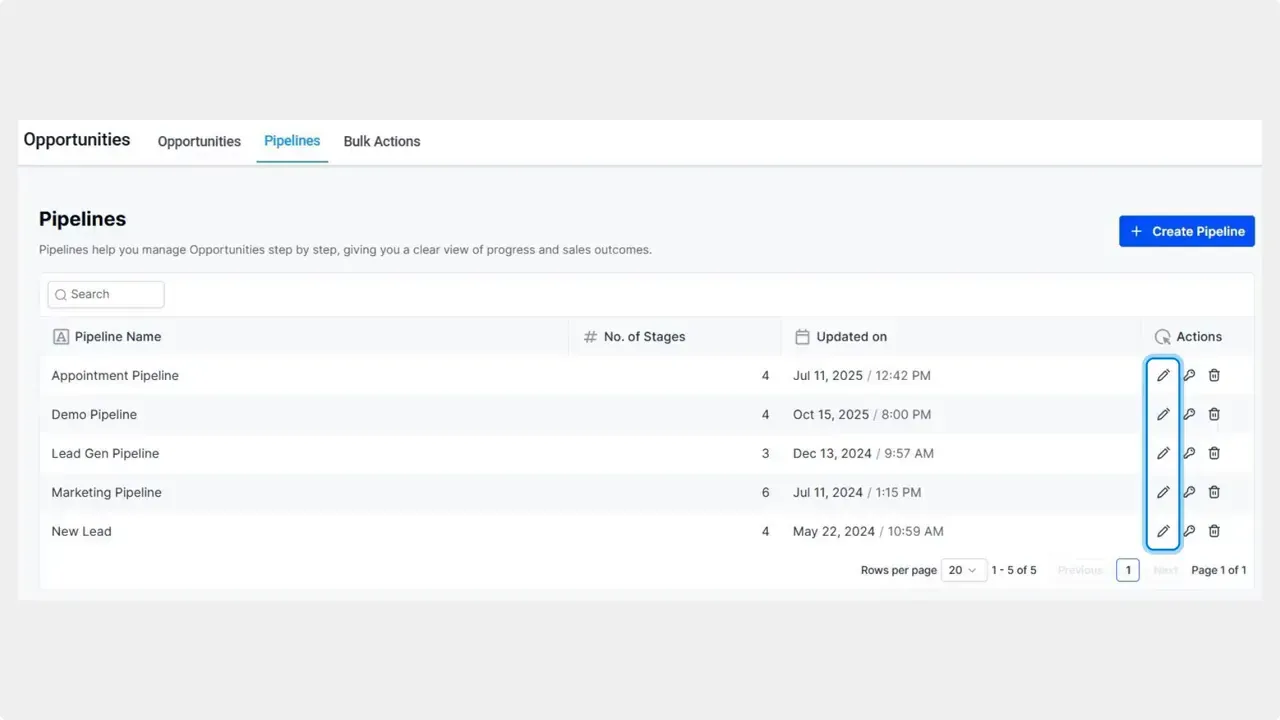
How to set up Smart Tags step by step
Follow these steps to add color-coding to your pipelines.
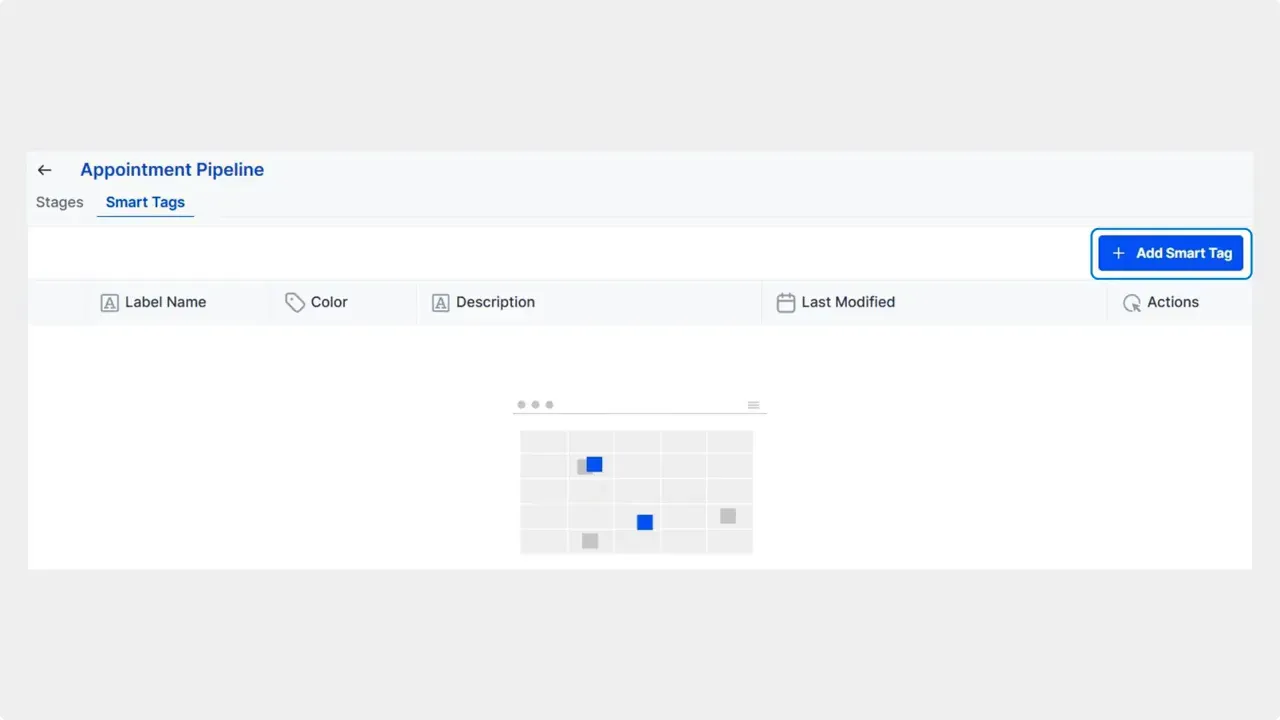
- Switch to Smart Tags.Select the Smart Tags option. This is where we add color-coded tags that assign automatically.
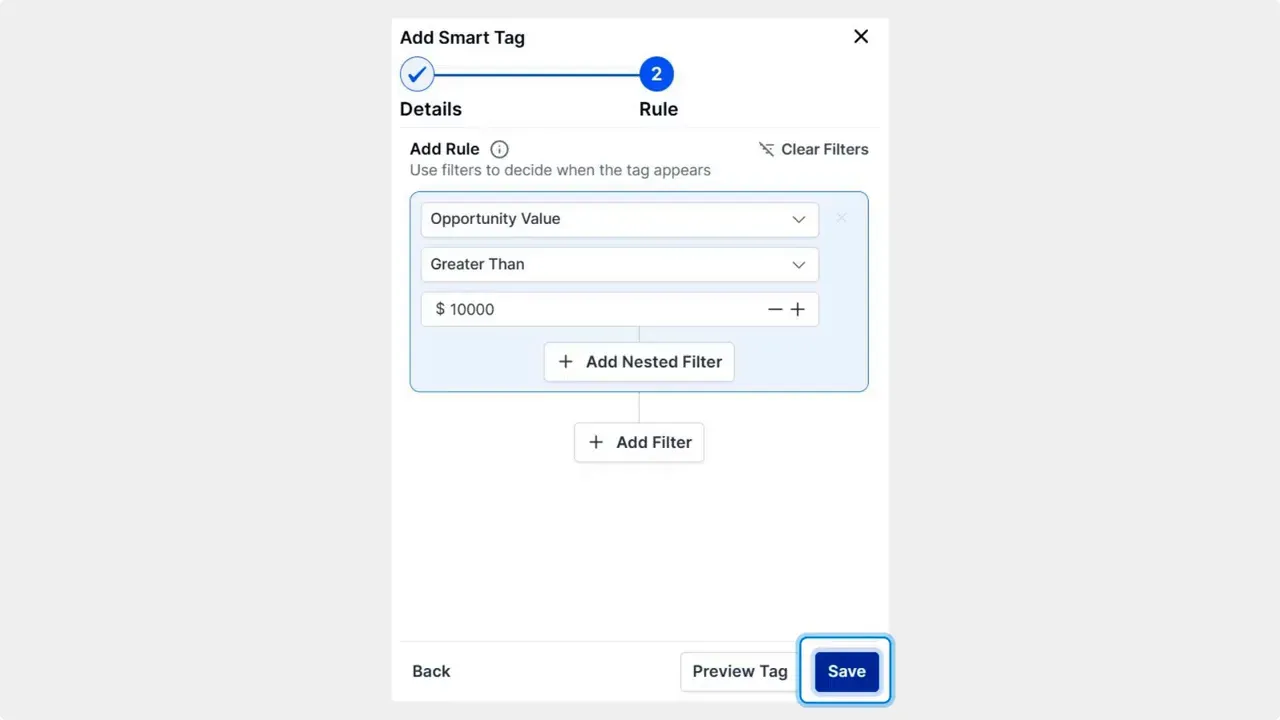
Save the Smart Tag.Click Save to enable the tag. The system will apply it automatically when an opportunity matches the rule.
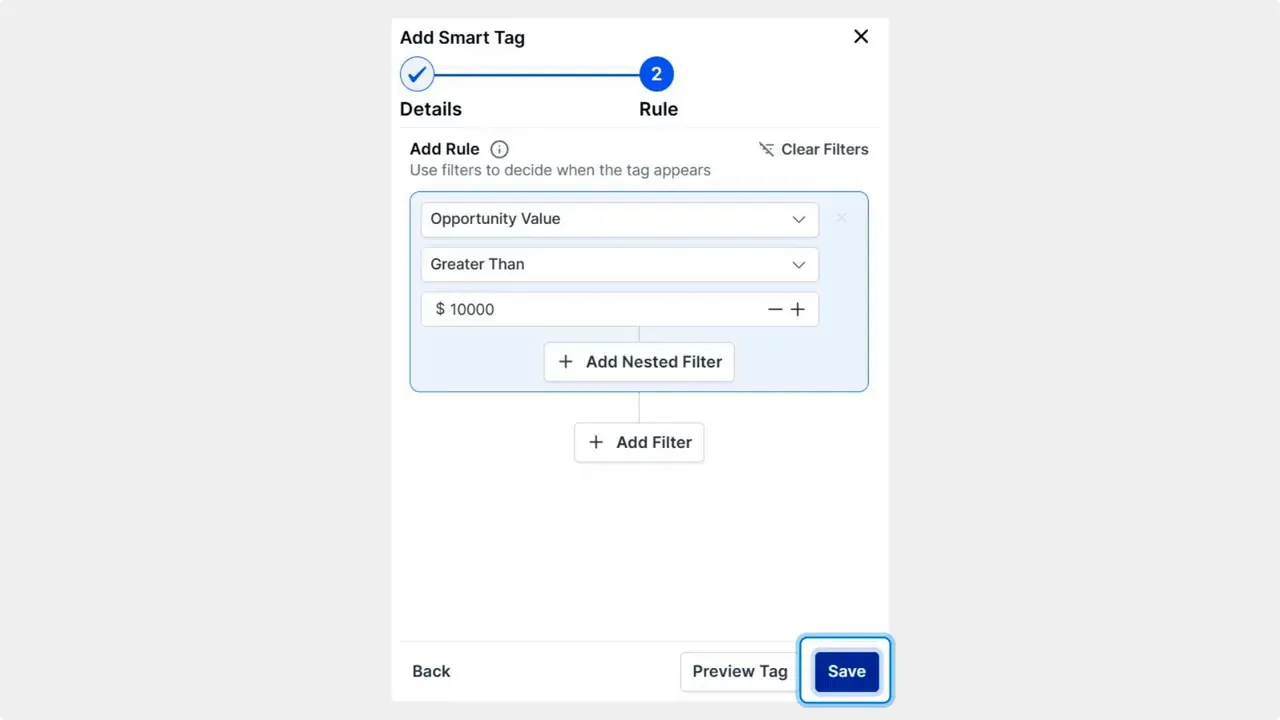
Set the rule for assignment.Click Next: Add Rule. Define when the tag should be assigned to an opportunity. Rules can use fields, stages, values, or other conditions available in our system.
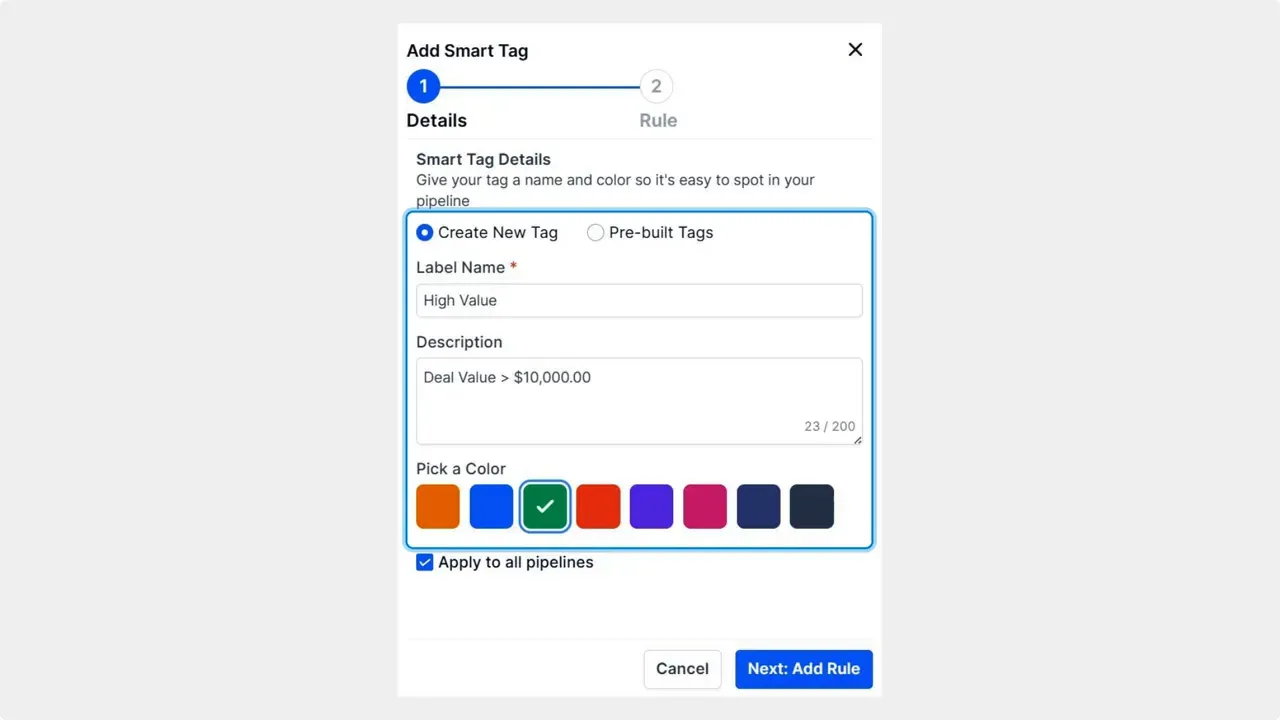
Add a new Smart Tag.Click Add Smart Tag. Enter the tag name and choose a color that represents the meaning you want.
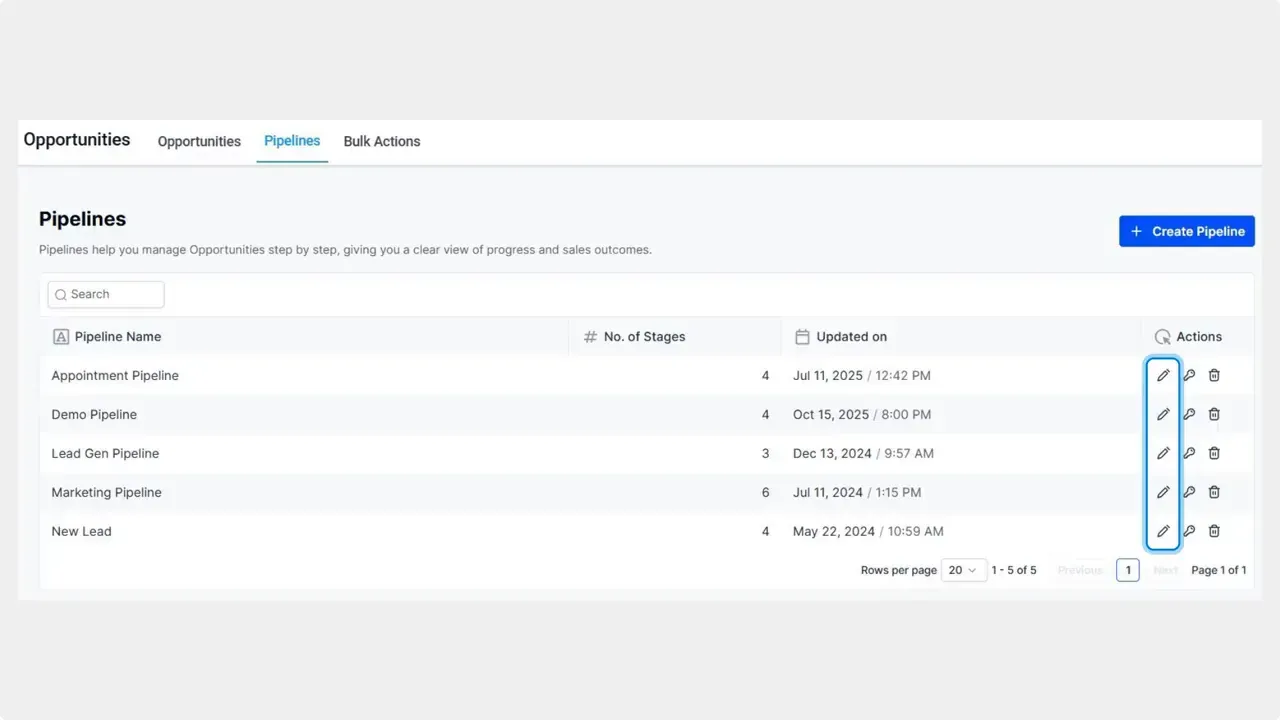
Enter edit mode.Click the pencil icon to start editing your pipeline settings.
Open the Pipelines tab.Go to the Opportunities section and open the Pipelines tab.
Practical examples and tips
- Priority deals: Use a bright color for high-priority opportunities so they stand out in lists and boards.
- Special discounts: Tag deals that include negotiated discounts or special terms. That prevents accidental actions that could break those terms.
- Qualification status: Apply a color for fully qualified leads so the team knows where to focus next steps.
- Keep color meaning consistent: Use the same color across pipelines for the same meaning. That keeps interpretation fast and reduces errors.
- Start small: Create a few key tags first. Expand as the team gets used to them.
Benefits you can expect
- Faster identification of important opportunities.
- Clearer team focus and fewer mistakes.
- Lower mental effort when scanning large pipelines.
- Stronger alignment between color and action for the team.
Frequently asked questions
How do we create a Smart Tag?
Open Pipelines in Opportunities, click the pencil icon, switch to Smart Tags, click Add Smart Tag, choose a name and color, add a rule, then save.
What kinds of rules can assign a tag?
Rules can be based on opportunity fields, stages, values, or other conditions available in the system. Set the condition that best defines when the tag should apply.
Can an opportunity receive more than one tag?
Yes. If multiple tag rules apply, an opportunity can show multiple tags. Design tag rules so they do not create confusing overlaps.
How do we change a tag color or name?
Edit the Smart Tag from the Pipelines edit mode. Update the name or color and save the changes. The system will apply the updated tag going forward.
Where does this make the biggest impact?
Color-coding is most helpful for teams that manage many opportunities at once. It speeds up triage, prioritization, and handoffs.
Final notes
Color coding pipelines with Smart Tags is a small change that improves clarity. It helps our teams prioritize, reduces errors, and makes our workflow more visual. Set up a few meaningful tags, keep the meanings consistent, and update rules as your processes evolve.



