
How To Set Up Event Calendars in HighLevel
Learn how to set up Event Calendars in HighLevel to manage group registrations for workshops, seminars, and webinars. This guide covers everything from initial configuration and payment integration to automated reminders that reduce no-shows and scale your agency’s operations.

Overview
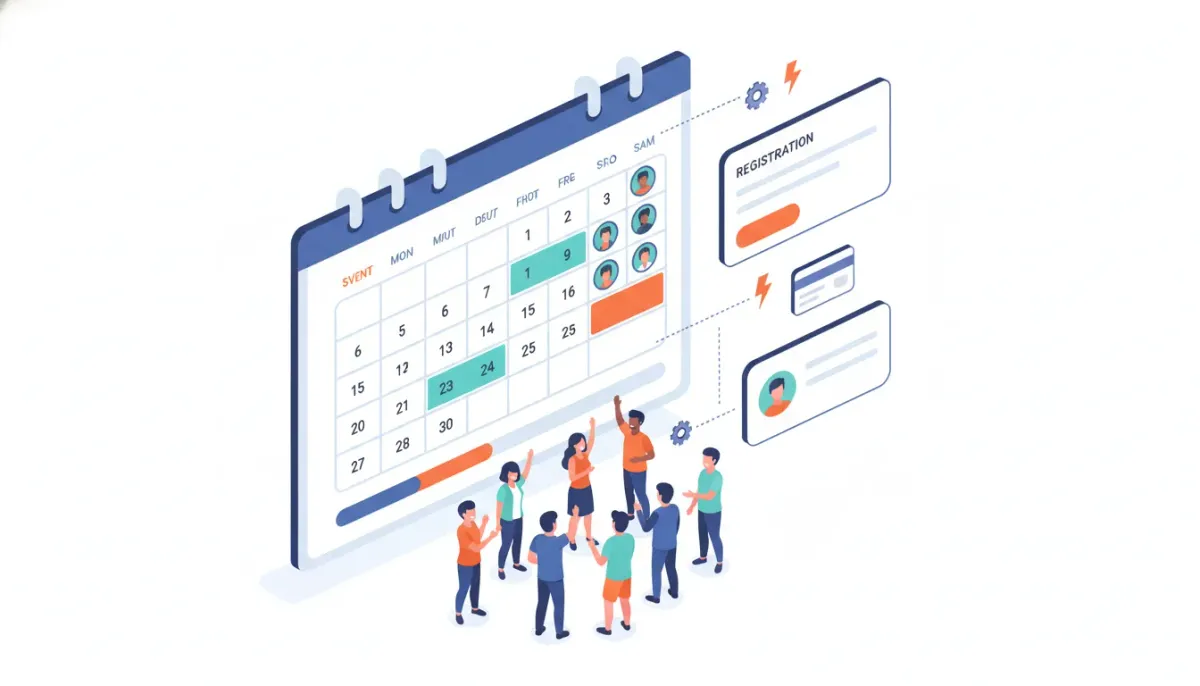
Event calendars in HighLevel are built for bookings that do not need a specific team member assigned to each appointment. Instead of reserving a time with a particular host, people reserve a spot in an event, workshop, seminar, training session, or any public gathering where capacity and registrations matter more than an individual calendar. Event calendars simplify group registrations and integrate directly with your CRM, forms, payments, and automations so you can scale events without manual processing.
The Complete Operating System for Growth
Join over 60,000+ agencies and businesses using HighLevel to capture more leads and close more deals. Start your trial today and get instant access to the Nexus Hub resources.
Claim Your Free Trial & BonusesWhy choose an Event Calendar?
Use an event calendar when the focus is on the event itself rather than the person running it. This is ideal for:
- Workshops and seminars where attendees claim a seat.
- Group training sessions that happen at specific times with multiple attendees.
- Public events and webinars where registrations are central and individual hosts don’t need calendar invites tied to their personal schedules.
- Paid events where you want to collect registration fees upon sign up.
Quick checklist before you start
- Access to your HighLevel sub account with Calendar permissions.
- A payment provider connected to HighLevel if you plan to accept payments.
- Any intake forms ready for attendee questions or requirements.
- Your event details: name, description, location, duration, and availability windows.
Step-by-step: Create an Event Calendar in HighLevel
1. Open Calendars and start a new calendar
In your HighLevel sub account, navigate to the Calendars section in the left-hand menu, then open Calendar Settings. Click New Calendar, and at the bottom-left choose Explore more types. From the extra options, select Event Calendar to launch the calendar builder.
2. Add the basics: name, URL, and duration
Give your calendar a clear, searchable name. Adjust the calendar URL to something simple and recognizable for your audience. Set the meeting or event duration so every registration reserves the correct block of time.
3. Choose a meeting location
Under Meeting Location, select the method attendees will use to join:
- Phone — attendees receive a phone number or instructions.
- Full address — useful for in-person events; the address is added automatically to notifications.
- Custom — add any text you want (e.g., “Meet at the main lobby”).
- Ask the booker — lets the person registering enter their preferred location.
4. Set availability and booking rules
Adjust availability by adding specific hours and days when the event is open for registration. Under Booking Rules, configure important settings:
- Meeting interval — controls time increments that are available to book.
- Meeting duration — how long each reserved slot is.
- Minimum scheduling notice — how far in advance someone must book.
- Date range — limit bookings to a specific window or allow ongoing registration.
5. Use advanced settings for branding and description
Click Advanced Settings to add a logo, change the calendar display name, and write a detailed event description. These details appear on the booking page and in notifications, so use them to set expectations and reduce common attendee questions.
Forms and Payments
Attach intake forms
Attach an intake form to collect attendee information, waivers, session preferences, or qualification questions. From Advanced Settings, choose the form you previously created in HighLevel. Forms help you gather the data you need before the event and automatically store responses in the CRM.
Accept payments for event registration
If you want to charge for event registration, connect a payment provider to your HighLevel account. Once a provider is connected, toggle on Accept payments. You can manage providers through the link provided in the calendar settings. Collecting payments at the time of booking reduces no-shows and simplifies reconciliation.
Notifications and policies
Under Notifications and Policies, control how attendees are informed and what they can do after booking:
- Toggle options to allow or restrict rescheduling and cancellations.
- Enable Google Calendar invitations and updates to keep attendees synchronized.
- Customize confirmation and reminder messages so they include your location details, form responses, and any pre-event instructions.
Save, preview, and share
When the calendar is configured, click Save Changes in the top right. To preview and share, use the arrow next to the calendar and select Share Calendar. Copy the booking link and paste it into a new tab, your website, email campaigns, or social posts. Embedding or linking directly to the event calendar gives potential attendees an immediate path to register.
Integrating event calendars with HighLevel workflows and automations
Event calendars are most powerful when they feed into HighLevel workflows and automations. Connect bookings to automations that:
- Send automated confirmations with event details and attachments, like agendas or location maps.
- Trigger reminder sequences via SMS and email to reduce no-shows.
- Tag registrants in your CRM for segmentation and follow-up campaigns.
- Start post-event funnels that deliver recordings, ask for feedback, and present upsell offers.
For agencies and operators scaling multiple events, you can create reusable workflow templates that add registrants to specific pipelines, create tasks for your team, and push attendee data to external systems via webhooks or integrations.
Best practices and implementation strategies for agencies
If you manage events as part of agency operations or scale multiple client workshops, follow these practices to keep everything tidy and effective:
The Complete Operating System for Growth
Join over 60,000+ agencies and businesses using HighLevel to capture more leads and close more deals. Start your trial today and get instant access to the Nexus Hub resources.
Claim Your Free Trial & Bonuses- Use consistent naming conventions for calendars (client-event-type-date) so your calendar list remains organized at scale.
- Standardize intake forms across similar event types to make reporting and audience segmentation easier.
- Bundle automations into templates that can be cloned per client: confirmation + reminder + follow-up + tagging saves time and preserves best practices.
- Set sensible booking rules like minimum scheduling notice and clear cancellation policies to reduce last-minute changes.
- Track payments and refunds centrally via the connected payment provider and reconcile with event lists stored in the CRM.
- Use capacity planning—even though event calendars do not assign a host, you can enforce registration limits through workflows or form logic to prevent oversubscription.
Troubleshooting and common questions
A few quick troubleshooting tips you can try if something does not behave as expected:
- If venue addresses are missing from notifications, confirm you selected Full address as the meeting location and saved changes.
- If payments aren’t processed, check that a payment provider is connected and enabled under Payments in calendar settings.
- If Google Calendar invites aren’t sent, review the notifications settings and ensure the attendee email is captured by your intake form.
- If attendees report incorrect available times, verify the calendar availability and booking interval under Booking Rules.
Examples of event calendar workflows
Here are three workflow examples that make event management low-touch and scalable:
- Free Workshop Workflow
- Booking triggers a confirmation email with venue details and a calendar invite.
- Two reminders send: one 48 hours before and another 2 hours before the event.
- Attendees are tagged as "Workshop-Attendee" and added to a nurture sequence for future events.
- Paid Training Workflow
- Booking requires payment at time of registration.
- Successful payment triggers invoice issuance and a confirmation email.
- Follow-up workflow sends a pre-event checklist and post-event feedback form with a coupon for future paid offerings.
- Client Onboarding Seminar
- Registrants fill an intake form that captures account details and expectations.
- Booking triggers a workflow that creates a lead record in the CRM, assigns a follow-up task to a team member, and sends onboarding materials to the registrant.
How event calendars fit into a HighLevel agency setup
Event calendars are a natural component of a HighLevel agency setup. They reduce manual coordination, centralize attendee data in the CRM, and trigger automations that keep your funnels moving. For agencies scaling multiple events across clients, consider:
- Cloning calendar and workflow templates between sub accounts.
- Using standardized automations to ensure consistency in communications and reporting.
- Leveraging Nexus Hub for community-shared templates and resources to accelerate setups and adoption.
Start testing and iterating
After creating and saving your event calendar, test the booking flow with a few dummy sign-ups to ensure forms, payments, notifications, and automations fire as intended. Preview the calendar, copy the share link, and open it in a private browser window to simulate a registrant’s experience. Iterate on the wording, scheduling rules, and workflow steps until the process is smooth for both attendees and your internal team.
How do I limit the number of attendees for an event?
Event calendars do not assign a specific host but you can enforce capacity through form logic and workflows. Use an intake form that increments a custom field or tag each time someone registers, then include a workflow condition that prevents new signups once the limit is reached. You can also display a message on the booking page and close the calendar’s date range when capacity is full.
Can I collect payments for event registration?
Yes. Connect a payment provider in your HighLevel account, then toggle on Accept payments inside the calendar’s Payments settings. This allows registrants to submit payment during booking. Make sure your refund and cancellation policies are clear in Notifications and Policies.
What meeting location options are available?
You can choose between Phone, Full address, Custom text, or Ask the booker. Selecting Full address automatically includes venue information in notifications. Custom lets you add any instructions and Ask the booker lets attendees specify a location.
How do I attach a form to my event calendar?
Under Advanced Settings, choose the form you created in HighLevel. The form will appear during registration and responses will be saved to the attendee’s contact record in your CRM, enabling segmentation and follow-up automations.
How can I automate reminders and follow-ups?
Link the calendar’s booking action to a HighLevel workflow. Use triggers such as "Appointment Booked" to send confirmation emails, schedule SMS reminders, add tags, and move contacts through pipelines. Workflows allow precise timing and conditional logic to tailor messages based on attendee answers or payment status.
What should agencies consider when scaling event calendars?
Standardize naming and form templates, create reusable workflow packages, use tags and pipeline stages consistently, and document cancellation and refund policies. Leverage Nexus Hub and shared templates to speed implementations across client sub accounts. Always test workflows before going live.
Final notes
Event calendars in HighLevel offer a flexible, low-friction way to manage registrations, collect payments, capture attendee data, and trigger automations that keep the event lifecycle moving. Whether you run a single seminar or scale recurring workshops across clients, building clean calendars with smart workflows will save time and improve attendee experience.
If you have not yet tried HighLevel, consider starting a free trial to explore calendar features, workflows, and the broader CRM automation capabilities. For agencies, Nexus Hub is a valuable resource for templates and community support when rolling out event systems at scale.
The Complete Operating System for Growth
Join over 60,000+ agencies and businesses using HighLevel to capture more leads and close more deals. Start your trial today and get instant access to the Nexus Hub resources.
Claim Your Free Trial & Bonuses


