
Organize Better: Rich Text for Notes & Tasks in Your Platform

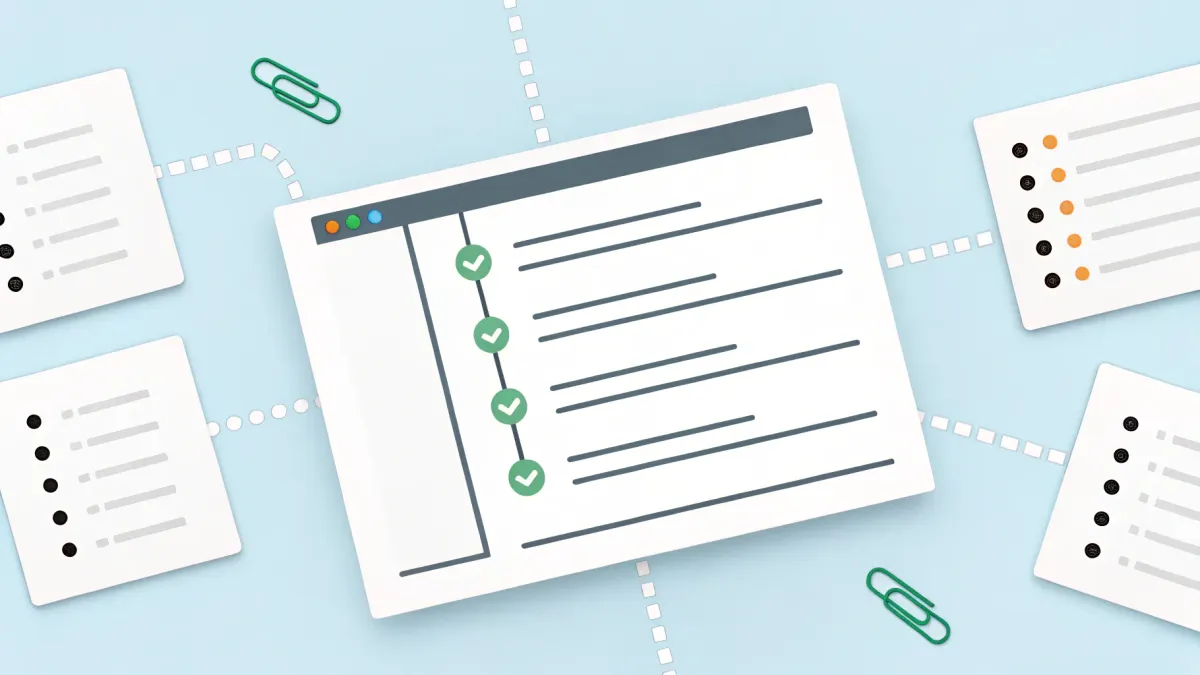
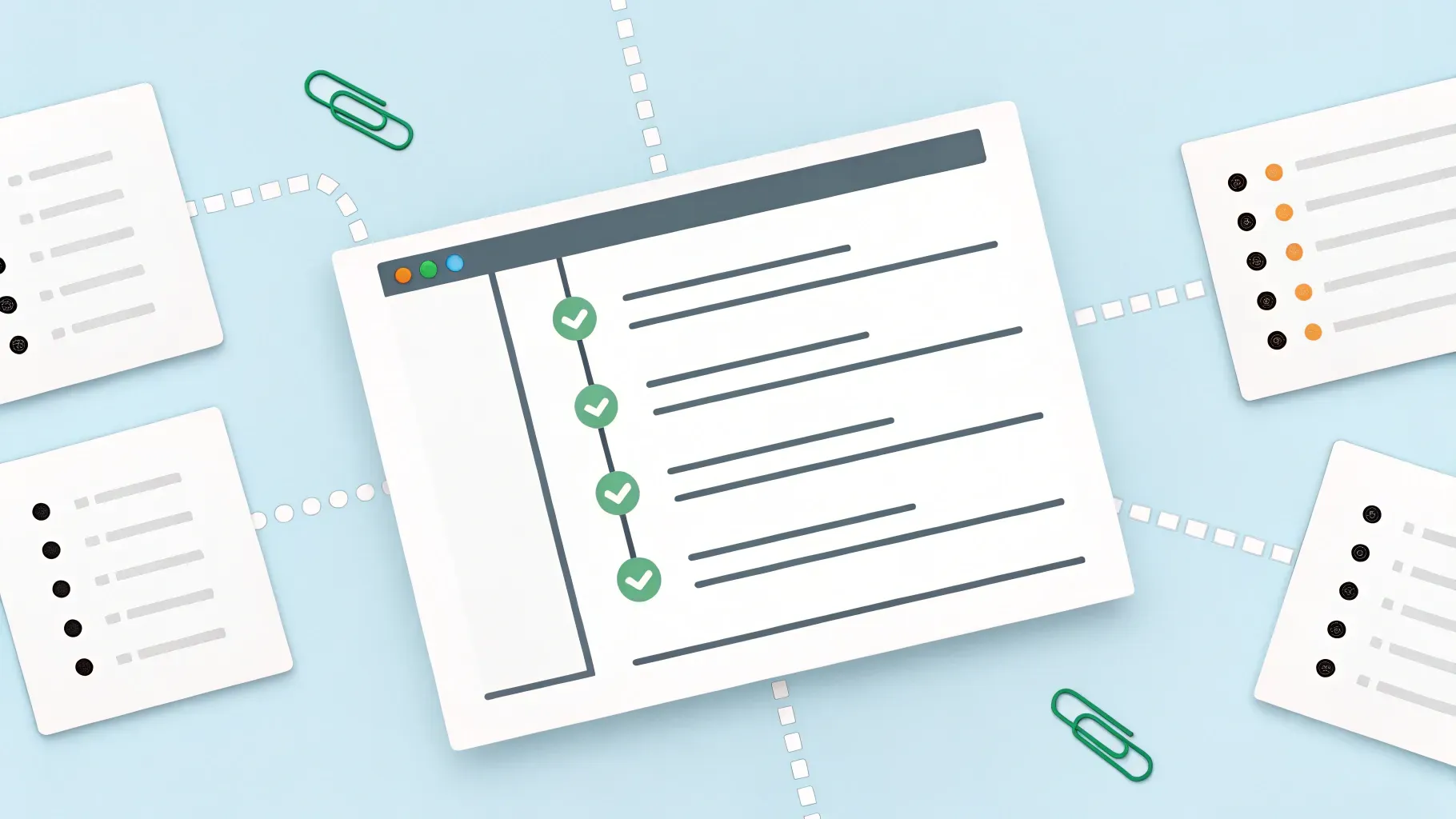
We added rich text editing to notes and task descriptions so teams can keep information clear, structured, and easy to scan. Instead of plain text that blends into a long wall, you can now format important details, add links to resources, and build checklists that communicate exactly what needs to happen next. This is a small change with big results for consistency, handoffs, and everyday productivity.
Table of Contents
- Why formatted notes and task descriptions matter
- Where you can use rich text
- How to use rich text — step by step
- Practical examples and templates
- Tips for consistent, useful notes
- Collaboration workflows that improve with rich text
- Troubleshooting and best practices
- Security and permissions to keep in mind
- Time-saving habits that stick
- Real results teams see
- Checklist: What to do right now
- Can we use rich text in both new and existing notes and tasks?
- Will pasted content keep its formatting?
- Can we add links to documents and videos?
- Does formatted text follow workspace permissions?
- Are there keyboard shortcuts for formatting?
- How do we keep formatting consistent across the team?
- Final thoughts
Why formatted notes and task descriptions matter
Unstructured notes slow teams down. People skim, miss key details, and recreate work that someone else already completed. When notes live in different apps or appear as plain text, context gets lost and follow-ups become guesswork.
Rich text solves that by letting us build readable, actionable content inside the platform where the work already happens. The core benefits are simple:
- Clarity — bold, underline, and color make action items stand out so teammates don’t have to hunt for them.
- Speed — lists and numbering convert paragraphs into steps, reducing back-and-forth about what to do next.
- Context — links to documents or videos live inside the task so everything needed to complete work is in one place.
- Collaboration — strike-through and checklists show progress at-a-glance during handoffs.
Where you can use rich text
The new editor is available in the most common places teams document work. You’ll find it inside:
- Opportunities and pipelines — attach formatted notes directly to deals, proposals, or active opportunities so sales context stays with the opportunity.
- Contacts — keep clear summaries, discovery notes, or support history on a contact record.
- Tasks — add rich descriptions to tasks so assignees have step-by-step instructions and any necessary links.
- Dashboards and company records — enjoy consistent formatting across different workspace areas so nothing looks out of place.
How to use rich text — step by step
The editor is intentionally straightforward. Here are the typical steps we use when creating a formatted note or task description.
- Open the item — navigate to an opportunity, contact, or task and choose the notes or task description area.
- Add your content — type or paste text from a doc or email. Pasted formatting is preserved, which saves time.
- Use the toolbar — apply bold, italic, underline, or strikethrough to emphasize key phrases.
- Create lists — use bulleted or numbered lists to break down steps, checks, or meeting notes.
- Insert hyperlinks — add links to files, knowledge base articles, or shared drives so teammates can open resources in a new tab.
- Adjust color — apply color sparingly to highlight urgent or important items.
- Save — exit the editor and the formatted note will attach to the record.
Practical examples and templates
Below are real-world examples and short templates you can copy into your workspace to get immediate value.
Sales opportunity summary (template)
Goal: Close contract by [date]
- Next steps
- 1. Send revised proposal — include pricing breakouts.
- 2. Schedule decision call — propose Tue/Wed next week.
- 3. Upload signed documents to folder and update status.
- Key contacts
- Decision maker: Jane Doe — jane@example.com
- Technical lead: Mark — marked@example.com
- Resources — Proposal v2 (link), Demo recording (link)
Client onboarding checklist (template)
- Welcome email sent — Assigned: Client Success
- Kickoff call scheduled — include meeting link and agenda
- Access granted — shared drive, admin credentials
- First deliverables — week 1 items, week 2 items
Use strikethrough when a step is complete. That communicates history without removing context.
Tips for consistent, useful notes
Formatting is powerful but only when used consistently. Here are practical rules that keep notes useful over time.
- Keep a short summary first — start with a one-line status so teammates can scan quickly.
- Use lists for action items — convert "to do" text into bullet or numbered lists to make assignment obvious.
- Highlight deadlines — use bold or a color for dates and deadlines so they don’t get missed.
- Link resources — add direct links to supporting docs so teammates don’t need to search elsewhere.
- Use strike-through for completed items — this preserves history and avoids duplicating notes.
- Build a few templates — create short templates for recurring tasks like onboarding, outreach, or support tickets to keep consistency.
Collaboration workflows that improve with rich text
Here are three common workflows we improved by switching notes and task descriptions to rich text.
Handing off leads between team members
When someone moves a lead from marketing to sales, a formatted note with summary, next steps, and links prevents repeated questions. A short checklist with the current status, required approvals, and a link to the proposal allows the receiving teammate to act immediately.
Client support and ticket resolution
Support notes often need context: what the customer reported, steps tried, and the final resolution. We format with bullet lists for steps tried, bold any pending items, and paste screenshots or links to logs when needed. This reduces time spent chasing history during busy days.
Internal projects and task handoffs
Tasks with clear, formatted descriptions reduce the number of clarification requests. Numbered steps and links to design files or specs let the assignee start work without waiting for a meeting.
Troubleshooting and best practices
If something doesn’t look right, try these quick fixes:
- Pasting loses formatting — use paste with formatting preserved or paste into the editor and then apply styles from the toolbar.
- Lists get messy — convert to plain text and reapply the list format from the toolbar.
- Colors are hard to read — choose color only for short highlights; avoid long paragraphs in colored text.
- Links aren’t opening — ensure the URL is complete and that the recipient has permission in the external tool you linked to.
Security and permissions to keep in mind
Notes and descriptions follow the workspace permissions you already use. That means visibility and editing rights are controlled by the same role and record-level access settings. When linking to external files, confirm the target document’s sharing settings match who should see it.
Time-saving habits that stick
Use these quick habits to save time while keeping your workspace tidy.
- Start notes with a one-line status so anyone opening the record immediately knows where things stand.
- Convert meeting notes into checklists and assign next steps right away.
- Create reusable templates for common tasks like proposals, onboarding, and handoffs.
- Use color sparingly to call out only the most urgent items.
Real results teams see
Teams that adopt formatted notes report fewer follow-up messages and clearer handoffs. One small practice change — adding a bolded next step and a link to the folder — prevents two or three unnecessary clarification emails each week. Over time, that saves hours and keeps momentum on projects.
"Formatting our task descriptions cut down time spent clarifying next steps. The team knows exactly what to do when they open a task."
Checklist: What to do right now
- Open an active opportunity, contact, or task in your workspace.
- Add a short, one-line summary at the top.
- Convert action items into a bulleted or numbered list.
- Bold or color any deadlines and required approvals.
- Insert links to relevant documents so everything needed to act is in one place.
- Save and use strike-through as items are completed.
Can we use rich text in both new and existing notes and tasks?
Yes. You can edit new entries or open existing notes and task descriptions to apply formatting. The editor appears in the description or note box whether the item is newly created or already saved.
Will pasted content keep its formatting?
Pasted content typically preserves formatting. If formatting looks off, paste the content and then use the toolbar to adjust styles or clear formatting and reapply the platform's formatting options.
Can we add links to documents and videos?
Yes. Hyperlinks can be embedded in notes and task descriptions. Include the full URL and confirm the external document's sharing settings so teammates can open the linked resource without permission issues.
Does formatted text follow workspace permissions?
Formatted notes and task descriptions follow the same permissions and visibility rules as other record fields. Only users with access to the record can see or edit the content.
Are there keyboard shortcuts for formatting?
Common keyboard shortcuts like Ctrl/Cmd+B for bold and Ctrl/Cmd+Z for undo should work in most browsers, but the toolbar provides the same options if shortcuts are unavailable.
How do we keep formatting consistent across the team?
Create a few simple templates and a short style guideline for everyone. For example, always start with a one-line summary, use numbered lists for steps, and keep color use to priorities only. Share the templates with the team so everyone follows the same structure.
Final thoughts
Adding rich text to notes and tasks is a practical way to reduce confusion, speed handoffs, and keep context where work happens. Small formatting choices — a bold deadline, a numbered checklist, or a linked resource — make information actionable and allow teams to focus on results rather than tracking down details.
We recommend starting with one record type, like opportunities or onboarding tasks, and building a lightweight template your team can copy. Within days you will notice fewer clarifying messages, cleaner handoffs, and faster progress on projects.



