
Comment Management in Social Planner: Reply to Comments Without Leaving Your CRM

Interacting with your audience often builds community and rapport. It makes your brand more accessible and can help customers pick you over competitors. To make this easier, we added a Comments section inside Social Planner so you can manage and reply to incoming comments without leaving your CRM.
Table of Contents
Where to find Comments
Open the Marketing area, then go to the Social Planner tab. Inside Social Planner, select the Comments area to see all incoming messages and mentions. This central view keeps conversations organized in one place.
How to reply to a comment
Type your response.Use the text bubble under the comment to type your reply. Send the response from inside the CRM without switching platforms.
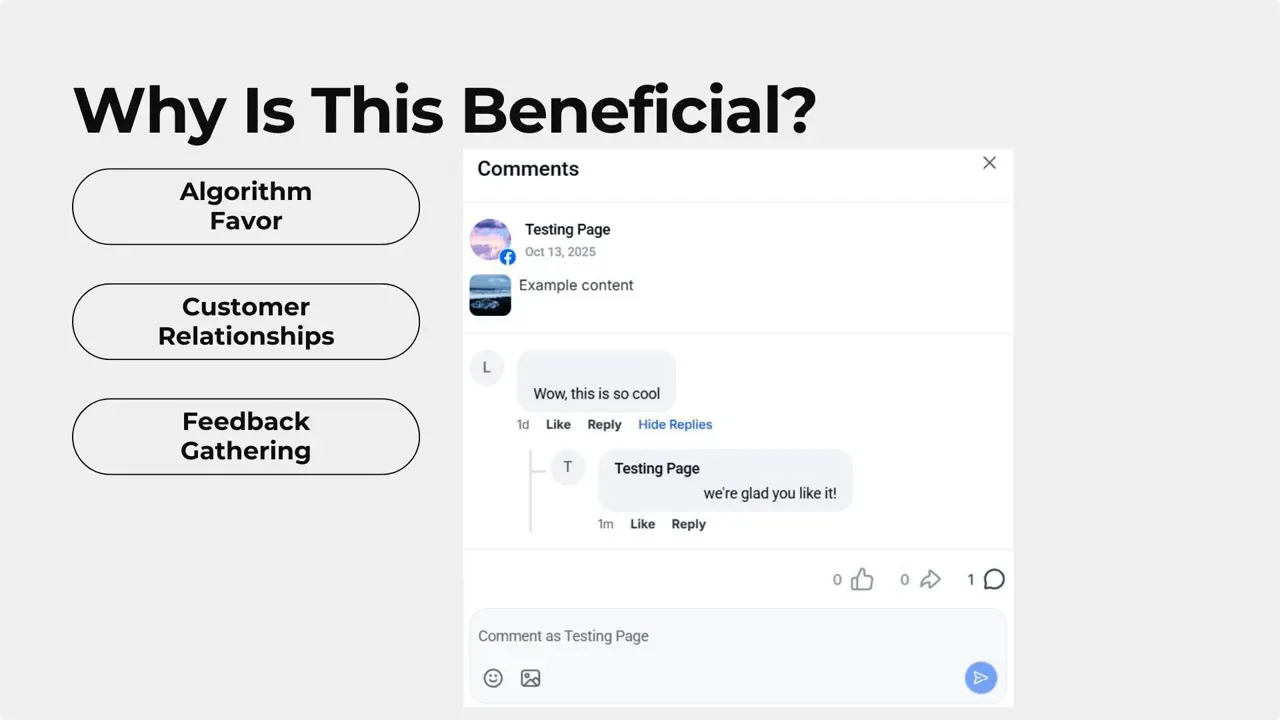
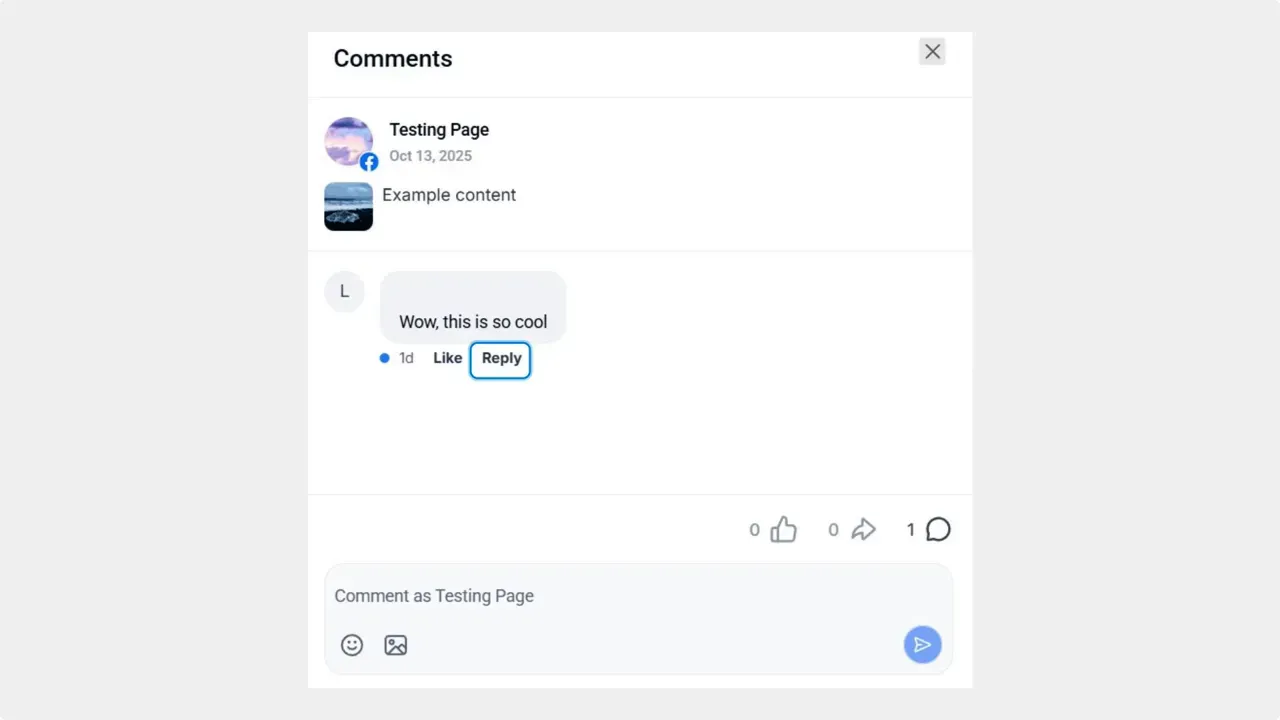
Choose the comment to reply to.Find the comment you want to answer and click Reply under that comment.
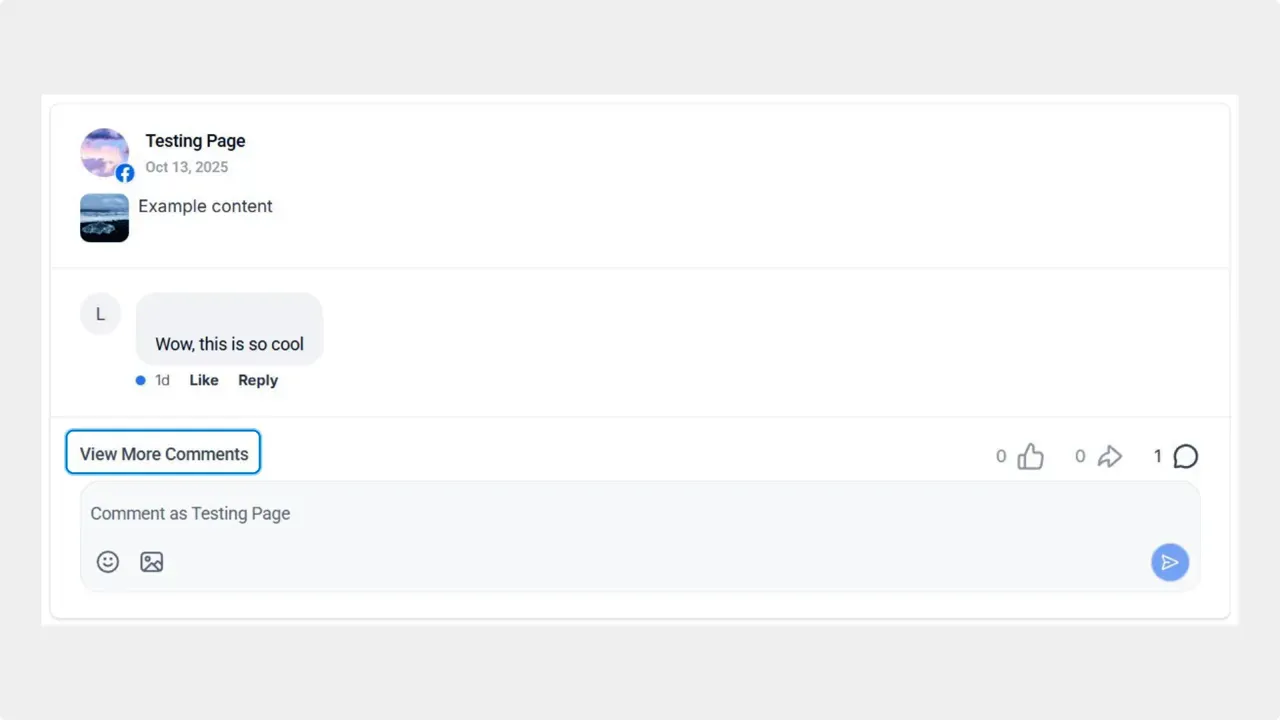
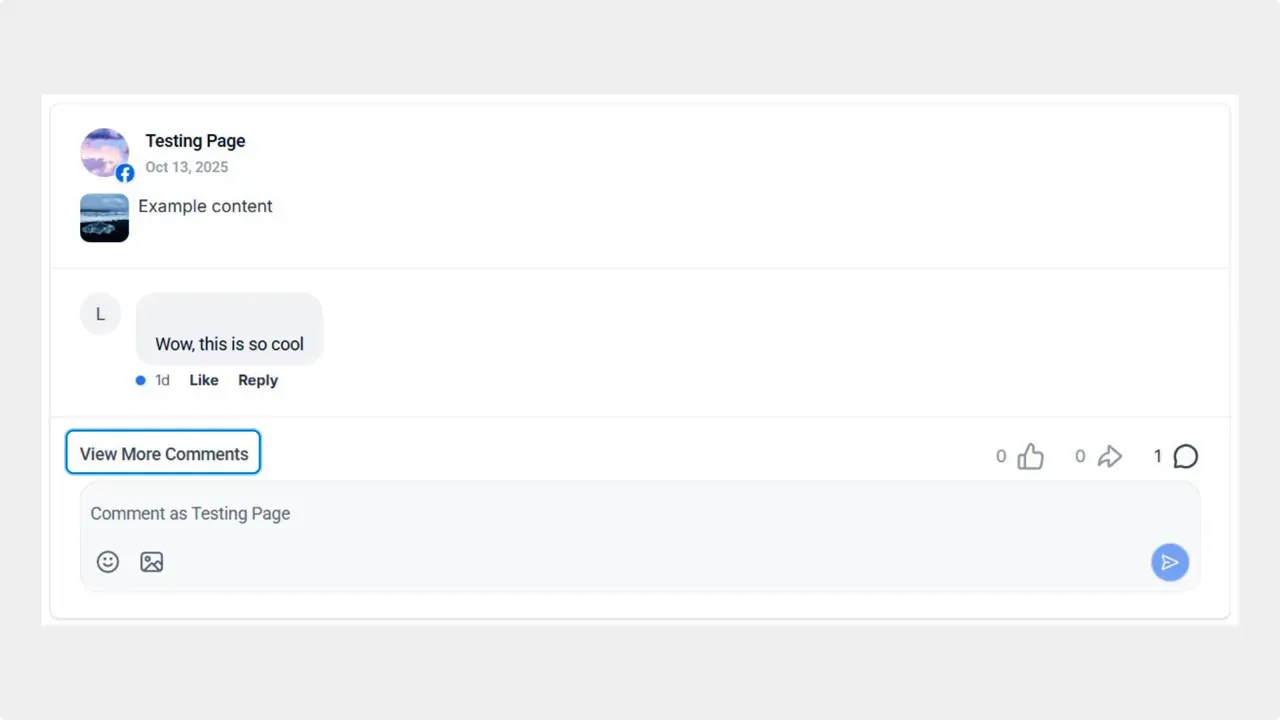
Open the detailed view.Click View More Comments to open the detailed conversation view for a post. This shows each comment and any replies in context.
Why reply inside the CRM?
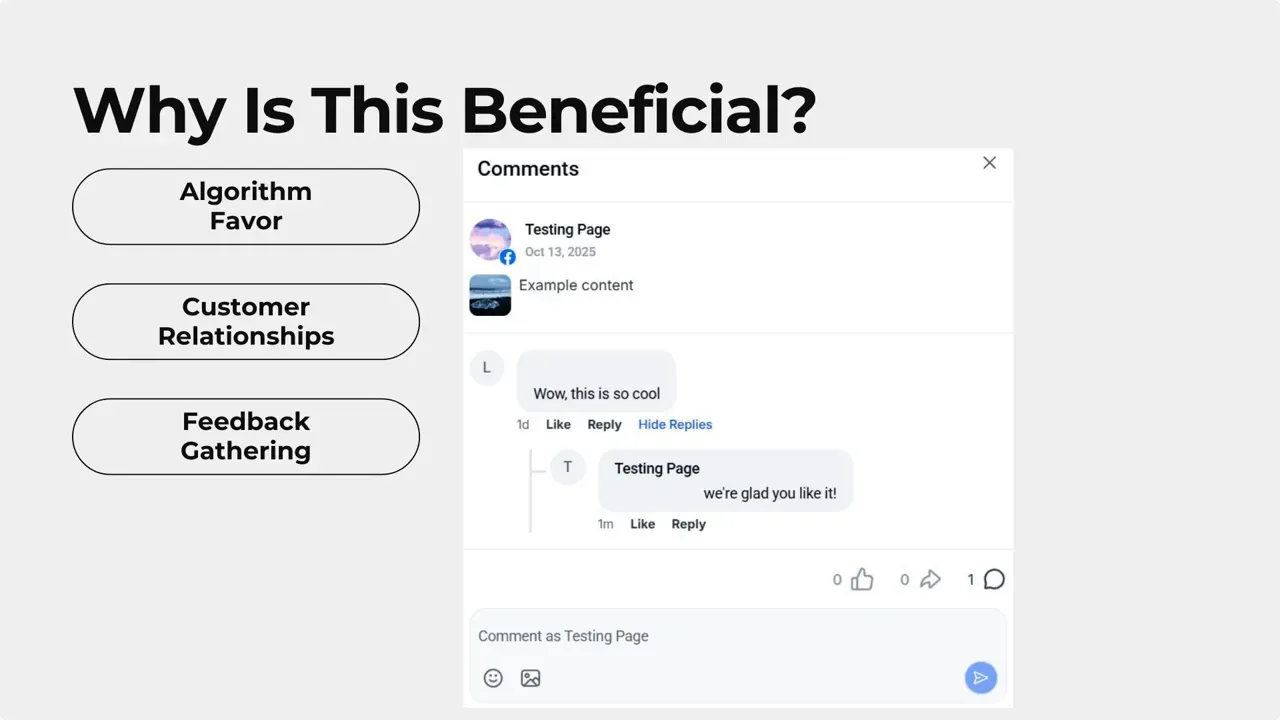
Replying directly from the Comments area helps in several ways. It keeps the conversation going and signals activity to social algorithms. It also strengthens customer relationships by giving timely, direct replies. Finally, it saves time by avoiding platform switching and credential churn.
Quick tips for better comment management
- Respond quickly to show customers you are listening.
- Keep replies short and helpful. Clear answers encourage further engagement.
- Use the customer name when possible to personalize replies.
- Track recurring questions and turn them into posts or FAQs.
Frequently asked questions
Where do we access the Comments feature?
Open Marketing, go to Social Planner, and select the Comments area to see and manage incoming comments.
Can we reply without leaving the CRM?
Yes. Use View More Comments, click Reply under a comment, and type your response in the text bubble. The reply is sent without switching platforms.
How does replying in the CRM help our social presence?
Direct replies keep conversations active, which can favorably impact social algorithms. They also build trust by giving timely, visible responses to customers.
Does this save time for our team?
Yes. Managing comments inside Social Planner centralizes conversations and reduces time spent logging into multiple platforms or juggling credentials.



