
How to Optimize Your HighLevel Workflow with Go To Connections
Learn how to use Go To connections in the HighLevel Advanced Builder to simplify complex automations. This guide covers how to create multiple entry points in a single workflow, reducing the need for messy branching and duplicate processes to help your agency scale more efficiently.

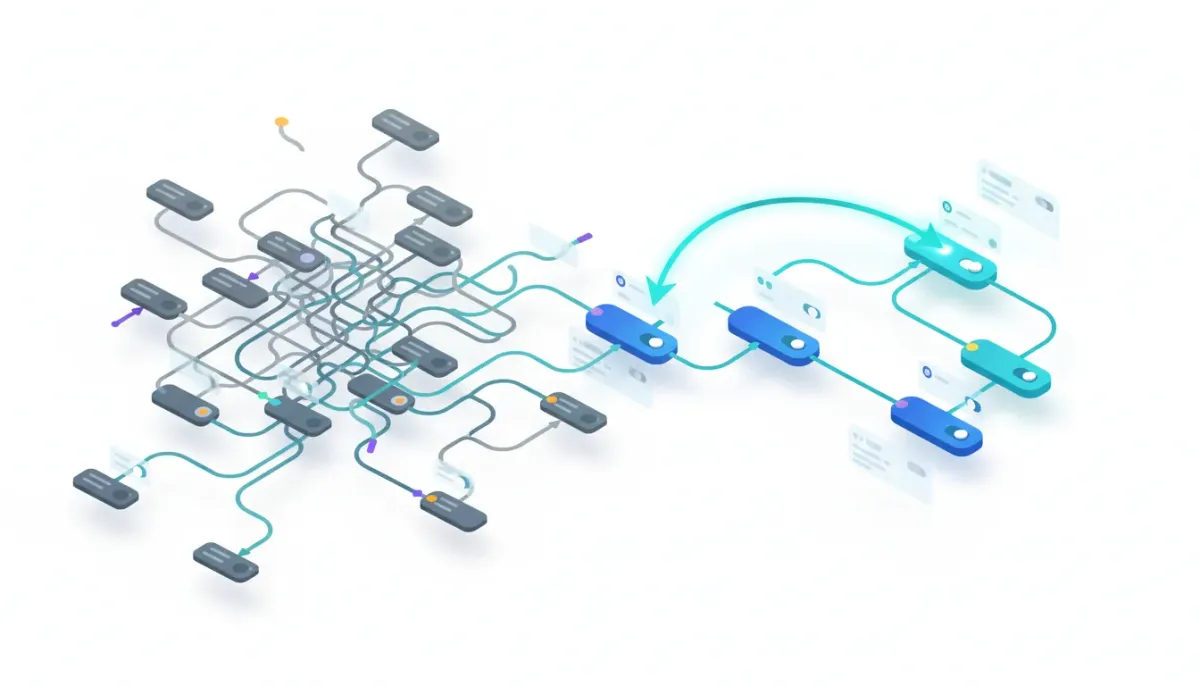
HighLevel workflows just got a lot more flexible. If you build automations that need contacts to enter at different points based on tags, time in a trial, or other triggers, Go To connections in the Advanced Builder let you send contacts directly to any action inside a single workflow. That removes messy branches, reduces duplicate workflows, and makes large automations much easier to manage. This guide explains what Go To connections are, why they matter, and how to implement them in real-world agency and SaaS scenarios.
The Complete Operating System for Growth
Join over 60,000+ agencies and businesses using HighLevel to capture more leads and close more deals. Start your trial today and get instant access to the Nexus Hub resources.
Claim Your Free Trial & BonusesQuick overview: What are Go To connections for triggers?
Go To connections allow multiple triggers to send contacts directly to specific actions inside a workflow rather than forcing every contact to enter at the top. Think of them as shortcut entry points. Instead of one universal trigger that requires complex IF/ELSE branching to route contacts, you can create several triggers—each mapped to a different action—so contacts "jump" to the exact step they need.
Standard Builder vs Advanced Builder: The key difference
In the Standard Builder, a workflow usually starts at one action. All contacts funnel through that first action and you handle routing with IF branches. That works for simple automations but quickly becomes unwieldy for complex sequences. IF branches are limited and visually cluttered, and managing many branches can mean creating multiple workflows for what should be a single process.
The Advanced Builder changes the game by letting triggers connect anywhere in the workflow. When you switch to the Advanced Builder, you can add several triggers—each one configured as a Go To connection that links to a specific action node. That keeps the workflow visually cleaner, easier to understand, and easier to maintain.
How Go To triggers work—step by step
- Create multiple triggersInstead of a single "contact entered" trigger, create multiple triggers that will represent different entry points. Common examples are tag added triggers (day one, day two, etc.), form submissions, or stage changes in your CRM.
- Set each trigger as a Go To connectionWithin the Advanced Builder, configure the trigger and link it to the specific action node where the contact should start. This is the core of the feature: the trigger is no longer required to flow from the top—it can route directly to the designated step.
- Place your actions where they belongDesign your workflow with logical action blocks and drop-in the nodes that represent emails, tag adds, waits, SMS, or whatever else your sequence uses. Your Go To triggers will land contacts exactly at those nodes.
- Insert actions between nodes as neededWant to add a delay, another email, or a conditional check between two action nodes? Click the plus icon on a connector dot to insert additional actions without breaking the Go To structure.
- Organize triggers for clarityMove triggers into a tidy column, add sticky notes, or rearrange nodes in bulk. Organization helps when you or other team members revisit the automation weeks or months later.
Real use case: A seven-day trial email sequence
Companies often run trial onboarding sequences that send specific emails depending on what day of the trial a contact is on. With traditional single-trigger workflows you must identify the contact's day with IF statements or maintain separate workflows for each day. That approach becomes messy and limited quickly.
Using Go To triggers, you can create seven triggers—one for each trial day. Each trigger is tied to a tag such as tag: day one, tag: day two, and so on. When a contact receives a tag, they immediately enter the workflow at the correct day's email and skip the actions that don’t apply. You end up with one clean workflow that handles every trial day without sprawling branches.
Why this pattern is better
- Clarity: Each trigger corresponds to one place in the workflow. No giant IF branch to decipher.
- Flexibility: Add or change a day's content without rewriting dozens of branches or duplicating automations.
- Scalability: As your automation needs grow, the advanced builder's Go To connections keep everything maintainable.
Top benefits for agencies and SaaS teams
For agencies and HighLevel users scaling operations, Go To connections deliver practical advantages:
- Reduce duplicate workflows: Instead of creating separate workflows for every variation of a campaign or onboarding path, run multiple entry points inside a single workflow.
- Simplify handoffs: Use tags or CRM stage changes to move contacts into specific parts of an automation without complex conditional logic.
- Faster edits and testing: Update one workflow to change behavior for multiple entry conditions. That speeds up iteration and A/B testing.
- Cleaner documentation: When you document automations for clients or internal teams, one organized workflow is easier to explain and maintain than dozens of branched clones.
- Agency systems and scaling: Build standardized automation templates that accept multiple triggers. That makes rollouts faster for new clients and simplifies operations across accounts.
Practical tips and best practices
- Name triggers clearly: Use descriptive names like "Trial Day 3 - Tag Added" or "Booked Call - Trigger" so it is obvious where each trigger lands.
- Keep a consistent tagging convention: If you base Go To triggers on tags, adopt a naming standard across clients and campaigns to avoid confusion.
- Avoid overlapping entry logic: Make sure triggers are mutually exclusive or that your workflow can tolerate multiple triggers firing. If a contact could hit several triggers at once, decide on your intended behavior and handle it explicitly.
- Use waits and checks: After a Go To jump, consider adding a short wait or a condition check if timing is sensitive. That guards against race conditions where multiple triggers might be applied near-simultaneously.
- Document the flow: Add notes or a brief outline describing each trigger and the action node it connects to. This helps teammates and future you.
- Use sticky notes and grouping: Organize triggers in a column and group related actions visually. That makes the workflow readable at a glance.
Common pitfalls and how to avoid them
Go To connections are powerful, but misconfiguration can cause unexpected behavior. Watch for these issues:
The Complete Operating System for Growth
Join over 60,000+ agencies and businesses using HighLevel to capture more leads and close more deals. Start your trial today and get instant access to the Nexus Hub resources.
Claim Your Free Trial & Bonuses- Multiple triggers firing: If a contact meets more than one trigger criterion at the same time, they may enter at an unintended node. Use tags and scheduling to minimize overlap, or include a pre-check node that prevents multiple entries.
- Orphaned actions: Removing or renaming the node a trigger points to can break the flow. Keep your workflow tidy and re-link triggers if you rearrange nodes.
- Hard-to-debug timing problems: If actions depend on precise timing (for example, sending the "day three" message exactly 48 hours after registration), use waits and verify the trigger timing aligns with tag application or stage changes.
- Overcomplicating simple flows: Not every automation needs dozens of entry points. Use Go To connections where they simplify the system, not where they add unnecessary complexity.
Implementation checklist
Use this checklist when switching a workflow to Go To connections:
- Switch the workflow to the Advanced Builder.
- Identify the distinct entry conditions (tags, form completions, stage changes).
- Create one trigger for each entry condition.
- Link each trigger to the exact action node using a Go To connection.
- Insert any additional actions, waits, or checks where necessary.
- Test with sample contacts to confirm routing behaves as expected.
- Document trigger naming and tagging conventions for your team or client.
How this ties into HighLevel agency setup and scaling
Agencies rely on predictable, repeatable systems. Using Go To connections inside HighLevel workflows helps agencies create templates that can be deployed across client accounts with minimal rework. Instead of building a dozen versions of the same onboarding sequence, create one advanced workflow that accepts multiple triggers. That reduces maintenance overhead and speeds up onboarding for new clients.
HighLevel’s CRM and automation capabilities shine when they support modular, tag-driven systems. Combine Go To triggers with consistent tag naming, shared templates in Nexus Hub, and a clear implementation playbook and your agency will become faster at launching campaigns and responding to client needs.
Getting started resources
If you are ready to try Go To connections:
- Start with one simple workflow and convert it to the Advanced Builder to experiment with a couple of Go To triggers.
- Use tags for entry points on the first pass, because tags are easy to apply programmatically and human-readable for documentation.
- If you want templates and community support, consider joining the Nexus Hub for prebuilt workflow patterns, or invite a HighLevel success team member to walk through complex setups.
- For hands-on testing, create test contact records and apply tags to verify each trigger lands the contact at the correct step.
Wrap-up
Go To connections in the Advanced Builder simplify routing, reduce branching complexity, and make it easier to manage large, multi-entry automations. They are especially valuable for trial sequences, onboarding flows, and agency templates that must handle multiple contact states without duplicating workflows.
Adopt clear naming conventions, test thoroughly, and document changes for teammates. When used thoughtfully, Go To triggers will make your HighLevel automations more maintainable, scalable, and easier to iterate on—helping your agency or SaaS operation move faster.
Frequently Asked Questions
What exactly is the difference between a Go To trigger and a Go To action?
A Go To action is an action node inside a workflow that reroutes contacts to another node. A Go To trigger lets the contact enter the workflow at any specific action node directly. In short, Go To action moves a contact already in the flow; Go To trigger defines multiple entry points into the flow.
Can a contact trigger multiple Go To entries at once?
Yes, it is possible if multiple trigger conditions are satisfied simultaneously. To avoid ambiguity, design triggers to be mutually exclusive or add conditional checks after entry to handle unexpected overlaps.
Will using Go To triggers require more workflows or fewer?
Typically fewer. Go To triggers let you consolidate many variations into a single workflow by accepting multiple entry points. That reduces duplication and centralizes maintenance.
Is this available for all HighLevel accounts?
Go To connections are available when using the Advanced Builder in HighLevel workflows. If you don’t see the option, check your account settings or consult HighLevel support and the product documentation for availability and permissions.
How do I debug if a contact does not land where expected?
First, confirm the trigger fired by checking the contact’s activity log and tag timeline. Verify the trigger is linked to the intended action node and that no other triggers fired simultaneously. Add temporary test tags and use waits or conditional checks to isolate timing issues.
Can Go To triggers be used with other automation elements like SMS and appointments?
Absolutely. Triggers can route contacts into any action node, including SMS sends, appointment scheduling, tag changes, or custom steps. This flexibility makes Go To connections useful across CRM, marketing automation, and client onboarding workflows.
The Complete Operating System for Growth
Join over 60,000+ agencies and businesses using HighLevel to capture more leads and close more deals. Start your trial today and get instant access to the Nexus Hub resources.
Claim Your Free Trial & Bonuses


