
How to Create a Task Linked to Multiple Objects in CRM



Creating tasks in our CRM keeps teams accountable and schedules organized. We made it simpler to link a single task to multiple objects so you can reduce manual work and make follow ups more personalized. Here’s how it works and how to use it.
What this feature does
This update lets you associate one task with multiple object types at once. You can link Contacts, Opportunities, Companies, and custom objects. For each object type, you can include up to 10 records. The result is a single task that bridges related records for clearer, more flexible follow up.
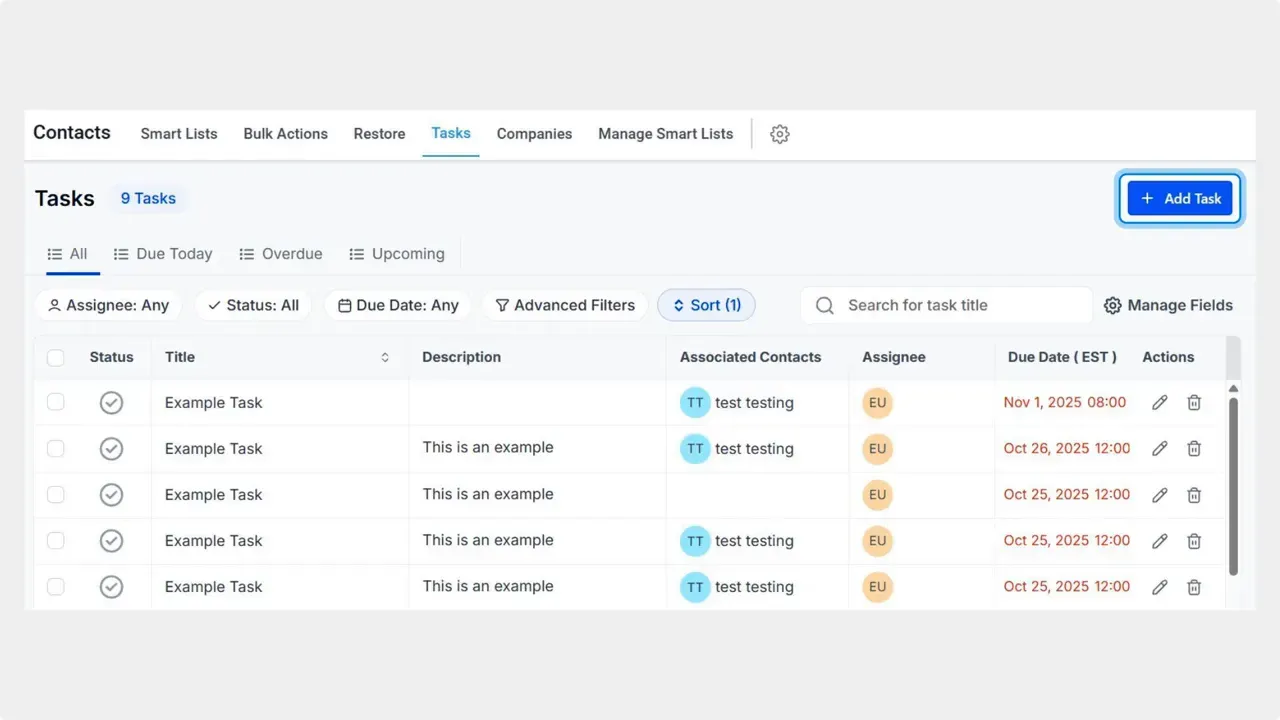
Step by step: Create a multi-object task
- Save the task. It now links to multiple objects and appears in each related record for easier follow up.
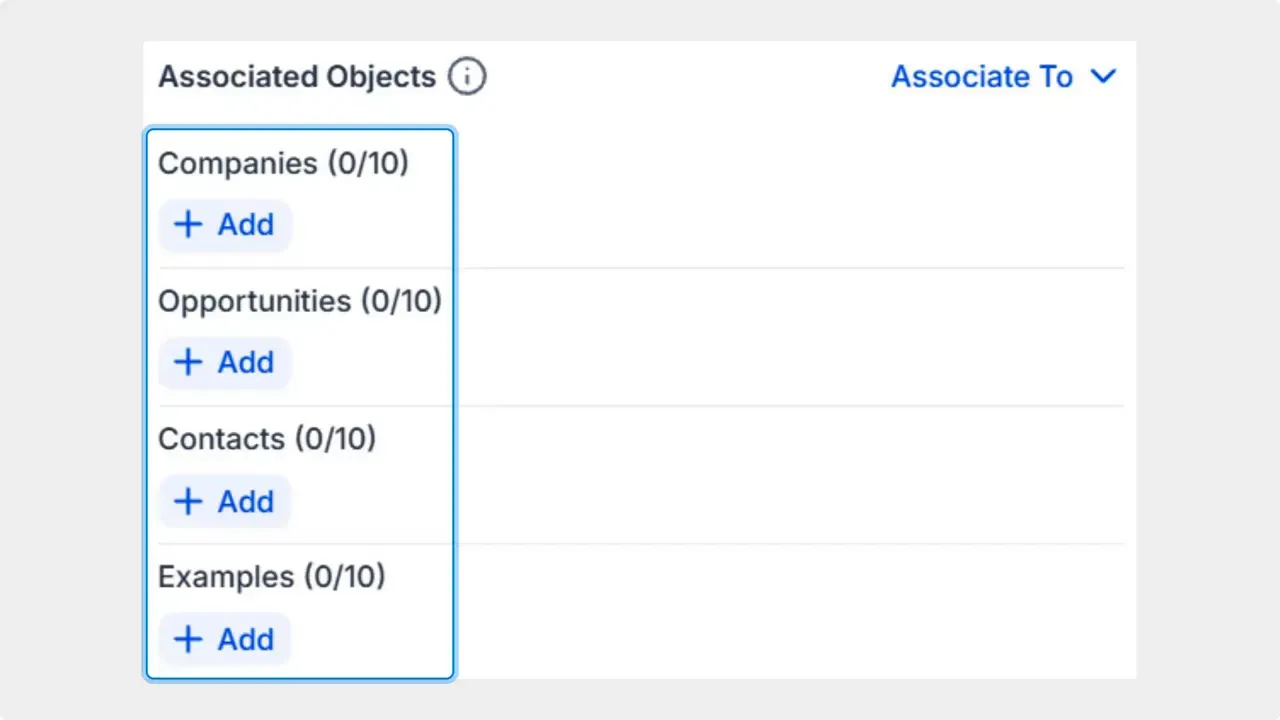
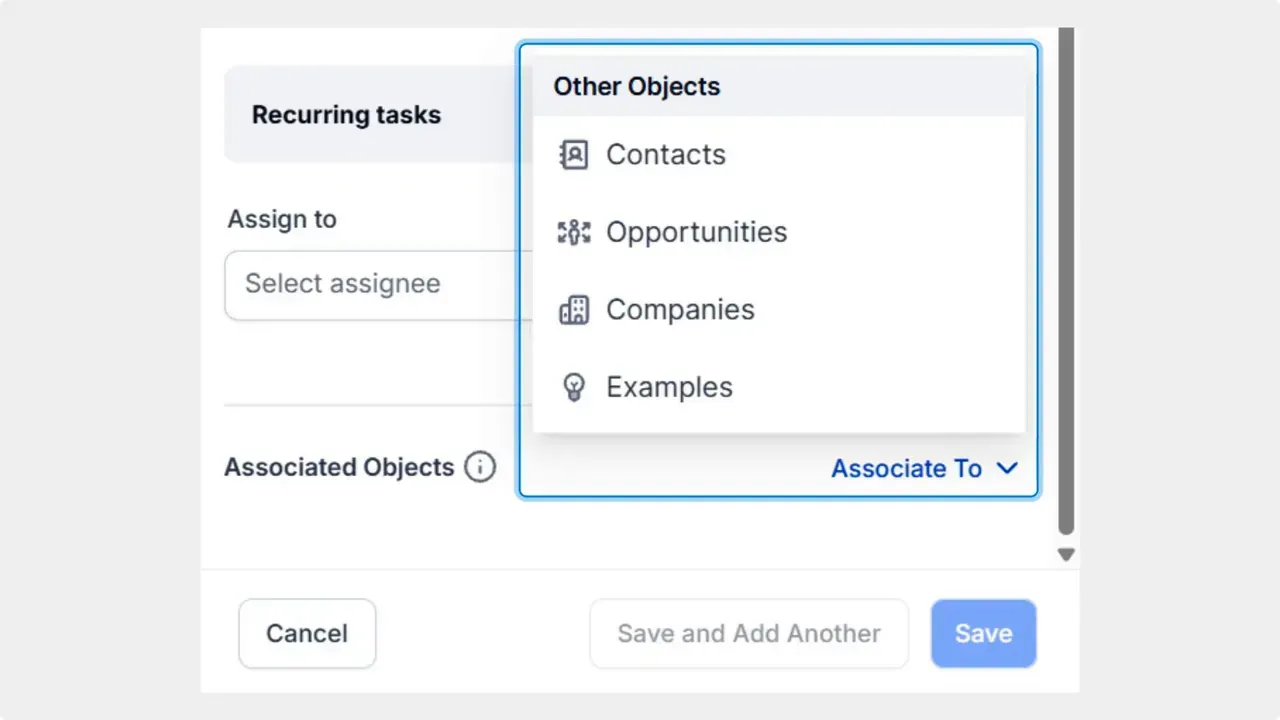
Repeat the Add step for each object type you want. You can select up to 10 records per object type.
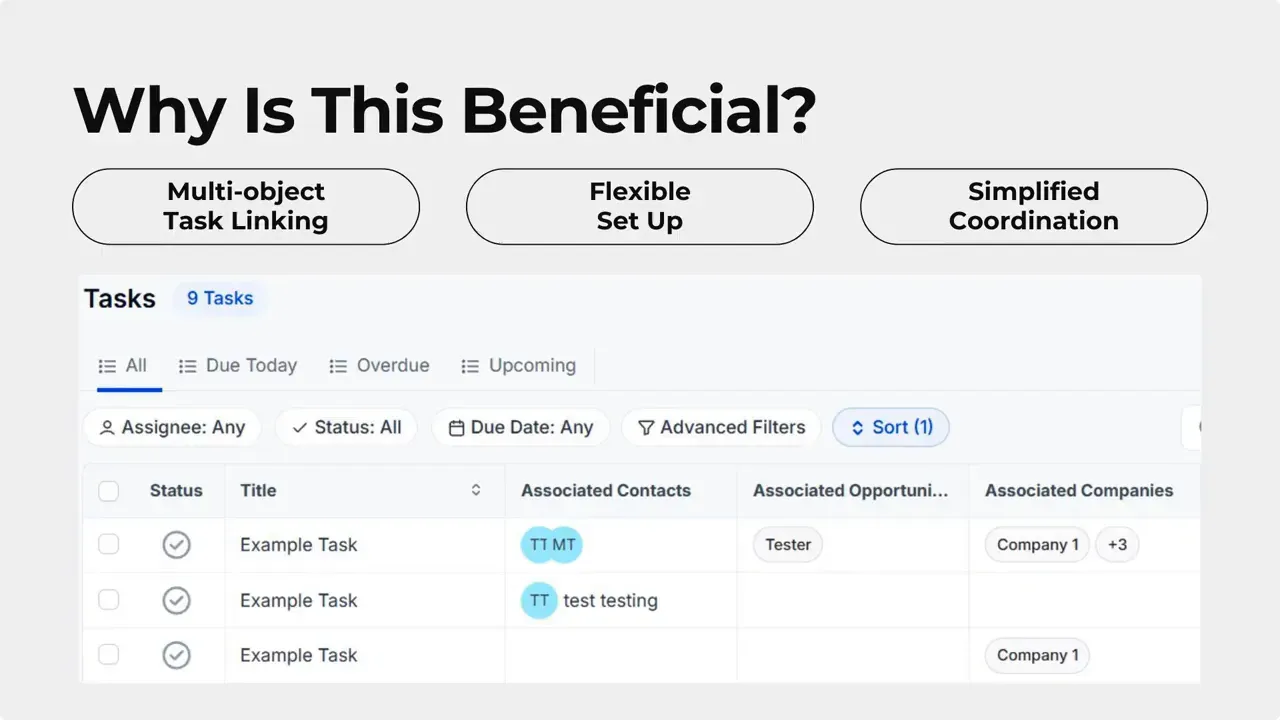
Click plus Add, then select the specific records you want to connect for each object type.
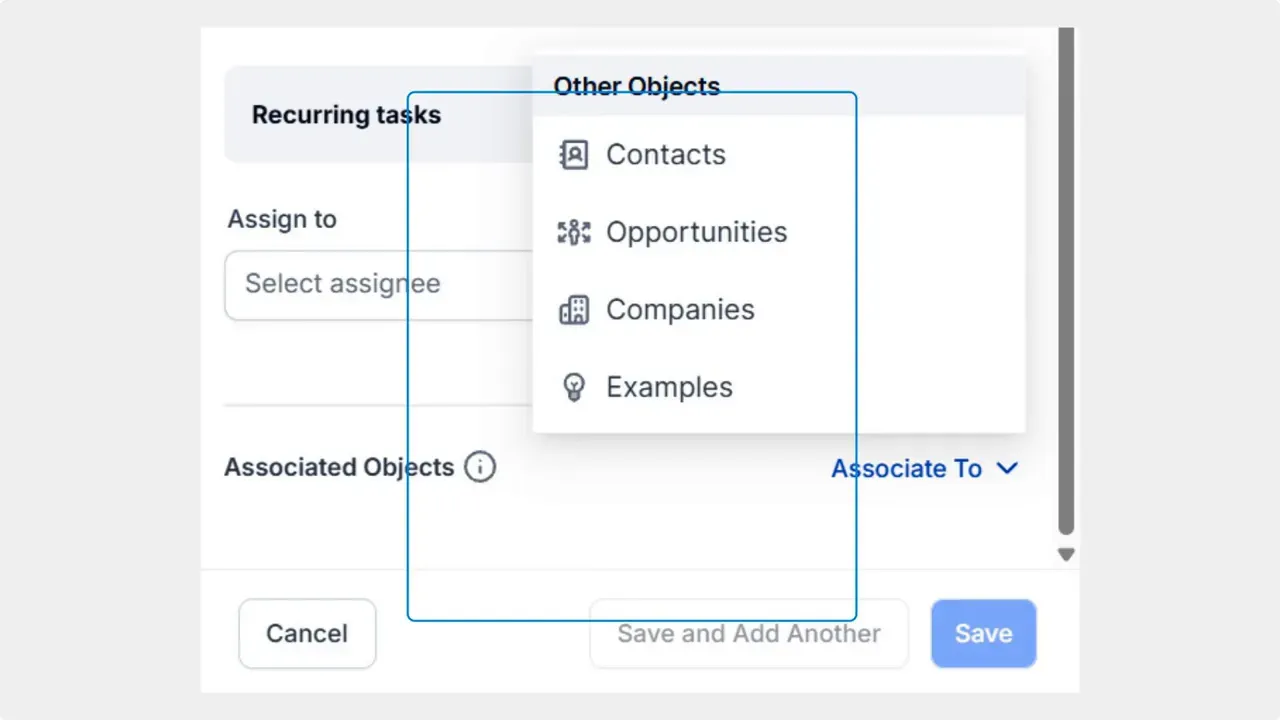
Open the Associate to menu and choose the kinds of objects to include. You can pick multiple object types at once.
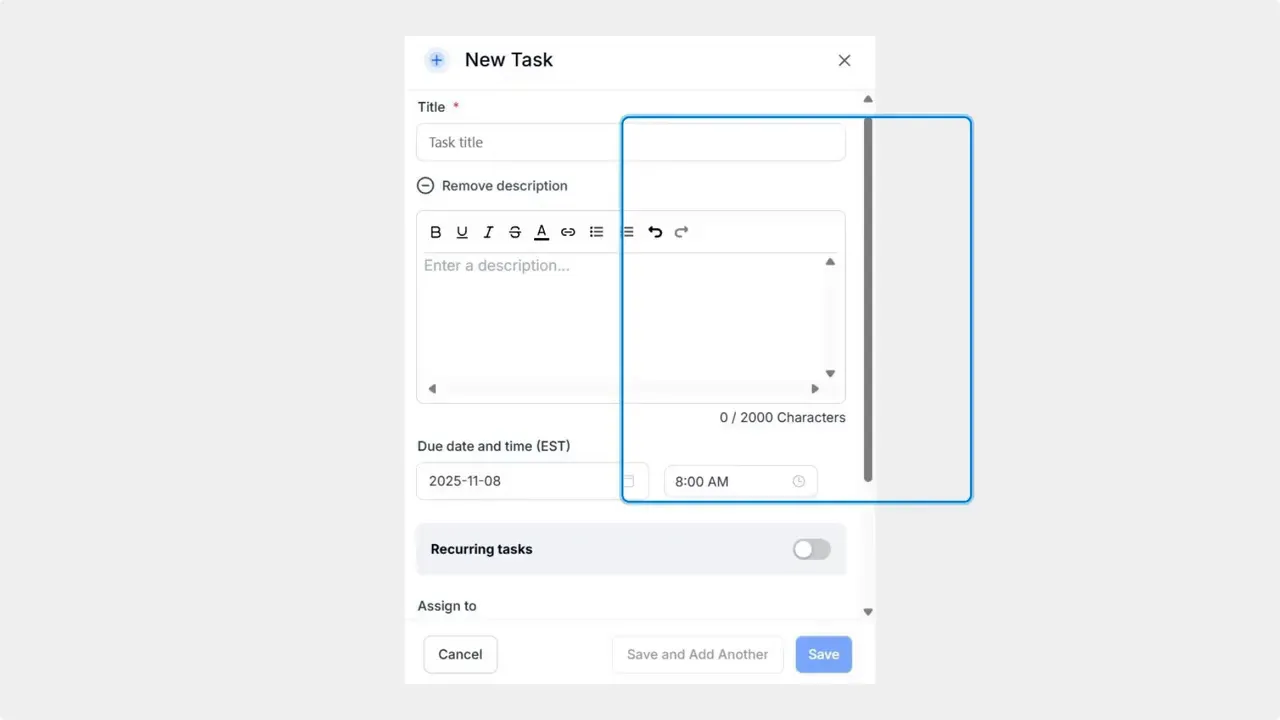
Fill out the task details. Make sure to enter the required title and due date.
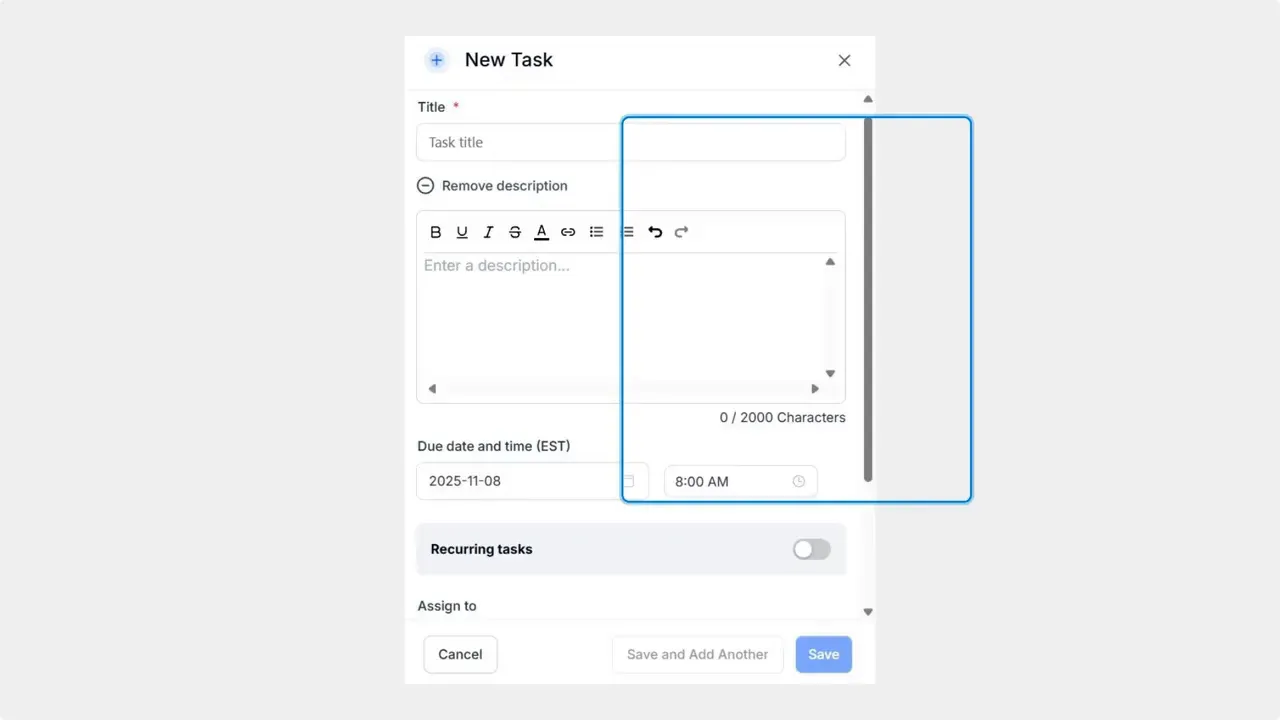
Click Plus Add Task to open the task form.
Go to the Tasks tab inside the Contact section.
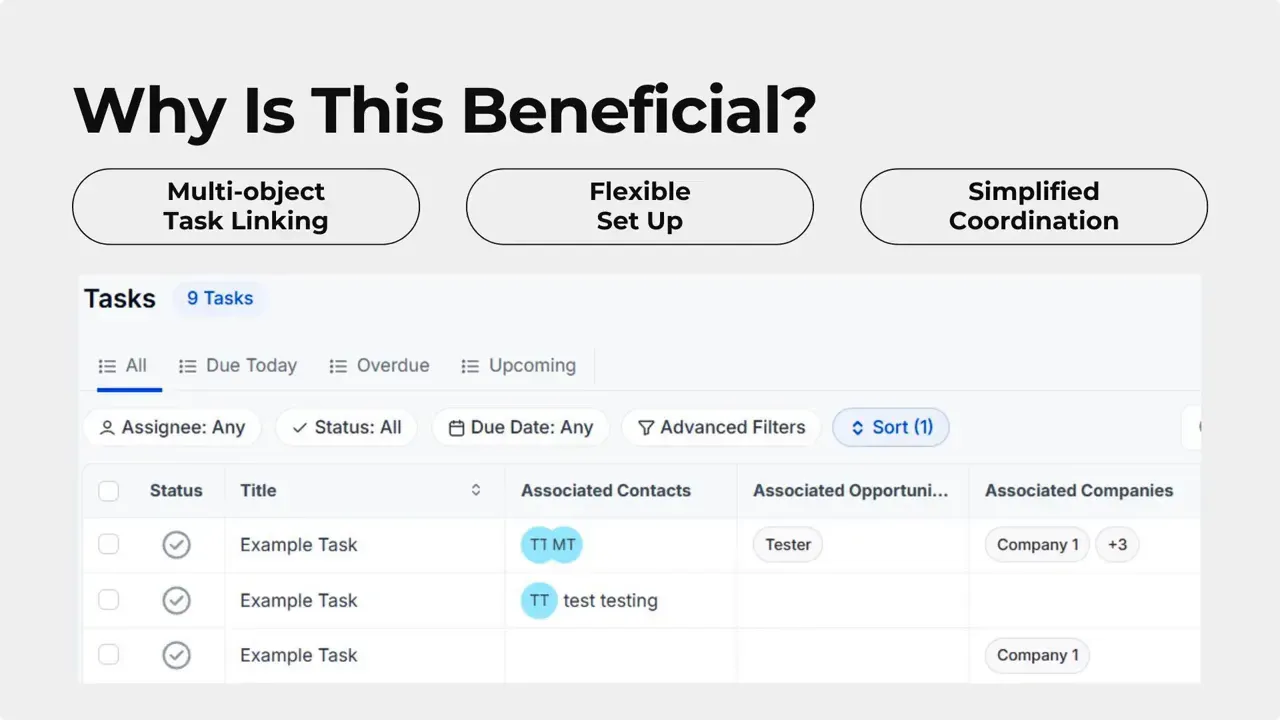
Benefits at a glance
- Less manual work — One task can cover multiple related records.
- More context — Link Contacts, Opportunities, Companies, and custom objects together for a complete view.
- Flexible follow up — Up to 10 records per object type allows varied and personalized task setups.
- Consistent accountability — Teams see the same task across related records and know what needs to be done.
Tips for using multi-object tasks effectively
- Use clear titles that reflect the group of records involved so everyone understands the context.
- Limit the number of records per task to keep follow up manageable. Even though up to 10 are allowed, smaller batches often work better.
- Combine this with due dates and reminders to keep tasks on track across related teams.
- Use custom objects to track specific workflows or campaigns and link them to the same task for coordinated work.
Which object types can a task be linked to?
Tasks can be associated with Contacts, Opportunities, Companies, and custom objects. You can select multiple object types in the same task.
How many records can I link per object type?
You can associate up to 10 records per object type for each task.
Where do I create a task linked to multiple objects?
Create it from the Tasks tab inside the Contact section. Click Add Task, fill in the required fields, open Associate to, and add the records you want to link.
Will the task appear on all linked records?
Yes. Once saved, the task will appear in each related record you selected, making follow up visible across the linked objects.
Can I use this with custom workflows?
Yes. Linking custom objects alongside Contacts, Opportunities, and Companies helps align tasks with custom workflows and campaigns.
Final note
Using multi-object task associations makes it easy to bridge contacts, opportunities, companies, and custom objects with a single task. This reduces manual load and gives teams clearer, more flexible follow up. We hope you find this feature useful in organizing work and improving coordination across records.
This article was created from the video How to Create a Task Linked to Multiple Objects in CRM



