
LeadConnector Desktop App: Installation, Setup, and Agency Best Practices
Learn how to install and optimize the LeadConnector desktop app for Windows and macOS. This guide covers setup steps, white-labeling for agencies, and how to use native notifications and workflows to improve CRM performance and lead response times.

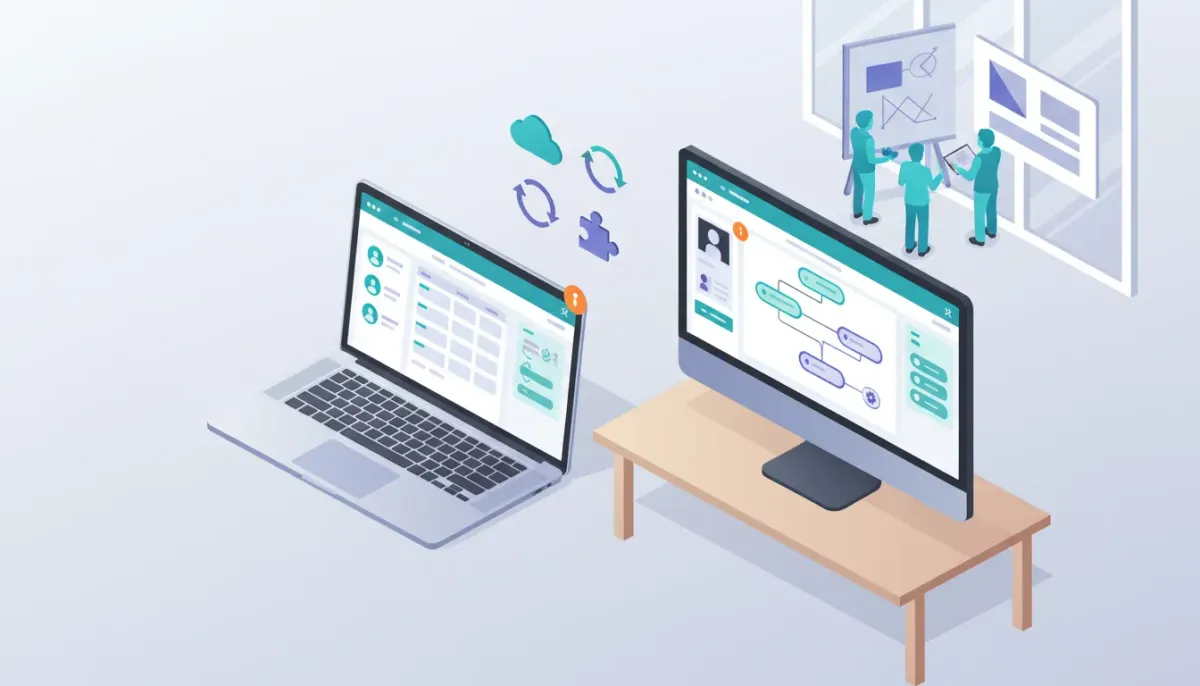
A dedicated desktop app for LeadConnector streamlines CRM access, improves performance, and removes many browser-related problems that interrupt day-to-day agency work. This guide explains what the LeadConnector desktop app does, how to install and set it up on macOS and Windows, how it integrates with HighLevel workflows and automations, and practical best practices for agencies that want a reliable, branded experience for staff and clients.
Start Your HighLevel Trial + Get Instant Nexus Hub Access
Build, scale, and optimize your business with HighLevel. Start a free trial using this link to get automatic access to the Nexus Hub community, templates, and implementation resources.
Start Free TrialWhat the LeadConnector desktop app is and who should use it
The LeadConnector desktop app is a native client that connects directly to your LeadConnector/HighLevel account. Instead of running the platform inside a web browser, the desktop app runs as a standalone application with background access to notifications, system audio, and local resources. That makes it useful for agencies, sales teams, and operations staff who need consistent notifications, calling and SMS reliability, and fewer interruptions caused by browser extensions or conflicting tabs.
The app is especially valuable for:
- Agencies that want stable client access and easier white-labeling.
- Sales and support teams that rely on real-time notifications, calls, and quick lead triage.
- Operations staff who run HighLevel workflows, automations, and reporting and need a dependable connection.
Key benefits of using the desktop app vs the browser version
Choosing the desktop client provides several practical advantages:
- Higher reliability: Runs independently of browser extensions and tab crashes.
- Consistent notifications: System-level notifications for new leads, reminders, and messages.
- Better performance: Native app consumes and manages resources differently than a browser tab, reducing sluggishness for large accounts.
- Always-on presence: Stay signed in and connected while working or away, which is helpful for routing leads and maintaining presence for incoming calls or chats.
- Audio and calling integration: Direct access to system audio devices can improve call reliability and microphone control.
- White-labeling potential: Agencies can offer branded desktop experiences to clients when white-label options are enabled.
Supported platforms and minimum system requirements
The desktop app is offered for both macOS and Windows. Before installing, confirm your machine meets these general minimums:
- macOS: Recent versions of macOS (typically the two most recent major releases). 4 GB RAM minimum; 8 GB recommended.
- Windows: Windows 10 or later. 4 GB RAM minimum; 8 GB recommended. Administrative rights may be required for installation and auto-updates.
- Network: Stable internet connection with standard ports for web traffic open. For best call quality, a wired or high-quality Wi-Fi connection is recommended.
Check the official help documentation for up-to-date compatibility details before installing on older or managed devices.
How to download and install the LeadConnector desktop app
The desktop app is distributed through the official HighLevel resources and installers for each platform. Below are step-by-step installation instructions and practical tips to avoid common setup problems.
Download steps (general)
- Visit the HighLevel Help Center and search for "download desktop app" or "LeadConnector desktop app." Official documentation links include the current installers and instructions.
- Choose the correct installer for your operating system (macOS or Windows).
- If you are deploying across multiple machines, download the installer to a central location and test one machine first before mass deployment.
macOS installation (typical)
- Download the .dmg installer from the official source.
- Open the .dmg and drag the app into the Applications folder.
- Open the app. If macOS blocks the app due to unidentified developer settings, go to System Preferences > Security & Privacy and allow the app to run.
- Grant necessary permissions for microphone, camera, and notifications when prompted to enable calling and messaging features.
- Enable the app to start at login from System Preferences > Users & Groups > Login Items if you want it to run continuously.
Windows installation (typical)
- Download the Windows installer (.exe or .msi) from the official source.
- Run the installer with administrative privileges if required. Follow on-screen prompts.
- Allow any Windows Firewall prompts to grant network access if the app needs to accept incoming connections or receive notifications.
- Grant microphone and camera permissions through Windows Settings > Privacy if you plan to use calling features.
- Place a shortcut in Startup (or enable "run on startup" if the installer offers this option) to keep the app always available.
Signing in and initial setup
After installation, sign in using your HighLevel or LeadConnector account credentials. Follow these setup tips:
- Multi-account and workspace selection: If you manage multiple brands or accounts, select the workspace you want the desktop app to connect to. Some apps let you switch workspaces without signing out.
- Two-factor authentication: If your account enforces 2FA, have your authentication method available during the first sign-in.
- Notification preferences: Configure system and in-app notification settings so the app can send alerts for new leads, missed calls, and appointment reminders.
- Phone and audio devices: Choose default input/output devices in the app settings to ensure call routing and recording work reliably.
How the desktop app integrates with HighLevel workflows and automations
The desktop client complements HighLevel workflows and automations by providing faster, more reliable notifications and direct access to calling and messaging features. Use cases include:
- Immediate lead routing: When a workflow assigns a lead, the desktop app can display a system notification so a team member can respond quickly.
- Click-to-call from the CRM: Initiate calls directly from contact records or pipelines in the desktop app without relying on a browser telephony extension.
- Two-way SMS and chat: Send and receive messages through the app, with notifications and quick-reply capability.
- Workflow-triggered pop-ups: Surface relevant workflow notes or tasks in the app when a lead reaches a pipeline stage, improving follow-up speed.
- Local automation steps: Use the desktop client as the reliable endpoint for actions that require user interaction, like confirming appointments or manual approvals within automations.
Because the desktop app runs outside the browser, it can reduce missed notifications and improve response times — both critical metrics for agencies converting leads.
White-labeling and branded distribution for agencies
Agencies that want to present a branded desktop experience can white-label the app when white-labeling features are enabled in their HighLevel account. Branded distribution typically includes:
- Custom name and logo: Replace default icons and the app name with agency branding.
- Custom color scheme: Apply brand colors to the app chrome where allowed.
- Branded installer: Provide clients with a branded installer or a link to download the white-labeled client.
White-labeling is useful for resellers and agencies that want to deliver a seamless brand experience to their clients and reduce friction in onboarding. Confirm the white-labeling options available for desktop apps in your HighLevel plan and help documentation.
Start Your HighLevel Trial + Get Instant Nexus Hub Access
Build, scale, and optimize your business with HighLevel. Start a free trial using this link to get automatic access to the Nexus Hub community, templates, and implementation resources.
Start Free TrialTroubleshooting: common issues and fixes
Native apps eliminate many browser-related issues, but desktop installations have their own common pitfalls. Here are frequent problems and how to fix them.
App won’t launch or crashes on start
- Restart the computer and try running the app again.
- Reinstall the latest installer from the official help center.
- Check for conflicting software (security tools, outdated audio drivers) and update drivers or temporarily disable conflicting apps.
No notifications or missed alerts
- Confirm system notification settings allow the app to show alerts.
- Verify in-app notification preferences are enabled for lead alerts, calls, and messages.
- On macOS, grant permission in System Preferences > Notifications. On Windows, check Settings > System > Notifications.
Audio or call quality issues
- Test microphone and speaker devices in the app settings and switch to a different device if needed.
- Use a wired headset for more consistent call quality.
- Ensure the network allows real-time audio without excessive packet loss (consider QoS or wired Ethernet).
Firewall, antivirus, or installer blocked
- Allow the app through Windows Firewall or add exceptions in antivirus software.
- In corporate environments, involve IT to confirm installer signatures or to deploy via managed tools like SCCM or Jamf.
Auto-start or background running problems
- Enable login/startup behavior in app settings or OS startup options.
- On macOS, add the app to Login Items; on Windows, place a shortcut in the Startup folder or enable run-on-startup during install.
Best practices for agencies deploying the desktop app
Agencies should plan their deployment and user training to maximize the benefits of the desktop client. Follow this checklist:
- Pilot before full rollout: Test the app with a small team and document any environment-specific issues.
- Standardize device settings: Create a recommended configuration document for audio devices, notification preferences, and login behavior.
- Train staff: Provide short how-to guides for signing in, switching workspaces, using click-to-call, and troubleshooting common problems.
- Integrate with workflows: Update HighLevel workflows to trigger desktop notifications and to route high-value leads to users who have the app installed.
- Secure access: Use role-based access, enforce 2FA, and control permissions for client-facing staff.
- Maintain updates: Keep the desktop client up to date for security patches and feature improvements. Use centralized update management where possible.
- Document white-label distribution: If offering a branded client to clients, create a branded installer and a simple onboarding guide.
Deployment checklist before giving the app to clients
- Confirm which platforms you will support (macOS, Windows).
- Create branded assets: logo, colors, and app name if white-labeling.
- Test installers on clean machines to ensure no dependency issues.
- Prepare a one-page setup sheet with screenshots for client onboarding.
- Decide on update strategy: automatic updates or managed rollouts.
- Train client admins on user management, notification settings, and support contact procedures.
Practical examples: workflows and daily use cases
The desktop app shines in operational and response-driven scenarios. Examples of daily workflows that benefit:
- Lead triage workflow: Workflow assigns new lead to a sales rep and triggers a desktop notification. The rep uses click-to-call to contact the lead within minutes, improving conversion rates.
- Appointment confirmation: Workflow sends an SMS and raises an in-app reminder for the assigned client manager to confirm a high-ticket appointment.
- Support escalations: Chat message tagged as high priority triggers desktop alert for the support lead to jump into the conversation immediately.
Is the LeadConnector desktop app free to use?
The availability and pricing of the desktop client follow the plan and licensing model of your HighLevel or LeadConnector account. The desktop app itself is distributed by HighLevel as part of platform access; confirm feature availability and any white-label permissions in your plan documentation.
Does the desktop app replace the browser version?
The desktop app complements the browser version rather than forcibly replacing it. Many users continue to use both: the desktop client for notifications, calling, and background presence, and the browser for multi-tab workflows, heavy admin tasks, or browser-specific extensions.
Can I white-label the desktop app for clients?
White-labeling options are available depending on your HighLevel plan and permissions. White-labeling typically allows replacing the app name, logo, and some visual elements. Check your account settings and official HighLevel documentation to confirm what's possible and the steps to create a branded installer.
How are notifications, calls, and SMS handled by the desktop app?
The desktop app uses system notification channels to surface alerts for messages, calls, and pipeline events. Calling and SMS features integrate directly with your HighLevel telephony settings. Grant microphone, camera, and notification permissions so the app can deliver full functionality.
What should I do if the app isn’t receiving notifications?
First, confirm system-level notification permissions. Next, check in-app notification settings and ensure the correct workspace is selected. If notifications still fail, review firewall and antivirus rules, and verify the device has an active network connection. Reinstalling the app after clearing cached settings can also help.
Summary and next steps
The LeadConnector desktop app provides agencies and teams with a more reliable, performant, and brandable way to access CRM features, receive alerts, and run day-to-day workflows. Installing a native client reduces browser-related disruptions, improves call and notification reliability, and makes it easier to deliver a consistent experience to staff and clients.
Recommended next actions:
- Download and test the desktop app on one machine to validate your environment.
- Create a short onboarding guide and pilot the app with a small team.
- Integrate desktop notifications into your HighLevel workflows to speed response times.
- Explore white-labeling options if you want to distribute a branded client to customers.
For implementation resources, templates, and community support, consider starting a HighLevel free trial if you are not already on the platform and join community hubs like Nexus Hub for templates and deployment best practices.
Start Your HighLevel Trial + Get Instant Nexus Hub Access
Build, scale, and optimize your business with HighLevel. Start a free trial using this link to get automatic access to the Nexus Hub community, templates, and implementation resources.
Start Free Trial


