
How to Internationalize Course Emails in HighLevel (Email Localization Guide)
Learn how to implement email internationalization in HighLevel to deliver localized course communications. This guide covers setting contact language preferences, configuring multilingual templates, and using automated workflows to improve learner engagement and completion rates globally.

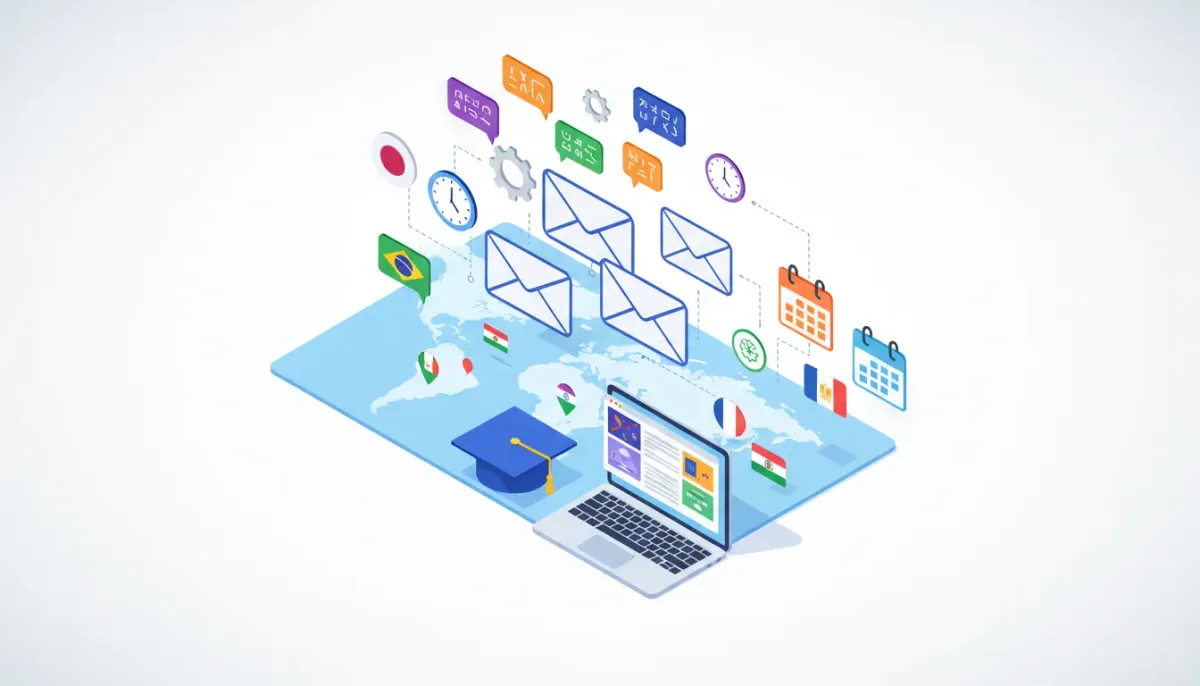
Delivering course emails in the learner's language improves completion rates, reduces confusion, and creates a better learning experience. This guide explains how to internationalize course emails using HighLevel (GoHighLevel), covers configuration, best practices, common pitfalls, and troubleshooting steps so your automated course communications arrive in the right language every time.
The Complete Operating System for Growth
Join over 60,000+ agencies and businesses using HighLevel to capture more leads and close more deals. Start your trial today and get instant access to the Nexus Hub resources.
Claim Your Free Trial & BonusesWhat is email internationalization and why it matters for courses
Email internationalization means sending emails that are adapted to the recipient’s language, cultural preferences, and formatting—rather than a one-size-fits-all message. For online courses, this includes:
- Translating subject lines, body copy, and button text.
- Adapting date, time, and number formats.
- Using the correct currency and link destinations per locale.
Why it matters:
- Higher engagement: Learners are more likely to open, read, and act on messages in their native language.
- Lower friction: Fewer support requests and confusion about course steps, deadlines, or payments.
- Scalability: Systems that handle localization automatically let agencies scale global courses without manual email cherry-picking.
How localization works in HighLevel (overview)
HighLevel supports localized course emails by following a language preference order for each recipient. The platform selects the appropriate language for outgoing course-related messages by checking these settings in sequence:
- Contact language preference — The language set on the contact's profile in the CRM.
- Client portal language setting — The language configured for the client's portal experience.
- Fallback language — English or another global default if no other preference is set.
When course emails are triggered from workflows, HighLevel automatically chooses the most specific language available. That means properly configured contacts will receive emails in their preferred language without manual intervention.
Checklist: What to prepare before enabling course email internationalization
- Inventory all course emails and templates (welcome, lesson release, completion, reminders, receipts).
- Decide supported languages and dialects (for example, Spanish - Mexico vs Spanish - Spain).
- Gather accurate translations or hire professional translators for marketing and instructional copy.
- Confirm contact-language data quality in your CRM (verify language fields are filled correctly).
- Prepare per-language assets: translated images, language-specific links, and localized landing pages.
- Test timezone, date, and currency formatting expectations for each locale.
Step-by-step setup in HighLevel
1. Enable and confirm supported languages
In account settings, verify which languages are enabled for the platform. HighLevel offers multiple languages for system components and email templates. Make sure the languages you plan to use are active.
2. Populate contact language preferences
For each learner, set the language field in the contact record. This is the primary source used to select email language. You can set this manually, collect it via forms, or update it through API or automations when users select language during onboarding.
3. Configure client portal language
If your learners use the client portal, set a portal language as a backup. Some learners may not have a language in their contact record but will have a portal language preference that ensures consistent localization.
4. Localize course email templates
Create a version of each course email for every language you support. Use merge fields for dynamic content (learner name, course title, lesson links) and ensure translations include correct variable placement and grammar.
5. Use workflows to trigger localized emails
Build workflows that send course emails the same way you normally would. When a workflow triggers an email, HighLevel will automatically pick the correct language template based on the contact and portal settings. You do not need separate workflows per language unless you need different logic per locale.
6. Test with sample contacts
Create test contacts with different language preferences and client portal languages. Trigger the course workflows and confirm that each contact receives the email in the intended language. Check subject lines, variable data, links, and attachments.
Practical examples and template considerations
Subject lines and preheader text
Subject lines need to be short and translated for impact. Preheader text should also be localized and previewed across clients. Be careful with length differences between languages—some translations expand by 20 to 30 percent.
Merge fields and variable order
Merge fields may need to move position in a sentence depending on language grammar. Avoid hard-coded punctuation surrounding variables. Prefer template structures that allow translators to place variables naturally.
Buttons and calls to action
Use translated button text and ensure buttons link to language-appropriate landing pages. If the destination page is not localized, inform the learner in the email about the language of the destination.
Images and embedded text
Avoid images that contain critical text. If images must show text (for infographics or badges), create language-specific image variants and swap them based on locale.
Best practices for translators and copywriters
- Provide context: Include notes about where emails are used (welcome, drip, reminder) so translators preserve tone appropriately.
- Keep phrasing concise: Shorter sentences translate better across languages and email clients.
- Test cultural references: Avoid idioms or regional jokes that do not translate well.
- Create a glossary: Define brand terms, product names, and recurring phrases to keep translations consistent.
- Use language-specific punctuation and capitalization rules: This improves readability and perceived quality.
Common pitfalls and how to avoid them
Pitfall: Assuming automatic translation is enough
Automatic translations can be useful for quick localization but often fail with marketing tone, nuance, and grammar. For course content and transactional emails, prefer professionally reviewed translations.
Pitfall: Merge fields not translated or misplaced
Failure to check merge fields in translated templates can result in awkward sentences or broken personalization. Always preview and send test emails to sample contacts in each language before activating workflows.
The Complete Operating System for Growth
Join over 60,000+ agencies and businesses using HighLevel to capture more leads and close more deals. Start your trial today and get instant access to the Nexus Hub resources.
Claim Your Free Trial & BonusesPitfall: Missing language preferences on contacts
If a contact has no language set and the portal has no language set, the system will use the fallback language. To reduce fallback instances, collect language preference during onboarding or via a quick form.
Pitfall: Broken links to non-localized pages
Sending a localized email that links to an English-only page frustrates learners. Ensure links point to language-appropriate pages or include a clear note about language on the destination.
Troubleshooting guide
Problem: Contact still receives English emails
- Confirm the contact's language field is populated correctly in the CRM.
- Check the client portal language setting for that contact.
- Verify that a localized version of the email template exists for that language.
- Look for workflow conditions that might send a specific template regardless of language.
Problem: Variables appear in the wrong order or grammar is broken
- Open the localized template and check variable placement relative to surrounding text.
- Send test emails to ensure merge fields are rendered correctly with sample data.
- If necessary, create language-specific variables or reorder text to match grammar rules.
Problem: Images show text in the wrong language
- Replace text-embedded images with language-specific asset variants.
- Use conditional logic in templates to serve the correct image per language.
- Prefer CSS/HTML text over images for buttons and headings to make translation easier.
Scaling localization for agencies and multi-course programs
Agencies using HighLevel to run multiple courses and clients need standardized processes to scale localization efficiently:
- Template library: Build a centralized library of approved, translated templates and share them across client accounts or funnels.
- Workflows as blueprints: Create reusable workflow templates that handle localization automatically and can be duplicated per client.
- Version control: Keep track of translation updates and dates so you know which templates need review after course changes.
- Delegate localization tasks: Use Nexus Hub or internal teams for translation management, proofreading, and testing.
Legal, deliverability, and accessibility considerations
When localizing emails for global learners, keep the following in mind:
- Regulatory rules: Ensure unsubscribe links and legal text meet local requirements such as GDPR in the EU or CASL in Canada.
- Deliverability: Localized subject lines and from-names can affect spam filters. Maintain good sending reputation and authenticated domains.
- Accessibility: Use accessible HTML, alt text for images, and clear headings so screen readers work in all supported languages.
Localization checklist for each course email
- Is a translated version of the template available? If not, add translation.
- Are merge fields appropriate for the language and placed correctly?
- Do buttons and links point to localized pages or include a language note?
- Are images language-neutral or replaced with language-specific variants?
- Has someone proofread the translated copy for tone and accuracy?
- Has the email been tested with contacts set to relevant languages?
- Do legal footers and unsubscribe links meet local rules?
When to create separate workflows per language
Most course email localization is best handled by multilingual templates within shared workflows. Create separate language-specific workflows only when:
- You need divergent logic per language or region (different schedules, offers, or sequencing).
- Different brands or legal requirements necessitate distinct processes.
- Translation of dynamic content cannot be achieved through templates and requires structural changes in the workflow.
Quick reference: Testing matrix
Use this matrix to validate localization before going live:
- Create sample contacts for each language.
- Assign client portal language and confirm CRM language entry.
- Trigger each course email and record results for subject line, body, buttons, links, images, and attachments.
- Verify compliance elements like unsubscribe links and legal footers.
- Document any mismatches and adjust templates or data fields accordingly.
Recommended workflow pattern for course email localization
A simple and reliable workflow pattern:
- Trigger: Enrollment event (course purchase, manual enrollment, or form submission).
- Action: Assign a course tag and confirm contact language field.
- Decision: If language field is empty, send a short language-preference form or default to portal language.
- Action: Send localized course welcome email (template chosen automatically by language).
- Action: Start drip sequence using localized templates for lesson releases and reminders.
- Monitor: Track open and click rates segmented by language and iterate translations where performance lags.
Summary and next steps
Internationalizing course emails in HighLevel ensures learners receive communications in the language that best suits them, improving engagement and reducing support overhead. The core steps are enabling languages, populating contact language preferences, creating translated templates, and testing thoroughly. Avoid relying solely on automatic translations for critical communications, and maintain a translation workflow that includes proofreading and contextual guidance.
If you manage agency operations or multiple client accounts, build a template library and use reusable workflows to scale localization efficiently. Consider integrating a translation process into course updates so all language versions remain synchronized.
Start a HighLevel trial and get community resources
To implement course email internationalization, consider trying a free HighLevel trial to access multilingual settings, workflows, and template capabilities. Agencies can also join Nexus Hub for templates, translation resources, and community implementation support.
Frequently Asked Questions
How does HighLevel choose which language to send course emails in?
HighLevel selects language using a priority order: the contact language field in the CRM, then the client portal language, and finally the fallback language (usually English). Ensure contact and portal settings are populated for accurate selection.
Do I need separate workflows for every language?
No. In most cases you can use one workflow with multilingual templates. Separate workflows are only necessary when logic must differ by region or when content structure changes per language.
Will merge fields work in translated emails?
Yes, merge fields will populate across translated templates, but variable placement should be verified for grammar and natural phrasing. Always test with sample contacts.
Can HighLevel automatically translate custom course content?
Automatic translation can be available for system messages, but custom course content and marketing emails should be professionally translated or proofread to maintain tone and accuracy.
What should I do if a translated email links to an English-only page?
Link to a localized page where possible. If the destination is English-only, add a clear note in the email or create a translated landing page. Alternatively, route learners to a language selection page first.
How do I test email localization reliably?
Create test contacts for each supported language, set portal and CRM language fields, trigger the workflows, and confirm subject lines, body text, buttons, links, images, and legal footers render correctly. Keep a testing checklist for future updates.
The Complete Operating System for Growth
Join over 60,000+ agencies and businesses using HighLevel to capture more leads and close more deals. Start your trial today and get instant access to the Nexus Hub resources.
Claim Your Free Trial & Bonuses


