
Using Tables in HighLevel AI Knowledge Bases: A Practical, Step‑by‑Step Guide


Tables provide a structured way to give AI agents accurate, searchable context. In HighLevel (also called GoHighLevel or GHL), adding tables into an AI knowledge base helps conversation AI and voice AI return clearer, more consistent answers—especially when you need the AI to reference product specs, feature lists, pricing, or support content. This guide explains what tables are, when to use them, how to prepare and upload them, and best practices for managing and troubleshooting table data in HighLevel.
What are tables in an AI knowledge base and why they matter
A table is a structured dataset—rows and columns—imported into an AI knowledge base so agents can search and pull specific fields. Compared with a block of unstructured text, tables let the AI find exact answers faster and provide more reliable responses. Use tables when you need the AI to answer questions that rely on discrete attributes such as:
- Product specs (dimensions, SKU, warranty)
- Feature catalogs (feature name, description, use case)
- Pricing tables (plan name, monthly price, limits)
- Internal processes (step, owner, timing)
- Support FAQs with structured categories and answers
Benefits of using tables in HighLevel include faster and more accurate agent responses, improved prompt context, and easier maintenance when data changes.
Quick overview: How the process works
At a high level, the workflow to add tables to your HighLevel knowledge base is:
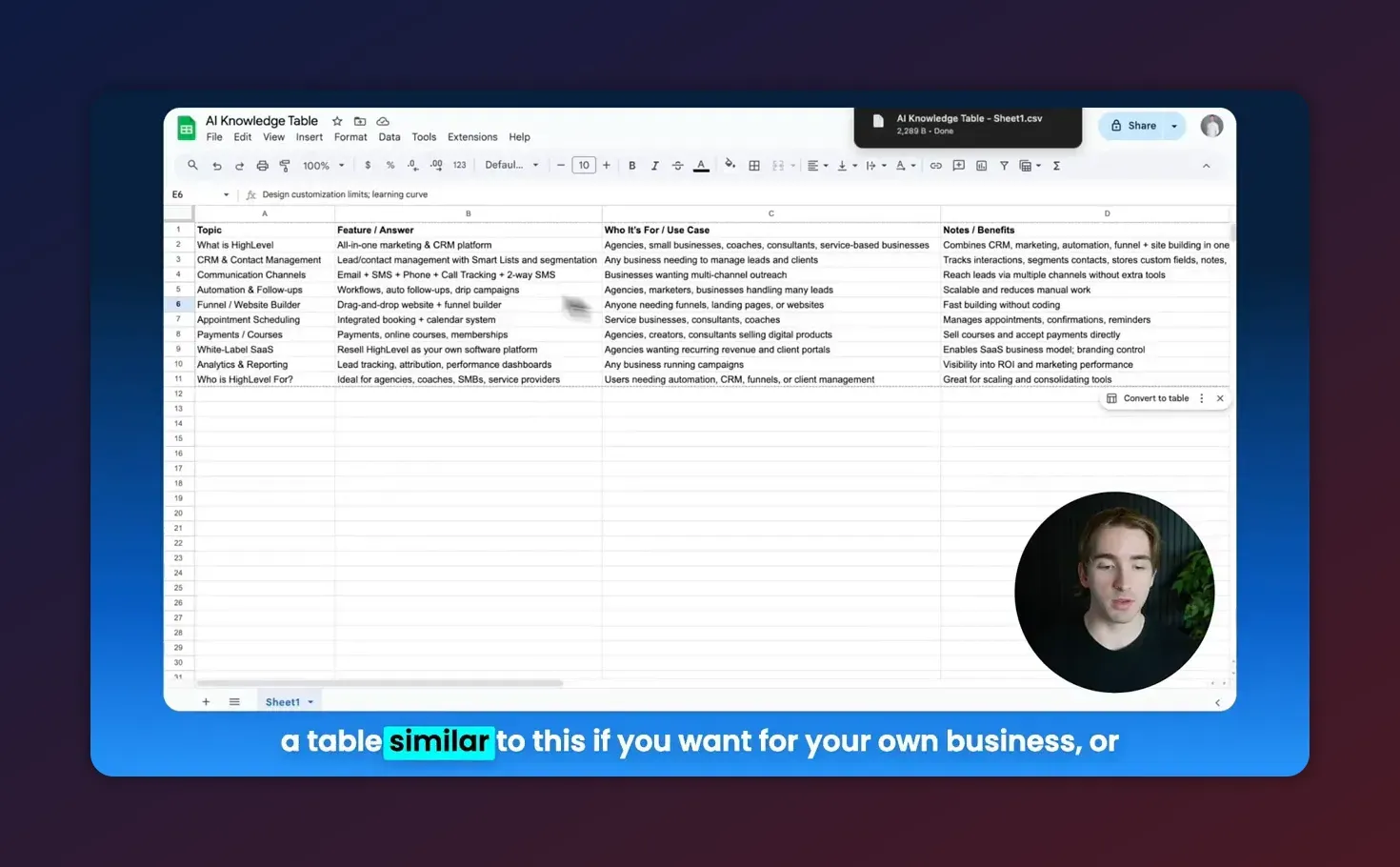
- Create a spreadsheet (Excel or Google Sheets) with clear column headers.
- Export the sheet as CSV (or upload the spreadsheet file if supported).
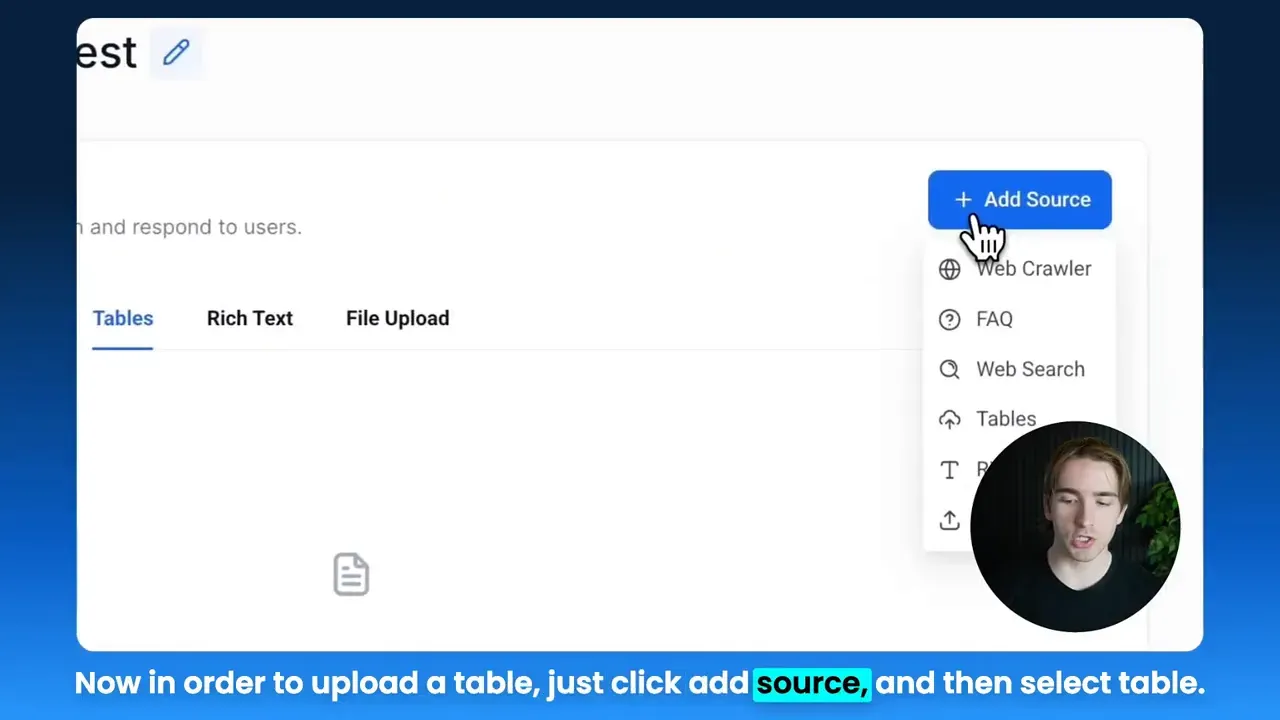
- In HighLevel, add a new source to your knowledge base and choose the Table option.
- Upload the file, map columns to data types, and choose which columns to include.
- Review the parsed results, fix any invalid rows, and finalize the upload.
Step-by-step: Preparing your spreadsheet
Proper preparation reduces upload errors and improves the AI's ability to use the data. Follow these rules when building your spreadsheet.
1. Use a single header row
The first row should contain unique column names. Keep headers short and descriptive, for example: topic, feature, answer, use_case, notes, limitations.
2. Keep column types consistent
Each column should contain one type of data. Use text for descriptions, numeric fields for amounts, and dates for date values. Mixed types in a column can create parsing errors or force the system to treat everything as text.
3. Avoid merged cells and formulas
Export a plain CSV when possible. Remove merged cells, and copy/paste-values if your sheet contains formulas. Empty cells are acceptable but note any required columns so you do not lose important rows.
4. Use short but informative cells
Keep individual cell content concise for faster retrieval. Long articles or documentation are better as rich text sources; tables are for structured, referenceable information.
Step-by-step: Uploading a table into a HighLevel knowledge base
After your CSV is ready, perform the upload and configure the data types so the platform understands each field.
- Open your Knowledge Base in HighLevel and click Add Source, then choose Table.
- Upload the CSV file or select your spreadsheet. The platform will parse the file and list detected columns.
- Review and rename the table if you want a custom name that matches your internal taxonomy.
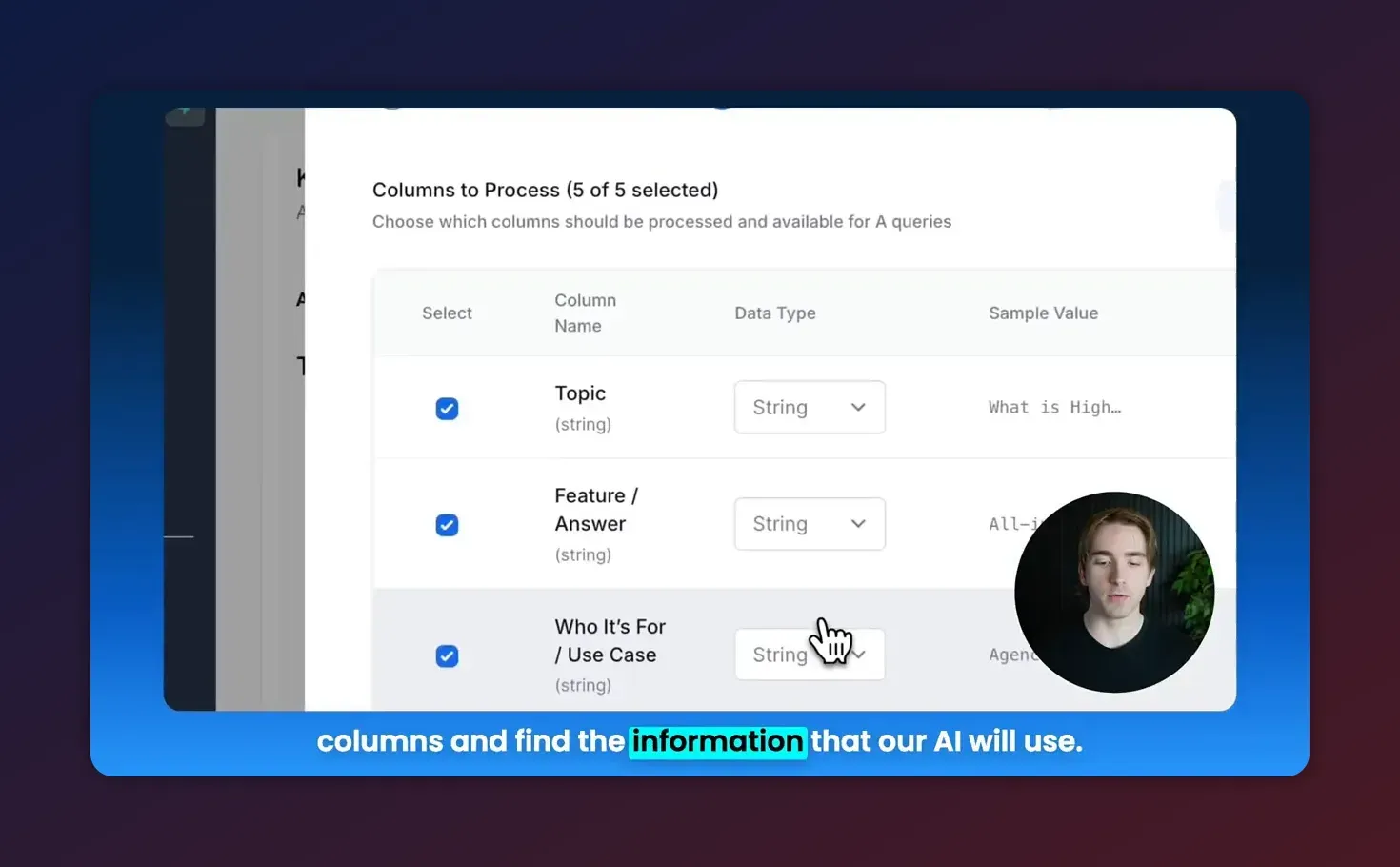
- Map columns to data types such as String (text), Number, Date, or Boolean. Select only the columns you want the AI to index.
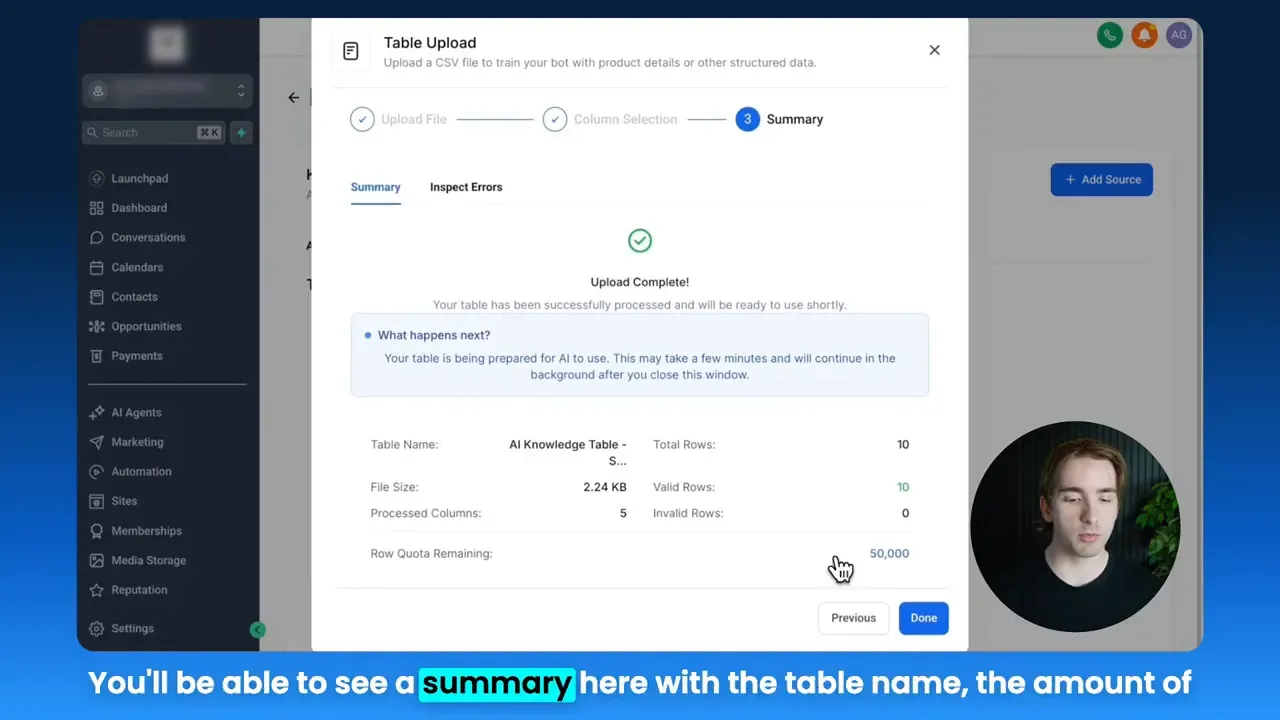
- Click Next to format and validate the data. You will see a summary showing total rows, valid rows, invalid rows, processed columns, and file size.
- Inspect any errors and correct them in your source CSV if necessary. You can choose to accept rows with some empty cells if that is expected.
- Finalize the upload and the table becomes part of the knowledge base for your AI agents to reference.
How to choose data types and when they matter
Accurate data typing improves query relevance and enables numeric or date-specific filtering within automations.
- String - Default for free text such as descriptions and answers.
- Number - Use for quantities, prices, quantities per month, or scores so numerical comparisons are possible.
- Date - Use for release dates, expiry dates, or any time-based fields you might query against.
- Boolean - Good for binary flags like
is_activeorrequires_license.
Example: If you upload a pricing table, set the price column to Number so workflows or the AI can perform calculations or comparisons reliably.
Common use cases and practical examples
Here are several real-world ways agencies and SaaS teams use tables inside HighLevel knowledge bases.
1. Product or feature catalog
Store feature name, short description, target audience, benefits, and potential limitations. The AI can give consistent product explanations across chat and voice channels.
2. Pricing and plan lookup
Keep plan name, monthly cost, overage rules, and included features. Automation can reference exact numbers when quoting prospects.
3. Support triage and troubleshooting steps
Provide a symptom column, a root cause column, and a resolution column. Agents can retrieve the exact steps to resolve common issues.
4. Internal SOPs and owner lookup
Maintain process step, owner, turnaround time, and required input. Use the table to feed workflows and route tasks automatically in HighLevel workflows.
Start Your HighLevel Trial + Get Instant Nexus Hub Access
Build, scale, and optimize your business with HighLevel. Start a free trial using this link to get automatic access to the Nexus Hub community, templates, and implementation resources.
Start Free TrialBest practices for structure and content
- Standardize column names so multiple tables follow the same schema when possible (for example:
topic,answer,audience). - Prefer shorter answers where the AI can link to a longer internal document if needed. Use tables for reference facts and short explanations.
- Tag rows with categories or audience columns so the AI can filter by context. Example tags:
sales,support,developer. - Include a last_updated column to track freshness and allow periodic review workflows.
- Test queries after upload to confirm the AI returns the expected row details and field values.
Managing tables: update, rename, delete
Once a table is uploaded, you can manage it from the knowledge base interface.
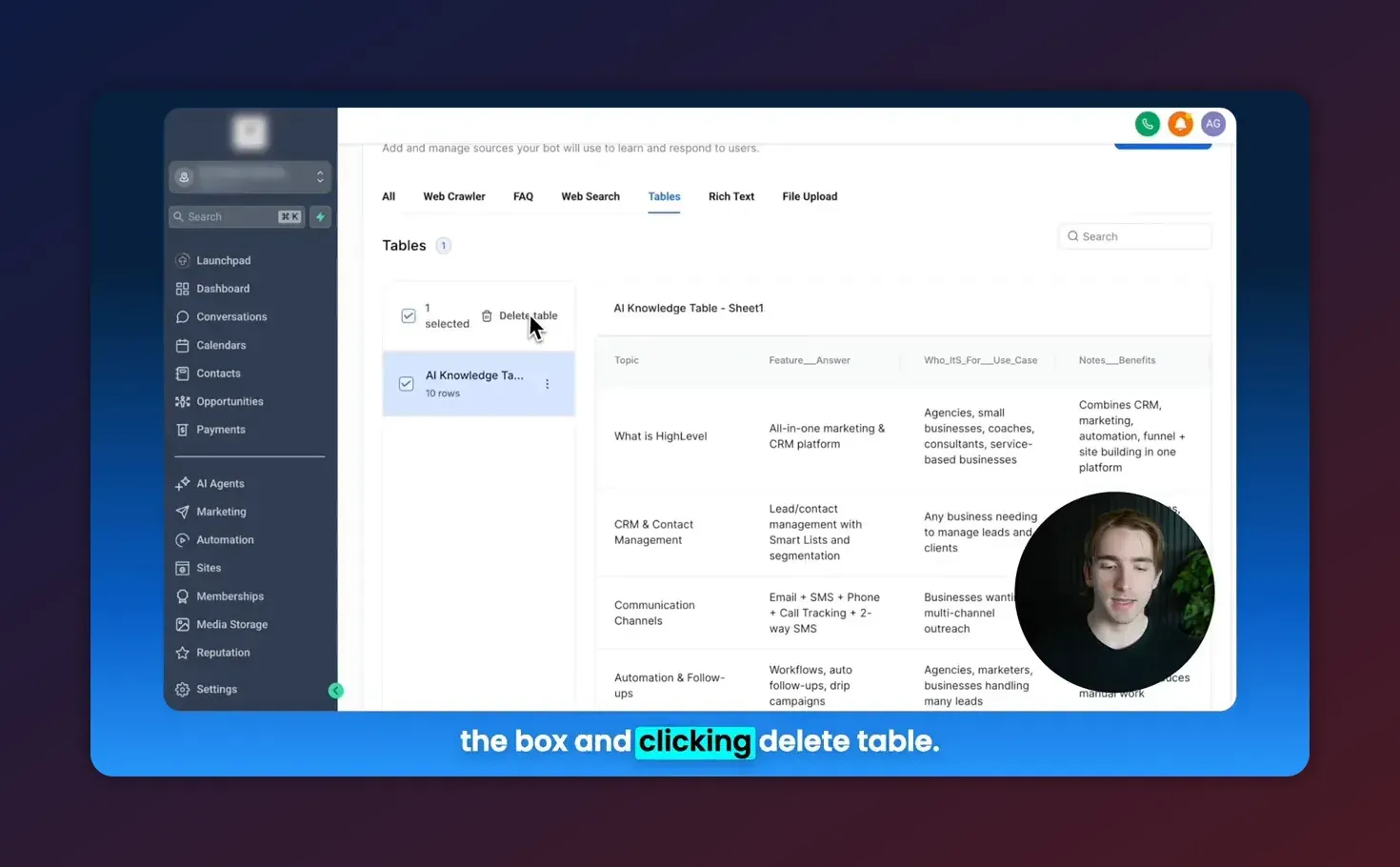
- Rename a table using the action menu to keep naming consistent with your knowledge taxonomy.
- Delete tables that are obsolete. Confirm before deleting, since removing a table removes its context from the AI agents.
- Replace or refresh by re-uploading a corrected CSV and overwriting the existing table. If you need incremental updates, maintain a versioning convention in file names.
- Audit invalid rows from the upload summary; fix root causes such as empty required columns or mis-typed values.
Troubleshooting common upload errors
Upload problems usually stem from CSV formatting or inconsistent cells. Use this checklist to resolve issues quickly.
- Empty header or duplicate headers - Ensure the first row has unique column names.
- Mixed data types - If a column has numbers and text, choose String or clean the data so types are consistent.
- Special characters or line breaks - Remove or escape characters that may break parsing. Replace unnecessary line breaks inside cells with a single space.
- File encoding - Save CSV as UTF-8 to avoid character corruption.
- Large file size - Break very large tables into smaller, logical tables to improve performance and manageability.
How tables fit into HighLevel workflows and automations
Tables are a powerful complement to HighLevel workflows. Use table data to:
- Personalize messages by pulling exact feature descriptions or pricing into SMS and email templates.
- Route conversations by checking tags or owner fields to assign leads to the right team member.
- Trigger follow-ups when a product or plan field indicates a trial expiry date or upsell opportunity.
Combining tables with HighLevel automations reduces manual lookups and ensures consistent information across touchpoints.
Privacy and security considerations
When storing data in a knowledge base, be mindful of what you include in tables:
- Do not include sensitive personal data such as full social security numbers or unredacted payment details.
- Limit access to knowledge bases to necessary team members only.
- Audit regularly to ensure table content remains accurate and compliant with privacy policies.
Checklist: Uploading a table to your HighLevel knowledge base
- Create spreadsheet with single header row
- Confirm column data types and clean mixed-type cells
- Export as UTF-8 CSV
- Upload via Add Source → Table in your knowledge base
- Map columns to data types and select columns to include
- Review the summary and correct any invalid rows
- Test the AI agent using sample queries
- Set a recurring review to keep data current
When not to use tables
Tables are ideal for structured, referenceable facts. Use other knowledge base sources when:
- You need long-form documentation or guides. Use rich text or file uploads.
- Content needs frequent, unstructured editing that is easier in a document editor.
- Information is hierarchical or nested in a way that rows and columns cannot represent cleanly.
Next steps: testing and scaling
After adding tables, simulate real queries your team or customers will ask. Adjust column names and content until the AI reliably returns correct fields. As your agency or SaaS operation scales, standardize table schemas across knowledge bases to simplify reuse and automation.
FAQ
How do I update a table after it is uploaded?
You can re-upload a corrected CSV to replace the existing table or delete the old table and upload a new one. Maintain a versioning convention in file names to avoid confusion. For minor changes, edit the source spreadsheet and re-export as CSV for upload.
What file formats are supported?
CSV is the most reliable format. Some platforms may accept Excel files or Google Sheets exports. When in doubt, export as UTF-8 CSV before uploading.
Can my AI agent do calculations using numeric columns?
Yes. If you mark a column as Number, the platform can perform numeric comparisons and enable workflows that reference those values. For complex math, combine table lookups with workflow logic.
Is it safe to store customer data in a knowledge base table?
Exercise caution. Avoid storing sensitive personal or financial data. Limit access and follow your organization’s privacy and compliance rules. If you must store personal data, apply appropriate access controls and data retention policies.
How can I use table data inside HighLevel automations?
Use table fields as merge tokens in messages or as conditions in workflow triggers and routing logic. Tables help automate personalized messaging and route leads based on structured attributes.
Summary and recommended next steps
Tables in HighLevel knowledge bases are an efficient way to provide structured context to AI agents. They improve response accuracy, enable numeric and date-sensitive queries, and integrate cleanly with workflows and automations. Start by converting small, high-value datasets into CSV tables—product catalogs, pricing, or support triage—and test the agent responses. Over time, expand to include internal SOPs and owner lookups to further automate agency operations and scale support.
If you are not yet on HighLevel, consider starting a free trial to experiment with knowledge base tables and workflows. For agencies looking for templates and implementation support, joining communities like Nexus Hub can speed adoption and provide ready-made schemas and best practices.
Start Your HighLevel Trial + Get Instant Nexus Hub Access
Build, scale, and optimize your business with HighLevel. Start a free trial using this link to get automatic access to the Nexus Hub community, templates, and implementation resources.
Start Free Trial


