
Import Email Templates with AI: A Faster Way to Move Campaigns into HighLevel
Stop manually rebuilding email campaigns. Learn how to use HighLevel’s AI email import tool to convert forwarded messages into fully editable templates. This guide covers the step-by-step process to streamline migration, preserve designs, and plug new templates into your automations.

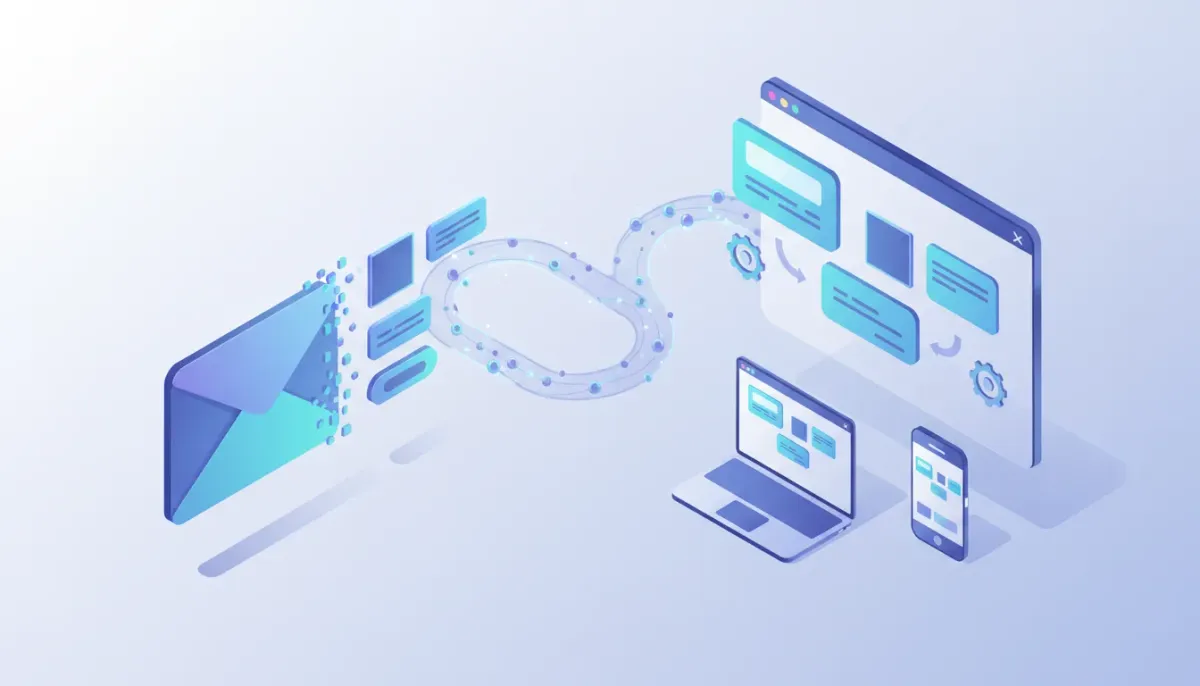
If you manage client email campaigns, moving templates between platforms can be tedious. Copying HTML, re-building layouts, and hunting down broken images wastes valuable time. HighLevel now offers a smarter alternative: an AI-powered email import tool that converts forwarded emails into fully editable templates inside HighLevel. It takes the grunt work out of template migration and plugs imported messages directly into your CRM, automations, and campaign workflows.
The Complete Operating System for Growth
Join over 60,000+ agencies and businesses using HighLevel to capture more leads and close more deals. Start your trial today and get instant access to the Nexus Hub resources.
Claim Your Free Trial & BonusesWhat the AI Email Import Does
At its core, the feature lets you forward any email to a unique address provided by HighLevel. The system uses AI to parse the incoming message, extract the layout, HTML, images, and content, and then recreate it inside the HighLevel email editor as a fully editable template. It is not a simple HTML dump—the result is an editable piece of content you can immediately tweak, rename, and use in campaigns or automation sequences.
"It's not just HTML, it's also fully editable."
That line sums up the real value: imported templates behave like native HighLevel emails. You can change copy, alter styling, swap images, and add personalization tokens without rebuilding from scratch.
Why this matters for agencies and marketers
Agencies managing multiple clients or migrating from other platforms will appreciate the speed and accuracy of this workflow. Instead of manually recreating campaigns, you can import a library of templates in minutes and plug them straight into HighLevel workflows and automations. This reduces migration friction, shortens onboarding timelines for new clients, and helps scale email operations across accounts.
- Save time: No more rebuilding complex layouts or hunting for assets.
- Preserve design: Most styles, tables, and image placements carry over into the editor.
- Editable content: The AI produces an editable template rather than just static HTML.
- Seamless integration: Use imported templates in campaigns, sequences, and HighLevel workflows.
Step-by-step: How to import an email template with AI
The process is straightforward. Follow these steps to import templates into HighLevel quickly.
- Enable the feature: The AI import may be available via Labs or new features. Ensure Labs or the relevant setting is turned on in your HighLevel account so you can access "Import with AI" inside the Emails area.
- Open Emails and find Import with AI: In the Emails section, choose the import option labeled "Import from any platform using AI" or similar.
- Get your unique forward-to address: HighLevel provides a dedicated email address for imports. Copy this address.
- Forward the original email: From the mailbox where the original template lives, forward that exact email to the import address. You can also forward an exported HTML file or the original source as long as it appears as an email message.
- Wait for processing: The system will queue and process the forwarded email. Processing time varies depending on complexity and queue length.
- Open and edit the result: Once complete, the imported template will appear in the Email editor. Rename it, tweak content, update links, and replace images as needed.
- Use it in workflows: Add the template to campaigns, automation sequences, or single sends inside HighLevel.
Tips to get the best import results
AI does a lot of heavy lifting, but small steps on your side will improve accuracy and reduce cleanup.
- Forward the original message: Forward the exact email received in the inbox rather than copying and pasting the HTML into a new message. Forwarding preserves headers and attachments that help the AI parse structure.
- Use images with public URLs: If images are hosted behind authentication or blocked by the sender, the import might not pull them in. Ensure images are publicly accessible or attached inline.
- Include plain text and HTML versions: Many email clients send both. Forwarding a message that contains both helps the parser pick the best structure.
- Check personalization tokens: The AI will try to preserve personalization. After import, validate and replace any platform-specific tokens with HighLevel merge fields or custom variables.
- Test links and forms: Confirm CTA links, tracking tags, and forms function correctly in the new environment.
- Rename and organize: Give imports clear names and categorize them in your template library to avoid confusion later.
Common use cases for agencies and SaaS operations
This feature unlocks several practical workflows for agencies and SaaS teams running multi-client operations.
Migration projects
Moving clients from other email platforms into HighLevel can be a bottleneck. Importing templates via AI dramatically reduces migration time and preserves brand-consistent templates for campaigns and automated sequences.
Quick A/B testing and iteration
Need to test a winning email seen elsewhere? Forward a high-performing template to the import address, tweak copy or subject lines inside HighLevel, and deploy directly to your campaign list without rebuilding.
Agency onboarding
When onboarding new clients, collect their top-performing emails and migrate them into your shared account or specific client sub-accounts. This provides immediate content to plug into HighLevel automations and nurtures.
Template library building
Build a reusable template repository for common campaigns—welcome sequences, cart abandonment, promotions—by importing vendor or client-supplied emails and converting them to HighLevel-ready templates.
How imported templates fit into HighLevel workflows and automations
Once the template is inside HighLevel, it becomes part of the platform's ecosystem. Use it as:
- Campaign emails: Add to broadcasts and scheduled sends.
- Workflow actions: Drop into automations to send on triggers like form submissions, CRM stage changes, or API events.
- Sequence steps: Use in multi-step nurturing sequences tied to contacts or opportunities.
- Client libraries: Reuse and adapt across multiple client accounts or brand profiles within your agency setup.
This integration creates a smoother handoff between email design and execution. Templates are not siloed as static assets; they're dynamic pieces you can program into HighLevel automations and tie to CRM events.
Troubleshooting and limitations
While powerful, the import system has a few practical limits to be aware of.
- Complex interactive elements: Some advanced interactive email features or scripts cannot be reconstructed because email clients restrict scripting. Expect to rebuild advanced interactions manually.
- Proprietary components: Elements built with proprietary builders (that rely on external assets or special code) may not render perfectly and may require adjustment.
- Image permissions: Images that require authentication or are hosted on private CDNs might not import correctly. Add those assets to HighLevel's file library after import if needed.
- Processing time: Processing depends on queue length. Large batches may take longer, so plan migrations in off-peak hours for faster throughput.
Best practices for agency implementation
Implementing this feature inside your agency workflow requires a few organizational steps to maximize value and avoid confusion.
The Complete Operating System for Growth
Join over 60,000+ agencies and businesses using HighLevel to capture more leads and close more deals. Start your trial today and get instant access to the Nexus Hub resources.
Claim Your Free Trial & Bonuses- Create a naming convention: Use consistent names that include client, campaign type, and date (for example: ClientName_WelcomeCampaign_2026-03).
- Set up folder structure and tags: Organize templates in the HighLevel library so team members can find assets quickly.
- Document personalization fields: Keep a short doc listing how to replace old platform tokens with HighLevel merge fields to guarantee personalization works after import.
- Test in staging: Always test emails against a QA contact list to verify rendering across clients and link behavior before sending live.
- Train account managers: Show how to perform imports, rename assets, and plug templates into workflows so everyone on the team can use the feature.
Quick-start checklist
Use this checklist when migrating a new batch of templates into HighLevel.
- Enable Labs or the AI import feature in account settings.
- Collect original emails and ensure images are accessible.
- Forward emails to the unique import address provided.
- Confirm imports in the Email editor and rename them.
- Replace or map personalization tokens to HighLevel merge fields.
- Test rendering and links across major email clients.
- Deploy into a test automation before scheduling live sends.
Where this fits into your HighLevel strategy
HighLevel is designed to centralize marketing, CRM, and automation into a single agency-friendly platform. This AI import feature strengthens that value proposition by making content migration and template reuse simple. It reduces the friction of bringing assets into HighLevel so agencies can focus on strategy, segmentation, and campaign performance rather than manual rebuilding.
Think of it as a bridge from external email ecosystems into your HighLevel-driven funnel. Once the template is native to HighLevel, it ties into your existing automations, CRM stages, and reporting—making the whole campaign lifecycle more efficient.
Next steps and resources
If you are already using HighLevel or considering it for agency operations:
- Consider starting a free trial to test the import feature end-to-end with a few real templates.
- Join the Nexus Hub community for ready-made templates, implementation guides, and peer support to speed up setup.
- Build a migration plan if you manage multiple client accounts, and schedule batch imports during low-traffic windows.
FAQ
Is the AI import feature available to all HighLevel users or only in Labs?
Availability may vary depending on account settings and rollout. The feature is often released through Labs initially, so enable Labs in your account settings to access it if it is not yet in the main Emails area.
Which types of emails can I import?
You can import standard HTML emails, multi-part messages with both HTML and plain text, and forwarded messages from most email providers. Advanced interactive elements or proprietary builder components may require manual adjustments after import.
Does the import keep personalization tokens intact?
The AI attempts to preserve personalization markers. After import, verify and map any platform-specific tokens to HighLevel merge fields to ensure personalization functions correctly in automations.
What happens to images and attachments?
Images with public URLs generally import correctly. Images hosted behind authentication or blocked by the sender may not appear. If images fail to import, upload them to HighLevel's file library and replace them in the editor.
Can I import multiple templates at once?
You can forward multiple emails to the unique import address, but processing time will depend on queue size. For large migrations, plan batches and monitor processing status in the Emails area.
Is the imported output editable?
Yes. The AI reconstructs an editable version of the email inside the HighLevel editor, so you can change copy, styling, links, and images without rebuilding from raw HTML.
How do I use an imported template in workflows and automations?
After import, save the template in the Email library. It will then be selectable when configuring campaign sends, automation steps, sequence messages, and broadcast sends. Use existing workflow triggers to send the template to contacts based on CRM events, form submissions, or custom triggers.
Final thoughts
AI-driven email import simplifies a previously painful part of agency operations. It converts existing emails into editable HighLevel templates, speeds up migrations, and connects design assets directly to workflows and automations. With straightforward setup, a few best practices, and a bit of QA, agencies can reclaim hours of manual work and move faster on campaign execution.
If you want to reduce migration friction, speed client onboarding, and centralize your email operations inside a single CRM and automation platform, experiment with the AI import feature and integrate it into your HighLevel playbook.
The Complete Operating System for Growth
Join over 60,000+ agencies and businesses using HighLevel to capture more leads and close more deals. Start your trial today and get instant access to the Nexus Hub resources.
Claim Your Free Trial & Bonuses


