
Import Your Ecommerce Store into the Platform (+ Sync Products, Collections, Contacts, Orders & MORE!)

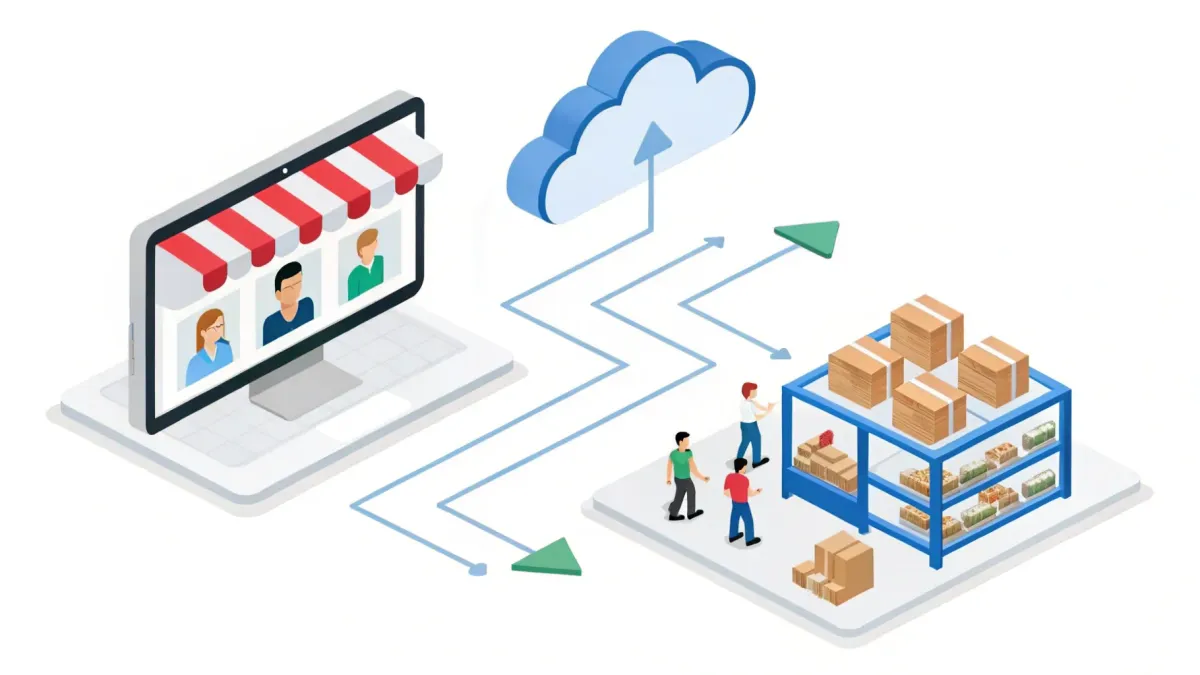
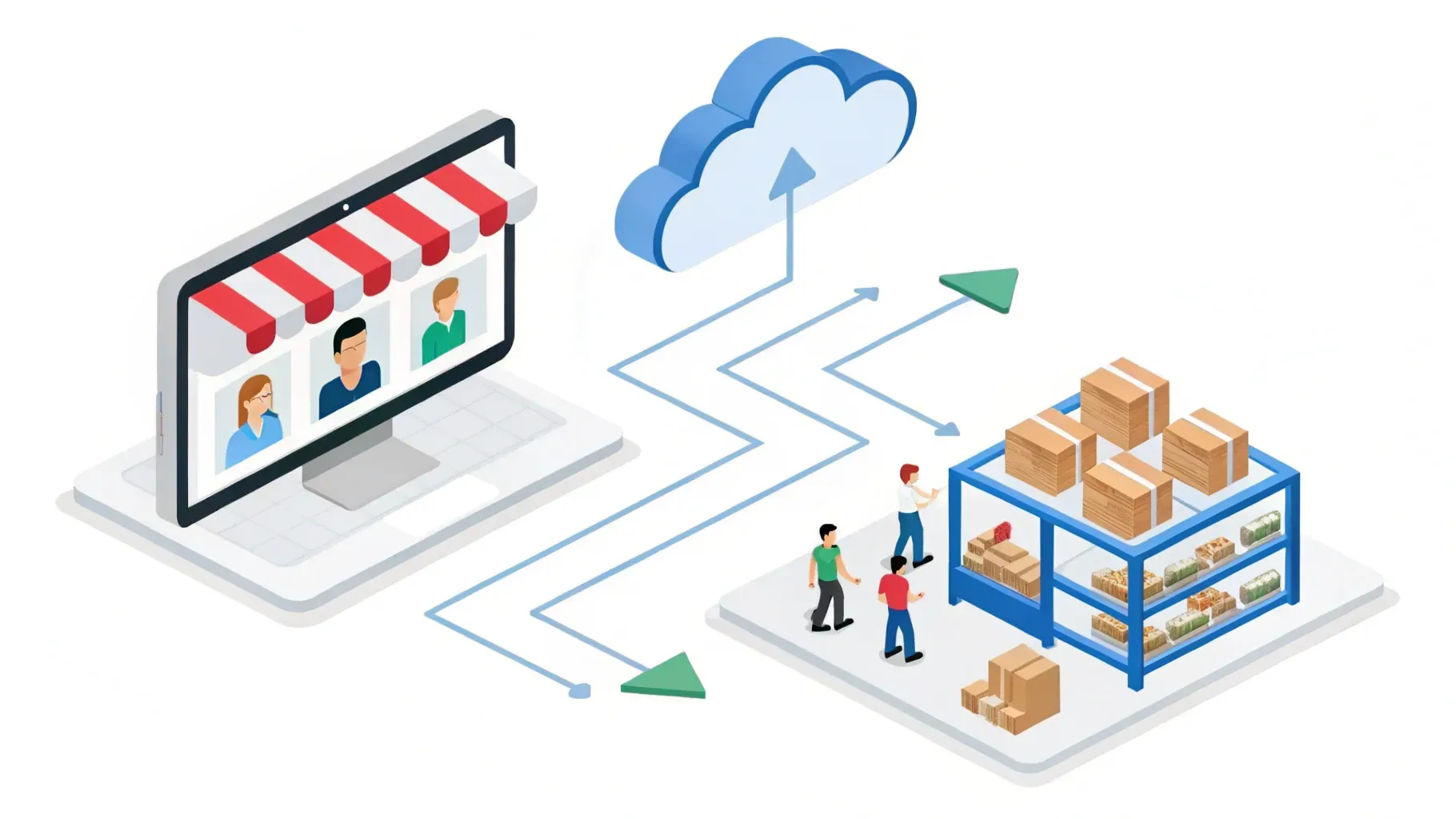
In a recent tutorial, the creator walked us through a simple, reliable way to import an entire ecommerce store into our business software in just a few clicks. We tested the steps, refined the wording, and put together this complete guide so teams of any size can move products, collections, customers, orders, and inventory into the platform quickly — without the usual headaches.
Below we cover everything you need to know: what to prepare before you begin, a step-by-step walkthrough of the import process, what data will sync depending on your store plan, how to re-sync or refresh data, practical tips for mapping and organizing imports, and answers to the most common questions. Our aim is to make this process predictable, safe, and useful so you can spend less time on integrations and more time growing your business.
Table of Contents
- Why import your ecommerce store into the platform?
- Before we begin: what to prepare
- High-level overview of the import process
- Step-by-step: connect your ecommerce store
- Step-by-step: select what to import and sync options
- Monitoring the import and what to expect
- Verifying the import
- Troubleshooting common issues
- Best practices and tips for a clean import
- How to re-sync or refresh data
- Security and privacy considerations
- Practical examples: how we use the imported data
- Checklist before we press “Connect”
- What to do after the import
- Testimonials from teams who migrated
- Frequently Asked Questions (FAQ)
- Final thoughts
Why import your ecommerce store into the platform?
Centralizing your ecommerce data in one place gives us a single source of truth for customers, orders, products, collections, and transactions. That makes daily operations easier and delivers clear business benefits:
- Faster workflows: No juggling multiple admin panels — we work from a single dashboard for marketing, support, and fulfillment.
- Better automation: When orders, payments, and customer records are synced, automations like order follow-ups and post-purchase funnels run reliably.
- Improved reporting: Consolidated data helps us track revenue, inventory, and customer behavior without manual exports.
- Less tech friction: A straightforward import reduces the need for custom coding or third-party connectors.
- Faster onboarding: Growing teams can get new staff access to everything they need in one place.
Before we begin: what to prepare
Preparation shortens the import and reduces surprises. Before starting, have the following ready:
- Administrator access to your ecommerce backend: We need permissions to create an integration and generate a secure access key for the platform to connect.
- Your store’s admin URL: We’ll copy the store URL from the admin console so the platform knows which store to connect.
- Plan awareness: Know whether your store is on a basic or higher plan. Basic plans often limit the types of data that can be imported; higher plans usually allow customers, orders, and transactions to sync in addition to products and collections.
- Time allowance: Larger catalogs or stores with many historical orders can take longer to import. Schedule the sync during a low-traffic period if you can.
- Backup & record-keeping: It’s good practice to export a CSV backup of your products and customers before big migrations so you have a snapshot just in case.
High-level overview of the import process
The import process follows three clear stages:
- Connect the store: From the platform’s Settings area, open Integrations and choose to connect your ecommerce store. We will paste a secure access key and the store URL here.
- Choose what to sync: Decide which data to import — products, collections, customers, orders, transactions, inventory — and save those sync options.
- Wait for the initial sync: Once connected and configured, the platform will import historical data and begin syncing new events going forward.
Step-by-step: connect your ecommerce store
We’ll walk through the full connection flow as we experienced it in the tutorial, reworded for clarity and simplicity. Follow these steps inside both the platform and your ecommerce admin:
1. Open the platform settings and start the integration
From the platform dashboard, go to the bottom-left and click on Settings. In Settings, select Integrations. Scroll down until you see the option to connect an ecommerce store and click the Connect button.
2. Gather two essential pieces of information
When initiating the connection, the platform will ask for two items:
- A secure store access key — we’ll generate this from the store admin in the next steps.
- Your store’s admin URL — copy this from the top of your store’s admin console so the platform knows which store to link to.
3. Generate the secure access key in your store admin
In the store admin, make sure we are logged in as an administrator. The exact wording may vary between platforms, but look for the settings area and the section that handles apps, integrations, or developer tools.
Here’s the sequence we used:
- Open Settings in the store admin.
- Choose the area that manages apps or integrations (sometimes labeled “Apps” or “Apps & sales channels”).
- Look for a developer or advanced apps section where we can create a new integration. Choose to create a new app or integration and give it a clear name (for example, “Platform Integration”).
- After creating it, open the configuration for the integration and set the permissions to allow read access for the data types we want to import.
For a complete store import we typically choose the following read permissions:
- Read products
- Read inventory
- Read customers
- Read orders
After selecting the permissions, save the configuration and install or enable the integration. The admin will then provide a secure key — copy that key. This is the credential we will paste into the platform to allow access.
4. Paste the secure key and add the store URL to the platform
Back in the platform’s integration setup, paste the secure key into the requested field. Then paste the store admin URL into the URL field. Some platforms will auto-fill part of the URL for you; if so, remove any duplicate bits so only the store domain remains in the correct place.
Once both items are entered, click Next to continue.
Step-by-step: select what to import and sync options
After the platform validates the store connection, it will present a screen where we choose which elements to import. This step determines both the historical import and what continues to sync going forward.
Which elements can we import?
Typical options include:
- Products: Product titles, descriptions, variants, SKUs, prices, images.
- Collections: Groupings of products such as “Homepage,” “Sale,” or any custom collections.
- Customers (Contacts): Customers who have placed orders — names, emails, addresses.
- Orders: Past purchases with line items, totals, taxes, and fulfillment status.
- Transactions: Payment records attached to orders.
- Inventory: Stock levels for each SKU or variant.
Plan differences: what to expect
It’s important to know that store plans often govern what can be accessed remotely. If your ecommerce store is on a basic plan, you may only be able to import products and collections. Stores on higher plans usually allow full access — customers, orders, transactions, and inventory.
We recommend enabling all available options when possible. The more data we bring into the platform, the more powerful our automations and reporting become.
Confirm and save sync settings
After selecting the items to import, review the choices and hit Save. This finalizes the sync options. Once saved, the platform will begin importing the selected data and will continue to sync future events based on your choices.
Monitoring the import and what to expect
Depending on store size, the initial import can take anywhere from a few minutes to several hours. Here’s what we should expect and how to monitor progress:
- Progress indicators: The platform usually shows a progress view or status in the Integrations area. Check there to monitor import progress.
- Partial data visible early: Products and collections often appear first, with customers and orders following as the system crawls historical records.
- Background sync: The platform processes the import in the background so we can continue other work.
- Re-import option: If we want to redo the whole import, we can disconnect and reconnect the store to trigger a full re-sync.
Verifying the import
Once the import completes, we should verify that all essential data transferred correctly. Here’s a quick checklist to confirm a successful migration:
- Products: Check that product names, descriptions, images, variants, SKUs, and prices are accurate.
- Collections: Ensure collections are present and products are assigned correctly.
- Customers: Confirm that contact records include emails, names, and addresses for past buyers.
- Orders & transactions: Spot-check a few historical orders to make sure totals, line items, and payment statuses match.
- Inventory levels: Verify stock counts for a sample of SKUs to prevent fulfillment issues.
In our walkthrough, we verified products by opening the Products area on the platform. The example product and the example collection appeared correctly, which confirms the basic connection was successful.
Troubleshooting common issues
Even with a smooth system, issues sometimes pop up. Here are the most common problems and how we resolve them:
Missing products or collections
- Check that the integration had read permission for products and collections.
- Confirm that the store URL used is the correct admin URL — sometimes staging or alternate domains cause confusion.
- If the product is newly created in the store after the initial sync started, wait a few minutes; new items sync continuously once the connection is live.
No customers or orders imported
- Verify the store plan supports customer and order access. Basic plans may not expose this data.
- Ensure the integration permissions included read access for customers and orders.
Invalid access key or connection fails
- Regenerate the secure key in the store admin and paste it again into the platform, ensuring no extra spaces before or after the key.
- Double-check we used an administrator account in the store admin when creating the integration.
Data mismatches or duplicate records
- Review your contact deduplication settings inside the platform; some systems merge duplicates by email, others by phone number.
- If duplicates exist, use the platform’s merge or cleanup tools to consolidate records.
Best practices and tips for a clean import
To get the most value from a store import, we recommend these practical steps:
- Clean up your store data first: Remove test products, placeholder collections, or archived items that we don’t need in the platform.
- Standardize product titles and SKUs: Consistent SKUs make inventory and fulfillment much easier after the import.
- Map collections thoughtfully: Use clear collection names that match how you’ll run campaigns and segments in the platform.
- Decide on contact strategy: Determine how you’ll use imported customers — for email campaigns, re-engagement, or support — and set tagging rules accordingly.
- Schedule imports for low-peak times: Especially for stores with thousands of products and orders, performing the initial sync at night or on weekends reduces risk of interference with live operations.
How to re-sync or refresh data
If we ever need to reimport everything — for example, after major store changes — we can disconnect the store and reconnect it to trigger a full re-sync. Alternatively, the platform usually allows changing sync options and resyncing only certain data types.
Steps to re-sync:
- Go to Settings > Integrations in the platform.
- Disconnect the current store connection.
- Recreate or regenerate the secure key in the store admin if necessary.
- Reconnect using the same steps as the initial setup and ensure all desired sync options are enabled.
Security and privacy considerations
We always treat customer and order data carefully. A few security points to keep in mind:
- Use administrator access carefully: Only create integrations while logged in as an admin to avoid permission errors.
- Keep the secure key private: Treat any copied integration keys like passwords — store them in a safe place and avoid sharing them in chat or email.
- Limit permissions to what you need: If the platform offers scoped permissions, only enable the read options required for the sync.
- Audit connections periodically: Revoke keys and reissue them if team members leave or if there’s any suspicion of compromise.
Practical examples: how we use the imported data
Once the store is imported, several practical workflows unlock immediately for our teams:
- Automated post-purchase messaging: Trigger thank-you emails and shipment notifications based on order events that are now synced into the platform.
- Segmentation for reactivation campaigns: Create segments for customers who haven’t purchased in 90 days and target them with tailored offers.
- Inventory alerts: Use inventory sync to trigger low-stock alerts for the operations team so restocking happens proactively.
- Cross-sell automations: When an order includes specific SKUs, automatically send cross-sell recommendations for complementary products.
Checklist before we press “Connect”
Use this quick checklist to make sure nothing important is missed before starting the import:
- We are logged into the store admin as an administrator.
- We copied the store admin URL.
- We created an integration in the store admin and set read permissions for products, inventory, customers, and orders (as needed).
- We copied the secure access key and pasted it into the platform’s integration request field.
- We confirmed which elements to import and saved the sync options.
- We scheduled the initial sync during a low-traffic window if the store is large.
What to do after the import
After the initial sync completes, we recommend these immediate next steps:
- Spot-check key records: Verify a handful of products, collections, customers, and orders for accuracy.
- Set up essential automations: Configure the must-have automations (order confirmations, shipping updates, and customer onboarding sequences).
- Create segments and tags: Tag customers by purchase behavior, and create a few segments for campaign testing.
- Train the team: Make sure customer support, fulfillment, and marketing teams know where to find information in the platform.
Testimonials from teams who migrated
"We moved our catalog and orders into the platform and cut our order-to-fulfillment time in half. The team loves seeing everything in one place." — Operations lead
"After importing customers and orders, our automated follow-ups recovered several lost sales within the first week. The import was straightforward and predictable." — Marketing manager
Frequently Asked Questions (FAQ)
Q: How long does the import take?
A: It depends on the size of the store — a small store can import in minutes, while large catalogs with many years of orders can take several hours. The platform runs the import in the background, and you can continue other work during the process.
Q: What data is imported on a basic store plan?
A: On basic plans, access is often limited. Typically, products and collections will import reliably, but customers, orders, and transactions may only be available when the store is on a higher plan. If you need full historical data, check your store plan or contact the store provider for plan-specific capabilities.
Q: Can we re-import everything if we made a mistake?
A: Yes. Disconnecting and reconnecting the store will trigger a full re-sync. Alternatively, adjust the sync options to re-import specific data types. Always back up your store data before heavy changes just in case.
Q: Will importing the store affect live orders?
A: No — the import reads data from your store but does not change or block live orders. However, we recommend performing the initial sync during a quieter period to reduce overlap with high order volumes and give the system time to process historical data.
Q: How do we keep data private and secure?
A: Treat any integration keys as sensitive credentials. Use administrator accounts to create integrations, restrict permissions to what is needed, and rotate keys if someone leaves the team or a key might be compromised.
Q: What if product variants or SKUs don’t line up?
A: Standardize SKUs and variant naming in the store before importing to reduce mapping headaches. If mismatches occur, use the platform’s product-editing tools after import to correct titles, SKUs, and inventory counts.
Final thoughts
Importing your ecommerce store into the platform is one of the fastest ways to eliminate manual tasks, reduce tech headaches, and give teams a single place to manage customers, orders, and products. With a clear checklist, a secure access key, and the right sync settings, we can have our store data flowing into the platform in a matter of minutes — and unlock automations that save hours every week.
Remember: clean data and clear permissions make the process smoother. When we take a little time to tidy the store and choose sensible sync options, we get a reliable integration that powers better customer experiences, faster fulfillment, and smarter marketing.
If we follow the steps above, we’ll be set up to use our imported data strategically — to increase revenue, reduce operational friction, and scale with confidence.



