
Opportunities in HighLevel: Sort by Custom Fields and Smart Tag Limit Increased to 60
Optimize your CRM with the latest HighLevel updates. You can now sort your Opportunities pipeline by custom fields for better visibility and utilize up to 60 smart tags to build more sophisticated, automated agency workflows that match your specific business process.

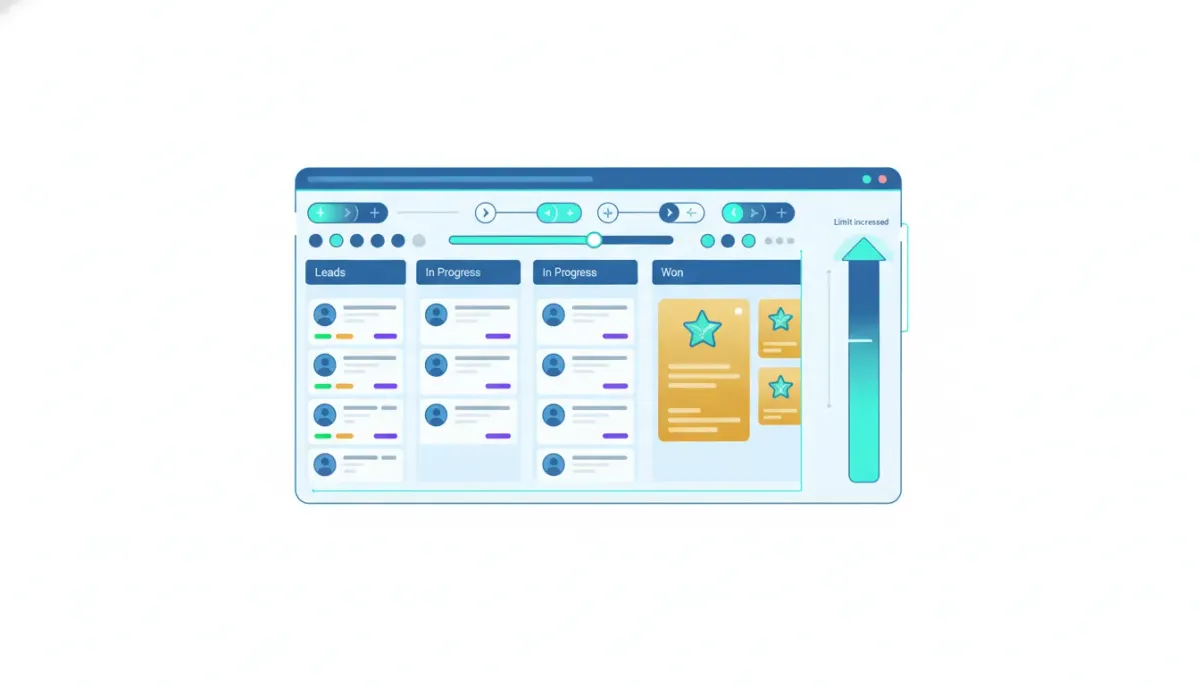
Happy Thursday, everyone. Here are two practical updates in HighLevel that make opportunities easier to manage and more flexible for real agency workflows. If you are living inside your CRM day after day, these are the kind of improvements that save time immediately.
The Complete Operating System for Growth
Join over 60,000+ agencies and businesses using HighLevel to capture more leads and close more deals. Start your trial today and get instant access to the Nexus Hub resources.
Claim Your Free Trial & Bonuses1) Sort Opportunities by Custom Fields (More Control Over Your Pipeline)
One of the most common pain points with any CRM pipeline is the same: you want to find the right opportunities fast, but the default sorting and views do not always match how you actually work.
That is why HighLevel added the ability to sort Opportunities by your custom fields. In plain terms, you can use fields you created for your specific business or client process, then sort and prioritize based on those fields.
This might sound small, but it is powerful because it changes how quickly you can scan and act. Instead of relying on broad categories, you can sort by the exact attributes that matter to you, like lead source, deal stage details, priority level, expected close date, contract status, or whatever your agency tracks.
Why custom-field sorting matters for agency operations
If you are doing HighLevel agency setup and scaling, your systems need to be repeatable, not just “usable.” Sorting by custom fields supports that by helping you:
- Prioritize work consistently across your team (for example, sort by priority or readiness fields).
- Maintain cleaner pipeline hygiene by surfacing opportunities that are missing required info.
- Speed up follow-ups by bringing time-sensitive opportunities to the top.
- Run better internal processes because your CRM becomes aligned with your agency best practices.
How to find the setting
To use this capability, go to the Opportunities area and use the option to sort by custom fields. The help guidance points you toward the relevant place: Use Kanban view and opportunities.
If you are confirming where exactly it lives in your workspace, also check:
- Help documentation (use the “help doc” entry related to “Kanban view and opportunities”).
- Change log (there is a speaker icon in the top right corner where you can view updates).
Example: sorting your pipeline based on what your team cares about
Let us make this concrete. Imagine your agency tracks a custom field called “Readiness for Onboarding” or “Contract Signed”. When you sort Opportunities by that custom field, you instantly see:
- Opportunities that are ready to onboard now
- Opportunities that are stuck waiting on a signature
- Opportunities that are still early stage and need more qualification
Now, your HighLevel workflows and automations can interact with those same custom fields, and your team can act based on reality, not guesswork.
2) Opportunity Smart Tag Limit Increased to 60
The second update is one of those “thank you for the customer request” improvements. HighLevel increased the Opportunity smart tag limit to 60.
For anyone building sophisticated pipelines, smart tags matter because they let you attach dynamic, automated logic to items. If you are using HighLevel for CRM, marketing automation, and SaaS operations, smart tags are usually part of how you scale without manually updating everything.
Earlier limits can force workarounds. For example, you might have had to combine conditions, reduce personalization, or stop using smart tags for certain fields because you were nearing the cap. Raising the limit to 60 gives you more room to build clean, specific automation rules.
What smart tags enable in real-world workflows
Smart tags are especially useful when you are trying to:
- Personalize messaging or follow-ups based on Opportunity attributes.
- Drive branching automation in workflows (different next steps depending on status, source, or custom field values).
- Keep pipelines consistent so your team does not need to manually translate between statuses and actions.
When you are running an agency setup and scaling, that consistency is everything. Systems should be reliable even when volume increases. A higher smart tag limit removes friction from designing those systems properly.
Customer-driven improvements are a good sign
This change was explicitly tied to a customer request. The best operational software often evolves this way: real people hit real limits, then those limits get expanded so the platform can handle more complex agency workflows and automations.
How to use these updates together (A practical approach)
Sorting by custom fields and increasing the smart tag limit are separate improvements, but they strengthen the same core idea: your Opportunities pipeline should reflect your agency process, not just a generic CRM view.
Here is a practical way to combine them:
- Create custom fields for those decision points.Keep them simple and operational. You want the fields your team uses every day, not fields that only exist for reporting.
- Use smart tags and workflows to populate those fields.When possible, automate the updates so the data stays accurate and current.
- Sort Opportunities by custom fields so the pipeline view matches your daily priorities.This ensures the most important items are always easy to find.
Identify your key Opportunity decision points.What determines what your team does next? Examples include contract status, onboarding readiness, estimated close date, service line, or lead source.
The Complete Operating System for Growth
Join over 60,000+ agencies and businesses using HighLevel to capture more leads and close more deals. Start your trial today and get instant access to the Nexus Hub resources.
Claim Your Free Trial & BonusesIn other words: custom fields help you structure your pipeline. Smart tags and automations help you keep it updated. Sorting helps you act quickly. That is the full loop agencies need to scale.
Where to check more HighLevel update details
Two quick pointers to stay current without hunting around:
- Check the Help documentation for the specific area tied to “Kanban view and opportunities.”
- Use the Change log accessible via the speaker icon in the top right corner.
HighLevel updates tend to be meaningful once you know where to look, especially if you are actively building HighLevel workflows and automations for client delivery or internal operations.
Next step: build smarter Opportunity workflows in your own workspace
If you have not explored HighLevel Opportunities deeply yet, these updates are a great reason to dig in. Sorting by custom fields can immediately improve pipeline visibility, and the smart tag limit increase gives you room to expand how you automate next steps.
If you want a quick way to implement improvements without pressure, consider starting a HighLevel free trial and testing your current pipeline logic against these new capabilities. Create a couple of custom fields, set up sorting, and then see how much faster your team can triage.
Also, if you are looking for templates and implementation support, the Nexus Hub community can be a strong resource for agency systems and best practices, especially when you are scaling a repeatable CRM, marketing automation, and SaaS operations setup.
FAQ
Where can I sort HighLevel Opportunities by custom fields?
Go to the Opportunities area in HighLevel and use the sorting option tied to custom fields. The help guidance mentions the relevant context around Kanban view and opportunities.
What does sorting by custom fields actually improve?
It lets you prioritize and scan your pipeline based on the specific attributes your agency tracks, such as readiness, priority, close timing, contract status, or other custom data points.
What is the new Opportunity smart tag limit?
The smart tag limit for Opportunities has been increased to 60.
How do smart tags fit into HighLevel workflows and automations?
Smart tags help power dynamic behavior and personalization inside your automations, so next steps can adapt based on Opportunity attributes and custom field values.
How can agencies use these updates to scale better?
Create operational custom fields that represent decision points, automate the field updates with HighLevel workflows and automations, then sort Opportunities by those fields so your team consistently focuses on the highest-leverage actions.
Where do I find official update details?
Check the Help documentation for “Kanban view and opportunities,” and review the Change log via the speaker icon in the top right corner.
The Complete Operating System for Growth
Join over 60,000+ agencies and businesses using HighLevel to capture more leads and close more deals. Start your trial today and get instant access to the Nexus Hub resources.
Claim Your Free Trial & Bonuses


