
Ecom Additional Product Media Layout Options for the Product Details Page
Enhance your store's shopping experience with HighLevel’s new product media layout options. Learn how to use gallery, carousel, and two-column displays to showcase products effectively, improve mobile navigation, and drive higher conversions on your Product Details Page.

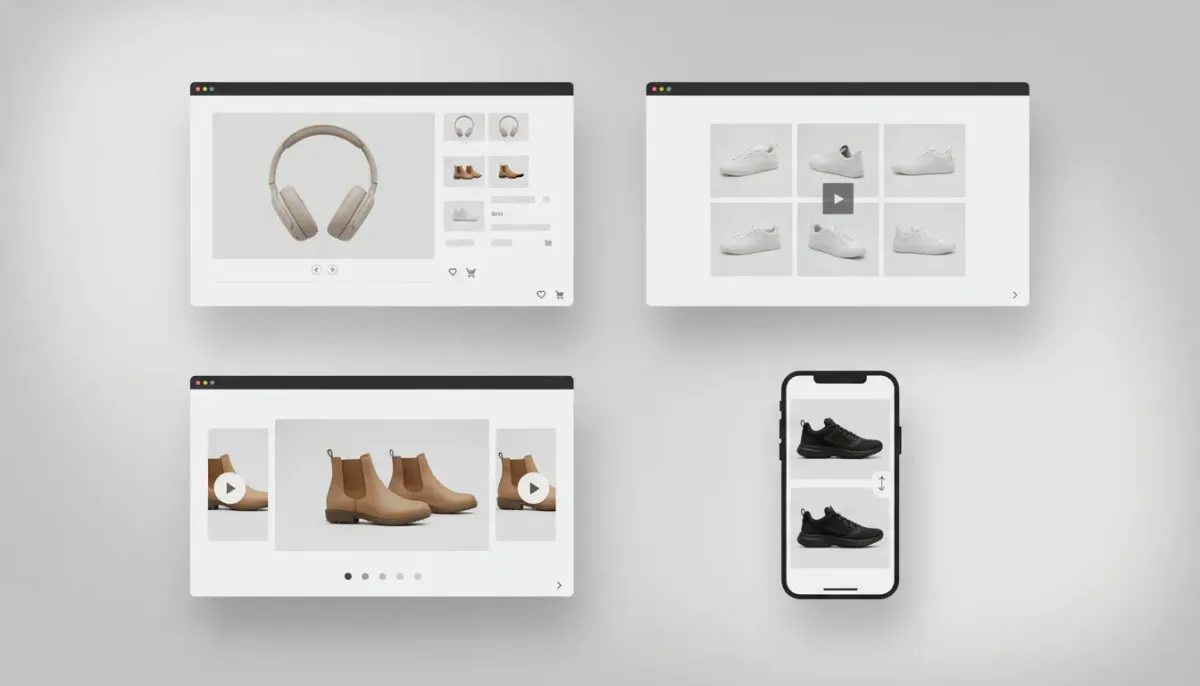
Product presentation matters. High-quality product media not only shows what you sell but also shapes trust, conversion, and the overall shopping experience. Recently, HighLevel introduced additional product media layout options for the Product Details Page that give merchants more flexibility in how products are displayed. These updates include a classic gallery, a modern carousel, a two-column layout, image navigation arrows, and optimized mobile behavior. Below is a practical guide to what changed, why it matters, and how to make the most of these new options inside HighLevel.
The Complete Operating System for Growth
Join over 60,000+ agencies and businesses using HighLevel to capture more leads and close more deals. Start your trial today and get instant access to the Nexus Hub resources.
Claim Your Free Trial & BonusesWhat’s new: a quick rundown
The Product Details Page now supports multiple media layout styles so you can tailor how images and videos are shown for each product. The main additions are:
- Gallery: The familiar grid or stacked thumbnails and main image view.
- Carousel: A horizontal slider that cycles through images, ideal for storytelling and highlighting multiple angles.
- Two-column: A side-by-side display where the image(s) sit next to product details, often used for clean, conversion-focused layouts.
- Image navigation arrows: Built-in arrows for quicker manual navigation between images and layouts.
- Mobile layout optimization: Improved responsiveness and touch-friendly navigation for smaller screens.
Why these layout options matter
Each product and audience has different visual needs. Giving merchants multiple ways to present media helps match the layout to the product type, visual assets, and intended customer experience. Key benefits include:
- Better storytelling: Carousels let you walk a shopper through a product’s features, uses, and lifestyle shots in a linear, controlled way.
- Cleaner buying experience: Two-column layouts centralize details and reduce clutter, making it easier to focus on conversion actions like adding to cart or choosing variants.
- Faster image discovery: Navigation arrows let users quickly scan large image sets without hunting for small thumbnails.
- Improved mobile UX: Optimized touch interactions and layout adjustments reduce friction on phones and tablets, raising engagement and conversions.
Choosing the right layout: practical guidelines
Consider the product type, the number and quality of images, and the typical buyer’s decision journey when choosing a layout.
When to use Gallery
- Products with several high-resolution images and thumbnails that benefit from a grid look.
- Catalog-style shops where shoppers expect a familiar layout.
- Products where the main selling points are visible in one or two images, but supporting shots provide additional context.
When to use Carousel
- Items with a clear narrative or sequence: unboxing, step-by-step usage, before/after photos, or a range of colorways.
- High-impact lifestyle photography that looks better when presented in a single large frame rather than a grid of small thumbnails.
- Landing pages or hero product pages where immersive visual storytelling improves engagement.
When to use Two-column
- Premium products where a balanced layout (image on one side, details on the other) improves perceived value.
- Complex items that require immediate attention to variants, price, size guides, or technical specs alongside the visual.
- Conversion-focused product pages where minimizing scroll and keeping CTAs visible matters.
Image navigation arrows and micro-interactions
Navigation arrows are a small UX improvement with outsized impact. They make browsing faster and more intuitive, especially for customers using a mouse or keyboard. On touch devices, arrows complement swipe gestures by offering a visible control that encourages deeper exploration of product photos.
Use arrows when you have multiple product photos and want to reduce cognitive load. Combine with clear captions or indicators (e.g., "1 of 6") to help shoppers understand how many images are available and where they are in the sequence.
Mobile-first considerations
Mobile ecommerce continues to dominate. The updated mobile layout prioritizes:
- Touch-friendly controls and larger tap targets for arrows and thumbnails.
- Responsive image scaling to keep important visual details visible without excessive zooming.
- Adaptive stacking in two-column layouts so content remains readable without awkward breaks.
Always test the layout on multiple device sizes and network speeds. What looks great on a desktop with a blazing connection can be slow or clumsy on a mid-range phone over cellular.
Practical implementation tips in HighLevel
Applying these layouts effectively requires more than flipping a switch. Here are practical steps and best practices for product media management and layout setup inside HighLevel.
Image preparation and upload
- Optimize image file size before uploading. Use modern formats like WebP when possible and compress images without losing critical details.
- Use consistent aspect ratios across product photos to avoid awkward cropping or layout shifts when navigating between images.
- Provide clear alt text that includes concise product descriptors and, when appropriate, keywords to support SEO for product pages.
- Include a variety of shots: hero image, multiple angles, close-ups, lifestyle/context shots, and scale references.
Choosing a layout per product
For high-ticket or brand products use the two-column layout to emphasize value and detail. For lifestyle or multi-angle products favor a carousel that allows full-screen viewing. Where quick scanning is common, the gallery is an efficient default.
Testing and optimization
- Run A/B tests between layouts on representative products to measure differences in session length, add-to-cart rate, and conversion rate.
- Monitor page load times after switching layouts. Use lazy loading to defer offscreen images and reduce time to interactive.
- Track user interactions with images using HighLevel CRM events or analytics to understand which visuals drive conversions.
Combine layouts with HighLevel workflows and automations
The new media layouts should be part of a bigger commerce strategy. Use HighLevel workflows and automations to turn image engagement into conversions and retention.
- Behavioral triggers: Track product image interactions as events. If a shopper views several images or a particular lifestyle photo, trigger a follow-up message with social proof or a limited-time offer.
- Abandoned browse follow-ups: If a visitor views multiple images and leaves, trigger an SMS or email reminding them of the product with a direct link back to the layout they saw.
- Cross-sell automations: When a shopper views a product gallery for a particular category, automatically surface complementary products using personalized SMS or email sequences.
- Segmentation: Use image engagement to segment customers into intent groups—those who only glanced versus those who deeply explored all media—and tailor messaging accordingly.
Agency best practices: scaling product pages with HighLevel
Agencies managing multiple storefronts can use these layout options to create templates, speed up implementation, and deliver consistent UX across clients.
- Standardize image specs across clients so that assets are production-ready and layouts render consistently.
- Create template product pages with preselected layouts (carousel for apparel, two-column for electronics) to reduce decision fatigue during onboarding.
- Use HighLevel’s agency tools to duplicate product pages, apply bulk updates, and push best practices across client accounts.
- Leverage Nexus Hub for templates and community-shared resources that speed up page builds and workflow automation.
Common pitfalls and how to avoid them
Too many images without hierarchy
Uploading dozens of images without prioritizing the hero shot or order can overwhelm shoppers. Curate and order images so the most persuasive photo appears first.
Poorly optimized images
Large, uncompressed images kill page speed. Compress images, use lazy loading, and consider WebP to keep load times low without sacrificing quality.
The Complete Operating System for Growth
Join over 60,000+ agencies and businesses using HighLevel to capture more leads and close more deals. Start your trial today and get instant access to the Nexus Hub resources.
Claim Your Free Trial & BonusesMismatched image aspect ratios
Varying aspect ratios can cause layout jumps and crop out important details. Stick to consistent ratios or provide versions that fit the chosen layout.
Ignoring mobile behavior
A layout that performs on desktop can fail on phones if touch targets are small or images scale incorrectly. Test mobile extensively and prioritize mobile-first design decisions.
Measuring success
Track these metrics to evaluate the impact of layout changes:
- Conversion rate at product page and overall checkout.
- Add-to-cart rate and time on page.
- Bounce rate for product pages with different layouts.
- Engagement with image assets (clicks, swipes, navigation arrow usage).
- Page load time and Core Web Vitals to ensure the design is performant.
Next steps and recommendations
If you manage an ecommerce storefront within HighLevel, start by auditing a selection of your best-selling products. For each product:
- Review the current image set and prioritize the hero image.
- Choose a layout that supports the product’s storytelling needs.
- Optimize images for size and consistency.
- Enable navigation arrows where appropriate and test on mobile.
- Hook image engagement events into HighLevel workflows to capture intent and follow up automatically.
For agency teams, build a small set of layout templates and image standards to roll out across clients. Use HighLevel automation to replicate successful workflows and measure results.
Conclusion
Visual presentation is a core conversion lever. The expanded product media layout options in HighLevel give merchants and agencies the tools to present products in ways that match brand, product type, and buyer intent. When combined with image optimization, analytics, and HighLevel workflows, these layout options can meaningfully improve engagement and conversions.
If you are optimizing storefronts or building ecommerce experiences for clients, take advantage of these layout options—and consider connecting image engagement signals to your HighLevel automations to turn interest into action. For ready-to-use templates and community support, check out Nexus Hub and consider starting a HighLevel free trial to experiment with these features hands-on.
FAQ
Which media layout options are available for product pages?
The Product Details Page supports a gallery view, a carousel slider, and a two-column layout. You also have image navigation arrows and improved mobile behavior to choose from.
How do I decide between carousel and two-column layouts?
Use a carousel when you want immersive storytelling or large, sequential images. Choose two-column when emphasizing product details and conversion elements side-by-side, such as pricing, variants, and CTAs.
Do these layout changes affect mobile users?
Yes. The update includes mobile layout optimizations like larger touch targets, responsive scaling, and better stacking behavior to improve usability on phones and tablets.
Will more images slow down my product pages?
More images can impact load times if not optimized. Compress images, use modern formats like WebP where possible, and enable lazy loading to keep pages fast while still offering rich media.
How can I use HighLevel automations with product media engagement?
Track image views or interactions as events in HighLevel and trigger workflows—such as targeted SMS or email follow-ups, abandoned browse sequences, or cross-sell messages—based on that engagement.
Where can agencies find templates or help implementing these layouts?
Nexus Hub and the HighLevel community are great resources for templates, implementation guides, and best practices. Agencies can also leverage HighLevel’s agency features to clone templates and replicate workflows across client accounts.
The Complete Operating System for Growth
Join over 60,000+ agencies and businesses using HighLevel to capture more leads and close more deals. Start your trial today and get instant access to the Nexus Hub resources.
Claim Your Free Trial & Bonuses


