
How to Receive and Use Image/PDF Uploads in HighLevel Live Chat (Conversation AI Enabled)
Learn how to enable image and PDF uploads in HighLevel Live Chat. This guide covers configuring Conversation AI to process attachments, automating support workflows, and improving lead qualification for agencies using GoHighLevel's AI-powered conversational tools.


Allowing customers to upload files directly into your HighLevel live chat dramatically improves support, lead qualification, and task automation. This guide explains what the file upload capability does, how to configure HighLevel chat widgets and Conversation AI to read uploaded images and PDFs, practical use cases, security considerations, and troubleshooting tips for agencies and marketing teams.
What this feature does and why it matters
HighLevel live chat supports file attachments so website visitors can send images, screenshots, and PDFs during a live conversation. When Conversation AI is configured, it can analyze those uploaded files and generate helpful, context-aware responses automatically. That reduces response time, cuts manual ticket triage, and lets you automate richer support and sales flows inside HighLevel.
This capability is useful for:
- Customer support: Customers send screenshots of errors or invoices to get immediate AI-assisted help.
- Sales qualification: Prospects upload PDFs or product images for price estimates and rapid follow-up.
- Onboarding: Clients submit documents for account setup and the AI extracts relevant details.
- Agencies: Teams scale client support without hiring more agents by leveraging AI to pre-process attachments.
Quick overview: How it works (at a glance)
- Create or select a HighLevel chat widget on your site.
- Visitors use the chat to attach images or PDFs; uploads appear as links in the chat thread.
- Conversation AI reads supported files when the agent is set to handle live chat and is allowed to respond to images.
- The AI uses file content plus chat context to generate replies or trigger workflows.
Step-by-step setup
1. Confirm chat widget is installed and active
In HighLevel, each website has an associated chat widget. Make sure the widget is created and embedded on the target site. The file upload feature is available in live chat widgets by default, so no additional plugin installation is required.
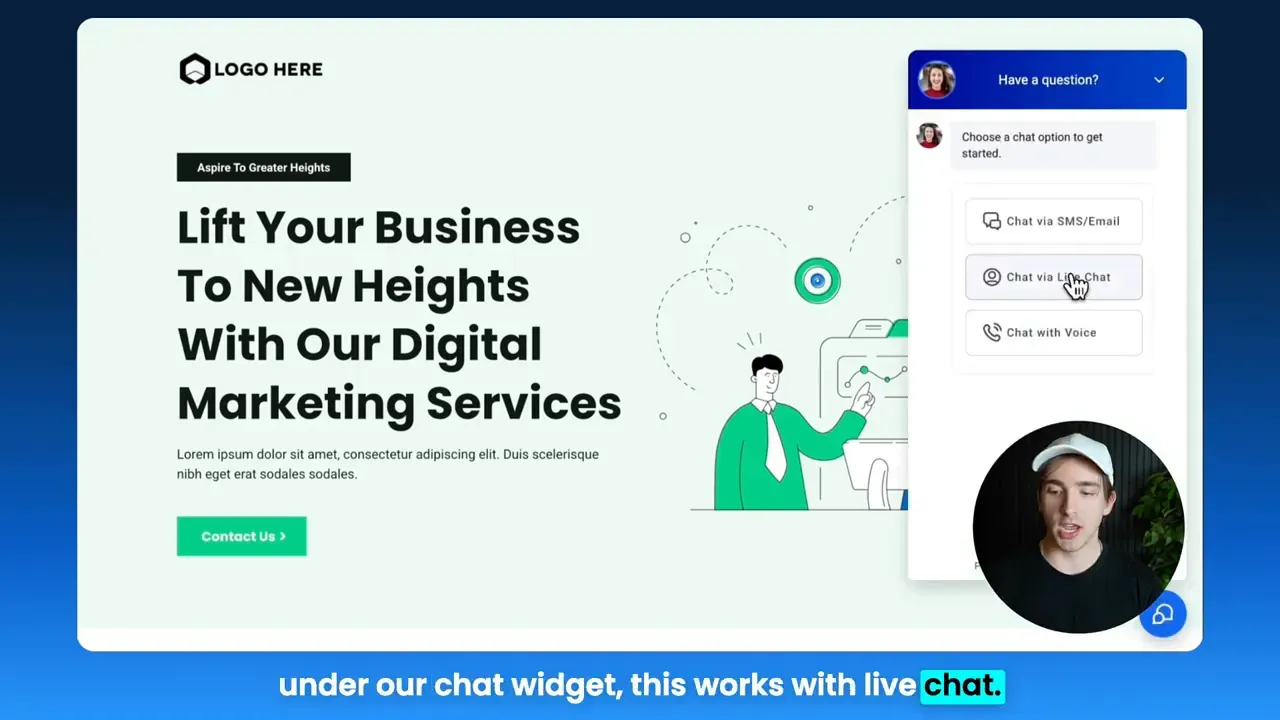
2. Test file upload behavior
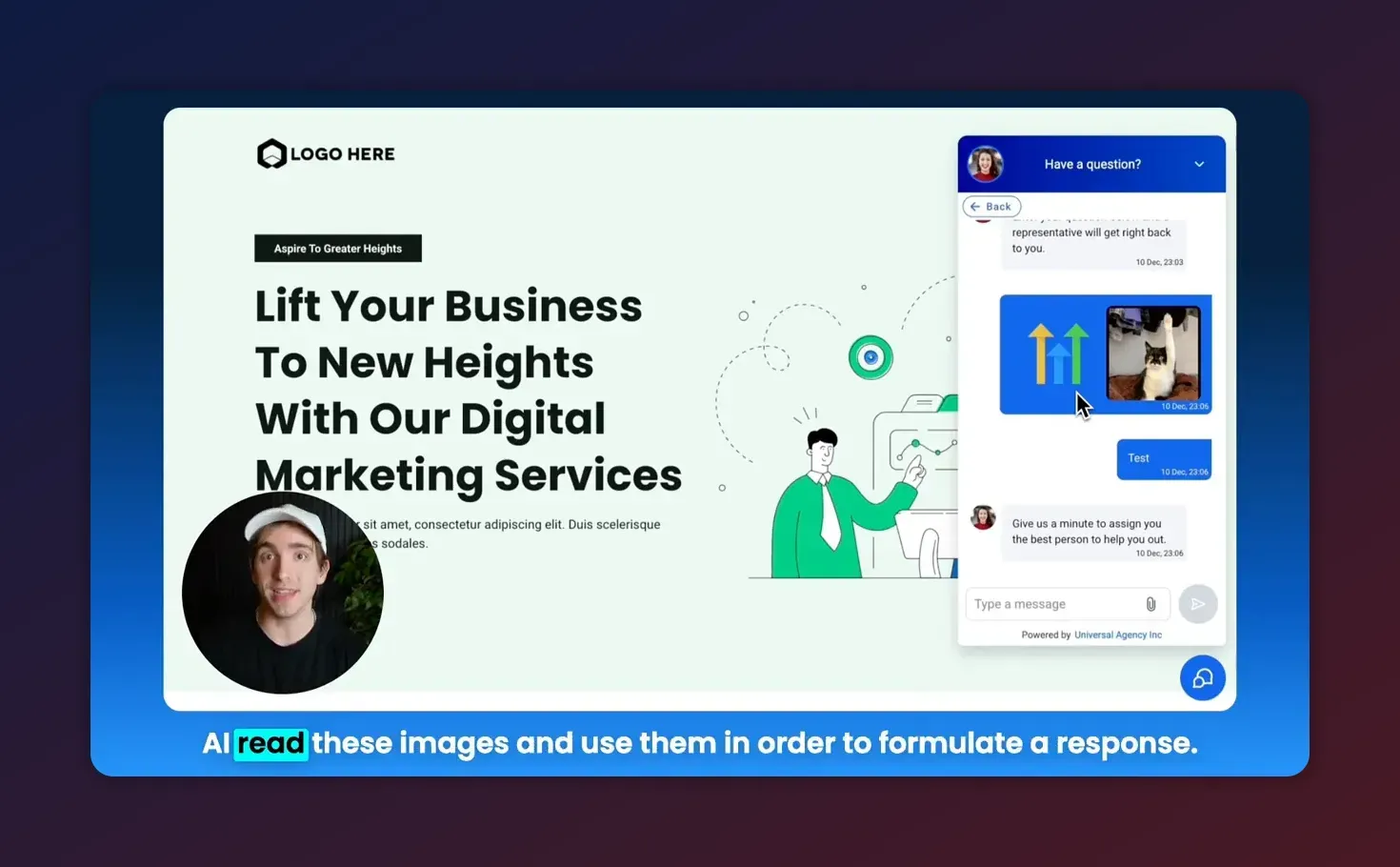
From the website, open the chat widget and attach an image or a PDF. Send a short message alongside the file. The chat will display a link or thumbnail representing the upload. That link is stored and can be referenced later by your team or workflows.
3. Configure a Conversation AI agent to handle live chat
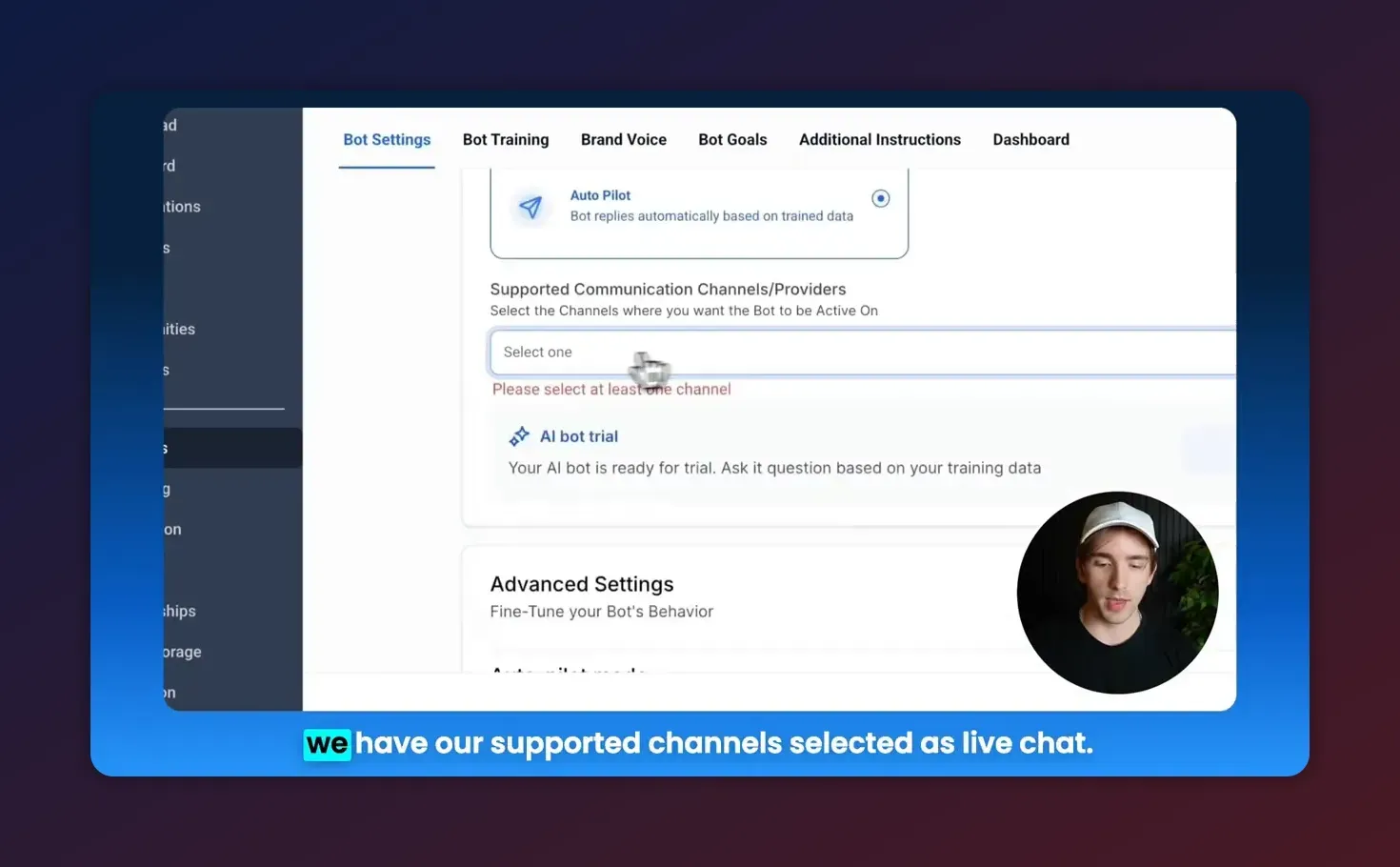
For the AI to process uploaded files, create or edit an AI agent in the HighLevel Agency area, then set its supported channels to include live chat. This ensures the bot receives messages that arrive through your website chat widget.
4. Enable the "respond to images" option
In the agent setup, locate the setting that allows the bot to read and respond to images. Toggle this on so the agent can parse image and PDF content and incorporate it into its responses.
5. Combine AI responses with workflows and automations
Use HighLevel workflows to act on the AI's output. For example, route certain uploads to a support queue, create tickets when attachments indicate critical errors, or send follow-up emails with extracted data from a PDF.
Practical use cases and examples
Customer support: Diagnose issues from screenshots
A user can take a screenshot of an error and upload it in chat. The Conversation AI can read the image, detect visible error messages or UI elements, and provide troubleshooting steps or escalate to a human agent when needed.
Invoice processing and client onboarding
Clients submit invoices or onboarding documents as PDFs. The AI can extract key fields—like billing amounts, dates, vendor names—and either summarize them in chat or push structured data into CRM records or workflows.
Sales and product matching
Prospects upload pictures of their current setup or product they want to replace. AI analyzes the image and recommends compatible services or packages, then triggers a calendar booking or quote generation workflow.

Best practices for high-quality results
- Prompt design: Provide clear, concise prompts or fallback messages so the AI knows what to extract or prioritize from images and PDFs.
- File naming: Encourage users to include short descriptions alongside uploads to give quick context that supplements the file content.
- Structured workflows: Use automations to handle common scenarios the AI identifies, such as creating support tickets or tagging leads.
- Human review: For high-risk or high-value interactions, route AI-generated answers to a human for verification before finalizing actions.
- Training data: Regularly review transcripts with file attachments to refine prompts and agent behavior for better parsing accuracy.
Security, privacy, and storage considerations
When enabling file uploads and AI analysis, evaluate how attachments are stored, accessed, and shared:
- Storage location: Uploaded files are stored in the linked cloud storage (for example, Google APIs or other configured storage). Confirm your account settings and retention policies.
- Access control: Limit which team roles can view attachments. Use HighLevel's user permissions to prevent unauthorized access.
- Data retention: Define retention and deletion rules for attachments to comply with privacy regulations or client agreements.
- Sensitive data: Avoid processing or storing highly sensitive personal data via chat unless necessary and compliant with regulations like GDPR or HIPAA (if applicable). Use disclaimers if you must accept sensitive files.
- Audit logs: Keep an audit trail of who accessed or downloaded files in case of disputes.
Troubleshooting common issues
Uploads not appearing in chat
Verify the chat widget is embedded correctly and that the site's browser can upload files. Check network restrictions or ad blockers that might prevent file uploads.
Conversation AI ignores attachments
Confirm the agent has live chat enabled as a supported channel and that the "respond to images" setting is toggled on. Ensure the AI agent is active and assigned to the chat widget or routing rules.
Files present but AI gives irrelevant responses
Improve prompts and provide context when possible. If the AI misinterprets file content, add examples to agent instructions or create rules that ask clarifying questions before taking action.
Start Your HighLevel Trial + Get Instant Nexus Hub Access
Build, scale, and optimize your business with HighLevel. Start a free trial using this link to get automatic access to the Nexus Hub community, templates, and implementation resources.
Start Free TrialFile format or size problems
Check allowed file types and size limits configured in your platform settings or help documentation. If uploads fail due to size, request users compress files or use a secondary upload method (email, shared drive).
Configuration checklist for agencies
Use this quick checklist when rolling out file-enabled live chat and Conversation AI for clients.
- Embed and test the chat widget on the client's website.
- Verify file upload and rendering in the chat thread.
- Create or assign a Conversation AI agent with live chat enabled.
- Toggle on image/PDF response capability for the agent.
- Define workflow triggers for key file types or detected content.
- Set user permissions and storage retention policies.
- Document processes for human escalation and quality reviews.
Limitations and edge cases to watch for
While powerful, automated file reading has limits:
- OCR accuracy: Text extraction from images or scanned PDFs may fail with low-resolution uploads, unusual fonts, or handwriting.
- Context gaps: Files without accompanying context can be ambiguous; AI responses may be generic or require follow-up questions.
- File types: Some formats, like proprietary document types or multi-page PDF structures, may not parse perfectly without additional tooling.
- Regulatory constraints: For industries with strict data handling rules, automated parsing may require additional compliance controls.
How to measure success
Track these metrics to evaluate the impact of enabling file uploads and AI parsing:
- First response time: Average time from file upload to first automated response.
- Resolution rate: Percent of inquiries resolved without human intervention after file analysis.
- Escalation rate: How often AI routes to human agents for review.
- Customer satisfaction: CSAT or follow-up surveys after AI-assisted interactions.
- Workflow automation rate: Number of automations triggered by file-based parsing (ticket creation, data entry).
Next steps and recommended resources
To implement this feature:
- Enable and test the chat widget on your site.
- Create an AI agent and allow it to respond to images.
- Build workflows to act on parsed data.
- Train the agent with examples relevant to your business verticals.
Agencies that want templated prompts, automations, and accelerated implementation can explore community resources and templates available through HighLevel's implementation networks and the Nexus Hub community.
Can the AI read both images and PDFs uploaded in the live chat?
Yes. When the Conversation AI agent has live chat enabled and the "respond to images" option is toggled on, it can process image files and PDFs submitted through the chat. Results depend on file quality and format.
Do I need to enable anything extra to accept file uploads in HighLevel chat widgets?
File uploads are available in live chat widgets by default. You only need to ensure the widget is embedded on your site. To have the AI read those files, enable live chat as a supported channel in your Conversation AI agent and allow image responses.
Where are uploaded files stored and who can access them?
Uploaded files are stored in the configured cloud storage (for example, Google APIs integration). Access is controlled by your HighLevel account permissions. Review storage, retention, and user access settings to match your privacy and compliance requirements.
What file types and size limits are supported?
Supported file types typically include common image formats and PDFs. Size limits vary by account settings and storage provider. If uploads fail, confirm allowed formats and maximum file size in your account documentation or support resources.
How do I handle sensitive information submitted in chat attachments?
Minimize risk by restricting file uploads for sensitive data, implementing retention policies, and using role-based access controls. For regulated industries, consult legal and compliance teams and consider avoiding automated parsing of regulated personal data unless you have compliant processes in place.
Summary and recommended action
Enabling file uploads and configuring Conversation AI to read images and PDFs in HighLevel live chat adds immediate value to support, sales, and onboarding workflows. The setup is straightforward: confirm your chat widget, test uploads, assign a Conversation AI agent to live chat, and toggle image response. Combine this with well-designed prompts, workflows, and access controls to scale agency operations and deliver faster, more intelligent customer interactions.
Ready to implement? Start a HighLevel free trial to test these features in your environment and explore Nexus Hub templates and community resources for pre-built prompts and automations.
Start Your HighLevel Trial + Get Instant Nexus Hub Access
Build, scale, and optimize your business with HighLevel. Start a free trial using this link to get automatic access to the Nexus Hub community, templates, and implementation resources.
Start Free Trial


