
New Goal Events in HighLevel: Invoice Paid and Review Request Clicked
Learn how to use the new Invoice Paid and Review Request Clicked goal events in HighLevel. This guide covers how to streamline fulfillment, improve reputation management, and build cleaner, more resilient automations for your agency.

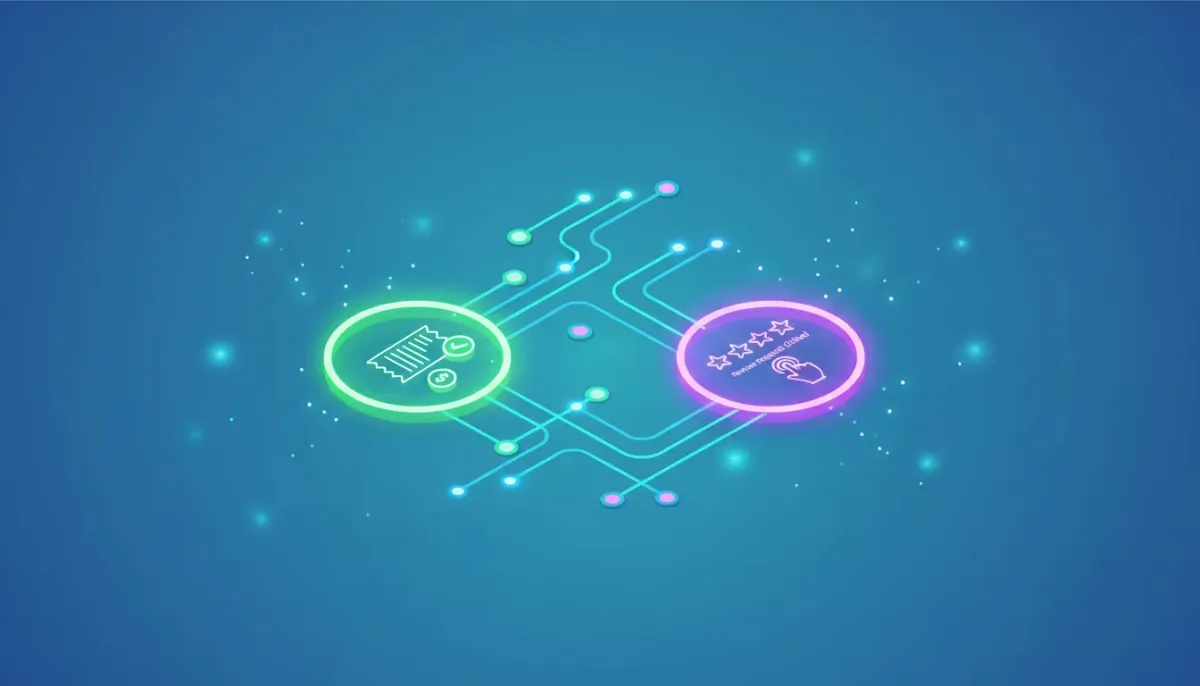
Goals in HighLevel bring elegance to complex automations. Instead of building giant if-else trees and trying to account for every middle step, goals let you define exit ramps and transition points that trigger when something specific happens. Two powerful goal events have been added: Invoice Paid and Review Request Clicked. These are small additions with huge practical impact for agencies running HighLevel workflows, automations, and CRM operations.
The Complete Operating System for Growth
Join over 60,000+ agencies and businesses using HighLevel to capture more leads and close more deals. Start your trial today and get instant access to the Nexus Hub resources.
Claim Your Free Trial & BonusesWhy goals matter in HighLevel workflows
Think of a goal as a waypoint that sits off to the side of a workflow. Your workflow can continue to run normally, but when a goal condition is met, the contact jumps to a new spot or exits altogether. This lets you design complex sequences without worrying about every possible detour.
Goals make workflows:
- Cleaner — you avoid entangling conditions inside the main flow.
- More resilient — actions outside the workflow can still trigger changes.
- Easier to maintain — adjust a goal without refactoring the entire automation.
For agencies and teams that scale via HighLevel, goals are lifesavers. They let you orchestrate billing, fulfillment, reputation management, and onboarding without spaghetti logic.
What’s new: Invoice Paid and Review Request Clicked
These two goal events expand the kinds of triggers you can react to immediately:
- Invoice Paid — Trigger when an invoice status changes (paid, partially paid, etc.).
- Review Request Clicked — Trigger when a recipient clicks the review request link. You can filter by specific review requests or by channel.
Both are purpose-built for common agency workflows around payments and reputation, so you can stop, pivot, or advance contacts in a workflow the instant those actions occur.
Invoice Paid: what you can do and when to use it
Invoice Paid can be configured to respond to several invoice statuses, not just fully paid. That gives you flexibility for nuanced billing flows like deposits, partial payments, milestone-based billing, and final settlements.
Practical uses:
- Immediate fulfillment: When a client pays an invoice, automatically grant access to a product, send onboarding documents, or trigger a fulfillment task for your team.
- Stop nurture campaigns: If someone is in a pre-sale nurture sequence and then pays, opt them out of follow-up messages meant for non-paying prospects.
- Accounting and bookkeeping: Add tags, update custom fields, and push payment data to external systems via webhooks or integrations.
- Upsell sequences: When an initial invoice is paid, move the client into an upsell or cross-sell automation tailored to their purchase.
- Milestone-based projects: Move contacts to the next project phase when a milestone invoice is partially paid.
Because you can filter by status (paid, partially paid, etc.), you can design workflows that react differently to partial payments versus final payments. For example, a 50% deposit might trigger a welcome email and kickoff meeting, while final payment triggers delivery or site launch tasks.
Review Request Clicked: why engagement matters
When a client clicks a review request link, they have taken the first meaningful step toward leaving public feedback. It is a high-intent action and a perfect place to change how you follow up.
Why this matters:
- Segment engaged respondents: If someone clicked the review link, they are more likely to leave feedback. Tag them and send a tailored follow-up asking for the actual review or offering help if something’s preventing them.
- Adjust cadence: Stop generic review reminders once the person has clicked. Instead, send a thank-you or push to the target platform.
- Channel filtering: You can filter by which review request or which channel (Google, Facebook, custom survey) was clicked, allowing fine-grained automation.
- Reputation play: After a click, you can route happy customers into referral or testimonial flows and route unhappy signals into private feedback funnels for reputation protection.
By reacting to the click itself, you remove guesswork. You act on real engagement rather than inferred interest.
How to implement these new goals in your HighLevel workflows
Architecting with goals is less about clicking a dozen options and more about designing the customer journey. Here’s a conceptual step-by-step approach you can use when adding these goals into workflows.
1. Identify clear exit points and outcomes
Ask: when this goal is hit, where should the contact go and what should happen next? Typical outcomes include delivering a digital product, changing workflow sequences, notifying a team member, updating CRM records, or moving the contact to a new campaign.
2. Add the goal and define conditions
Choose the new goal type in your workflow and configure filters:
- For invoices: set the invoice status you want (paid, partially paid, refunded, etc.).
- For review requests: pick the specific review request or filter by channel.
Use tags and custom fields to record why the goal fired. That makes reporting and future automations easier.
3. Design the jump target
Define the exact action the contact should take after the goal is hit. Use a combination of these:
- A new workflow specifically for fulfillment or reputation management
- Immediate notifications to your team or the client contact
- Webhooks to external systems like accounting, fulfillment, or product delivery platforms
- Tag updates and CRM field changes to reflect their new lifecycle stage
4. Test thoroughly
Simulate partial and full payments and click review links under different channels. Confirm that contacts leave the original workflow and appear in the target workflows as expected. Watch for duplicate notifications and make sure tags and fields update predictably.
5. Monitor and iterate
Once live, monitor metrics: how many invoices trigger fulfillment successfully, how many review clicks convert to reviews, and whether any contacts are being lost mid-transition. Adjust the conditions and messaging based on results.
The Complete Operating System for Growth
Join over 60,000+ agencies and businesses using HighLevel to capture more leads and close more deals. Start your trial today and get instant access to the Nexus Hub resources.
Claim Your Free Trial & BonusesPractical workflow examples you can copy
Example 1: Client onboarding after deposit
- Goal: Invoice Paid (status: partially paid)
- Action: Jump to "Onboarding Phase 1" workflow
- Inside the new workflow:
- Send welcome email with login instructions
- Create a task for account setup for an agency team member
- Set a follow-up reminder in 7 days to check progress
Example 2: Deliverable release after final payment
- Goal: Invoice Paid (status: paid)
- Action: Jump to "Delivery & Feedback" workflow
- Inside the new workflow:
- Send download links or grant portal access via a secure email
- Trigger a Zap or webhook to update your product fulfillment system
- Queue a review request for one week later
Example 3: Reputation automation when a review request is clicked
- Goal: Review Request Clicked (channel: Google)
- Action: Jump to "Review Follow-up" workflow
- Inside the new workflow:
- Send a thank-you message and a short reminder to leave the review
- Tag the contact as "Engaged with Review Request"
- If they leave a positive review, move them into a referral flow; if they don’t, follow up privately to request feedback
Agency implementation strategies and best practices
HighLevel is at its best when used to run repeatable, measurable systems. Goals let agencies create predictable handoffs between marketing, sales, deliverables, and reputation management.
Standardize your lifecycle stages
Create a consistent set of tags and custom fields for lifecycle stages such as Lead, Prospect, Client Onboarding, Active Client, Project Complete, and Churned. Use goal events to move contacts between stages automatically.
Design modular workflows
Instead of building one monolithic workflow per client type, break flows into modular pieces: onboarding, delivery, billing, and reputation. Goals are the connectors between those modules and let you re-use building blocks across clients.
Automate accountability
When payments occur, trigger task creation and notifications for the person responsible for the next step. Use goal events to ensure no client sits idle after they pay.
Protect your reputation
Use review click events to route potentially negative feedback into private channels. If a review request is clicked but the customer leaves low-rated feedback, trigger a support workflow to fix issues before they become public problems.
Scale with templates
Capture your most effective flows as reusable templates. For agencies, templates make it easier to spin up new client automations and ensure consistent delivery across accounts. Nexus Hub and similar communities are great places to find and share templates that leverage these new goal events.
Testing, monitoring, and troubleshooting tips
Goals are powerful, but a few considerations will keep them reliable:
- Test multiple scenarios: Simulate partial and full payments, different review channels, and contacts that click multiple review links.
- Prevent duplicate jumps: Add tags or custom fields when a goal fires so you can avoid retriggering the same jump repeatedly.
- Keep workflows idempotent: Design downstream workflows so running them twice does not create duplicate charges, emails, or tasks.
- Audit logs: Use change logs and in-app notifications to review recent changes and ensure your goals are configured as intended.
- Graceful opt-outs: If a contact takes an action that should remove them from a current sequence, make sure the goal both redirects them and stops the original automation’s further communications when needed.
Where to find release notes and templates
Keep an eye on HighLevel’s change log and product ideas pages for new features and enhancements. In-app notifications and the change log page are the fastest way to discover platform updates. For ready-made workflows and templates that incorporate the new goal events, communities like Nexus Hub offer implementation-ready resources and peer-shared templates to accelerate agency rollout.
Conclusion: small triggers, big outcomes
Invoice Paid and Review Request Clicked might sound like incremental additions, but they unlock a range of practical automations that save time and reduce friction. Use them to automate fulfillment, improve reputation management, and create cleaner, more modular workflows in HighLevel. For agencies, that adds up to faster onboarding, fewer mistakes, better client experiences, and more time to focus on growth.
Frequently Asked Questions
Can an Invoice Paid goal handle partial payments and deposits?
Yes. The Invoice Paid goal allows you to filter by invoice status, including partially paid and fully paid. That flexibility lets you trigger different workflows for deposits, milestone payments, and final settlements.
What happens to a contact in my original workflow when a goal fires?
When the goal condition is met, the contact can be jumped to the target workflow or action you define. You should also include logic to opt the contact out of the original sequence if needed, such as by adding a tag or updating a custom field so the original automation stops sending redundant messages.
Can I filter Review Request Clicked by channel?
Yes. The Review Request Clicked goal supports filtering by the specific review request and by the channel (for example, Google or Facebook), so you can create channel-specific follow-ups and segment engagement accurately.
How do agencies use these goals to scale processes?
Agencies use goals to build modular, repeatable automation blocks for onboarding, delivery, billing, and reputation. These blocks are connected by goals, which ensure reliable handoffs and allow teams to reuse templates across clients, reducing setup time and improving consistency.
Where can I find prebuilt workflows that use these new goal events?
Look to Nexus Hub and other HighLevel communities for templates. Also check HighLevel’s change log and ideas portal for examples and recommended implementations. Many agencies and template providers are already publishing workflows that use Invoice Paid and Review Request Clicked.
What are the best practices for preventing duplicate actions after a goal fires?
Use tags or custom fields to mark that a goal has fired for a contact. Design downstream workflows to be idempotent, and include checks that prevent creating duplicate tasks or sending duplicate emails. Test scenarios thoroughly to confirm behavior.
Can these goals trigger external systems like accounting or fulfillment platforms?
Yes. Use webhooks, Zapier, or native integrations to send payment or review engagement events to external systems. This allows seamless handoffs to accounting, fulfillment, or delivery tools when an invoice is paid or a review link is clicked.
How do I monitor whether the goals are firing as expected?
Monitor workflow logs, set up reporting dashboards, and use tags or custom fields to track goal firings. In-app notifications and the change log can also provide visibility into recent activity and configuration changes.
The Complete Operating System for Growth
Join over 60,000+ agencies and businesses using HighLevel to capture more leads and close more deals. Start your trial today and get instant access to the Nexus Hub resources.
Claim Your Free Trial & Bonuses


