
New Image Layout Options for Forms & Surveys: More Control, Better Styling in HighLevel
HighLevel has introduced five new image layout options and advanced styling controls for forms and surveys. Enhance your lead capture designs with improved corner radiuses, field spacing, and a new focal point selector to ensure your visuals stay perfectly framed on every device.

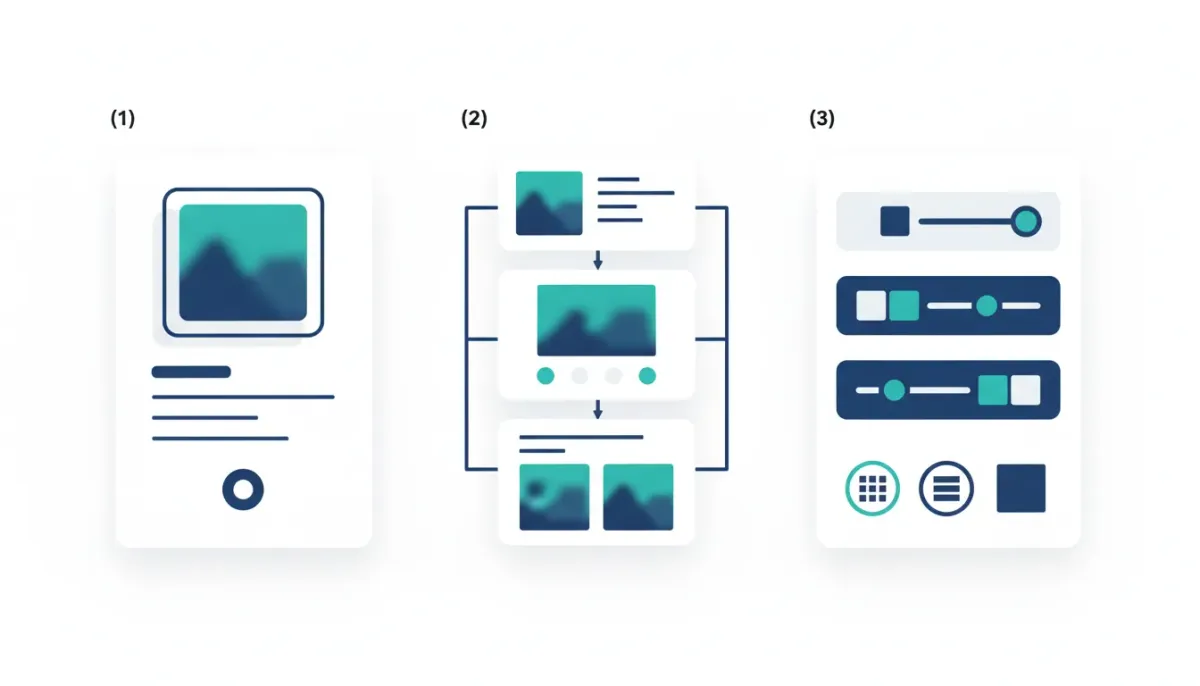
If you build lead capture pages, collect feedback, run intake forms, or design multi-step surveys inside HighLevel (GoHighLevel / GHL), you already know images help your content feel more human. They also help your layout look intentional instead of like a basic embed.
The Complete Operating System for Growth
Join over 60,000+ agencies and businesses using HighLevel to capture more leads and close more deals. Start your trial today and get instant access to the Nexus Hub resources.
Claim Your Free Trial & BonusesHighLevel has added a new set of image layout controls specifically for forms and surveys. The goal is simple: make it much easier to place images in a way that matches your brand, improves readability, and keeps the design consistent across devices.
Let’s break down what changed, when you’ll use it, and how to apply it so your forms and surveys look great while still being easy for your audience to complete.
What’s New: Image Layout Controls in Forms and Surveys
This update introduces multiple new image layout and styling options for images that appear inside form fields and survey slides. Instead of being limited to a single “default” image behavior, you can now choose from multiple placement strategies and adjust styling details.
Here are the headline additions:
- Five new image layout options for forms and surveys
- New styling controls for center image layouts
- Focal point selector for fixed image layouts
- Slide-level image layout control for surveys
The 5 Image Layout Options (Left/Center/Fixed/Background)
HighLevel now lets you place images using five layout styles. This matters because different survey and form designs need different image behavior depending on how much content appears and how the layout scales.
The five options are:
- Left center
- Right center
- Left fixed
- Right fixed
- Background
Think of these as different ways to balance aesthetics and clarity:
- Center layouts are ideal when you want the image to sit nicely next to content while still adapting gracefully.
- Fixed layouts are useful when you want more predictable sizing and alignment, especially for consistent brand visuals.
- Background is great when the image supports the design without competing with the form fields.
Left Center and Right Center: Quarter Radiuses + Corner Styling
For the left center and right center layouts, HighLevel adds additional visual styling control, including:
- Image quarter radiuses
- Corner radius adjustments for better visual styling
- Image field spacing
In practice, this helps you avoid that “boxy” look and instead create a cleaner, more modern card or panel feel. It’s also helpful when your brand uses rounded corners, soft UI shapes, or consistent radius values across the site.
Pro tip: If your landing pages and CRM dashboards use rounded elements, match your form image corner radiuses so everything feels like one system. That consistency is a big part of what makes HighLevel experiences feel polished.
Left Fixed and Right Fixed: Focal Point Selector for Better Cropping
When you choose a left fixed or right fixed layout, you’ll now have access to a focal point selector.
This is a huge deal because fixed layouts often involve cropping or consistent image framing. Without a focal point, important parts of the image (like faces, logos, product details, or text on a banner) can get cut off.
With the focal point selector, you can indicate where the image should “anchor” visually. That way, even when the layout enforces a certain framing, the key part stays visible.
Examples of when focal point selection helps:
- Headshots in onboarding or appointment request flows
- Team photos in consultation forms
- Product or feature images where the subject must remain centered or left aligned
- Brand images with logos that cannot be cropped incorrectly
This is one of those behind-the-scenes improvements that readers might not consciously notice, but they will absolutely feel when the layout looks intentional instead of accidental.
Background Layout: Make Images Support the Design
The background image layout option gives you another approach: images can act as a supportive design element rather than a competing block beside the form fields.
This is especially helpful in:
- Brand campaigns where visuals are part of the message
- Surveys and forms that need strong visual identity
- Clean UI designs where text and fields must remain the focus
If you’ve ever looked at a form and thought, “The image is distracting,” background layout is often the fix. It maintains style without pulling attention away from completion.
Survey Slide Level Image Layout Control
One of the most practical updates is slide-level image layout control for surveys.
Instead of treating images like one-size-fits-all content, HighLevel now lets you control the image layout per survey slide. That matters because surveys often have different types of steps:
- Intro slide with a brand image
- Question slides with minimal visuals
- Choice or qualification slides with specific imagery
- Final slide with a confirmation or next-step image
When each slide can have its own layout rules, you can guide attention more effectively. You can keep images consistent across the journey while still tailoring placement for each step.
Agency workflow advantage: If you’re running an agency setup in HighLevel and building reusable survey templates, slide-level control helps you standardize presentation across clients without forcing the same design constraints everywhere.
The Complete Operating System for Growth
Join over 60,000+ agencies and businesses using HighLevel to capture more leads and close more deals. Start your trial today and get instant access to the Nexus Hub resources.
Claim Your Free Trial & BonusesWhere to Find These Settings in HighLevel
Getting to these options is straightforward. When you’re creating or editing forms or surveys, look for the image configuration in the slide or field settings.
In general, you can access the controls when you:
- Add or configure an image inside form settings
- Add an image to the survey slide
- Adjust the image layout and styling options from the image settings panel
HighLevel also maintains its familiar change flow: updates are typically easy to spot in the system interface, including quick access to release details in the top area of the product.
How to Choose the Best Layout: A Simple Decision Guide
If you’re deciding which of the five layout options fits your use case, here’s a quick rule of thumb.
Choose left/right center when:
- You want the image to visually “sit with” the content
- Rounded corners and spacing matter for your brand feel
- Your form or survey needs a card-like structure
Choose left/right fixed when:
- You want consistent framing across devices
- You need predictable alignment for brand images
- You want to use the focal point selector to prevent awkward cropping
Choose background when:
- You want the form to feel immersive
- You want the image to support the design without competing for attention
- You have strong brand visuals that should not become the “main object”
Why This Matters for HighLevel CRM, Marketing Automation, and SaaS Operations
This is not just a design tweak. Better form and survey presentation has real operational impact inside a HighLevel system.
When your intake forms look trustworthy and complete more easily, you can expect improvements in downstream processes:
- Higher completion rates for surveys and lead capture
- Better lead quality when people engage more confidently
- Cleaner CRM follow-up because your data collection is consistent
- Stronger automation outcomes since responses trigger workflows and automations that depend on data quality
In other words, styling is part of system design. In agency environments especially, small improvements to templates can scale into major gains over many clients and campaigns.
Quick Implementation Ideas (So You Can Use This Immediately)
If you want to apply these layout options right away, here are a few practical “starter” approaches you can test in HighLevel.
1) Match your form image style to your landing pages
- Use left/right center layouts to keep images integrated
- Adjust corner radiuses to match your brand UI
- Set image field spacing so the visual rhythm feels consistent
2) Use focal points for any fixed image with a human subject
- Choose left fixed or right fixed
- Set the focal point so faces stay centered
- Test on mobile to confirm cropping stays flattering
3) Build multi-step surveys with intentional slide-level visuals
- Use background or simple layouts on intro and final slides
- Use minimal visuals for dense question slides
- Keep the user flow visually consistent slide to slide
These are the kinds of best practices that help with HighLevel agency setup and scaling. The more reusable and predictable your templates become, the faster you can implement new client projects without sacrificing quality.
FAQ
How do I access the new image layout options in HighLevel?
Go into your forms or surveys and open the image settings where you add or configure images. From there, you can select the new image layout options and apply styling controls for the image placement.
What are the five new image layout options?
The new layouts are: left center, right center, left fixed, right fixed, and background.
What does the focal point selector do?
For fixed image layouts, the focal point selector helps control where the important part of the image stays visible when cropping or framing is applied.
Can I change image layout per survey slide?
Yes. HighLevel adds slide-level image layout control for surveys, so each slide can have its own image placement and styling behavior.
Does better image styling affect lead conversion or completion rate?
It can. When forms and surveys look clearer and more trustworthy, users are more likely to complete them. Better completion leads to cleaner CRM data and more reliable downstream marketing automation.
Next Steps: Apply These Controls to Your Templates
If you’re building with HighLevel workflows and automations, it helps when the entry points look great. Forms and surveys are often the first “handshake” your leads have with your process. These new image layout tools make that handshake smoother, cleaner, and more brand-consistent.
When you have a moment, open a form or survey you already use, test one of the five layout options, and fine-tune corner radiuses, spacing, and focal points. Small changes compound quickly, especially when you’re running multiple campaigns or scaling an agency system.
And if you want implementation support, template inspiration, and more hands-on resources, consider joining the Nexus Hub community. It’s a strong place to grab proven patterns and speed up your HighLevel agency setup and scaling.
The Complete Operating System for Growth
Join over 60,000+ agencies and businesses using HighLevel to capture more leads and close more deals. Start your trial today and get instant access to the Nexus Hub resources.
Claim Your Free Trial & Bonuses


