
How To Navigate HighLevel's Advanced Workflow Builder: A Comprehensive Guide
Master HighLevel's Advanced Workflow Builder with this guide on creating scalable automations. Learn to use visual tools like sticky notes, parallel workflows, and go-to connections to organize complex processes and improve your agency's efficiency.

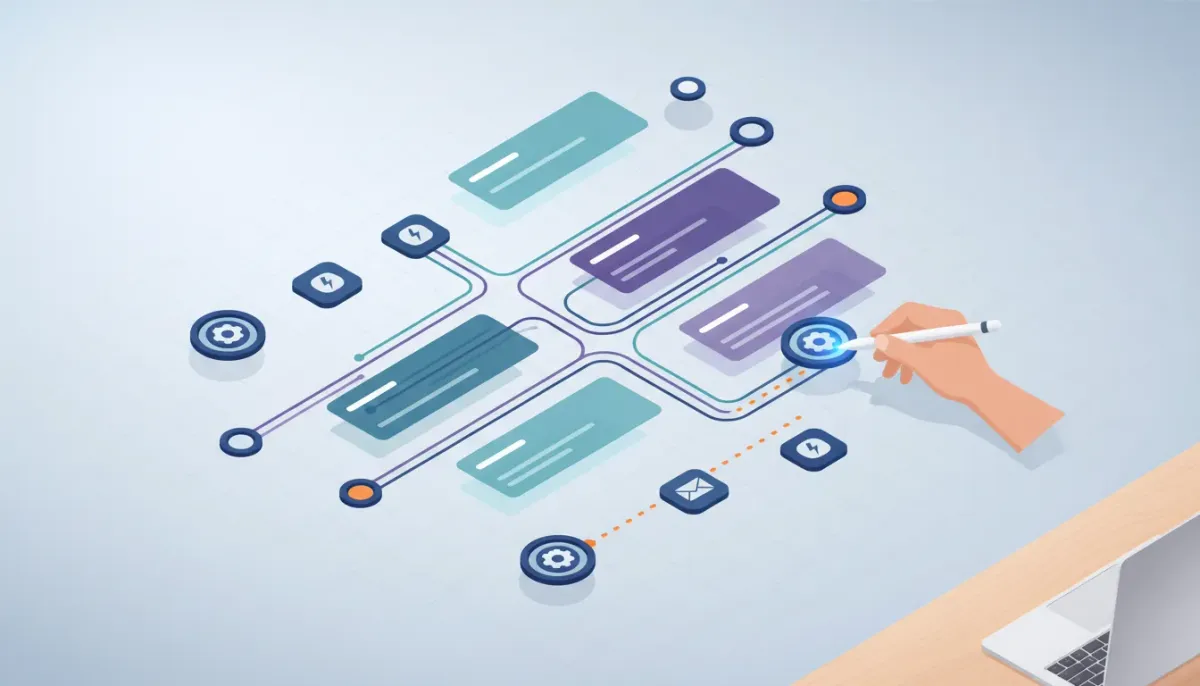
The Advanced Workflow Builder in HighLevel is a visual canvas that transforms how you design automations for your agency or business. Instead of a vertical list of triggers and actions, you get a flexible whiteboard where nodes, branches, and parallel processes live side by side. This guide walks through the powerful features, practical examples, and best practices to help you build scalable, organized automations that are easier to maintain and faster to iterate.
The Complete Operating System for Growth
Join over 60,000+ agencies and businesses using HighLevel to capture more leads and close more deals. Start your trial today and get instant access to the Nexus Hub resources.
Claim Your Free Trial & BonusesWhy use the Advanced Builder?
The Advanced Builder is ideal when you need more than a single, linear automation. Use it when you want:
- Parallel workflows running in the same canvas
- Delinked nodes so different branches don’t interfere
- Finer control over where triggers and actions send contacts
- Better organization using visual aids like sticky notes and comments
- Faster troubleshooting with built-in stats and error views
Getting started: Canvas basics and terminology
The builder uses nodes to represent both triggers and actions. You can drag and drop nodes from the right-hand panel onto the canvas. A few quick distinctions:
- Triggers have a single connection point (one-sided dot) and start a workflow branch.
- Actions have connection points on both sides (two-sided dots) and can be chained.
- Connect nodes by dragging lines between their dots. Insert, remove, or re-route connections using the plus and trash icons.
By default the layout is horizontal (left to right): triggers on the left, actions to the right. You can move nodes anywhere on the canvas, but if things get messy hit the format tree control (bottom left) or press the 2 key to reformat the layout cleanly.
Organize visually with sticky notes
Sticky notes are a deceptively powerful organization tool. They sit behind nodes and let you group, title, and annotate sections of your canvas.
Practical uses of sticky notes:
- Group related actions into a named section such as Qualification Flow or Onboarding.
- Color-code workflows to indicate owner, priority, or status.
- Add bullets, bold, italics, or links to provide quick references for teammates.
- Resize to visually contain specific branches so new team members can glance and understand purpose without diving into each node.
Best practice: give each sticky note a clear title and short description. When you have multiple workflows or an internal process map, sticky notes make the canvas navigable and approachable.
Parallel workflows and delinked nodes
One of the biggest advantages of the Advanced Builder is the ability to run multiple workflows side-by-side within a single automation. These are often called parallel workflows or delinked nodes.
Delinked nodes are nodes that aren’t connected to the main chain. They allow you to keep multiple independent automations in one place. You can copy and paste entire branches to create parallel flows quickly. This makes it easy to consolidate similar automations that would otherwise live in separate workflow files.
Example agency use case:
- Create a master internal workflow that contains separate branches for each team member (George, Andrew, etc.).
- Each branch runs when an opportunity moves across a certain stage and assigns tasks or tags appropriately.
- Use sticky notes to mark each branch as a distinct responsibility or process (e.g., Assign to George, Assign to Andrew).
This layout keeps everything in one place for operations, training, and snapshot packaging while preventing cross-branch interference.
Commenting and documentation inside the canvas
Treat your workflow like code: leave comments. Hover over any node, click the three dots, and add a note. Use notes for:
- Explaining complex if statements or filter logic
- Stating why a decision was made or linking to external SOPs
- Listing who owns the branch or when it was last updated
Only comment where necessary — focus on nodes that are non-intuitive or have multiple filters. Proper notes reduce onboarding time and make snapshots much more valuable when sold or shared within the Nexus Hub community.
Keyboard shortcuts and the workflow switcher
Invest time learning keyboard shortcuts. There are roughly 30 that help with navigation, editing, and visual control. A few that save time:
- Shift + W or the workflow switcher button: quickly open recent workflows
- Cmd/Ctrl + C and Cmd/Ctrl + V: copy and paste nodes or entire branches
- Tab actions to open contextual switchers for quicker node insertion
Workflow switcher is particularly useful for consolidating automations. Open a second workflow, copy the branch you want, switch back, and paste. Pair this with sticky notes and you can migrate multiple legacy workflows into a single master canvas.
Stats view and the errors screen
Each action that handles deliverability—like email and SMS—has a stats view. Click an action to expand metrics such as:
- Deliverability percentage
- Open and click rates for emails
- Number of contacts processed by that action
These quick metrics let you validate assumptions without exporting data. If deliverability is low on a particular email node, you can iterate immediately.
The errors screen surfaces automation issues such as loops or execution failures. Use it to:
- Identify nodes causing errors
- Trace contact paths that triggered the error
- Fix filters or go-to routes that cause unintended behavior
Go-to connections: routing triggers and actions
Go-to connections let you route triggers or actions to specific nodes within the same workflow instead of always starting at the top. There are two useful patterns:
Trigger go-to connections
Add multiple triggers to the same workflow and send each trigger to different entry points. For example:
The Complete Operating System for Growth
Join over 60,000+ agencies and businesses using HighLevel to capture more leads and close more deals. Start your trial today and get instant access to the Nexus Hub resources.
Claim Your Free Trial & Bonuses- Trigger A launches the full qualification flow starting at node 1
- Trigger B sends contacts directly to an if statement or follow-up branch further downstream
This gives fine-grained control over where contacts land and reduces the need for duplicate workflows when different events require sending contacts to different stages.
Action go-to connections
Use a go-to action inside the canvas to route contacts to multiple places or to act as an intermediary connector. This is powerful for:
- Splitting contacts into multiple parallel processes
- Reusing common subsequences like tagging or task creation across branches
- A/B testing different email sequences by routing to alternate follow-ups
When building a multi-branch system, a single contact can now trigger several processes simultaneously or be redirected based on filters and conditions.
Build modular systems, not spaghetti automations
The Advanced Builder excels when you design systems rather than ad hoc automations. Think in modules:
- Qualification module: tag, score, and route leads
- Onboarding module: welcome emails, task assignments, internal notifications
- Reengagement module: sequence for cold contacts
Each module can be its own delinked branch or a reusable sequence that you connect to via go-to actions. This approach makes debugging easier and enables faster iteration as your agency scales.
Consolidation strategy: when and how to merge workflows
If you already have many standard workflows, consider consolidating similar ones into a single Advanced Builder canvas. Consolidation reduces maintenance overhead and makes performance insights easier to glean. Follow these steps:
- Audit existing workflows and group by purpose (e.g., lead capture, appointment scheduling, client onboarding).
- Open the workflow switcher and copy branches from individual workflows.
- Paste branches into a master canvas and place each under its sticky note.
- Use go-to connections and triggers to route contacts to the appropriate branch entry points.
- Comment complex nodes and run tests using a subset of contacts before flipping live.
Consolidating won’t always be the right move. Keep separate workflows if they serve distinct business units, require strict access controls, or are managed by different teams.
Practical tips and best practices
- Title everything: Node labels and sticky notes should explain what a branch does at a glance.
- Color code: Use colors for ownership, status, or type of workflow (sales, operations, support).
- Comment wisely: Add notes to complex filters or nested if statements so others can quickly understand intent.
- Test in stages: Validate each branch in isolation before allowing cross-branch traffic.
- Use the format tree or shortcut to keep the canvas legible after major edits.
- Monitor stats per action and use the error screen as your first stop when something misbehaves.
- Snapshot and backup your complex automations before large restructuring to preserve working versions.
How agencies leverage HighLevel workflows for scaling
Agencies use HighLevel to centralize CRM, marketing automation, and client operations. The Advanced Builder becomes a single place to manage client-facing funnels and internal processes:
- Create reusable automation templates for onboarding, lead nurturing, and retention.
- Build an internal project management canvas that assigns tasks based on pipeline stages.
- Package working flows as snapshots for clients or to sell as templates in community channels like Nexus Hub.
When standardizing processes across clients, modular branches and clear documentation make rollout consistent and reduce support time.
Quick starter checklist
Use this checklist when building or migrating to the Advanced Builder:
- Create sticky notes for each functional area
- Name all triggers and important actions
- Comment complicated logic
- Set up go-to connections for alternative entry points
- Run small test batches and check the stats view
- Check the errors screen and fix loops or dead-end routes
- Document ownership and change history
Start experimenting
The Advanced Builder reduces friction in building complex automations and makes your HighLevel account easier to manage. If you are scaling an agency or building internal ops, start by consolidating a couple of related flows into a single canvas. Use sticky notes and comments to keep things readable. The faster you modularize, the faster you can iterate and deliver results to clients.
If you don’t yet have a HighLevel account, consider trying a free trial to test the Advanced Builder with your own use cases. For templates, peer support, and implementation help, Nexus Hub and the community resources can accelerate your rollout.
FAQ
What is the difference between the standard and the Advanced Workflow Builder?
The standard builder is linear and best for single-entry, sequential automations. The Advanced Builder offers a visual canvas with delinked nodes, parallel workflows, go-to routing, and better organizational tools like sticky notes and comments. It is designed for complex, multi-entry automations and team collaboration.
How do delinked nodes work and when should I use them?
Delinked nodes are branches on the canvas that are not connected to the main chain. Use them when you want multiple independent workflows in the same automation file—perfect for running parallel processes, consolidating multiple smaller workflows, or separating client-specific sequences while keeping everything in one place.
Can multiple triggers launch different parts of the same workflow?
Yes. Use trigger go-to connections to point each trigger to a specific entry node within the canvas. This allows different events to drop contacts into the exact branch or if statement you want without retracing the entire workflow.
What’s the fastest way to debug errors in my workflows?
Start with the errors screen to see flagged issues, then review the stats view on problematic nodes. Trace the contact path to find where filters or loops occur, and use comments and sticky notes to document fixes. Test changes on a controlled sample set before applying to all contacts.
Can I reuse workflows or share them across my agency?
Yes. Build modular branches and save snapshots. Snapshots and templates let you package working flows for redeployment to client accounts or for resale. Document each snapshot with notes so new teammates can implement and customize quickly.
Are there resources to learn more and get templates?
HighLevel provides help documentation and community resources. For templates and implementation support consider Nexus Hub or official HighLevel learning materials. Trying a free trial is a practical way to experiment and validate workflows with your own CRM and marketing automation setups.
The Complete Operating System for Growth
Join over 60,000+ agencies and businesses using HighLevel to capture more leads and close more deals. Start your trial today and get instant access to the Nexus Hub resources.
Claim Your Free Trial & Bonuses


