
How to Manually Grant and Revoke Course Access for Members in HighLevel Communities
Learn how to manually grant and revoke course access for individual members in HighLevel Communities. This guide covers step-by-step instructions, bulk operations, and automation workflows to help agencies and creators manage member permissions with precision and security.


If you run courses or a membership inside HighLevel (GoHighLevel), the ability to grant or revoke access for individual members is essential. This guide explains what member-specific course access is, why it matters for agencies and creators, and exactly how to manage access manually. You’ll also get practical examples, automation alternatives, and a troubleshooting checklist so you can control course permissions reliably and securely.
What is member-specific course access and who should use it?
Member-specific course access is the ability for community administrators to give or remove access to a specific course for an individual community member without changing the course itself or using workarounds. It is useful when you need one-off adjustments, handle exceptions, or make manual corrections after purchases, refunds, or customer-support interactions.
This feature is most relevant for:
- Agencies managing multiple client cohorts and custom onboarding.
- Course creators who need to grant extra modules, free trials, or early access.
- Support teams who must revoke access after refunds, account closures, or policy violations.
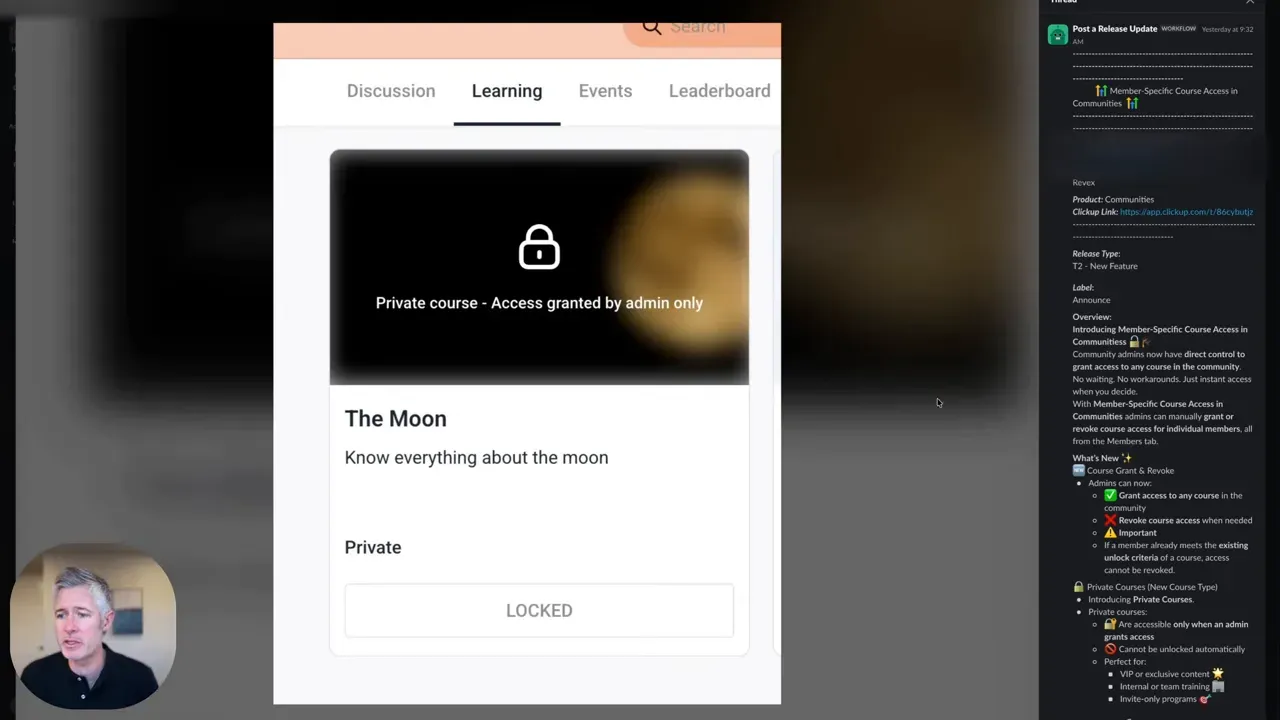
Why manual control matters — scenarios and benefits
Automated systems are efficient, but manual control fills crucial gaps. Common scenarios where manual grant/revoke is better:
- Exceptional access: Give a VIP student early access to a module before the cohort start date.
- Refunds and chargebacks: Revoke access quickly after a refund to protect content.
- Onboarding corrections: Fix access for students who purchased but did not receive the course due to a payment or integration issue.
- Temporary promotions: Add a guest or partner for a limited time without changing course settings.
Where to find member-specific access controls in HighLevel
Access management is available inside the Community area under the Members section. Community admins can select a member and assign or remove course access directly from their profile, avoiding delays or additional configuration.
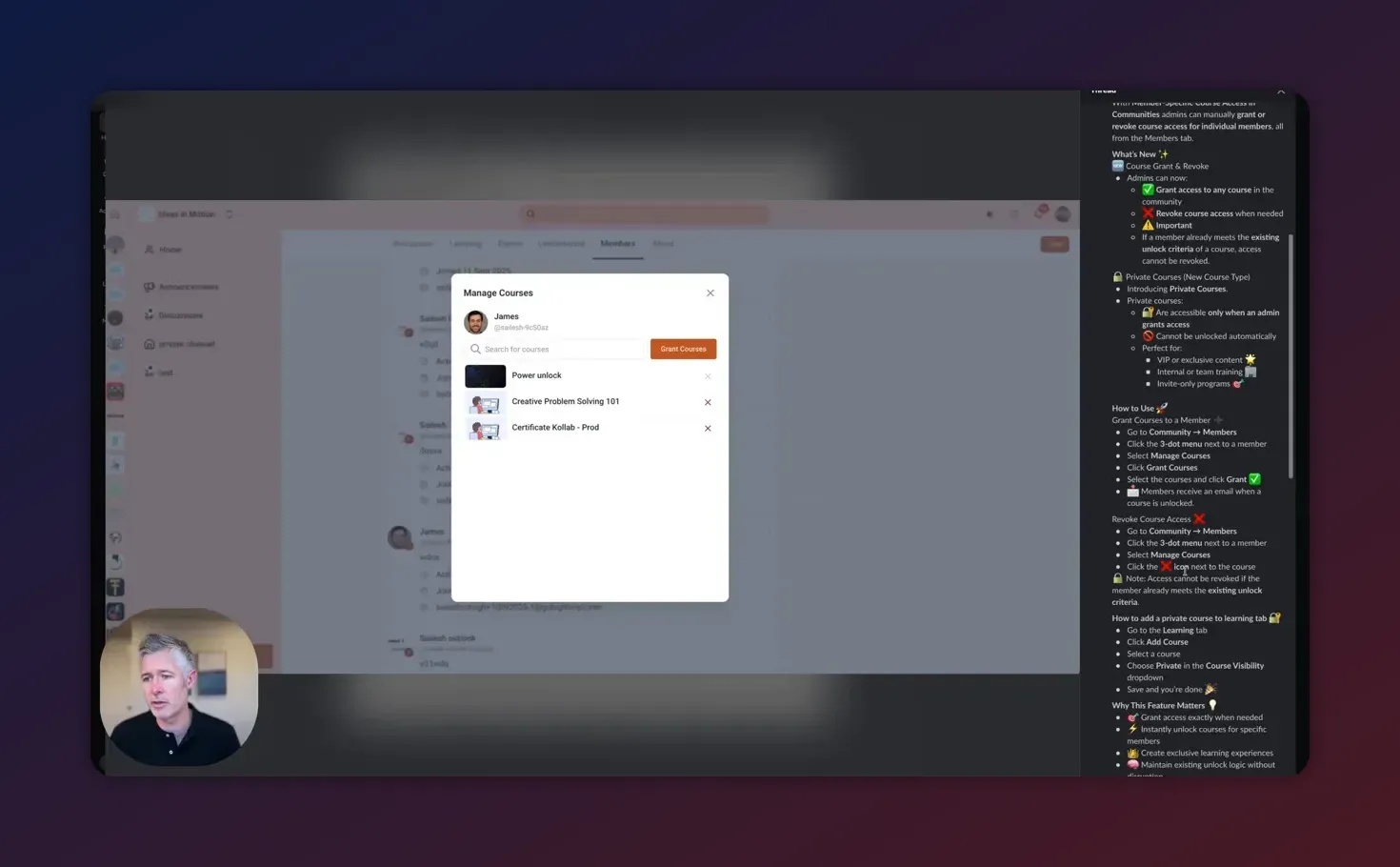
Step-by-step: How to grant course access to a single member
- Open the HighLevel dashboard and navigate to the Community you manage.
- Click the Members tab to list all enrolled people and invited users.
- Locate the member — use search or filters for email, name, or tag to find them quickly.
- Open the member’s profile. Look for the Course Access or similar section within the profile actions.
- Click Grant Access or select the course(s) you want to authorize for that member, then save changes. The member gains immediate access.
- Optional: Notify the member manually or trigger a notification to inform them they now have access.
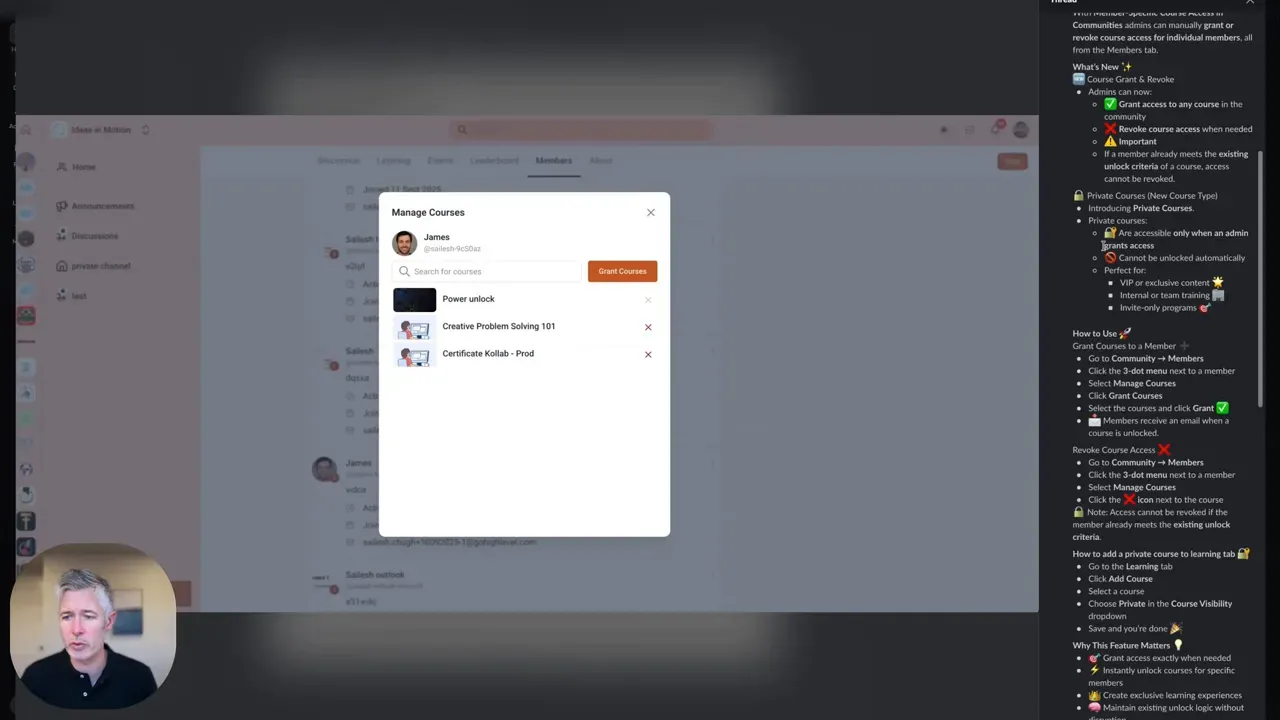
Step-by-step: How to revoke course access for a single member
- Go to the Community > Members tab and find the member in question.
- Open their profile and locate the course access controls.
- Deselect the course(s) you want to remove or click a Revoke button. Confirm the action if prompted.
- Verify the change by viewing the member’s course list or testing access with an internal test account if needed.
- Optional: Send an email explaining the reason for revocation if customer-facing communication is required.
Bulk operations and shortcuts
For groups of members you may need to grant or revoke the same course to many people. Look for bulk-select or multi-select features inside the Members tab. Typical options include:
- Select multiple members and use a bulk action to grant or revoke access in one operation.
- Use tags to filter a cohort then apply course access to the entire filtered set.
- Export a list of members to audit permissions, then use that list to make targeted changes.
Automating access with workflows (when to use automation)
Manual control is ideal for exceptions. For standard purchase flows and repeatable events, use HighLevel workflows to automate granting or revoking access:
- Create a workflow triggered by a successful payment, form submission, or tag addition that includes an action to grant course access.
- Build a workflow to revoke access automatically when a refund is issued, a subscription lapses, or a cancellation tag is applied.
- Combine time-based waits with revoke actions to create temporary trials that expire automatically.
Using workflows reduces manual work and maintains a consistent customer experience. Keep manual granting for exceptions or one-off adjustments.
Best practices for agencies and course creators
- Document access rules: Maintain a simple policy for when staff can manually grant or revoke access and require a ticket or note for auditability.
- Use roles and permissions: Restrict manual access controls to admins and support leads to prevent accidental changes.
- Log changes: Keep a changelog entry or CRM note for each manual grant/revoke action, including reason and who performed it.
- Confirm email notifications: Decide whether granting or revoking should trigger an automated email. If not automatic, create a template to maintain clear communication.
- Test changes: After a revoke, validate that the member’s account no longer shows course content, especially for refunds or content-security decisions.
- Plan for duplicates: If the member has multiple contact records, check each one to avoid leaving an alternate account with active access.
Common pitfalls and how to avoid them
- Accidental mass changes: Double-check selections before applying bulk grants or revokes. A small filter mistake can affect many students.
- Missing audits: Failing to record why access was changed makes future disputes harder to resolve.
- Notification gaps: Members often expect confirmation when access changes. Without it, support volume increases.
- Integration delays: If you use external payment processors or SSO, allow for latency and confirm triggers correctly map to workflows.
- Role/permission mismatch: Ensure only authorized staff can change course access to protect against abuse or error.
Troubleshooting checklist
If a member reports access problems after you granted or revoked a course, run this checklist:
- Confirm the member’s contact or account record that you edited is the same one they use to log in.
- Check the course list in the member profile to verify current permission state.
- Look for active tags or subscription status that could be managed by automation and override manual changes.
- Review workflow history to see if an automated action later changed access again.
- Clear caching or log the member out and back in to ensure UI reflects current permissions.
- Check the platform’s change log or release notes if you suspect a behavior change or bug.
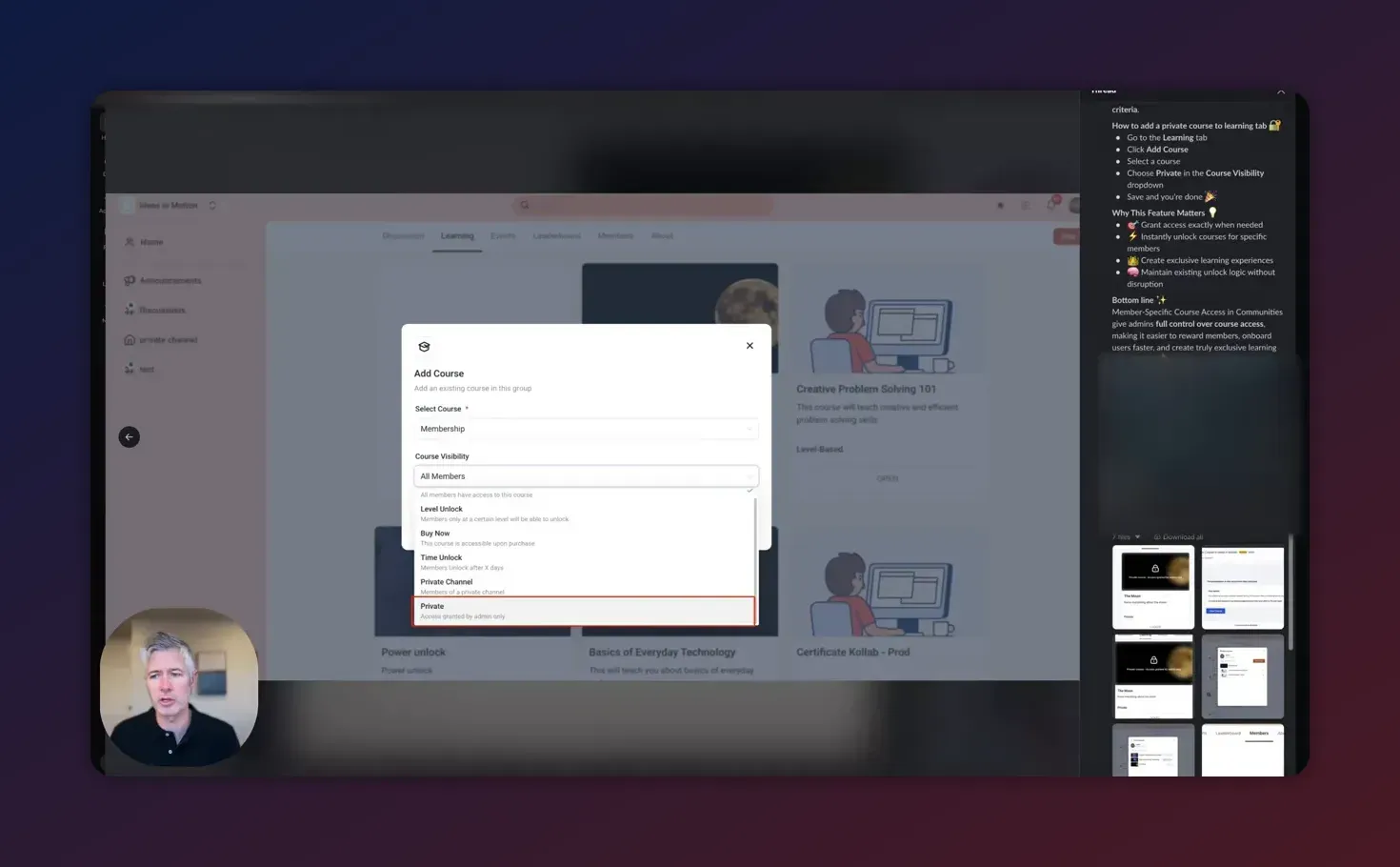
Practical examples and templates
Example 1 — VIP early access
- Tag eligible member with "VIP-Early".
- Open member profile and grant the upcoming course module manually.
- Send a personalized email with next steps and deadlines.
Example 2 — Revoke after refund
- Process refund in payment system; apply tag "Refund-Issued".
- Use a workflow that revokes course access when "Refund-Issued" is added, or perform manual revoke and log reason.
- Confirm access removal and record the action in CRM notes for dispute support.
Example 3 — Temporary trial access
- Manually grant a trial course to a member for a set period.
- Optionally add a calendar reminder or tag to revoke access when the trial ends, or set an automated workflow with a wait timer.
Auditability and change logs
Maintain an audit trail for all manual access changes. If your platform includes a system change log or ideas/change-log page, monitor it for updates and behavior changes. Keep internal records or CRM notes for every manual grant or revoke, including date, staff member, and reason.
Start Your HighLevel Trial + Get Instant Nexus Hub Access
Build, scale, and optimize your business with HighLevel. Start a free trial using this link to get automatic access to the Nexus Hub community, templates, and implementation resources.
Start Free TrialChecklist: Ready-to-use manual access procedure
- Confirm user identity and correct contact record.
- Check course prerequisites before granting access.
- Apply grant or revoke in the member profile.
- Record the action with a reason and staff initials in CRM notes.
- Notify the member (email template) when access changes.
- Monitor for related automated workflows that could override the manual change.
When to prefer automation over manual changes
Automate when changes occur frequently and follow predictable patterns: purchases, subscription renewals, failed payments, trial expirations. Manual changes should be reserved for exceptions, one-off promotions, or customer support corrections.
Next steps and recommended resources
- Review your team’s permission model and restrict manual access actions to trusted admins.
- Create standard email templates for grant and revoke notifications to reduce support friction.
- Build workflows for the most common cases and reserve manual changes for exceptions.
- Keep an eye on product updates and the platform’s change log for new features related to Communities and course access.
How quickly does manual course access take effect?
Manual grants and revokes take effect immediately. Members typically gain or lose access as soon as the change is saved, though you should ask them to log out and log back in if they report a delay.
Can I grant access to multiple courses at once?
Yes. Use multi-select in the member profile or perform bulk actions from the Members tab to assign multiple courses to a single member or several members in one operation.
Will automation override manual changes?
It can. Automations triggered by tags, purchases, or subscription events might change course access after a manual update. Always check active workflows when troubleshooting and log manual actions to prevent conflicts.
Who should be allowed to manually change access?
Limit this ability to admins and senior support staff. Require a short audit note or ticket reference for every manual change to maintain accountability and reduce errors.
How do I handle disputes or accidental grants?
Revoke access immediately, document the reason in CRM notes, and communicate with the member. If needed, use the platform’s change log or support channels to retrieve additional details about the action for dispute resolution.
Summary
Member-specific course access is a powerful tool for managing exceptions, customer support cases, and promotional scenarios inside HighLevel communities. Use manual grants and revokes for one-off or sensitive changes and rely on workflows for repeatable, high-volume events. Pair clear policies, role restrictions, and logging to keep access secure and auditable.
If you want to streamline course operations further, consider building workflows for common flows and joining community resources like Nexus Hub for templates and implementation support. If you are not yet on HighLevel, try a free trial to test these community and course management features in your own agency setup.
Start Your HighLevel Trial + Get Instant Nexus Hub Access
Build, scale, and optimize your business with HighLevel. Start a free trial using this link to get automatic access to the Nexus Hub community, templates, and implementation resources.
Start Free Trial


