
How to Use Google Forms with HighLevel, GHL, GoHighLevel: Setup, Workflows, and Best Practices


the HighLevel, GHL, GoHighLevel now supports native Google Forms integration, enabling actions and triggers inside the platform. This guide explains what the integration does, who should use it, how to set it up step by step, practical workflow examples, field-mapping tips, common problems and fixes, and security and performance considerations.
What the Google Forms integration does (actions vs triggers)
HighLevel, GHL, GoHighLevel connects your Google Forms account so you can use form events inside the workflow builder. There are two main capabilities:
- Triggers — Start workflows automatically when a new Google Form response is submitted.
- Actions — Query form responses, find specific answers, or pull data from a form into a workflow step.
Using triggers and actions together lets you build end-to-end automation: capture a response, create or update a contact, add tags, notify team members, and start sequences or campaigns based on form answers.
Who should use this and why it matters
HighLevel, GHL, GoHighLevel users who collect leads, feedback, registrations, event RSVPs, or survey responses with Google Forms will benefit from this integration. Native integration matters because it:
- Removes the need for third-party middleware like Zapier or Make for simple Google Forms automations.
- Reduces latency between response submission and workflow execution.
- Can lower costs by avoiding external automation platform fees.
- Makes it easier to maintain and debug automations inside one platform.
Before you start: prerequisites and permissions
HighLevel, GHL, GoHighLevel integration requires a Google account with access to the target forms. Key prerequisites:
- Owner or editor access to the Google Form you want to use in automations.
- OAuth permission to link the Google account to HighLevel so the platform can read form responses.
- Appropriate HighLevel user permissions to add integrations and edit workflows.
If the form belongs to a Google Workspace account, ensure that external app permissions are allowed by your admin if needed.
Step-by-step setup guide
- Open integrations inside your HighLevel account and choose Google Forms.
- Connect your Google account via OAuth. Grant read access to Forms and any related Google Drive permissions required for file uploads.
- Select which Form(s) to enable. Pick the specific Google Form you want to use for triggers and actions.
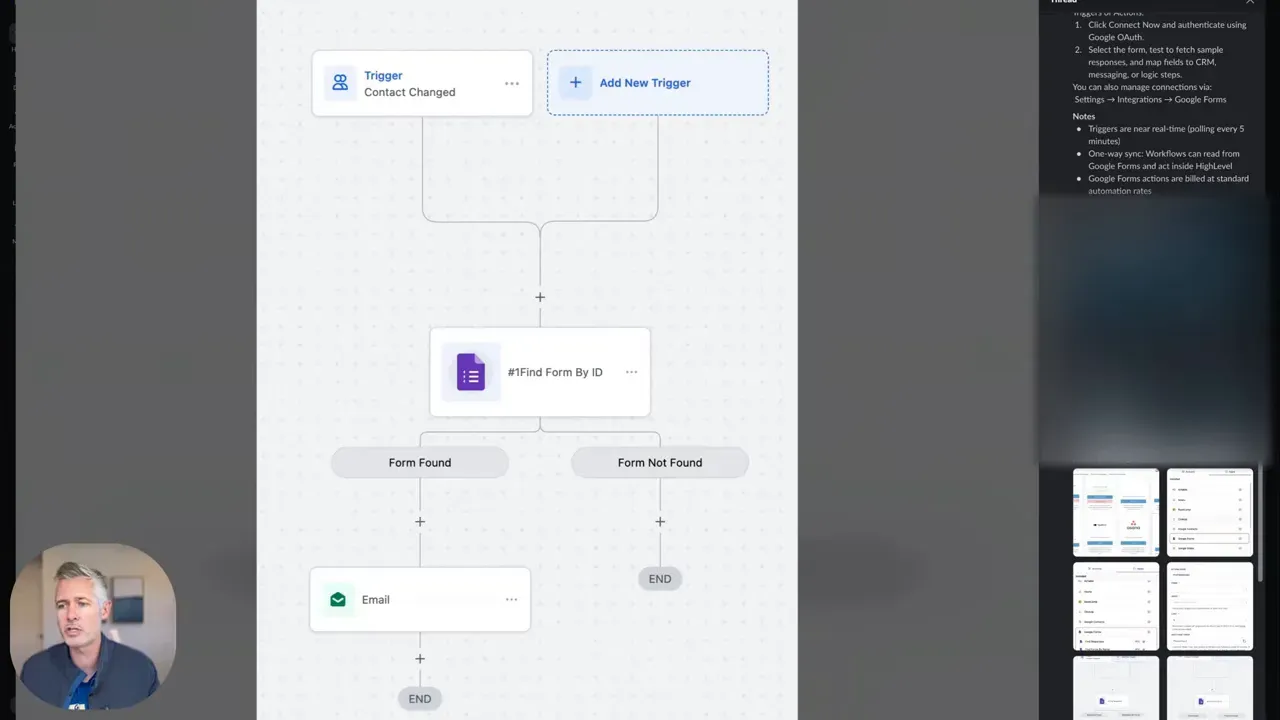
- Build or edit workflows in the Workflow Builder. Add a Google Forms trigger to start a workflow when a new response arrives.
- Add Actions such as "Find response", "Get response fields", create/update contact, add tags, notify user, or start campaign sequences.
- Map fields from the form to contact properties or custom fields in HighLevel. Use the workflow editor's mapping tool to route answers accurately.
- Test the integration by submitting the form and verifying that the workflow runs and data is stored correctly.
Example workflows to implement immediately
HighLevel, GHL, GoHighLevel supports many practical automations. Here are ready-to-implement examples:
- New lead capture: Google Form submission triggers workflow → create contact → add "lead" tag → start onboarding campaign → assign salesperson task.
- Event RSVP: Response triggers workflow → check capacity field → add to waitlist or confirmation campaign → send calendar invite email.
- NPS and feedback: Survey responses trigger sentiment mapping → high-score responses added to referral campaign → low-score responses create a support ticket.
- File uploads: Form file field stores upload to Google Drive → workflow fetches file link → attaches to contact record or internal notification.
Field mapping rules and handling common question types
Properly mapping form fields to HighLevel properties avoids data loss and errors. Consider these rules:
- Short answer / paragraph: Map to text fields. Use trimming/validation in workflows if needed.
- Multiple choice / dropdown: Map to single-select custom fields or tags. For multiple selection items, use a multi-value tag strategy or a concatenated text field.
- Checkboxes: Store as comma-separated values or create separate boolean fields per option.
- Date / time: Convert to the platform's date format in the workflow or use built-in date fields.
- File uploads: Ensure Google Drive permissions are granted. Map the file link or drive ID to a contact custom field or internal note.
- Email and phone: Map to the dedicated email and phone contact properties to enable messaging campaigns and call tracking.
Testing checklist before going live
- Submit test responses that cover every branch and option on your form.
- Confirm the trigger fires and that the workflow executes the expected actions.
- Validate field mapping: check contact records, custom fields, tags, and campaigns.
- Test error paths: what happens if required data is missing or a file upload fails?
- Monitor logs or execution history for latency or failures during the first 24–48 hours.
Troubleshooting and common pitfalls
HighLevel, GHL, GoHighLevel integrations are powerful but can run into issues. Here are the most common problems and how to fix them:
- Missing permissions: If the workflow cannot read responses, re-authorize the Google account and ensure the form owner granted editor access.
- Wrong Google account: Multiple signed-in Google accounts can cause the integration to link the wrong account. Disconnect and reconnect using the correct account in an incognito browser if necessary.
- Form ownership: If the form belongs to a Workspace account with restricted app access, get admin approval or move the form to an allowed account.
- Rate limits or latency: High submission volumes may produce delays. Throttle workflows or batch process if you expect thousands of daily submissions.
- Duplicate contacts: Use matching rules (email and phone) in the workflow to deduplicate or merge contacts on import.
- File permission errors: For file uploads stored in Drive, ensure shared link settings allow reading by the integration or link is copied to the contact record correctly.
Performance, billing, and when to keep third-party tools
For many automations, native integration inside HighLevel, GHL, GoHighLevel replaces the need for Zapier, Make, or Integromat. Advantages include faster execution and lower recurring costs. However, consider keeping a third-party automation tool when:
- You need complex multi-platform orchestration beyond forms and straightforward CRM updates.
- Advanced transformations, branching, or conditional logic are easier to build in a specialist tool you already use.
- You require long-term historical logs or advanced monitoring only available in the other platform.
Security and privacy considerations
When connecting Google Forms to HighLevel, GHL, GoHighLevel, follow these best practices:
- Only grant the minimum OAuth scopes necessary for reading form responses and files.
- Limit which team members can add or edit integrations and workflows.
- Ensure sensitive data collected via forms is stored in encrypted custom fields or access-controlled parts of the CRM.
- Review Google Workspace admin policies if forms are managed within an organization.
Practical tips to get more value
- Use tags and scoring to prioritize follow-up based on form responses.
- Combine form triggers with conditional forks to route leads to the right salesperson or campaign automatically.
- Keep forms concise. Use required fields sparingly to reduce friction and increase completion rates.
- Leverage follow-up sequences: automate immediate confirmation messages and scheduled nurture steps based on answers.
Example: Build a simple lead capture automation
- Create a Google Form with Email, Phone, Service Interest, and Urgency fields.
- Connect the form to HighLevel, GHL, GoHighLevel and add a trigger "When new response submitted".
- Action: Create or update contact by mapping email and phone fields.
- Action: Add tag based on Service Interest (e.g., "Website Lead").
- Action: If Urgency equals "High", create a task for sales to call within 1 hour; else add to campaign.
- Action: Send autoresponder email confirming receipt and next steps.
When something still fails: debugging checklist
- Check workflow logs for failed steps and error messages.
- Re-run or replay a test submission if platform supports it.
- Temporarily add a "send debug email" action to capture raw response payload into your inbox for inspection.
- Confirm the form ID in the integration matches the live form's ID in Google Forms.
Summary and next steps
Native Google Forms support inside HighLevel, GHL, GoHighLevel simplifies lead capture and survey automation by removing middleware, reducing latency, and lowering costs. Start by connecting your Google account, test thoroughly, and apply the field-mapping and troubleshooting tips above. Use tags, conditional forks and tasks to route responses to the right teams and campaigns.
After setup, monitor initial runs, check the execution history, and tweak mappings and filters until the automation behaves predictably. For complex use cases that require deep transformations, consider using an external automation tool alongside the native integration.
FAQ
Can I use Google Forms with HighLevel, GHL, GoHighLevel for free?
The Google Forms integration itself is available inside the platform. Account and subscription details depend on your HighLevel plan. Google Forms remains free, but some HighLevel features used in workflows may require a paid plan.
Does the integration support file uploads from Google Forms?
Yes. File upload fields can be processed, but you must grant Google Drive permissions during OAuth. Ensure uploads are handled according to your privacy and storage policies.
Will this replace Zapier or Make for all automations?
Not always. The native integration covers most direct form-to-CRM workflows. Use Zapier or Make when you need complex cross-platform orchestration, advanced transformation, or persistent logs beyond the platform's built-in capabilities.
What should I do if the trigger does not fire?
Verify the connected Google account has access to the form, re-authorize the integration, check the workflow's active status, and test with a fresh submission. Inspect workflow logs for errors and confirm no account-level restrictions block API access.
Can I filter which responses start a workflow?
Yes. Add conditional steps or filters in the workflow to only proceed when form fields meet specified criteria (for example, a specific option selected or a minimum score reached).
How do I avoid duplicate contacts from form submissions?
Use the "find or create contact" pattern in workflows: search by email or phone before creating a new contact. Apply deduplication logic or merge rules to keep records consolidated.
Is data securely transmitted between Google and HighLevel, GHL, GoHighLevel?
Data flows through OAuth-secured APIs. Only grant required scopes and follow best practices for access control and data retention. Review your account security settings and audit logs periodically.
How do I disconnect or change the connected Google account?
From the integrations area, remove the Google Forms connection, then reconnect with a different Google account. Update any workflows that referenced the old connection if necessary.
Final takeaway
HighLevel, GHL, GoHighLevel native Google Forms integration turns common form-based tasks into reliable automations. With careful setup, field mapping, and testing, you can capture leads and feedback directly into your CRM, automate follow-up, and reduce dependency on third-party automation platforms. Start by connecting your Google account, build a simple workflow, test thoroughly, and expand with conditional logic and tagging for smarter routing.



