
Google Ads Integration: Auto-Sync Leads & Automate CRM Workflows



Photo by path digital on Unsplash
Why connect Google Ads to Pinnacle
Google Ads delivers fast, targeted traffic and high-intent leads. Connecting it directly to Pinnacle lets those leads flow into a single place, so teams can follow up quickly and consistently.
The integration syncs lead form submissions automatically, triggers workflow automation, and reduces response times. That improves lead conversion and keeps campaigns coordinated across multiple ad accounts.
Quick overview of what you’ll set up
- Install the Google Ads integration from Integrations in account settings.
- Connect the Gmail account that’s linked to your Google Ads account.
- Select the ad account you want to sync.
- Enable Campaign Sync for each lead form and map form fields to Pinnacle CRM fields.
- Create automations that use the Google Lead Form Submitted trigger and filters for ad account and form.
Step-by-step setup
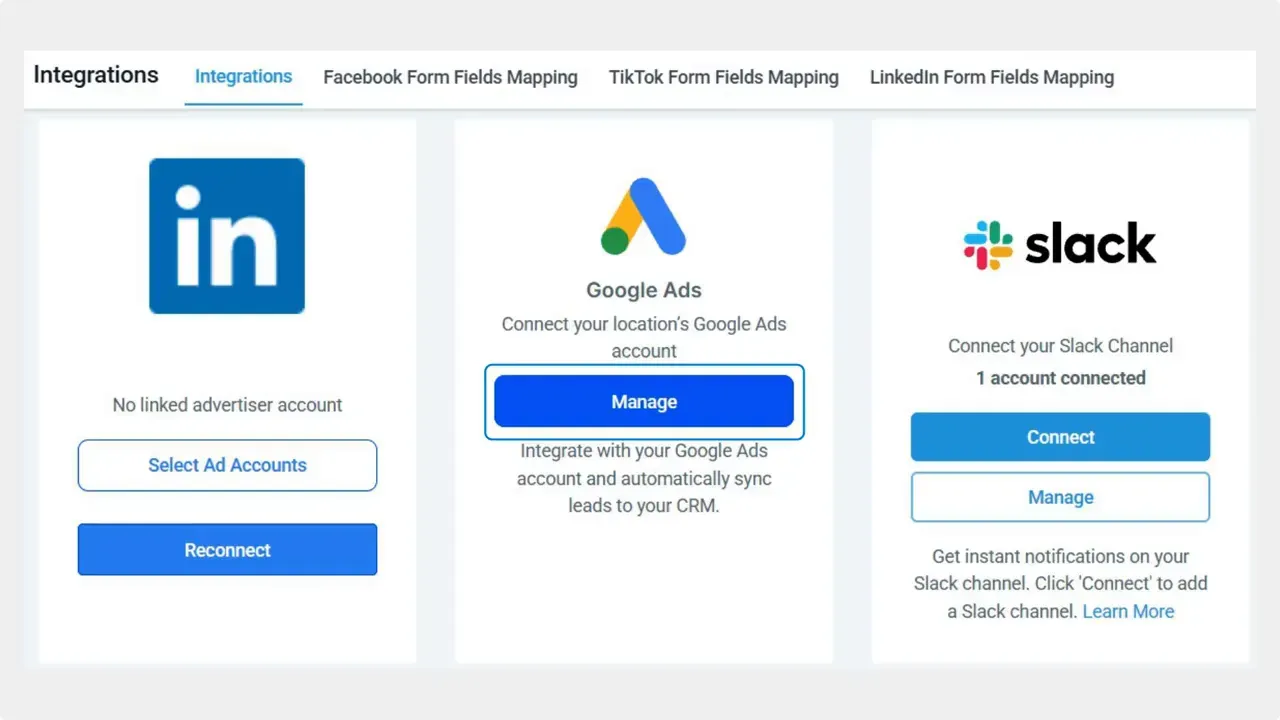
1. Open Integrations and manage Google Ads
In account settings, open the Integrations section and click Manage under the Google Ads icon. This directs you to the Marketplace where the integration lives.
2. Install and connect the correct Gmail account
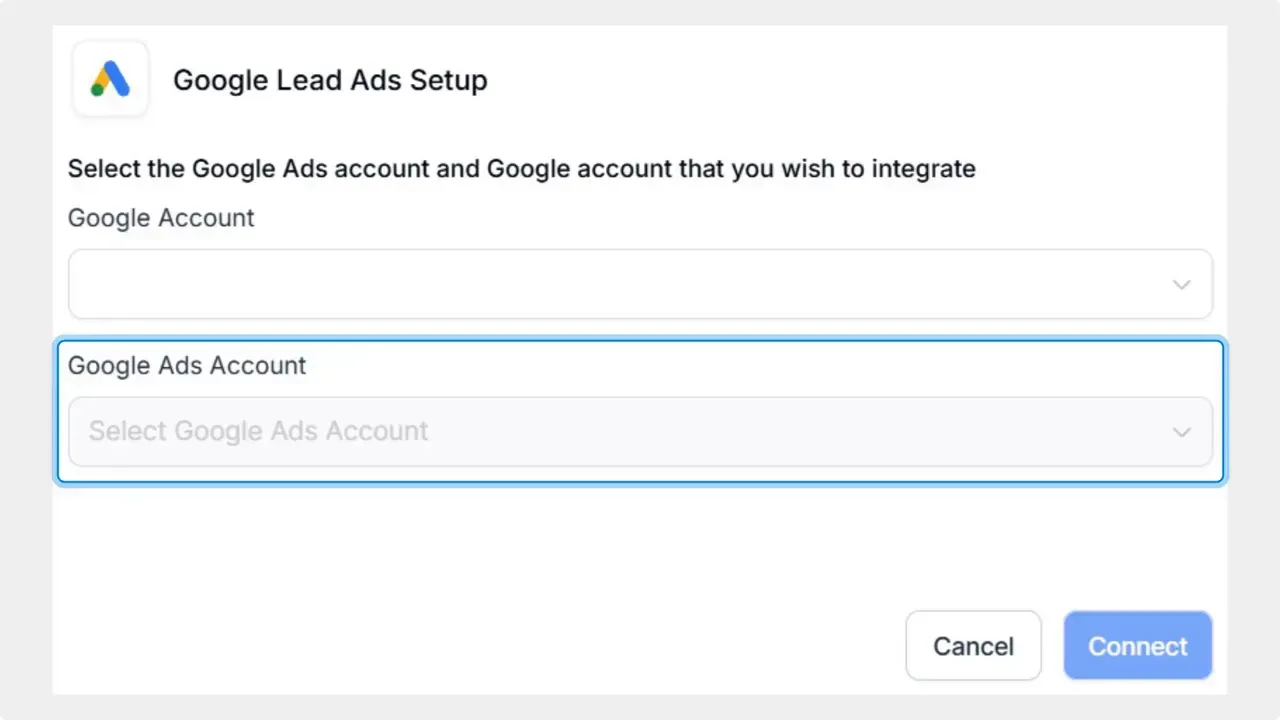
Click Install. When prompted, connect the Gmail account that’s linked to your Google Ads. Make sure this is the same Google account that owns or has access to the ad accounts you want to sync.
3. Select the ad account
After connecting Gmail, choose the desired Google Ads account from the list. If you manage multiple ad accounts, repeat this step for each account you want to bring into Pinnacle.
4. Enable Campaign Sync and map fields
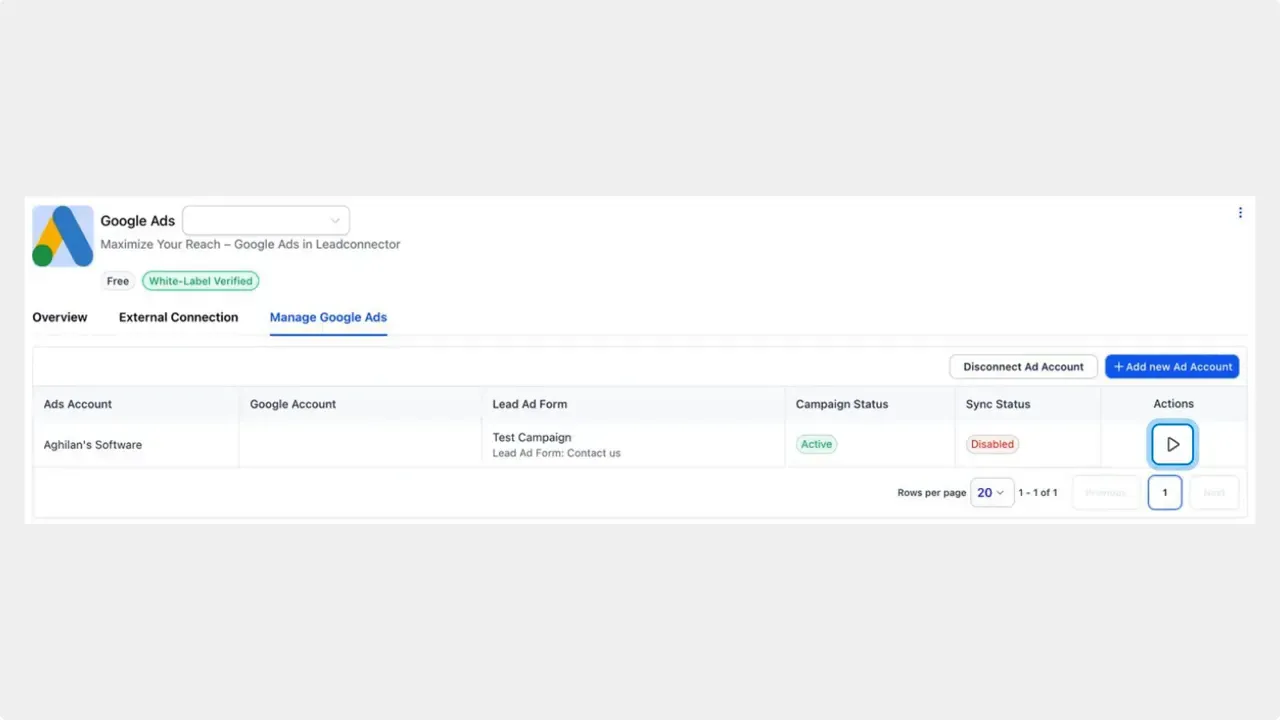
Click the Action button next to each lead form and enable Campaign Sync. Map form fields (for example: name, email, phone) to the corresponding Pinnacle CRM fields so data lands where your automations expect it.
5. Build automations around the lead trigger
Use the Google Lead Form Submitted trigger in Pinnacle to start workflows. Add filters for ad account and form so each lead follows the correct sequence—welcome emails, SMS, lead assignment, or nurture tracks.
Why this setup matters
- Centralized lead management — see active lead forms across accounts in one place.
- Faster engagement — automated follow-ups reduce time-to-contact.
- Consistent routing — map fields once and keep lead data clean for reporting and splits.
- Better ROI tracking — connect lead source data to your CRM workflows and measure downstream results.
Best practices
- Make sure the Gmail account has access to all relevant ad accounts before installing.
- Map required fields first: email, phone, and name. Add custom fields for form answers you use in automations.
- Test the flow with a sample lead to confirm mapping and automation triggers are working.
- Use filters in automations for ad account and form so each campaign can have a tailored follow-up sequence.
- Assign owners or use round-robin to ensure leads don’t sit unassigned.
Troubleshooting tips
- If forms don’t appear, confirm the connected Gmail account is the same one that manages the ads. Reconnect if necessary.
- If lead fields look wrong, revisit your field mapping and correct any mismatches.
- If automations don’t trigger, check that the lead form trigger includes the correct ad account and form filters.
- For permission errors, ensure the Gmail user has sufficient access in Google Ads to view lead forms.
FAQ
Which Gmail account should we connect?
Connect the Gmail account that has access to the Google Ads ad accounts you want to sync. If you manage multiple ad accounts under different Google users, connect each relevant Gmail account and select the appropriate ad account during setup.
Can we sync multiple ad accounts to a single Pinnacle account?
Yes. Install the integration and connect each ad account. Each ad account and its lead forms will appear in the integration view so you can enable Campaign Sync and map fields per form.
What automation trigger do we use for Google lead forms?
Use the Google Lead Form Submitted trigger. Add filters for ad account and form so leads from different campaigns follow the correct workflows.
Which fields should we map?
Start with name, email, and phone. Map any additional form answers you rely on for segmentation or routing, such as service interested in or budget range.
How do we test the integration?
Submit a test lead through one of the lead forms, then confirm the data arrives in Pinnacle and triggers the expected automation. Check field values, tags, and lead assignment.
Next steps
Set up Campaign Sync for each active form, map fields carefully, and create targeted automations that act immediately on new leads. This creates a single-point solution for managing inbound leads and improves response times across campaigns.
Enjoy smoother lead flows and faster follow-ups with Pinnacle.
This article was created from the video Google Ads Integration: Auto-Sync Leads & Automate CRM Workflows



