
How to Read and Act on Workflow Trigger Stats in HighLevel (GHL)

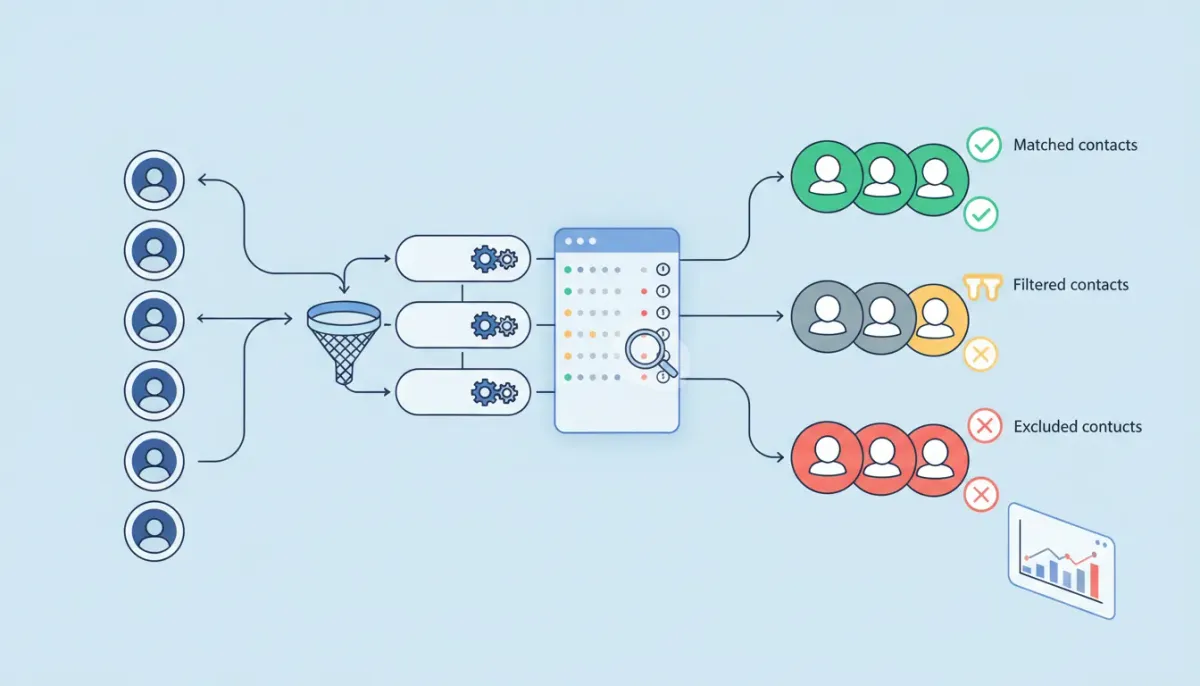
Workflow trigger statistics in HighLevel (GHL) give you a clear view of which contacts actually enter your automations, which are filtered out, and why. Understanding these logs helps you troubleshoot automation problems, tighten segmentation, and improve campaign performance. This guide explains the trigger stats concepts, shows how to interpret the data, and provides an actionable checklist to fix the most common issues.
What are Workflow Trigger Stats and why they matter
Workflow trigger stats are the records of contacts that attempted to enter a workflow and the outcome of that attempt. They show three primary states:
- Attempted: Contacts that started the trigger process.
- Matched: Contacts that met the trigger criteria and continued through the workflow.
- Unmatched: Contacts that were stopped by a filter or condition and did not proceed.
For agencies and operators using HighLevel automations, these stats are essential for:
- Validating workflow logic before scaling.
- Identifying data / mapping problems in your CRM.
- Finding and fixing segmentation errors that cause lost follow-ups.
- Measuring the match rate to estimate how many leads actually receive intended messaging.
Who should use trigger stats?
Trigger stats are useful for:
- Agency owners and implementation specialists onboarding clients to HighLevel.
- Marketing managers troubleshooting lead routing and automations.
- Support teams diagnosing client-reported workflow failures.
- Technical users refining trigger logic and filters to improve match rates.
Key metrics explained
Attempted
A contact marked as attempted reached the initial trigger condition and was evaluated against any trigger-level filters. Attempted does not guarantee the contact continued into the workflow. Think of it as "entered the gate to be checked."
Matched
A matched contact satisfied all trigger conditions and was admitted into the workflow. Matched records typically have no unmatched reason and will be tracked as having triggered automation steps such as messages, tags, or delays.
Unmatched
Unmatched contacts were evaluated and excluded by one or more filters or conditions. The stats view shows a reason for unmatching, like "filter not matched" with details on which field or value failed. This information is the most actionable part of trigger stats when something does not behave as expected.
How to access trigger stats in HighLevel
Use the following steps inside the HighLevel workflow builder to view and analyze trigger stats:
- Open the workflow you want to inspect in the HighLevel Workflow Builder.
- Locate and click the Stats or Trigger Stats view in the left panel of the trigger block (this opens the trigger stats screen).
- Use the date selector to narrow the time window you want to inspect.
- Optionally pick a specific contact to view their individual attempt history.
- Switch between the Attempted, Matched, and Unmatched tabs to review the detailed lists and reasons.
- Click the "Top reasons for unmatched" to see the most frequent filters causing exclusions.
These lists include timestamps, contact names, match status, and a short reason for unmatched entries. You can also navigate pagination (10/20/30/40 rows per page), refresh the data, and open a contact record in a new window directly from the list.
How to interpret trigger stats: practical examples
Interpreting the numbers correctly prevents false alarms. Below are common scenarios with how to read the data and what to do next.
Scenario 1: Low match rate for an appointment follow-up workflow
Suppose a workflow triggers on appointment events and expects "Appointment Status = Confirmed." You see 200 attempted contacts and only 110 matched. The unmatched reasons show "Appointment Status: No Show" or "Cancelled."
Interpretation: The trigger correctly attempted all appointment events, but many events were not confirmed and therefore excluded. This is expected behavior, not an error.
Action: If you want to include additional statuses, revise the trigger/filters to include them. If only confirmed appointments should proceed, document the match rate and accept the unmatched volume as correct.
Scenario 2: Contacts expected to trigger but show as attempted without a clear filter failure
If a contact appears in Attempted but the unmatched reason is ambiguous (for example, a missing field), check contact data and field mapping.
Action steps:
- Open the contact record and confirm the field values used by the trigger (tags, custom fields, appointment details).
- Confirm the event type and timestamp match the trigger criteria.
- Check integrations (Zapier, API, form mapping) that populate those fields.
Scenario 3: High unmatched rate after a recent workflow change
A recent filter addition or stricter condition can suddenly exclude contacts. Trigger stats will show a spike in unmatched with the new filter listed as the reason.
Action: Revert the change and test, or adjust the filter logic to ensure it aligns with the actual contact data and business rules. Use a small test batch to verify before reapplying to production workflows.
Common top reasons for unmatched and how to fix them
- Incorrect field values: Contacts lack the expected value. Fix by correcting mapping or enriching data sources.
- Status mismatches: Example: expecting "Confirmed" but receiving "No Show" or "Cancelled." Decide whether to broaden criteria or leave as-is.
- Timing or event mismatch: Events fired before the workflow was active. Check event timestamps and workflow activation time.
- Tag or custom field name mismatch: Typos or inconsistent naming between forms, integrations, and workflow filters. Standardize naming conventions across forms and automations.
- Integration delays: Data from external systems arrives too late, causing the trigger to run before fields are populated. Add short delays or re-trigger logic where necessary.
Troubleshooting checklist: step-by-step
Use this checklist when analyzing a workflow with unexpected unmatched contacts:
- Confirm the workflow trigger type and the exact event or object it listens for.
- Open trigger stats and filter by the relevant date range to isolate the issue window.
- Review several attempted entries to see exact unmatched reasons.
- Open the contact records to verify field values, tags, appointment statuses, and timestamps.
- Check recent changes to the workflow, fields, or integrations that could affect matching.
- Run a controlled test: create a contact with expected values and observe the trigger behavior.
- If the reason is integration-related, review logs in the integration tool or API calls to identify delays or malformed data.
- Adjust filters, re-run tests, and document the expected match rate for future monitoring.
Best practices to reduce unmatched contacts
- Use clear and consistent field names across forms, tags, and integrations to avoid mismatches.
- Start with broad trigger criteria during testing, then tighten filters after confirming expected behavior.
- Document workflow assumptions including expected field values, event sources, and acceptable match rate.
- Use test contacts with controlled data to validate changes before going live.
- Monitor top unmatched reasons regularly and incorporate fixes into onboarding and template updates.
- Consider re-entry or re-evaluation logic for contacts whose data updates after the initial trigger attempt.
KPIs and reports to monitor
Track these metrics monthly or weekly depending on volume:
Start Your HighLevel Trial + Get Instant Nexus Hub Access
Build, scale, and optimize your business with HighLevel. Start a free trial using this link to get automatic access to the Nexus Hub community, templates, and implementation resources.
Start Free Trial- Match rate = matched / attempted (percent)
- Top unmatched reasons — frequency and trend over time
- Volume of attempted contacts — to confirm expected traffic
- Time-to-match — how long between event and successful match
Use match rate trends to detect sudden regressions caused by recent changes, integrations, or form updates.
Action plan: 7-step method to improve your workflows
- Export or note your current match rate and main unmatched reasons.
- Create a short test plan with 3-5 sample contacts covering different expected values.
- Run tests and capture stats for attempted, matched, and unmatched outcomes.
- Fix data mapping or filter logic that produced unmatched results.
- Re-run tests until match rate meets your target (for many appointment flows, 85%+ is a reasonable target unless intentionally excluding statuses).
- Document the final logic and update any client or team onboarding material.
- Set a recurring review cadence to check trigger stats and top unmatched reasons monthly.
Common misconceptions and edge cases
- Attempted does not equal failure. Attempted just means the contact was evaluated; it may be correctly excluded by design.
- Unmatched always indicates a broken workflow. Sometimes it indicates proper filtering for undesirable states.
- High unmatched rates always mean data errors. They can also be the result of intentional segmentation or business logic changes.
- Triggers evaluate in a single pass. If contact data changes after the initial attempt, the contact might need to re-enter or be re-triggered depending on your workflow setup.
How this fits into agency operations and scaling on HighLevel
For agencies running multiple client automations, trigger stats provide a scalable way to validate workflows across accounts and templates. Use the stats view when:
- Onboarding new clients to confirm template behavior with live data.
- Rolling out a new appointment or lead nurturing sequence to a set of accounts.
- Documenting standard operating procedures for automation health checks.
Consider adding trigger stats checks to your onboarding checklist, and incorporate common unmatched reasons into your client training materials. If you use GHL templates, update template documentation to explain expected match rates and the conditions that intentionally exclude contacts.
When to involve support or developer resources
Escalate to GHL support or your developer when:
- Unmatched reasons are unclear and contact fields appear correct.
- Integration logs show malformed payloads, missing fields, or consistent delays.
- Contacts are being attempted multiple times unexpectedly or re-trigger loops occur.
Next steps and practical checklist
Use this quick checklist after reviewing trigger stats:
- Identify top 1-3 unmatched reasons for the last 30 days.
- Confirm whether those reasons represent expected business logic or data problems.
- Fix mappings, update filters, or change workflow logic as required.
- Run test contacts to validate changes.
- Document the change and expected match rate in the workflow description.
FAQ
How do attempted contacts differ from unmatched contacts?
Attempted contacts were evaluated by the trigger and may have been matched or unmatched. Unmatched contacts specifically failed one or more trigger-level filters and were excluded from the workflow.
Can a contact retry entering a workflow after being unmatched?
Yes. A contact can re-enter if their data changes to meet trigger criteria or if a separate re-entry condition exists. Consider using automation steps to re-evaluate contacts after important updates.
What is a healthy match rate?
A healthy match rate depends on the business rule. For targeted workflows that only apply to confirmed leads or appointments, lower match rates are normal. For broad lead follow-ups, aim for a match rate above 80–85% unless intentionally excluding specific segments.
Why do I see contacts attempted that never had expected fields populated?
Triggers can fire when the event occurs, even if a related field is empty. This often happens with integrations or event-based triggers. Add a short delay before filter evaluation or adjust the trigger logic to wait for required fields.
How do I find the top reasons contacts are unmatched?
Use the "Top reasons for unmatched" option in the trigger stats screen to see the most frequent filters causing exclusions. Prioritize fixes based on frequency and business impact.
Summary
Trigger stats in HighLevel are a compact, powerful diagnostic tool for workflow health. They demystify which contacts enter automations and why some are excluded. Regularly review attempted, matched, and unmatched data to keep automations accurate, ensure correct data mapping, and reduce missed opportunities. Incorporate trigger stats checks into onboarding and maintenance routines to scale automations confidently across clients.
Ready to optimize your workflows? If you are not using HighLevel yet, consider starting a free trial to test these features on your own account and access community templates and support. Agencies can also join the Nexus Hub and other GHL resources to get templates, troubleshooting guides, and implementation help.
Start Your HighLevel Trial + Get Instant Nexus Hub Access
Build, scale, and optimize your business with HighLevel. Start a free trial using this link to get automatic access to the Nexus Hub community, templates, and implementation resources.
Start Free Trial


