
How to Embed HighLevel Custom Values in WordPress Using the LeadConnector Plugin
Learn how to embed HighLevel custom values in WordPress with the LeadConnector plugin. This guide covers live performance metrics, agency counters, and automation-driven content to personalize your site and boost SEO. Perfect for agencies using GoHighLevel.


Displaying real-time metrics, personalized data, or agency-specific counters on your WordPress site is straightforward when you use HighLevel custom values and the LeadConnector plugin. This guide explains what custom values are, how to connect and use them in WordPress, and practical examples, troubleshooting tips, and best practices for agencies and marketers.
What are HighLevel custom values and why use them on WordPress?
Custom values are pieces of dynamic data stored in your HighLevel (GoHighLevel / GHL) account. Examples include a site-wide "leads captured" counter, a client's last contact date, campaign performance numbers, or any value your workflows update with automations.
Embedding these values on WordPress gives you:
- Live performance metrics on public pages or client dashboards.
- Personalization for visitors when values are used to tailor content.
- Automation-driven content so updates made in HighLevel reflect automatically on your site.
Supported scenarios and who benefits
Use cases that benefit from embedding custom values:
- Agencies displaying cumulative metrics like leads captured, calls booked, or active campaigns.
- SaaS or local businesses updating counters and status indicators automatically.
- Membership or client portals that show account-specific values managed by HighLevel workflows.
Overview: How the integration works
The LeadConnector WordPress plugin connects your WordPress site to HighLevel and exposes custom keys (shortcodes) you can place in pages, posts, or templates. When a value in HighLevel changes—via automations or manual updates—the shortcode outputs the current value on your site.
Step-by-step: Connect LeadConnector plugin and access custom values
- Install and activate the LeadConnector plugin from the WordPress plugin directory or upload the plugin package provided by HighLevel.
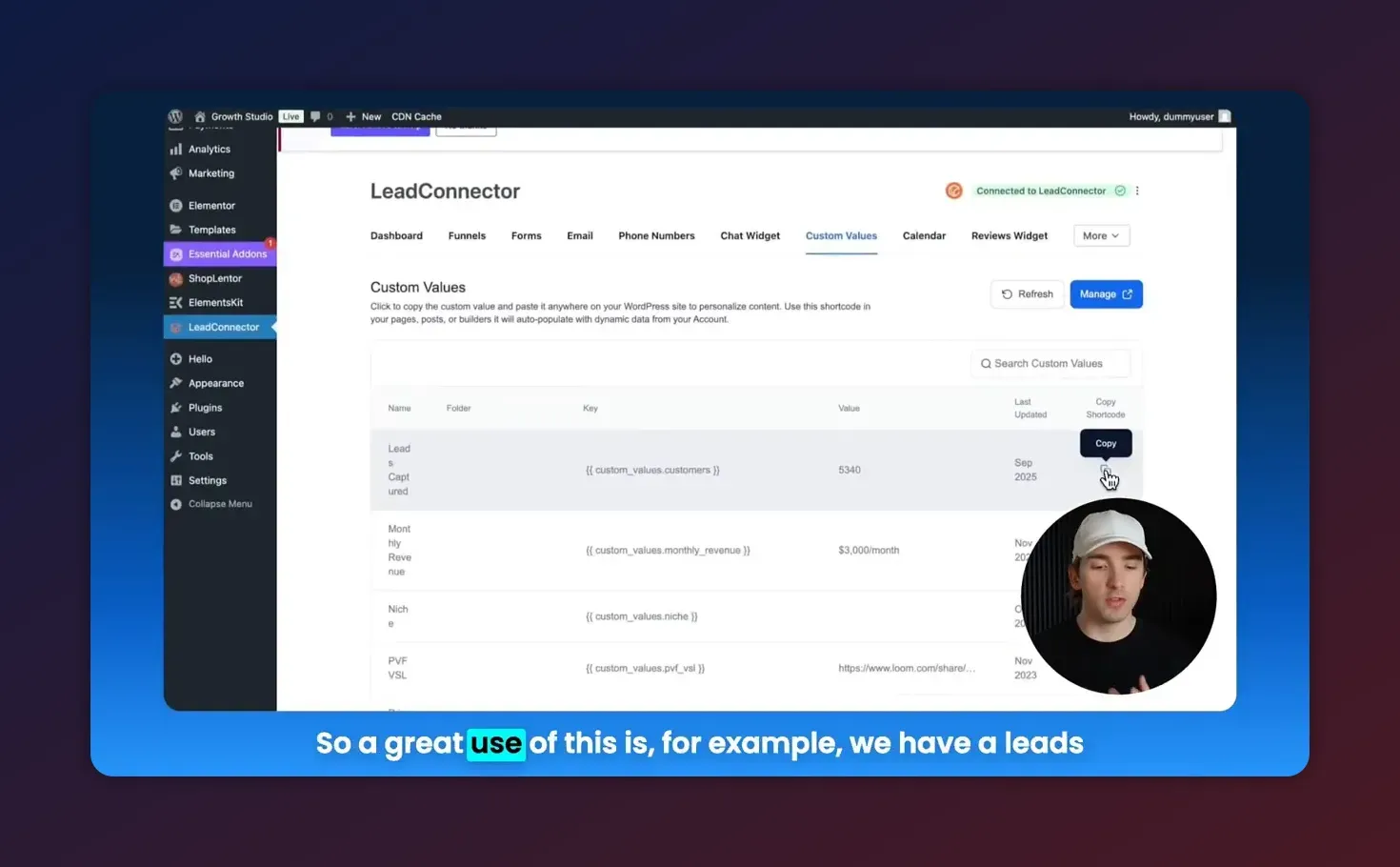
- Copy the shortcode for the custom value you need. Shortcodes will look similar to the format provided by the plugin UI. Keep a reference list for reuse.
Find the list of custom keys and shortcodes inside the plugin UI once connected. The plugin displays available custom values (keys) and a copy button for the matching shortcode.
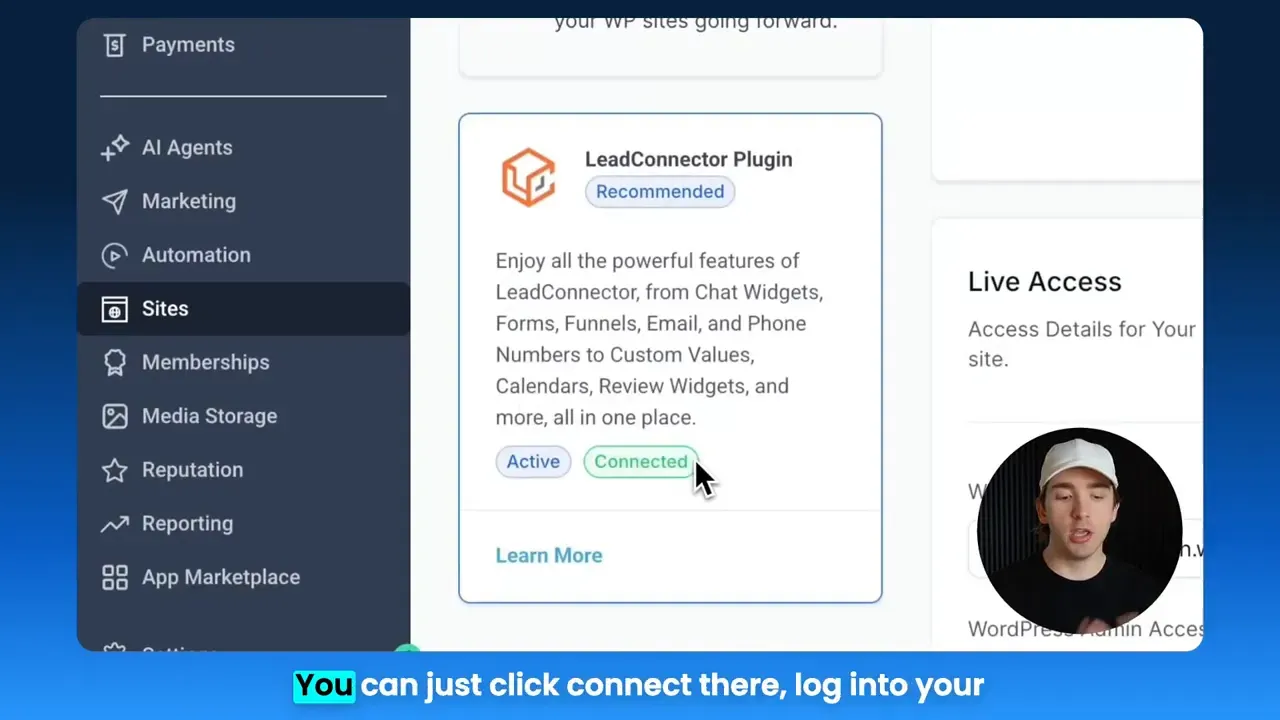
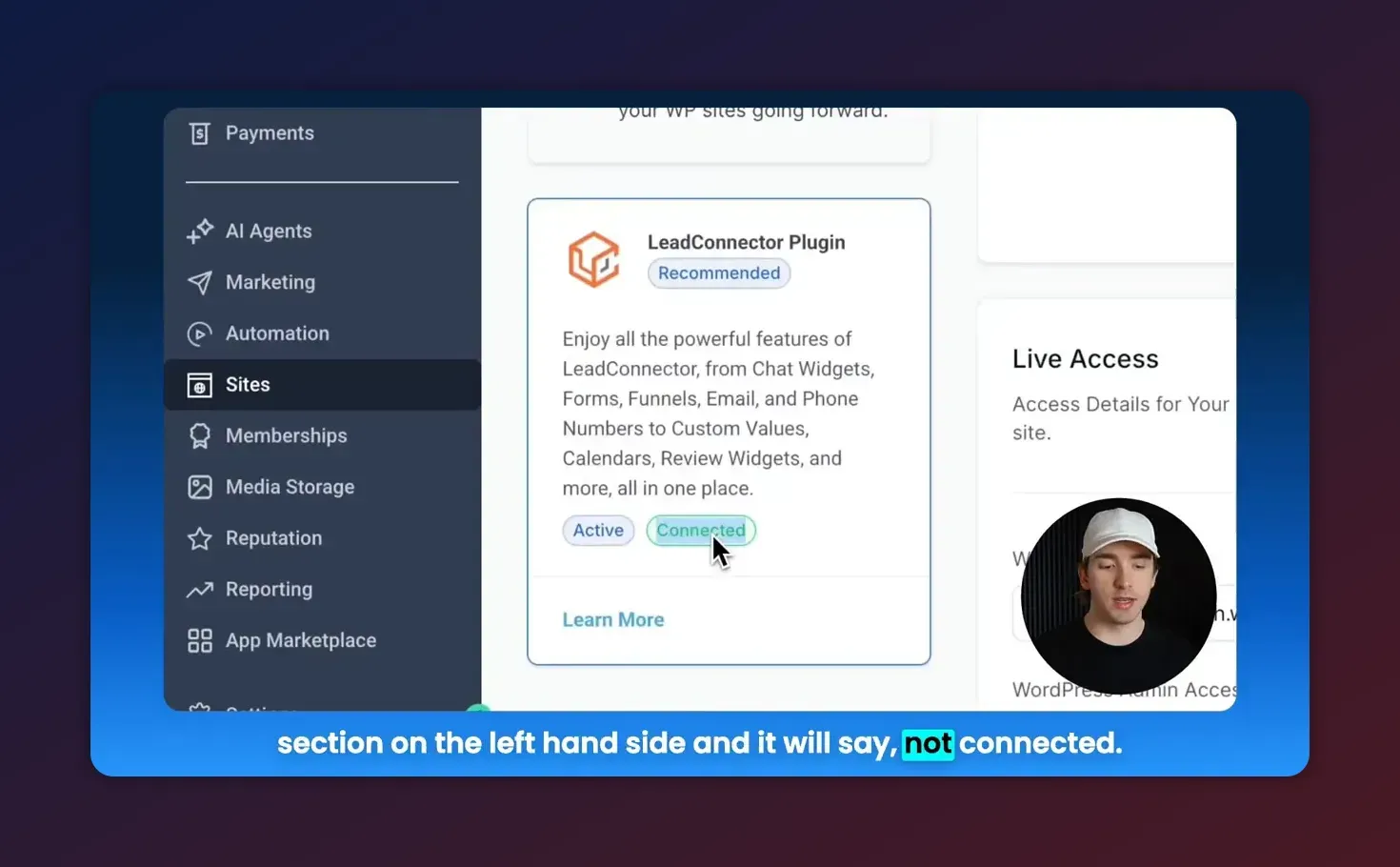
Connect the plugin to your HighLevel account. Click the connect option and authenticate with your HighLevel credentials. If the plugin still shows "not connected," repeat the authentication and check for any popup blockers.
Open WordPress admin and navigate to the LeadConnector plugin area to start connection.
How to insert custom values into pages, templates, and builders
You can use the copied shortcode in most areas of WordPress. Common insertion points:
- Block editor (Gutenberg): Add a Shortcode block and paste the value.
- Classic editor: Paste shortcode directly into the content area.
- Elementor, Divi, WPBakery: Use the widget/module that accepts shortcodes or the Text/HTML widget.
- Theme templates or PHP files: Use WordPress do_shortcode to render the value inside PHP templates.
Example: rendering a shortcode inside a PHP template
<?php
echo do_shortcode( '[leadconnector_custom_value key="your_custom_key_here"]' );
?>
Replace the string inside the shortcode with the exact value copied from the plugin UI.
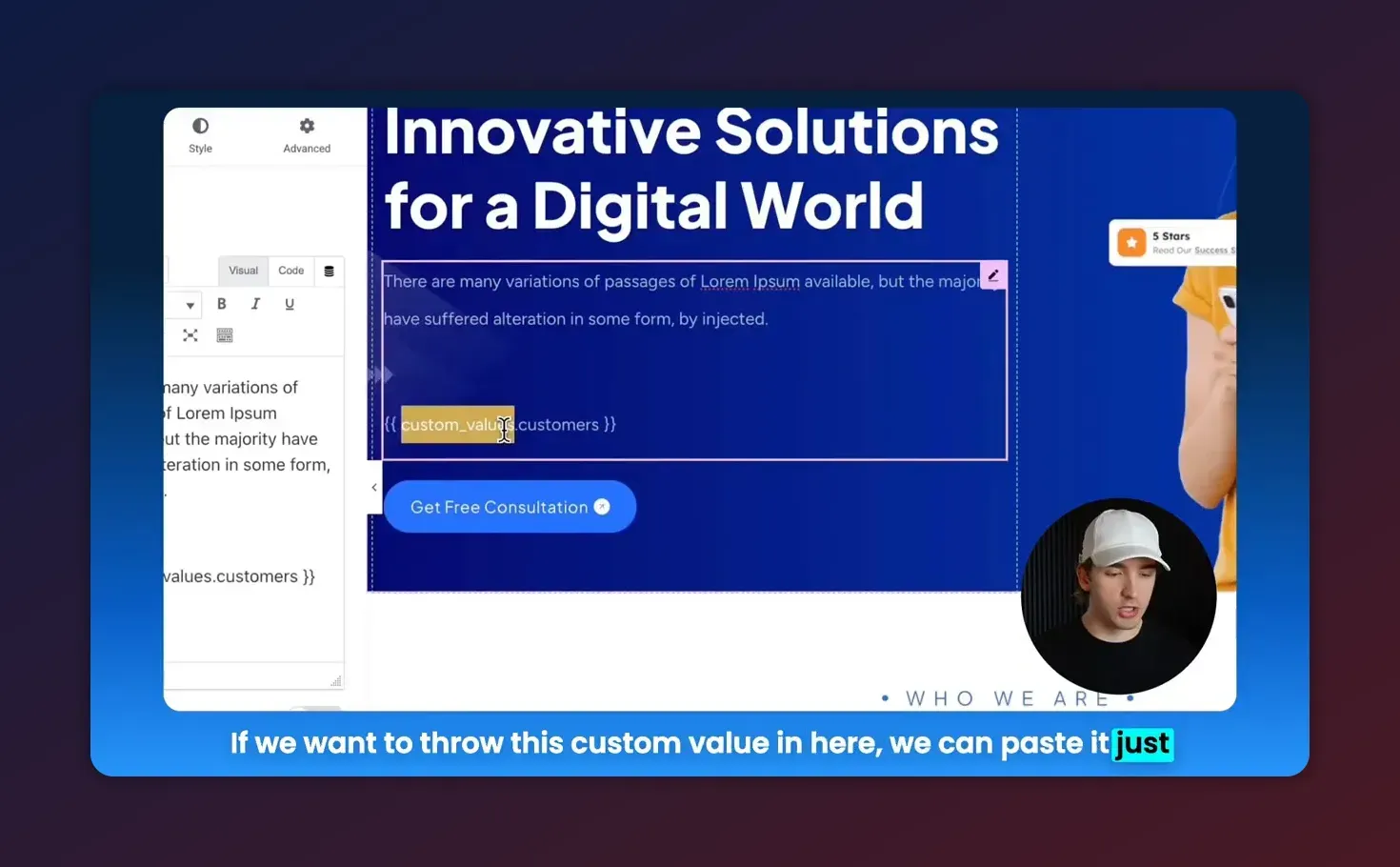
To edit a page in WordPress and paste a copied shortcode, open the page in the editor and add the shortcode block or paste the shortcode where the number or text should appear.
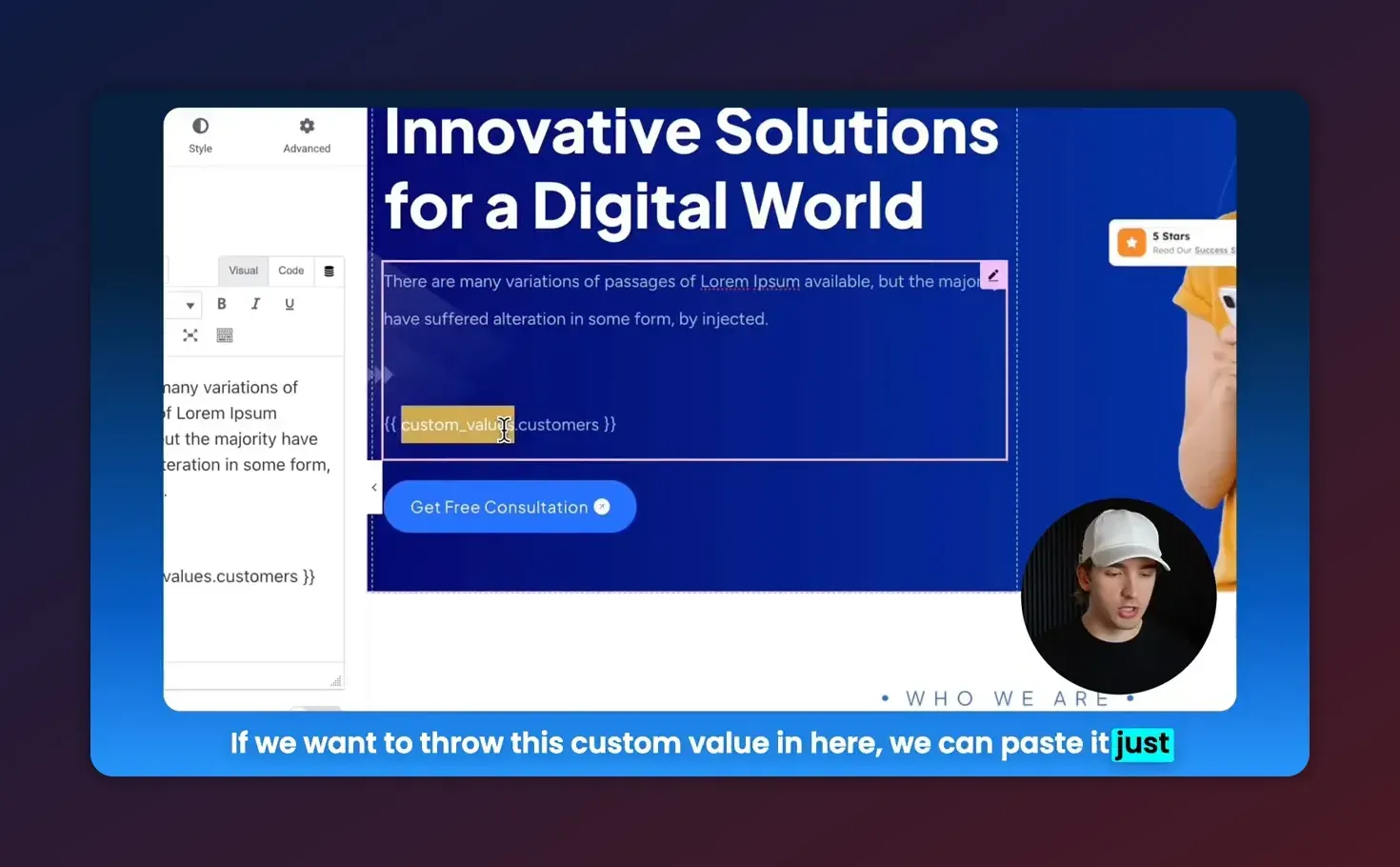
After pasting, save or update the page and view the front end to confirm the dynamic value displays correctly.
Start Your HighLevel Trial + Get Instant Nexus Hub Access
Build, scale, and optimize your business with HighLevel. Start a free trial using this link to get automatic access to the Nexus Hub community, templates, and implementation resources.
Start Free TrialPractical examples and suggestions for agency sites
Below are actionable examples you can implement right away.
1. Display a "Leads Captured" counter on the homepage
- Set up a HighLevel custom value named leads_captured.
- Create a workflow that increments this value each time a new lead is added.
- Copy the corresponding shortcode from LeadConnector and paste it into the homepage where you want the counter to appear.
2. Personalize a client portal
- Store client-specific values (last appointment, renewal date, plan tier) in HighLevel custom values tied to that client.
- On client-facing pages, use the appropriate shortcodes to show those values in the portal or dashboard.
3. Report campaign totals in footer or marketing pages
- Use global custom values to show campaign-level totals such as calls booked or emails sent.
- Place shortcodes inside reusable footer or header templates so the numbers appear site-wide.
Best practices for formatting and presentation
- Format numbers in HighLevel where possible, or use client-side formatting (JavaScript) for thousands separators and currency symbols.
- Wrap dynamic values with explanatory text so a raw value is clear to visitors (for example, "Leads captured: [shortcode]").
- Cache sensibly — static caches can prevent live values from updating instantly. Use page-fragment caching or exclude pages with dynamic values from full-page caches.
- Use CSS classes next to shortcodes to control styling and responsive layout.
Troubleshooting and common pitfalls
Plugin shows "not connected"
- Re-authenticate the plugin connection and ensure popups are not blocked.
- Confirm the HighLevel account has permissions to expose custom values.
- Update the plugin to the latest version and clear browser cache.
Shortcode returns blank or outdated value
- Check that the custom key exists in HighLevel and is spelled exactly as shown in the plugin UI.
- Ensure your caching system is not serving a cached copy of the rendered page. Temporarily bypass or clear caches to test.
- Confirm the workflow updating the custom value is firing correctly in HighLevel.
Shortcode shows on the page as text instead of rendering
- Make sure you placed the shortcode in a Shortcode block or a widget that supports shortcodes.
- If using a text widget, enable shortcode processing with add_filter('widget_text', 'do_shortcode'); in your theme functions.php (use caution and a child theme).
Formatting and HTML issues
- Shortcodes typically output raw values without HTML. Wrap them in HTML or a block for styling.
- Sanitize any dynamic value before rendering if you programmatically manipulate it in PHP to avoid XSS risks.
Security and performance considerations
- Least privilege: Only connect the plugin using an account in HighLevel that has access limited to required resources.
- Sanitize outputs: If you pass values through custom PHP, use esc_html or esc_attr before echoing to avoid injection risks.
- Cache strategically: For high-traffic sites, display frequently-updated values in small, uncached blocks and keep the rest of the page cached.
- Rate limits: Be mindful of any API rate limits that might apply when rendering many custom values on high-traffic pages.
How to update custom values from HighLevel workflows
Use HighLevel automations and workflows to change custom values automatically. Common workflow actions:
- Increment or set numeric counters when a new lead is created.
- Update timestamps or strings based on events like calls, forms, or appointment bookings.
- Use scheduled workflows to adjust monthly or weekly totals.
After a workflow updates the value, the change appears on WordPress where the shortcode is used—subject to cache settings.
Checklist before publishing dynamic values
- Confirm LeadConnector plugin is connected and showing custom keys.
- Copy the correct shortcode for the value you want to display.
- Test the shortcode in the page editor and on the live page.
- Validate workflows that update the value in HighLevel.
- Review caching setup to ensure updates appear in a timely manner.
- Sanitize and style the output for a consistent UX.
Advanced tips for agencies and developers
- Multi-site setups: For agencies running multiple client sites, keep a mapping document that lists client names, custom key names, and where each shortcode is used.
- Template integration: For reusable components, add the shortcode to header or footer templates via PHP. Use conditional logic to display different values per client or page.
- Monitoring: Use a simple health-check page that loads important shortcodes and alerts you if any return empty values.
- Nexus Hub and templates: Leverage community templates and resource packs to standardize how custom values are displayed across client sites.
When to contact support or ask for implementation help
Reach out to HighLevel support or an implementation partner if:
- You cannot authenticate the plugin despite correct credentials.
- Custom keys do not appear after connection.
- Workflows are not updating values as expected and you need deeper troubleshooting.
- You want help building secure, cached front-end solutions for high-traffic sites.
Summary and next steps
Embedding HighLevel custom values into WordPress using the LeadConnector plugin enables dynamic, automation-driven content that updates as your CRM and workflows change. The essential steps are: connect the plugin, copy the shortcode for the custom key you need, place the shortcode where you want it to display, and manage updates through HighLevel workflows. Address caching, formatting, and security to ensure reliable, polished results.
If you are new to HighLevel and want to try this integration, consider starting a free trial to explore automations, workflows, and the LeadConnector plugin in a test environment. Agencies can also join community resources like Nexus Hub for templates and implementation support.
Frequently asked questions
How do I find my custom value shortcodes in WordPress?
After connecting LeadConnector to HighLevel, open the plugin area in WordPress. The plugin lists available custom keys and provides a copy button for each corresponding shortcode. Use that shortcode in any shortcode-enabled block, widget, or template.
Will cached pages show outdated custom values?
Full-page caching can serve stale values. Use fragment caching, exclude pages with dynamic content, or implement client-side refresh to keep displayed values current.
Can I use custom values inside Elementor or Divi?
Yes. Use the Shortcode or Text/HTML module in your page builder and paste the copied shortcode. For advanced templating, render the shortcode in theme files using do_shortcode.
What if a custom value shows blank on my site?
Verify the plugin is connected, the custom key exists in HighLevel, the workflow updating it is working, and that your cache is not returning an old page. Also confirm correct shortcode placement in a block that supports shortcodes.
Is there a security risk displaying HighLevel data on public pages?
Publicly display only non-sensitive values. For client-specific or private data, require authentication and serve content in protected areas. Always sanitize outputs if you manipulate values in PHP.
Start Your HighLevel Trial + Get Instant Nexus Hub Access
Build, scale, and optimize your business with HighLevel. Start a free trial using this link to get automatic access to the Nexus Hub community, templates, and implementation resources.
Start Free Trial


