
Dashboard Date Picker & Filter Persistence Live!
Learn how the new dashboard filter persistence in HighLevel saves your date ranges and selections automatically. This guide covers the benefits for client reporting, how to use the feature, and best practices for streamlining your agency's data analysis.

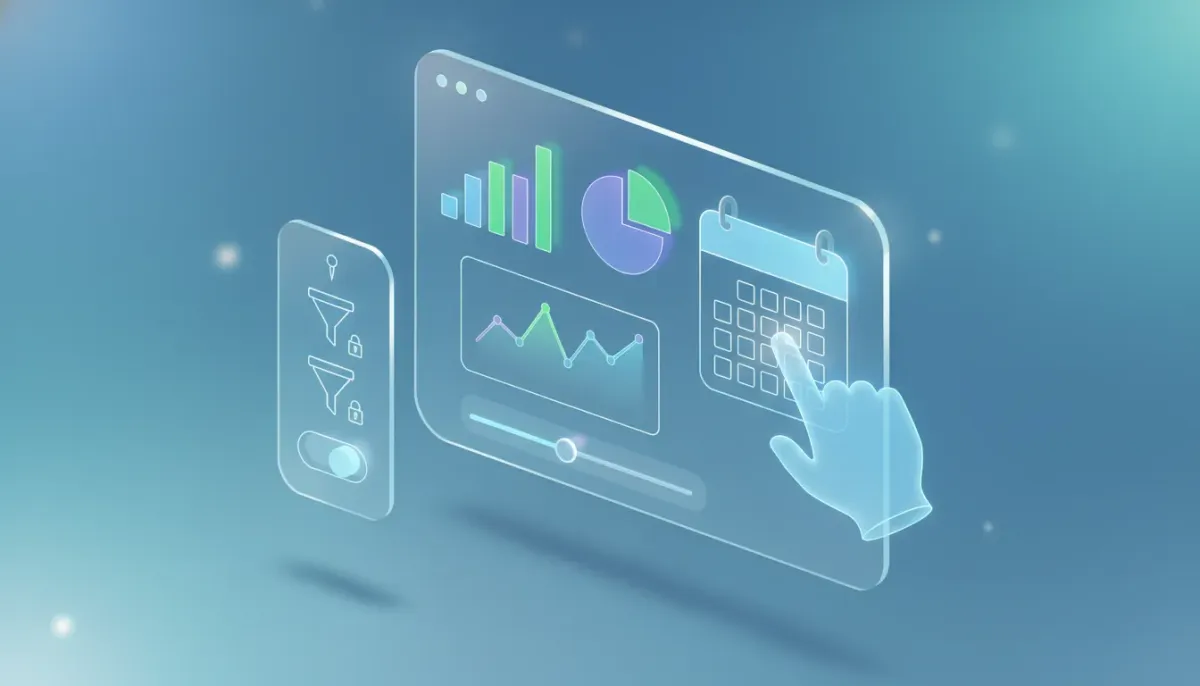
If you spend time in HighLevel dashboards, this small change delivers a disproportionately large improvement to day-to-day workflow. Date ranges and filters you apply to dashboards now stick. Set a time range or filter, leave the page to do something else, then return — your selections remain exactly as you left them.
The Complete Operating System for Growth
Join over 60,000+ agencies and businesses using HighLevel to capture more leads and close more deals. Start your trial today and get instant access to the Nexus Hub resources.
Claim Your Free Trial & BonusesWhat changed
The dashboard date picker and filter persistence update makes filtering state persistent by default. When you choose a date range or apply filters in any dashboard view, those selections are saved automatically and remain active when you navigate away and come back. That means no more reapplying the same filters every time you hop between reports or client dashboards.
This update is available in HighLevel and is documented in the change log with an accompanying help article if you need step-by-step guidance or want to confirm behavior specifics for your account.
Why persistence matters
Persisting filters may sound simple, but the user experience improvement is significant. Here are the practical benefits:
- Fewer repetitive clicks — Save time by avoiding repeated filter selection when analyzing data across multiple dashboards.
- Smoother analysis flow — Keep the same temporal context when you jump between metrics, so comparisons are consistent and meaningful.
- Better meeting prep — Set the date range and filters for a client or internal meeting, and those settings stay in place while you gather notes or supporting reports.
- Reduced human error — When your filters persist, you eliminate accidental mistakes caused by forgetting to reapply the correct timeframe or segmentation.
How it works — practical overview
The implementation is intentionally seamless. Here is what to expect when you use filters in the dashboard:
- Select your date range or filters using the dashboard date picker and any available segmentation controls.
- Navigate away to other pages or views within HighLevel — your selections are retained.
- Return to the original dashboard and your date range and filters remain set the same way until you change them.
That simple flow preserves context without requiring you to save anything manually. For specifics about whether persistence is session-based, device-specific, or synced across multiple devices, consult the change log or the help article on ideas.gohighlevel.com.
Common scenarios where persistence helps
Here are common HighLevel use cases that benefit immediately from persistent dashboard filters:
- Weekly or monthly reporting — Set your default reporting period (for example, Last 30 days or This Month) and keep it while you export data, copy insights into a client report, or adjust visuals.
- Sales pipeline reviews — Maintain the same date range while drilling down into stages, lead sources, and conversion rates to ensure comparability.
- Campaign performance analysis — Apply campaign filters and a specific timeframe, then move between the campaign dashboard and contact lists without losing your context.
- Appointments and staff performance — When you're comparing appointment trends across team members, persistent filters keep your selection steady so you can accurately compare days or weeks.
- Client handoffs and audits — During onboarding or an audit, set filters once and let the team review metrics without reconfiguring the dashboard for each user session.
How agencies should adopt this feature
Agencies and teams running multiple client accounts on HighLevel can integrate this small but powerful improvement into existing systems and processes:
- Standardize reporting windows — Agree on default reporting ranges for recurring reports and training materials so everyone looks at the same data slices.
- Create checklist items — When preparing for a client meeting, include a step to verify the dashboard's date range and filters are set correctly. With persistence, this becomes a quick confirmation rather than a repeat setup task.
- Document workflows in your agency playbook — Add a short note about the new persistence behavior so new hires and team members know that filters will remain until changed.
- Use persisted filters during audits — When auditing a client account, apply filters once and move through all required dashboards to maintain consistent analysis.
Best practices for getting the most value
While persistence simplifies dashboard usage, a few deliberate habits make it even more useful:
- Name your internal reports — If your agency maintains a library of report templates, label them by the timeframes and filters that should be used so team members can quickly confirm they're looking at the intended view.
- Communicate changes — Let your team know this behavior exists so they do not waste time reapplying filters or assume saved settings only apply to saved reports.
- Confirm the scope — For multi-device teams, check the help article to understand whether persistence transfers across devices or browsers, and standardize around the recommended approach.
- Combine with CRM segment exports — When a specific filter identifies a segment you want to act on, persist that filter while exporting or creating lists for workflows or campaigns.
- Use it for spot checks — Persisted filters make it quick to spot-check recent performance without reconfiguring the dashboard each time.
How this fits with HighLevel workflows and automations
Dashboard filters and persisted states are primarily a user interface improvement for reporting and analysis. They help you view and compare data more easily. Workflows and automations in HighLevel remain separate functional components that trigger based on CRM data, tags, forms, appointments, and other events.
Use the persisted dashboard state to guide decisions about automations. For example, apply filters to identify a segment of contacts that underperformed during a campaign, then create or adjust a workflow to re-engage that segment. While dashboard filters help you discover insights, automations act on those insights.
Where to find official details and additional support
For full technical details, examples, and the exact behavior of persistence across devices or sessions, check the HighLevel ideas hub and the change log:
- Ideas and feedback — ideas.gohighlevel.com
- Change log and release notes — linked from the ideas hub and within HighLevel documentation
- Help article — a step-by-step guide is available to clarify any subtle behavior like local storage vs account-level persistence
Quick checklist to try persistence right now
- Open a dashboard where you regularly analyze metrics.
- Set a date range you typically use, for example Last 30 days or This Month.
- Apply any segmentation filters such as campaign, pipeline stage, or staff member.
- Navigate away to another page within HighLevel and then return to the dashboard.
- Confirm your date range and filters remained unchanged.
- If behavior varies across browsers or devices, consult the change log or help documentation for clarification.
Why this small change matters for scaling agencies
Agencies grow through repeatable systems that reduce friction and cognitive load. When dashboard tools respect the work people do — like keeping filters intact — teams spend less time on mechanical tasks and more time on strategy, optimization, and client relationships.
The Complete Operating System for Growth
Join over 60,000+ agencies and businesses using HighLevel to capture more leads and close more deals. Start your trial today and get instant access to the Nexus Hub resources.
Claim Your Free Trial & BonusesLess friction equals faster analysis, cleaner meetings, and fewer mistakes. Over weeks and months, those saved minutes compound into measurable productivity gains, which is exactly what agencies need when scaling operations across multiple clients and campaigns.
Next steps: Explore and adopt
Try the persisted filters in your HighLevel account and update your agency playbooks to include the behavior. If you are new to HighLevel, this is one of many productivity-focused improvements in a platform built for agencies, CRM operations, and marketing automation.
If you are evaluating solutions, consider starting a free HighLevel trial to experience the dashboard improvements firsthand and test how persistence impacts your reporting habits. For templates, implementation support, and community-driven best practices, Nexus Hub is a valuable place to join other agencies, grab templates, and accelerate setup.
FAQ
Will the filters persist across different browsers or devices?
Persistence behavior can vary based on account settings and how the platform stores filter state. In many cases filters persist within the browser session. For exact details about cross-device or cross-browser persistence, refer to the change log and help article on ideas.gohighlevel.com which document scope and technical notes.
Do persisted filters affect workflows or automations?
No. Persisted dashboard filters influence only how data is presented in reports and dashboards. Workflows and automations in HighLevel run based on defined triggers and CRM conditions. Use dashboard filters to identify segments and then build or update workflows to act on those segments.
How do I reset filters if I want to start a fresh analysis?
Resetting is straightforward: change the date picker back to your desired timeframe or clear the applied segment filters. The dashboard will update to reflect your new selections. If you want to revert to a default state regularly, consider standardizing a default reporting range in your team documentation.
Where can I find the official release notes and help documentation?
Visit ideas.gohighlevel.com and check the change log for the release notes. A help article linked from the change log provides a step-by-step explanation and answers to common questions about the persistence behavior.
Can I share a persisted dashboard state with a teammate?
Sharing a view typically depends on how the platform generates URLs and whether filter state is encoded in the link. If link-sharing includes filter parameters, you can share a link. Otherwise, instruct teammates on the filters and timeframe you used or use standardized report templates and documentation to reproduce the view.
How does this improve agency reporting and client communication?
By preserving the filter state, you gain consistent context when preparing reports, presenting data, and reviewing performance. This reduces setup time before client meetings and ensures everyone discusses the same timeframe and segments, improving clarity and trust.
Final thoughts
Persistence of the dashboard date picker and filters is one of those refinements that feels small until you start relying on it. Once you stop reapplying the same filters multiple times per day, you notice the time and attention regained. For agencies using HighLevel, this is an operational improvement that aligns with efficient reporting and scalable processes.
Check the change log and help article on ideas.gohighlevel.com for details, experiment with the feature in your account, and consider how persisted filters can simplify your workflows, reporting routines, and client conversations. If you are not yet on HighLevel, try a free trial and explore Nexus Hub for templates and implementation support to get started faster.
The Complete Operating System for Growth
Join over 60,000+ agencies and businesses using HighLevel to capture more leads and close more deals. Start your trial today and get instant access to the Nexus Hub resources.
Claim Your Free Trial & Bonuses


