
Custom Values in Calendars: Personalize reminders with your own data



Photo by Estée Janssens on Unsplash
What changed
We added support for user-created custom values in the calendar selector. Previously the selector only showed predefined fields. Now you can pick values you created yourself when setting up email and SMS templates, meeting locations, appointment titles, and other text-based settings.
How to add custom values to a calendar
Click the custom value you want to add. It will automatically populate the field in your calendar.
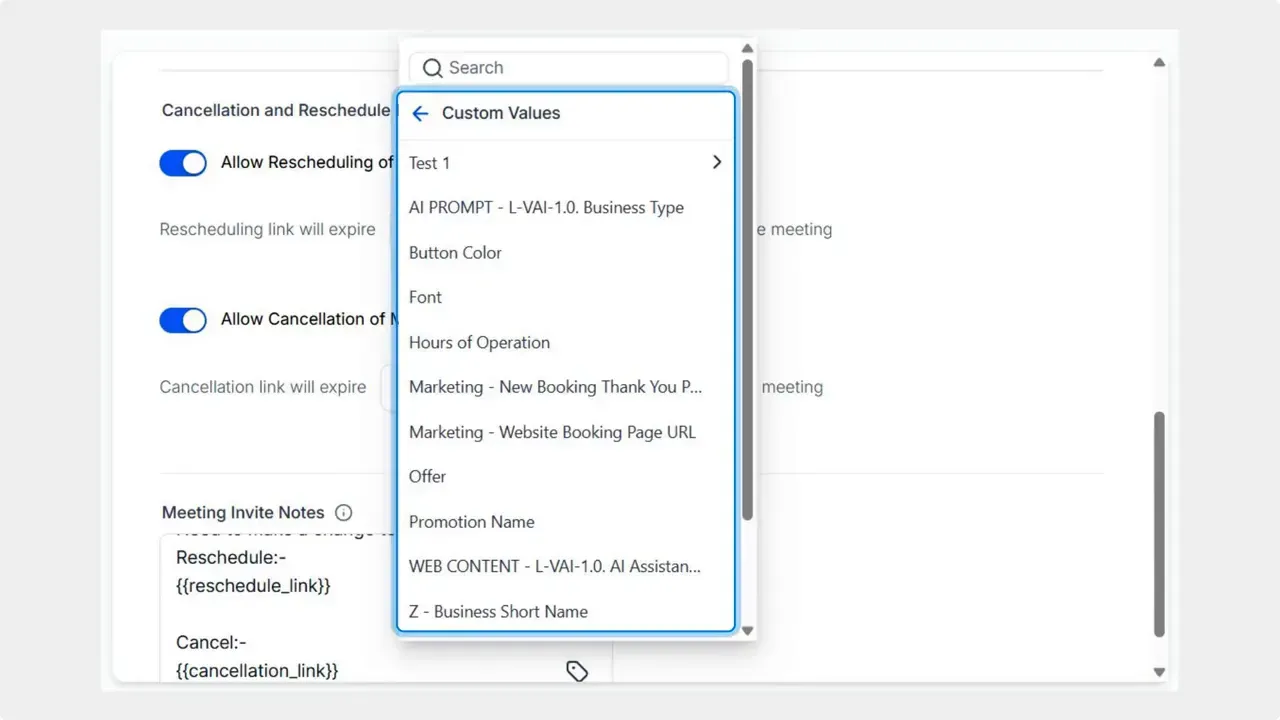
Open the custom value selector to see both predefined fields and your own values.
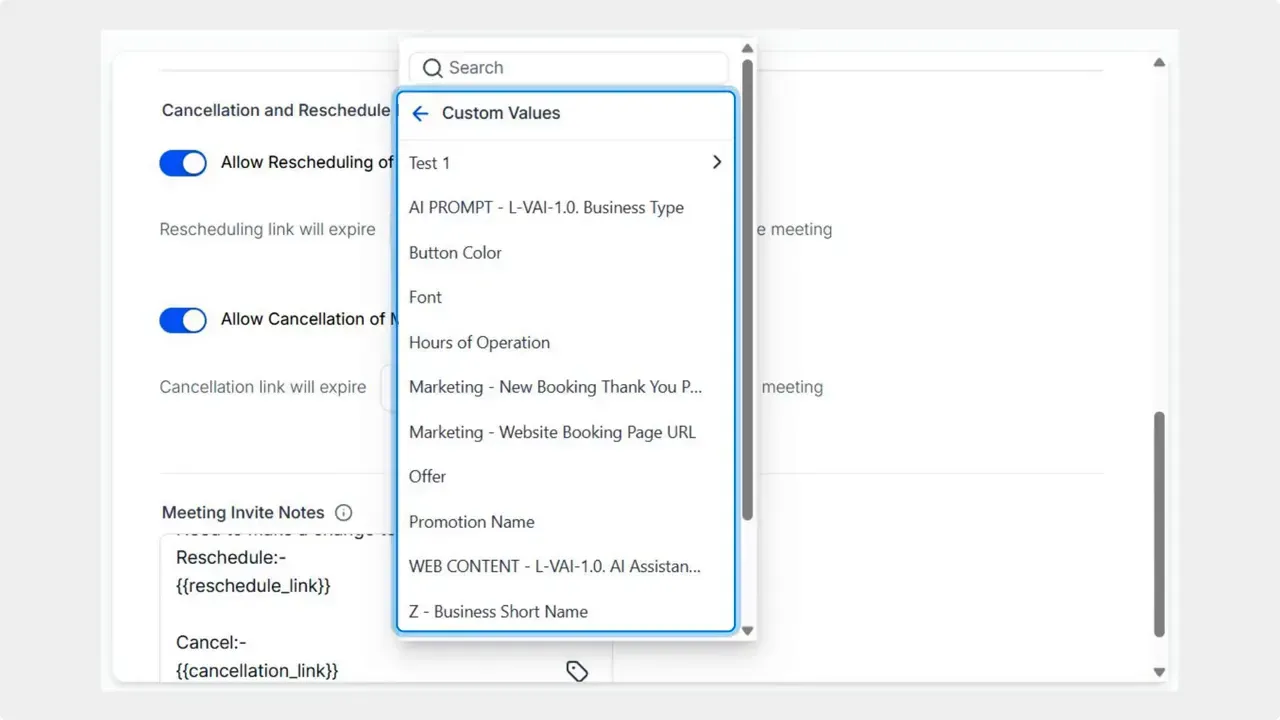
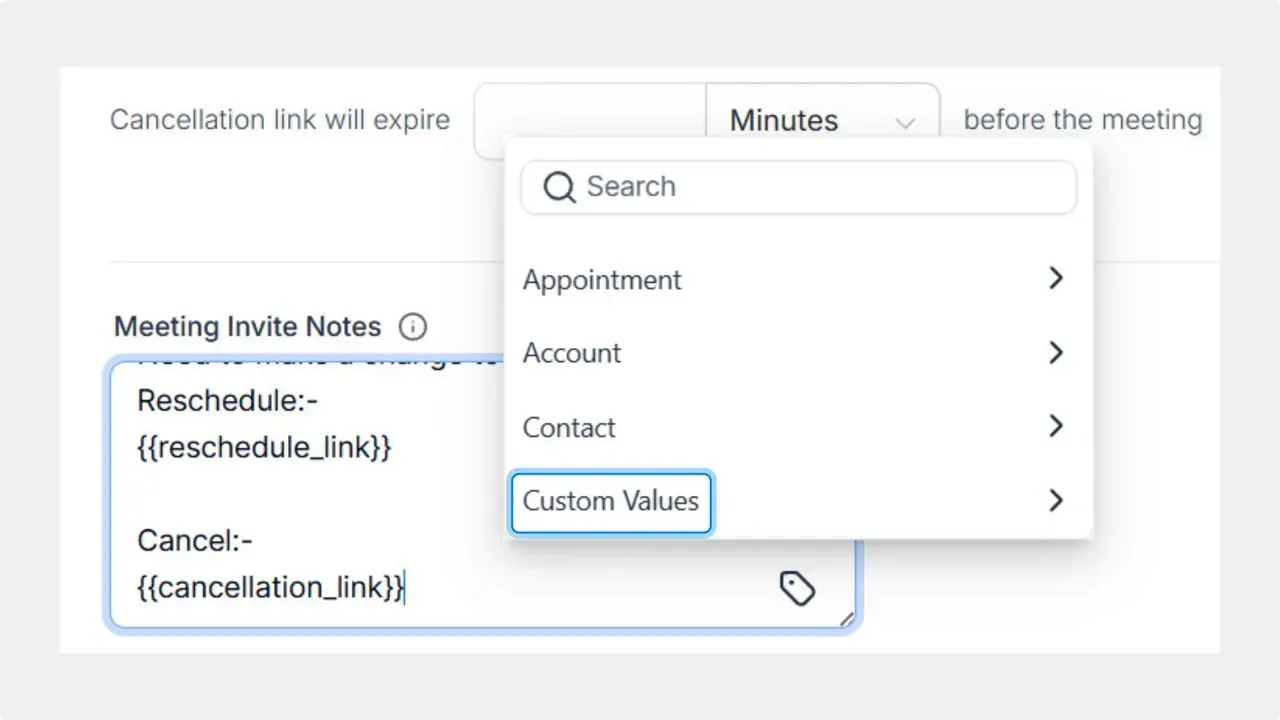
Click the tag icon next to the text-based setting you want to modify, for example email/SMS templates, meeting locations, or appointment titles.
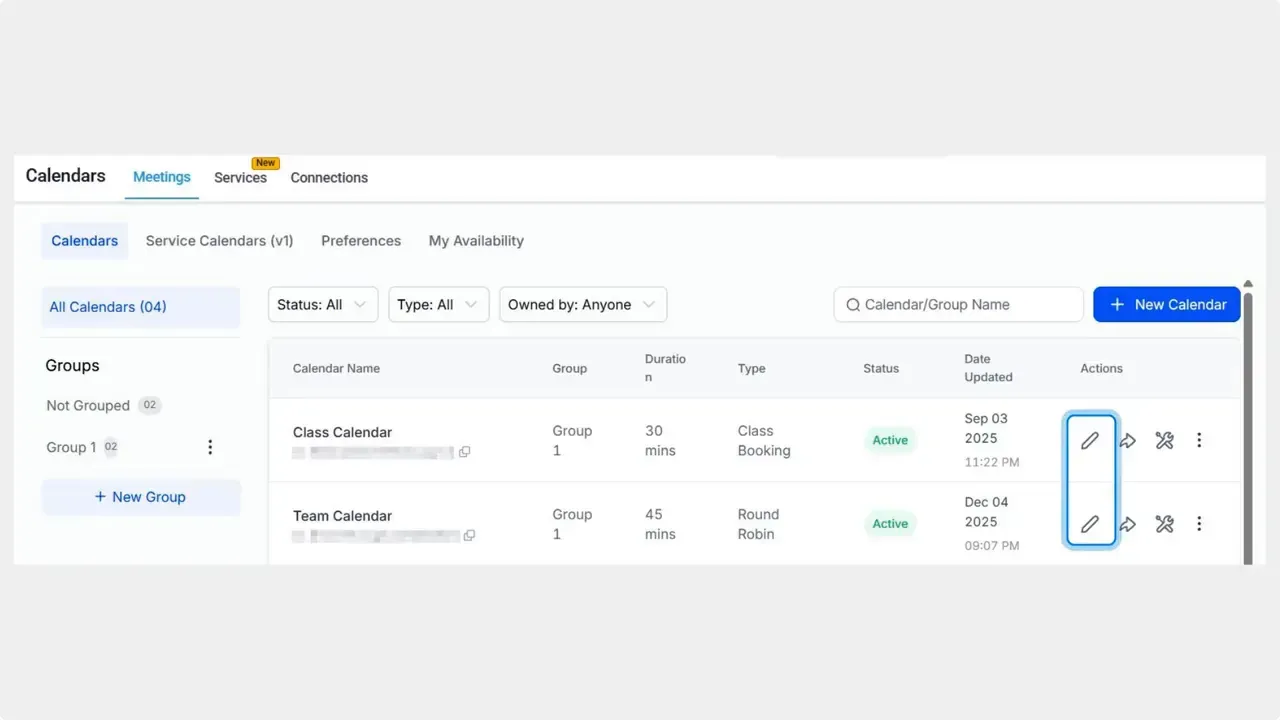
Go to the Calendar Settings and click the pencil icon next to the calendar you want to edit.
Why this matters
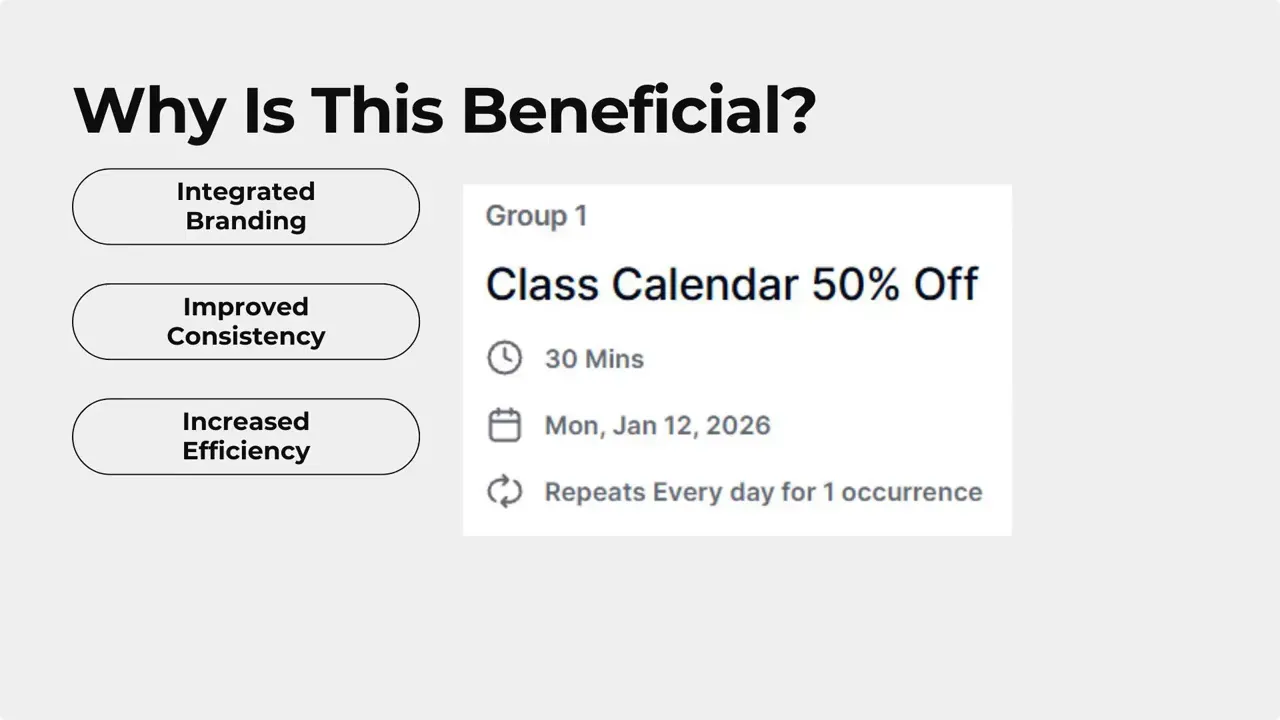
This update helps teams keep messaging consistent and saves time. Instead of copying and pasting branded text across reminders, confirmations, and titles, you can select a saved custom value once and reuse it everywhere.
Key benefits:
- Integrated branding: Use your own offers and phrasing in calendar reminders so appointments match other customer touchpoints.
- Improved consistency: Keep titles, meeting locations, and templates aligned across calendars and the rest of the platform.
- Increased efficiency: Reduce repeated manual input and lower the chance of typos or mismatched messaging.
- Lead enrichment: Populate fields with custom values that help qualify or inform leads automatically.
Tips and best practices
- Standardize naming for custom values so your team can find the right option quickly.
- Keep a short list of high-use values for reminders and confirmations to reduce clutter.
- Use custom values for time-limited offers or seasonal messaging and update them centrally.
- Test a few appointments after adding custom values to confirm they appear correctly in email and SMS.
FAQ
Can we use custom values in both emails and SMS templates?
Yes. Custom values are available in the selector for email and SMS templates as well as appointment titles and meeting locations.
Do custom values automatically update across existing calendars?
When you select a custom value in a calendar setting, that calendar uses the value you chose. If you update the underlying custom value elsewhere in the platform, update behavior depends on how your custom values are managed. We recommend keeping frequently used values centrally maintained to ensure consistency.
Can multiple calendars use the same custom value?
Yes. The selector shows your user-created values so you can reuse them across calendars for consistent branding and messaging.
Will this reduce manual copy-pasting of offers and reminders?
Yes. Selecting saved custom values removes the need to copy and paste text across settings, which speeds setup and reduces errors.
Wrap up
Adding custom values to calendar settings makes personalization and brand consistency easier. Use saved values to keep reminders, titles, and templates aligned across the platform and save time on routine updates.
This article was created from the video Custom Values in Calendars: Personalize reminders with your own data



