
How to Set Up Conversation SLAs in HighLevel: A Practical Guide for Agencies and Teams

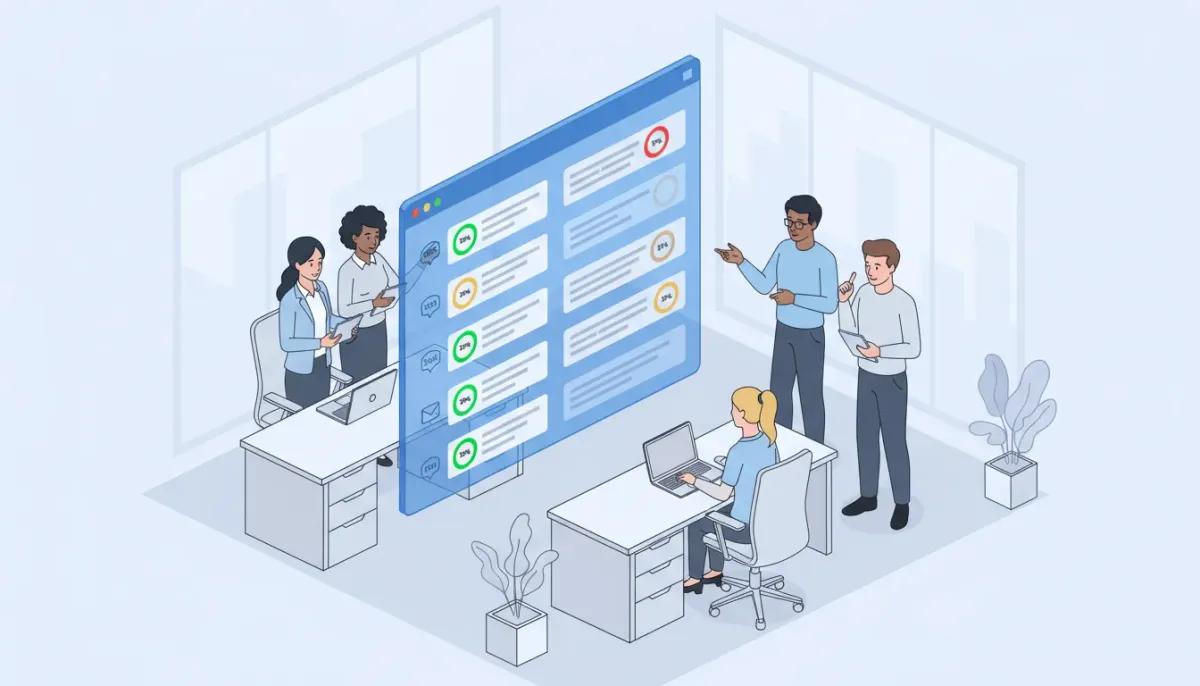
Conversation SLAs (service level agreements) are a simple but powerful way to ensure timely responses across your CRM. For agencies and teams using HighLevel (GoHighLevel or GHL), SLAs help track response targets, prioritize conversations, and measure performance across channels like SMS, email, WhatsApp, and social messaging. This guide explains what conversation SLAs are, how to configure them in HighLevel, practical SLA policies for agencies, and common pitfalls to avoid.
What are Conversation SLAs and why they matter
A conversation SLA is a rule that defines how quickly a team must respond to an inbound contact. In HighLevel, SLAs appear as colored timers or tags on conversations to indicate on-time, near-due, and overdue status. They matter because they:
- Improve customer experience by enforcing predictable response times.
- Prioritize work so agents know which conversations need immediate attention.
- Provide measurable KPIs for operations and client reporting.
- Integrate with automations and AI so response workflows behave consistently.
Who should use conversation SLAs in HighLevel?
SLAs are useful for any team that handles inbound leads, customer support, appointment requests, or multi-channel messaging. Common use cases:
- Marketing and sales agencies managing client inboxes.
- Customer support teams handling SMS, email, and social DMs.
- Multi-location businesses where consistent response standards are required.
- Agencies scaling operations that want operational SLAs tied into automations and reporting.
At-a-glance: Key HighLevel SLA features
- Common vs channel specific SLAs: Apply the same rule across all channels or set per-channel targets.
- Do-soon and overdue thresholds: Two stages—near-due (warning) and overdue (escalation).
- Automation and workflow integration: Choose whether automated messages count as responses.
- Conversation AI agents: Decide if AI replies stop the SLA timer or require human follow-up.
- Applies to new conversations: SLA changes only affect conversations created after the change.
Step-by-step: Configure Conversation SLAs in HighLevel
Follow these steps to configure SLAs in HighLevel. The flow below assumes you have the appropriate admin permissions in the GHL account.
- Open Conversations SettingsFrom the HighLevel dashboard, go to Conversations and open Settings at the top-right to access SLAs.
- Enable SLAsToggle the SLA feature on. You will then choose between a common SLA for all channels or channel specific SLAs.
- Select channels to coverTurn on SLAs for the channels you want to enforce: SMS, email, calls, WhatsApp, web chat, Instagram/Facebook Messenger, iMessage, LinkedIn, and any other connected conversation apps.
- Set do-soon and overdue thresholdsDefine two time thresholds: a near-due (warning) and an overdue limit. The warning typically displays in orange and overdue in red. For example, set SMS to a 3-minute warning and 5-minute overdue, and email to a 30-minute warning and 1-hour overdue.
- Decide how automations affect SLAChoose whether automated workflow messages stop the SLA timer. Options usually include: count all automation messages, count none, or count messages only from selected workflows.
- Decide how AI replies affect SLAIf you use conversation AI agents, pick whether AI replies qualify as a valid response to stop the SLA timer or if a human reply is required.
- Save changes and testSave the SLA configuration. These rules will be applied to new inbound conversations only. Run tests across channels and observe the timers in the inbox to validate behavior.
Visual signals and behavior to expect
HighLevel displays timers and color-coded states to indicate SLA progress:
- Gray: On track, not yet within the do-soon window.
- Orange: Nearing the do-soon threshold; action recommended.
- Red: Overdue; escalate or assign immediately.
Important behavioral notes:
- Multiple inbound messages while a timer is active do not reset the SLA timer.
- Internal notes or team comments do not count as responses that stop the SLA.
- Updating SLA settings only affects new conversations created after the change. Existing conversations keep their original SLA settings.
Sample SLA policy matrix for agencies
Use this sample matrix to create an SLA policy. Adjust numbers based on client expectations and staffing capacity.
- Phone calls: Do-soon 1 minute, Overdue 3 minutes
- SMS/WhatsApp/iMessage: Do-soon 3 minutes, Overdue 10 minutes
- Live chat / Web chat: Do-soon 30 seconds, Overdue 2 minutes
- Instagram / Facebook Messenger: Do-soon 15 minutes, Overdue 1 hour
- Email: Do-soon 30 minutes, Overdue 4 hours
This kind of matrix helps set agent priorities during busy periods. For example, set chat and SMS higher priority than email because users expect faster responses on messaging channels.
How automations and AI should influence your SLA strategy
Two configurable options often cause confusion: whether to count automation replies and whether AI responses stop SLA timers. Approach these choices like this:
- Count automation messages when the automation provides a meaningful human-like response that resolves the request (for instance, a confirmation message with next steps).
- Do not count automation messages when the workflow only acknowledges receipt or sends a simple auto-reply that requires human follow-up.
- Count AI replies when your AI is configured to handle the full scope of the customer's request and meets quality standards; otherwise keep the timer running until a human validates the response.
For agency setups, a common approach is to have automations stop the SLA only for specific workflows (for example, appointment confirmations), while AI replies do not stop the SLA unless the conversation has passed QA.
Practical monitoring and reporting tips
SLAs are only useful if tracked and acted upon. Implement these monitoring best practices:
- Dashboard KPIs: Add SLA compliance rates and average response time to your daily dashboard.
- Queue views: Filter inbox by overdue conversations so agents can triage quickly.
- Escalation automation: Create workflows that reassign or notify managers when a conversation becomes overdue.
- Agent scorecards: Use SLA metrics as part of performance reviews and coaching.
- Client-level SLAs: If managing multiple clients, set client-specific SLA rules or tag conversations so you can report compliance per client.
Common mistakes and how to avoid them
- Setting unrealistic targets: Extremely aggressive SLAs (like 30-second email replies) create burnout. Match targets to channel norms and headcount.
- Counting all automations as responses: This can mask true human response time. Only count automations that fully resolve the inquiry.
- Assuming settings apply retroactively: SLA changes affect only new conversations. Update agents and clients when SLA windows change.
- Ignoring AI safety: If AI stops SLA timers, ensure human review is triggered for sensitive or high-risk conversations.
- No escalation path: An overdue tag without an automated escalation will only be noticed if someone manually checks the inbox.
Advanced workflows: automation examples that work with SLAs
Here are practical automation examples that integrate with conversation SLAs.
- Overdue escalation workflow: When a conversation becomes overdue, send a push notification to the assigned agent, then escalate to a team lead after an additional 10 minutes.
- Auto-confirmation with SLA stop: For appointment booking via SMS, use a workflow to send a confirmation message that counts as a valid response and stops the SLA timer.
- Tag and route: If a keyword indicates a high-priority issue (billing, access problem), the workflow tags the conversation and moves it to a priority queue that has its own SLA.
- AI triage but human close: Use AI to draft responses and set the SLA to continue until a human approves the AI reply. This preserves speed while ensuring quality control.
Checklist: Before turning SLAs on for client accounts
- Confirm channel priorities with the client.
- Decide which workflows should stop SLA timers.
- Define escalation paths and notification recipients.
- Train agents on SLA colors and expected actions at each stage.
- Set up dashboards and weekly reports to review compliance.
How to test SLAs effectively
- Create test conversations for each channel (SMS, email, social).
- Observe timer transitions from gray to orange to red in the inbox.
- Send automated workflow messages to confirm whether they stop SLA timers when intended.
- Simulate AI replies and validate whether the timer behaves per policy.
- Test escalation workflows by allowing a conversation to go overdue and confirming notifications and reassignment.
When to adjust SLA settings
Revisit SLA settings regularly—monthly or quarterly—based on:
- Agent headcount changes.
- Channel volume shifts (e.g., higher SMS traffic during a campaign).
- Client expectations or service agreements.
- New automations or AI capabilities that change response behavior.
Sample SLA policy for a scaled agency (one-page)
Use this short policy as a template to share with clients and internal teams.
- Goal: Respond to inbound conversations within documented timeframes per channel.
- Channels and targets:
- SMS/WhatsApp: 3-minute do-soon, 10-minute overdue
- Live chat: 30-second do-soon, 2-minute overdue
- Email: 30-minute do-soon, 4-hour overdue
- Social DMs: 15-minute do-soon, 1-hour overdue
- Automation handling: Specific appointment/confirmation workflows count as valid responses; generic autoresponders do not.
- Escalation: Overdue conversations trigger agent notification then manager escalation after 15 minutes.
Common questions and quick answers
How do SLAs interact with automated reply workflows?
You can configure SLAs to either stop when an automation sends a message or to continue until a human responds. Best practice is to count automations as responses only when the automation resolves the inquiry; otherwise keep the timer running so a human follows up.
Do SLA changes apply to existing conversations?
No. SLA settings apply only to conversations started after the configuration change. Conversations that entered the system before the update retain the previous SLA rules.
Should AI replies stop the SLA timer?
Only if your AI responses meet your quality standards and you have processes for monitoring. Many teams keep SLA timers running until a human validates AI replies to avoid customer service issues.
Can I set different SLAs per client in a single HighLevel account?
Yes. Use tags, pipelines, or separate sub-accounts to apply different SLA rules or to segment reporting. For many agencies, per-client SLAs are tracked by tagging conversations and using tailored automations.
What happens if multiple messages arrive while a timer is active?
Incoming messages do not reset the SLA timer. The timer reflects how long the conversation has gone without a qualifying response from the team.
Next steps: rolling SLAs into your HighLevel operations
Implementing conversation SLAs in HighLevel is a practical step to scale consistent client communication. Start with conservative targets, test thoroughly, and build automations that support escalation and reporting. Pair SLAs with agent training and dashboarding to make them operational rather than cosmetic.
If you are not yet on HighLevel, consider starting a free trial to explore Conversation SLAs firsthand and test how automations and AI integrate with your workflows. For template resources and community support, Nexus Hub and agency-focused libraries contain prebuilt workflows and SLA examples that can accelerate implementation.
Summary
Conversation SLAs in HighLevel let teams set clear response targets, prioritize conversations visually, and integrate SLAs with automations and AI. Use channel-specific SLAs for the best control, be deliberate about which automations and AI replies count as responses, and establish escalation workflows to prevent missed contacts. With the right policy and monitoring, SLAs turn reactive inboxes into predictable service operations.



